
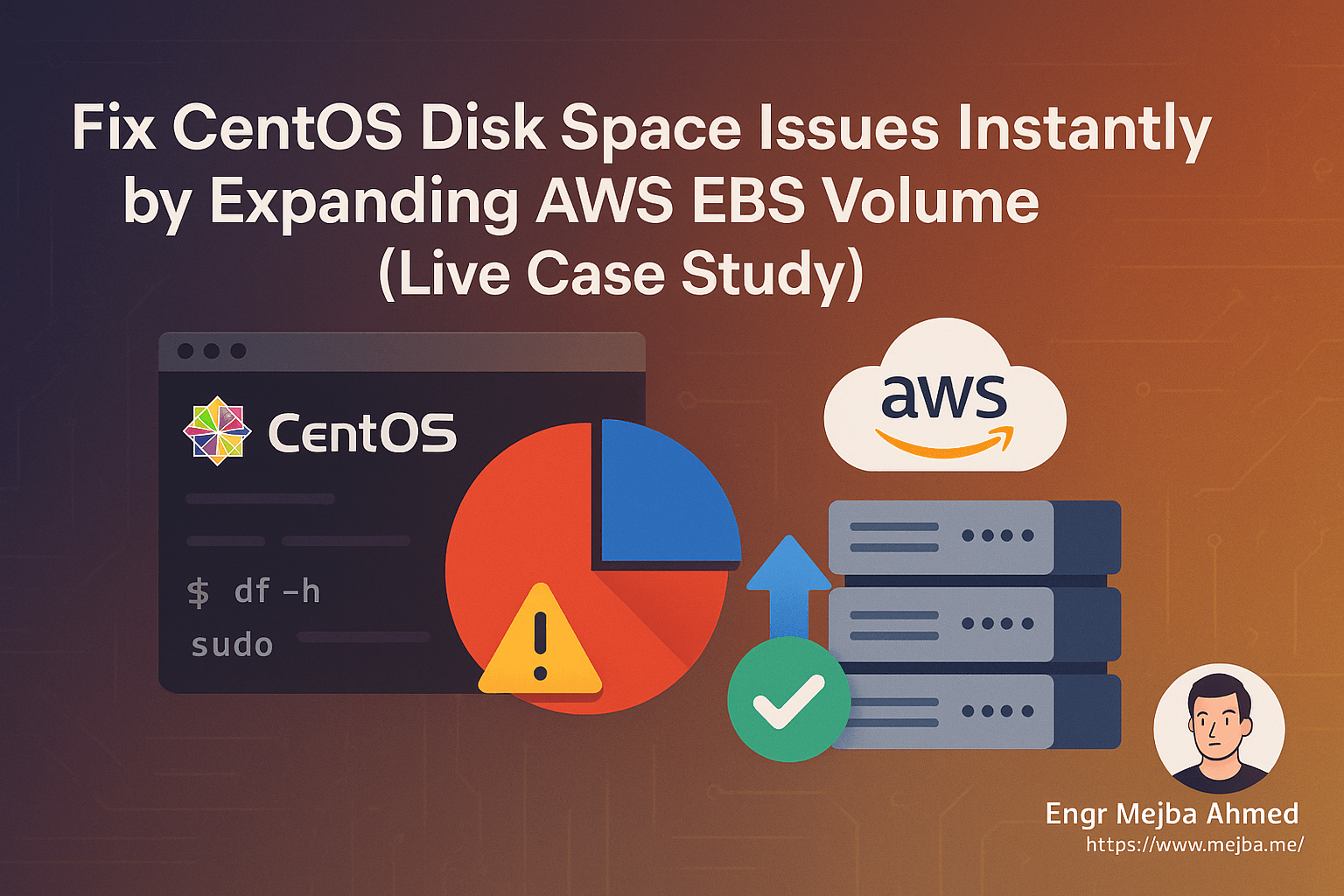
CentOS Disk Full Expand EBS: The Instant Fix
Running out of disk space on a CentOS server hosted on AWS can crash your services, slow down performance, and trigger security risks. In this guide, we’ll show you how we fixed a critical CentOS server disk issue by expanding the attached EBS volume—without any downtime.
Whether you're running blogs, APIs, newsletters, or any Linux-powered service, this post is for you. Let’s dive in with real steps and commands.
🔐 Step 1: Connect to Your CentOS Server via SSH
First, you need to SSH into your CentOS server hosted on AWS.
Requirements:
.pemkey file (downloaded when you launched the instance)- Public IP or DNS of your EC2 instance
- Default CentOS username:
centos
Example Command:
ssh -i "your-key.pem" [email protected]
Make sure your .pem file has the right permissions:
chmod 400 your-key.pem
📊 Step 2: Check Current Disk Usage
Once logged in, run:
df -h
You’ll see something like this:
Filesystem      Size  Used Avail Use% Mounted on
/dev/nvme0n1p1   50G   48G  1.2G  97% /
If your usage is over 85–90%, your server is at high risk of crashing.
🔍 Step 3: Identify What’s Taking Up Space
To explore top-level disk usage:
sudo du -sh /* 2>/dev/null | sort -hr | head -n 10
Check inside /var, which usually holds logs, databases, and cache:
sudo du -sh /var/* | sort -hr | head -n 10
Tip: If /var/lib/mysql is huge, be careful — that’s your database.
📈 Step 4: Resize the EBS Volume from AWS Console
Go to your EC2 instance on the AWS Management Console:
- Click Volumes under Elastic Block Store
- Find the volume attached to your instance (e.g.,
vol-0a1b2c3d4e5f6g7h8) - Click Actions > Modify Volume
- Change size from
50 GiBto70 GiB - Click Modify and confirm
✅ No reboot or downtime required. Wait until the volume state says "available".
🖥️ Step 5: Log Back In and Resize the Partition
Run the following command to confirm your disk now shows 70G:
lsblk
Expected output:
NAME          MAJ:MIN RM  SIZE RO TYPE MOUNTPOINT
nvme0n1       259:0    0   70G  0 disk
└─nvme0n1p1   259:1    0   50G  0 part /
Notice the partition is still 50G. We’ll expand it now.
Run:
sudo growpart /dev/nvme0n1 1
Then resize the XFS filesystem:
sudo xfs_growfs -d /
✅ Step 6: Verify the New Size
df -h
Now you should see:
Filesystem      Size  Used Avail Use% Mounted on
/dev/nvme0n1p1   70G   48G   22G  69% /
🎉 Your CentOS server now has more room and better performance.
🛡️ Step 7: Set Up Monitoring (Optional but Recommended)
To avoid this in future:
Install UptimeRobot or Similar:
Monitor Disk Space via CLI:
Add this to your crontab:
*/30 * * * * df -h | mail -s "Disk usage alert" [email protected]
Or use CloudWatch metrics in AWS for full automation.
Final Thoughts
Expanding your EBS volume is the safest, most scalable way to fix disk space issues on a live CentOS server—without disrupting service.
This guide works for:
- EC2 Linux instances (CentOS, Amazon Linux, Ubuntu)
- LAMP/LEMP servers
- Blog platforms (WordPress, Ghost)
- Custom apps with growing data
By following these steps, we resolved caching problems, server restarts, and SEO-affecting downtime — all in less than 15 minutes.
Got stuck at any step? Drop a comment or reach out. We’re here to help.
Why This Works With Zero Downtime
The reason this fix feels like magic is that every layer involved was built to grow live. EBS volumes resize under load, the partition table updates with growpart while the filesystem is mounted, and both XFS and ext4 expand online. Nothing needs unmounting and nothing restarts — the kernel simply sees more blocks and the filesystem claims them. Understanding that chain matters because it tells you what this procedure can't do: it grows, never shrinks, and it can't fix a disk that's full because something is actively writing garbage. Check du for runaway logs before assuming you need more gigabytes, or you'll be back here next month.
The Checks Before and After
Before touching anything, snapshot the volume — the modify operation is safe in practice, but a sixty-second snapshot converts "safe in practice" into "safe, period." After expanding, confirm three things: df -h shows the new size, the application writes successfully, and the volume state in the console has returned from optimizing to in-use. The optimizing phase can run for hours on large volumes; performance is slightly reduced during it, which is worth knowing so you don't misread it as a new problem. Keep the snapshot until the first successful backup after the change, then let your retention policy reclaim it.
Sizing So You Stop Doing This
Each expansion is quick, but doing them reactively means each one arrives as an emergency. Size volumes for eighteen months of growth, alarm at eighty percent through CloudWatch, and automate log rotation so growth is data, not detritus. EBS pricing makes modest overprovisioning cheap insurance — the difference between thirty and fifty gigabytes is pocket change against one outage caused by a full disk. The best version of this procedure is the one you schedule calmly for Tuesday morning because an alarm emailed you three weeks of warning.
What This Costs
The arithmetic favors action: expanding thirty to fifty gigabytes of gp3 adds roughly a dollar and change per month, while the outage it prevents costs an evening plus whatever your downtime is worth. Storage is the cheapest insurance in the AWS catalog — buy headroom, set the alarm, and spend your worry budget on something that deserves it.
The Command You'll Forget
Bookmark this one line, because you'll need it in a year and forget it exists: sudo growpart /dev/xvda 1 && sudo xfs_growfs -d / — partition first, filesystem second, done live. Sixty seconds from console resize to usable space.
Done in Five Minutes, Remembered for Years
That's the whole procedure — snapshot, resize in console, grow the partition, grow the filesystem, verify. No downtime, no detachment, no drama. File it next to your other five-minute superpowers.
Growing Disks Before They Scream
The CentOS disk full expand EBS procedure works live, but the better version happens a month earlier — a disk alarm at eighty percent turns an outage into a calendar item. My the WordPress disk rescue and (this fix) go deeper.
If you want your servers monitored before they fill, that's something I do through Ramlit.