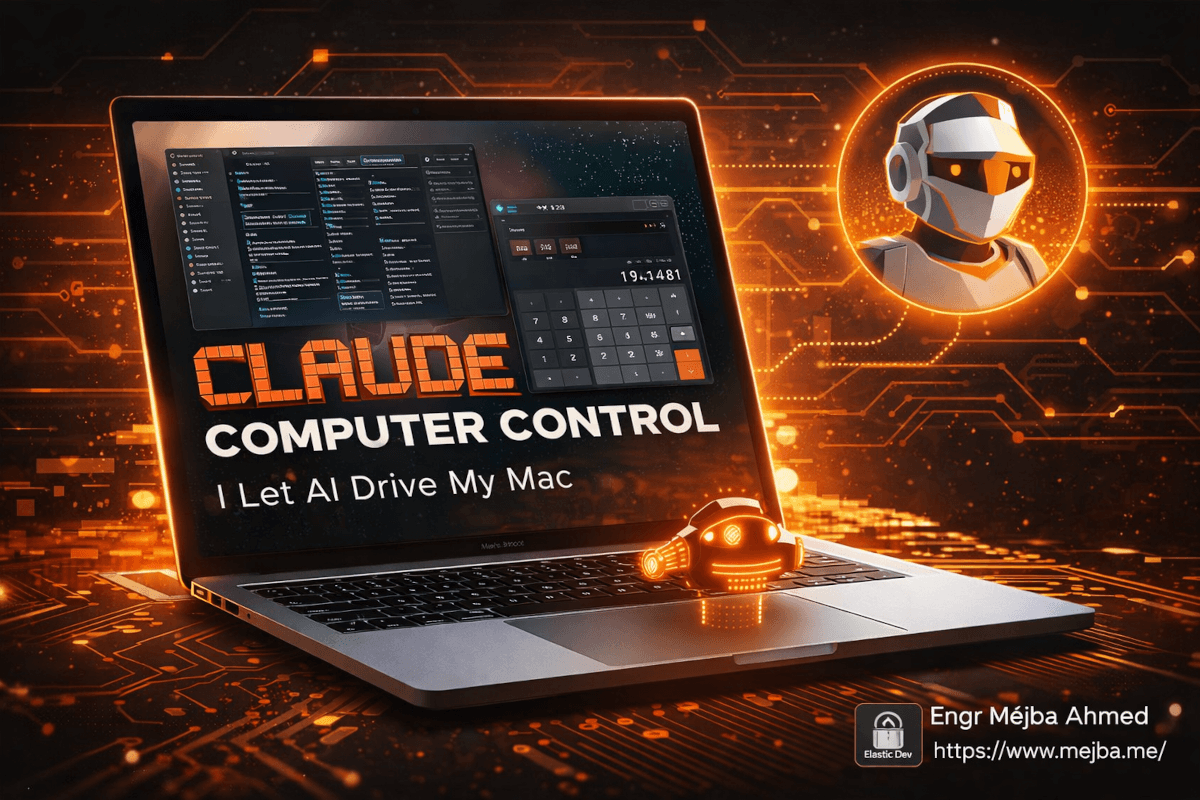
Claude Computer Control Mac: I Let AI Drive It
The OBS recording light turned green at 2:14 PM on a Sunday. I didn't click the button.
Claude did. It opened OBS from my dock, navigated to the main interface, found the "Start Recording" button, and clicked it. I watched the whole thing happen on my screen while sitting three feet away with my hands in my lap, feeling the particular kind of unsettled that comes from watching your computer operate itself like a ghost is at the keyboard.
Twenty-four hours earlier, Anthropic had quietly shipped the most ambitious feature I've seen in the Claude ecosystem — native computer control. Not through an API. Not through a browser extension. Not through some sandboxed environment where Claude can pretend to use a computer. Actual, literal control of my Mac. Mouse movements. Keyboard inputs. Screenshots to understand what's on screen. The full stack of human-computer interaction, handed to an AI.
I spent an entire day testing it. I made it open apps, find files, fill out forms, run calculations, and attempt things I was fairly sure would break it. Some of it worked shockingly well. Some of it failed in ways that revealed exactly where this technology sits on the maturity curve. And one specific limitation — the browser situation — tells you everything about the tension between capability and safety that Anthropic is navigating right now.
Here's the honest account of what happened. And if you're already planning to set this up yourself, stick around for the permissions section — there's a configuration step that trips up almost everyone, and skipping it means the feature silently fails without telling you why.
How Computer Control Actually Works Under the Hood
Before I walk through my tests, you need the mental model. This isn't Claude sending you instructions and hoping you follow them. And it's not Claude executing scripts through the terminal like Claude Code already does. This is a fundamentally different capability.
Claude takes screenshots of your screen. It interprets those screenshots to understand what's visible — buttons, text fields, menus, file names, application state. Then it decides what action to take: move the mouse to coordinates (X, Y), click, type a string of text, press a keyboard shortcut. It takes another screenshot to verify the result. And it repeats this loop until the task is complete.
If that sounds slow, you're paying attention. Every action requires a screenshot capture, an AI inference step to interpret the screen, a decision about what to do next, and then the physical action. Compared to a human who can glance at a screen and click in 200 milliseconds, Claude's loop takes several seconds per action. A task that takes you 30 seconds might take Claude two or three minutes.
That speed penalty matters — but not in the way you'd expect. I'll come back to why in the results section, because the speed conversation is more nuanced than "fast good, slow bad."
The feature runs inside the Claude desktop app — specifically through Claude Co-work and Claude Code on macOS. As of March 23, 2026, it's a research preview available on the Pro plan ($20/month) and Max plan ($100-200/month). Windows support is coming but isn't here yet. Teams and Enterprise users are locked out for now.
Here's the key architectural detail that makes this different from previous "computer use" demos you may have seen from Anthropic or other AI labs: this runs locally on your machine. Claude isn't controlling a virtual machine in the cloud. It's controlling your actual desktop, with your actual files, your actual apps, your actual state. That's both the power and the risk.
Setting Up Computer Control Without Losing Your Mind
The setup should take five minutes. Mine took twenty because I missed a permissions step that isn't obvious in the current documentation. Let me save you that frustration.
Step 1: Update the Claude desktop app
You need the latest version of the Claude desktop app for macOS. If you installed it months ago and haven't updated, check for updates now. The computer control feature doesn't exist in older versions, and there's no error message telling you it's missing — the option simply doesn't appear.
Step 2: Grant accessibility permissions
This is where most people get stuck. macOS requires explicit accessibility permissions for any application that wants to control your mouse and keyboard. Go to:
System Settings → Privacy & Security → Accessibility
Find the Claude app in the list and toggle it on. If it's not in the list, you may need to launch the app first and attempt a computer control action — macOS will prompt you to grant access.
Step 3: Grant screen recording permissions
Claude needs to take screenshots to understand what's on your screen. This requires a separate permission:
System Settings → Privacy & Security → Screen Recording
Same process — find Claude, toggle it on. You'll likely need to restart the app after granting this permission. macOS is particular about when screen recording permissions take effect.
Step 4: Enable computer control in the app
Once permissions are granted, the computer control toggle should appear in your Claude Co-work or Claude Code settings. Enable it. The app will confirm that accessibility and screen recording access are active.
The step I missed: After granting screen recording access, I didn't restart the Claude app. Everything appeared to work — the toggle was on, no error messages appeared — but Claude's screenshots were coming back blank. It could move the mouse and click, but it was clicking blind. The fix was simply closing and reopening the app. A small thing, but it cost me fifteen minutes of confused troubleshooting.
Step 5: Authorize individual apps per session
Here's where Anthropic's safety model shows up. When Claude tries to interact with an app for the first time in a session, it asks for your permission. "I'd like to open Finder. Allow?" You approve, and Claude proceeds. For the rest of that session, Finder is authorized. But the next session starts fresh — Claude asks again.
This per-session authorization model is a deliberate choice. It prevents Claude from accumulating permissions over time and ensures you're always aware of which apps it's accessing. I found it mildly annoying on the first day and completely reasonable by the second. The small friction is worth the transparency.
Now that the setup is done, let me show you what I actually threw at it.
Test 1: File Discovery and Cross-App Transfer
My first real test was practical, not theatrical. I had a PDF invoice sitting in my Downloads folder that needed to be attached to a message in ClickUp. This is the kind of task that's trivial for a human but impossible for most automation tools — it requires interacting with two different native apps and navigating their specific UIs.
I told Claude: "Find the PDF invoice from Acme Corp in my Downloads folder and attach it to the open task in ClickUp."
What happened:
Claude opened Finder. Navigated to the Downloads folder. Scrolled through files — this was fascinating to watch, because it took screenshots and read file names until it found a match. It identified a file named acme-invoice-march-2026.pdf. Then it opened ClickUp (after asking permission), found the open task, located the attachment button, clicked it, navigated the file picker back to Downloads, selected the PDF, and attached it.
Total time: about 90 seconds.
Could I have done this in 15 seconds? Absolutely. But that's missing the point. The value isn't in speed — it's in delegation. I told Claude what I wanted while I was doing something else, and it handled the steps without me needing to context-switch into Finder, then into ClickUp, then back to what I was working on. For a single task, the speed difference is trivial. For a day full of these small interruptions, the compounding effect is significant.
The file matching was impressive. Claude didn't just look for an exact filename — it read the names, identified "acme" and "invoice" as relevant terms, and selected the right file even though there were other PDFs in the folder. That's the AI layer at work. A scripted automation would need exact filenames or patterns. Claude used judgment.
Test 2: OBS and Application Navigation
This was my "can it handle complex desktop apps?" test. OBS Studio is notoriously difficult to automate because its interface is dense with buttons, panels, and nested menus. No well-structured API for external control. Just a GUI built for humans.
I asked Claude to open OBS and start recording.
Claude opened OBS from the dock. It took a screenshot and spent a moment — you can see the pause when it's processing the visual layout — identifying the interface elements. It found the "Start Recording" button in the controls panel at the bottom of the OBS window. It moved the mouse there and clicked.
The recording started. Green light on.
I then asked it to stop recording after 30 seconds. It waited, clicked "Stop Recording," and confirmed the file was saved. The whole interaction took about two minutes, including the 30-second recording window.
What made this test meaningful isn't that Claude pressed a button. It's that Claude figured out where the button was by looking at the screen, the same way you or I would. OBS doesn't expose "Start Recording" in a way that a traditional automation script can easily target. Claude saw it, recognized it, and acted on it. That capability — visual UI understanding — is what makes computer control fundamentally different from every automation tool I've used before.
But I want to be honest about the limitations I observed, because the next test exposed them clearly.
Test 3: The Calculator Workflow (And Where Cracks Appeared)
I gave Claude a multi-step task: open the macOS Calculator app, multiply 847 by 23, copy the result, open Notes, and paste it.
This sounds straightforward. It wasn't.
Claude opened Calculator without issues. It clicked the number buttons to input 847. Then it clicked the multiply button. Then it started entering 23. But here's where things got shaky — the Calculator app's buttons are relatively small, and Claude's coordinate targeting was slightly off on the second digit. It clicked "2" successfully but its click on "3" landed on the edge of the button and registered as a different input.
Claude caught the mistake. It took a screenshot, noticed the display showed the wrong number, and corrected itself by clearing and re-entering the value. This self-correction loop took an extra 15 seconds, but it worked. The final result was correct.
Then it needed to copy the result. Claude pressed Command+C — keyboard shortcuts work reliably because they don't depend on precise coordinate targeting. It opened Notes, created a new note, and pasted the result with Command+V. Done.
The takeaway: Claude's visual targeting is good but not pixel-perfect. On apps with small, densely packed buttons, you'll occasionally see misclicks followed by self-correction. The self-correction is genuinely impressive — Claude doesn't just blindly proceed when something goes wrong, it checks its work — but it adds time and introduces a small chance that the correction itself introduces a new error.
For tasks requiring precise repeated clicking on small UI elements, you'll want to keep your expectations calibrated. Claude handles this much better on apps with larger, well-spaced interface elements.
The Browser Problem: Safari, Security, and a Frustrating Workaround
This is the limitation that will matter most to most users, and it's worth understanding why it exists, not just that it exists.
Claude's computer control cannot automate Safari. At all. It can open Safari — it can see what's on screen through screenshots — but it cannot type into text fields, click links, or interact with web page elements inside the browser window.
The reason is macOS security sandboxing. Apple restricts accessibility automation inside Safari specifically to prevent malicious software from controlling your browsing sessions — entering passwords, clicking "confirm purchase" buttons, or navigating to phishing sites on your behalf. These are the same security boundaries that protect you from malware, and Anthropic chose not to try to circumvent them.
Safari access is read-only. Claude can take a screenshot of a Safari window and tell you what's on the page. But it can't interact with it.
This creates an awkward gap. A huge portion of knowledge work happens inside a browser — filling out web forms, managing project tools, navigating dashboards. Computer control that can't touch the browser is computer control that can't reach maybe 60% of where you actually work.
Anthropic's workaround is the Claude in Chrome extension, which operates through a completely different mechanism — it uses Chrome's extension APIs rather than macOS accessibility controls, letting Claude interact with web content through the browser's own permitted channels. If browser automation is your primary goal, that's the path. But it means you're running two different systems: native computer control for desktop apps, and the Chrome extension for web-based work.
There's also a community-developed project called claude-for-safari on GitHub that attempts to bridge this gap using Claude Code Skills and Safari's developer tools. I haven't tested it extensively, but it requires enabling "Show features for web developers" in Safari settings and granting additional automation permissions. Worth watching but not something I'd rely on for production workflows.
The browser limitation isn't a bug — it's a deliberate safety decision. And honestly? Given the stakes of an AI having full browser control (imagine Claude accidentally clicking "Place Order" on an open checkout page), I think Anthropic made the right call for a research preview. But it significantly narrows the feature's practical utility right now.
Dispatch: The Remote Control Layer That Changes Everything
Here's where computer control gets genuinely exciting, and where the speed limitation I mentioned earlier starts to matter less.
Anthropic shipped Dispatch on March 17, 2026 — six days before computer control launched. That timing wasn't coincidental. Dispatch lets you send instructions to your Mac from your phone. Computer control lets Claude execute those instructions by operating your Mac's interface. Together, they create something I haven't seen from any other AI tool: the ability to remotely operate your desktop through natural language commands sent from your pocket.
The setup is fast. Open the Claude desktop app, start a Dispatch session, scan a QR code with the Claude mobile app, and you're connected. Your phone and your Mac now share a persistent conversation thread. When you send a message from your phone, Claude executes it on your Mac — with full computer control capabilities if you've enabled them.
I tested this from my couch while my Mac was in my office upstairs. I sent: "Open the project proposal I was working on in Pages and add a section about timeline estimates."
Claude opened Pages. Found my recent document. Scrolled to the end. Started typing. From my phone, I could see screenshots of what Claude was doing on my Mac, confirming each step.
Did it write brilliant timeline estimates? No — the content was generic and I edited it heavily later. But the mechanical task of opening the right app, finding the right document, and positioning the cursor in the right place? Claude handled all of that without me walking upstairs.
If you've read my breakdown of Claude Code's Remote Control feature, you'll recognize the pattern. Remote Control lets you manage Claude Code terminal sessions from your phone. Dispatch extends that same remote-access philosophy to the entire desktop. The mental model is the same — your Mac stays running, Claude stays active, and your phone becomes a command interface.
The combination with scheduled tasks is where this gets particularly powerful. Set up a scheduled task that runs every morning at 8 AM, opens your project management tool, screenshots your task board, and sends you a summary via Dispatch. You wake up to a briefing on your phone without touching your laptop. I haven't fully built this workflow yet, but the pieces are all there, and I plan to document the setup once I've tested it for a full week.
What Computer Control Gets Right (That Others Don't)
I've tested Anthropic's computer use API before. I've experimented with other AI-driven automation tools — Adept, various RPA platforms, custom Playwright scripts. Here's what makes Claude's native computer control different in a way that actually matters.
Permission-first design. Every other automation tool I've used operates on an "opt-out" model — it can do everything unless you restrict it. Claude operates on "opt-in." It asks before accessing each app. It can't touch browsers. It can be halted at any point. This sounds like a limitation, and in some ways it is. But after spending a day watching an AI move my mouse around, I'm convinced that permission-first is the only sane approach for a feature this powerful in research preview.
Self-correction through visual feedback. Traditional RPA tools follow scripted coordinates. If a button moves three pixels to the left after an app update, the script breaks. Claude re-evaluates the screen state after every action. When my Calculator test produced a misclick, Claude noticed, corrected, and continued. That resilience to UI changes is a fundamental architectural advantage.
Natural language task specification. I didn't write a single script, configure a single selector, or set up a single automation workflow. I told Claude what I wanted in plain English. The translation from intent to action happened entirely in Claude's reasoning. For anyone who's spent hours configuring Zapier workflows or writing Selenium scripts, this simplicity is almost disorienting.
Context continuity. Because computer control runs inside the same Claude conversation where you're already working, Claude has context about what you're doing and why. When I asked it to find the Acme invoice, it didn't need me to specify the exact filename — it inferred "Acme Corp" and "invoice" from our conversation context. A standalone automation tool would need explicit parameters for every task.
The Honest Assessment: Where This Stands Today
I need to be direct about this, because the hype cycle around AI capabilities tends to outrun reality by about eighteen months, and I don't want to contribute to that gap.
Computer control is impressive technology in an early state. The underlying capability — Claude interpreting screenshots and translating natural language into mouse and keyboard actions — works. I saw it work repeatedly across different apps and task types. The self-correction mechanism is genuinely clever. The Dispatch integration creates workflows that no other tool offers.
But it's slow. Not unusably slow, but noticeably slower than doing things yourself. Every action that takes you a fraction of a second takes Claude several seconds. For a task involving twenty UI interactions, you're looking at minutes where a human would take seconds. The speed penalty is acceptable for tasks you're delegating (you don't care how long it takes if you're doing something else), but it makes computer control impractical for anything urgent or time-sensitive.
It's unreliable in specific ways. Misclicks happen. Screenshots occasionally fail to capture at the right moment, causing Claude to act on stale screen state. Dense UIs with small buttons are harder to navigate than spacious ones. I'd estimate my success rate across a full day of testing at around 75% — three out of four tasks completed without issues, and one out of four required either my intervention or a retry.
The browser limitation is a dealbreaker for some workflows. If your primary work happens inside a browser — and for many knowledge workers, it does — computer control in its current form can't reach your most important applications. The Chrome extension fills some of this gap, but it's a separate tool with separate capabilities.
The 50/50 problem with complex tasks. According to MacStories' testing of Dispatch, complex multi-step tasks succeed roughly half the time. My experience was slightly better than that — closer to 75% — but the variance is real. You can't set this up and walk away with full confidence that everything will complete correctly. Not yet.
Pricing is reasonable for what it is. At $20/month for the Pro plan, you get computer control, Dispatch, Claude Co-work, and Claude Code — plus the AI capabilities themselves. You're not paying extra for the computer control feature specifically. If you're already a Pro subscriber, there's zero financial reason not to try it.
Who Should Use This Right Now (And Who Should Wait)
Use it now if:
You work with desktop applications that don't have APIs. Legacy enterprise software. Design tools. Specialized industry applications. Computer control fills a gap that no other automation tool can reach — it automates through the UI, which means anything with a visible interface is potentially automatable.
You want remote access to desktop workflows. The Dispatch + computer control combination is genuinely unique. If you travel frequently or work across multiple locations and need to trigger desktop tasks from your phone, there's nothing else that does this.
You're comfortable with a research preview. Bugs exist. Tasks fail sometimes. The feature will improve significantly in coming weeks and months. If that level of instability doesn't bother you, early experimentation will put you ahead when the feature matures.
Wait if:
Your workflow is primarily browser-based. Until the browser limitation is resolved or significantly workaround-ed, computer control can't reach your core tools.
You need reliability for production workflows. A 75-80% success rate is fine for experimentation and is impressive for a research preview. It's not fine for a task that absolutely must complete correctly every time.
You're on Windows. Support is coming but isn't here yet. No timeline has been confirmed beyond "coming weeks."
What I'm Watching Next
Anthropic is iterating fast. Dispatch shipped March 17. Computer control shipped March 23. That's two major features in six days. Based on this cadence, I expect three developments in the near term.
First, browser support through a mechanism that satisfies both security requirements and user expectations. The Chrome extension approach works but feels like a stopgap. A deeper integration — possibly through Chrome's accessibility APIs or a privileged browser instance — would transform the feature's utility overnight.
Second, Windows support. Anthropic confirmed it's coming. The macOS accessibility and screen recording permission model has direct equivalents on Windows (UI Automation API, screen capture APIs), so the porting challenge is real but tractable.
Third, and this is the one I'm most excited about — compound workflows that chain computer control with Claude Code's terminal capabilities and Co-work's scheduled tasks. Imagine a scheduled task that runs every morning, opens your email client, screenshots your inbox, identifies action items, opens your project management tool, creates tasks for each one, and sends you a Dispatch summary. Every piece of that pipeline exists today. The question is how cleanly Anthropic connects them.
The underlying trajectory is clear. Twelve months ago, Claude lived inside a chat window. Six months ago, it gained terminal access through Claude Code. Three months ago, it got scheduled tasks and remote control. And now it can see your screen and move your mouse. Each step expands the surface area of what AI can touch in your actual workflow — not in a demo, not in a sandbox, but on your real machine with your real files.
I used to think the future of AI productivity was about better prompts and smarter models. I'm starting to think it's about surface area — how much of your computing environment the AI can perceive and act on. Computer control is the biggest surface area expansion yet.
The OBS recording light turned green. I didn't click the button. And sitting there watching it happen, the thought that stayed with me wasn't "this is cool." It was "this changes what I'm willing to delegate." Not everything. Not yet. But the boundary just moved, and it moved a lot.
Claude Computer Control Mac: Quick Answers
How do I enable Claude computer control on Mac?
Open System Settings, grant Claude accessibility and screen recording permissions under Privacy & Security, then enable computer control in the Claude desktop app settings. Restart the app after granting screen recording access — this step is required but easy to miss. For the full walkthrough, see the setup section above.
Can Claude computer control work with Safari?
No. macOS security sandboxing prevents Claude from typing or clicking inside Safari — access is read-only. Claude can take screenshots of Safari windows but cannot interact with web content. Use the Claude in Chrome extension for browser automation instead.
Is Claude computer control available on Windows?
Not yet. As of March 2026, the feature is macOS-only in research preview. Anthropic has confirmed Windows support is coming in the following weeks, but no specific date has been announced.
What's the difference between Claude Dispatch and Remote Control?
Dispatch pairs your phone with Claude Co-work on your desktop for general tasks including computer control. Remote Control connects your phone to Claude Code terminal sessions specifically. Both let you work from your phone, but Dispatch accesses the full desktop while Remote Control focuses on code and terminal workflows.
How reliable is Claude computer control for daily tasks?
In my testing, roughly 75% of tasks completed without issues. Simple tasks like opening apps and clicking large buttons work consistently. Tasks involving small UI elements or multi-step sequences across multiple apps have a higher failure rate. The feature is best suited for delegation of non-critical tasks during the current research preview phase.
Whether to Let Claude Drive Your Mac
A full week of Claude computer control — clicking, typing, navigating apps — showed a genuinely different kind of tool: it acts on your machine rather than just answering. That power is real, and so is the need to supervise it closely at first.
Give it one contained task on a machine you're watching before you hand over real work. My Cowork desktop automation test and Anthropic computer use write-up go deeper.
If you want desktop automation set up safely for your work, that's work I take on through Ramlit.