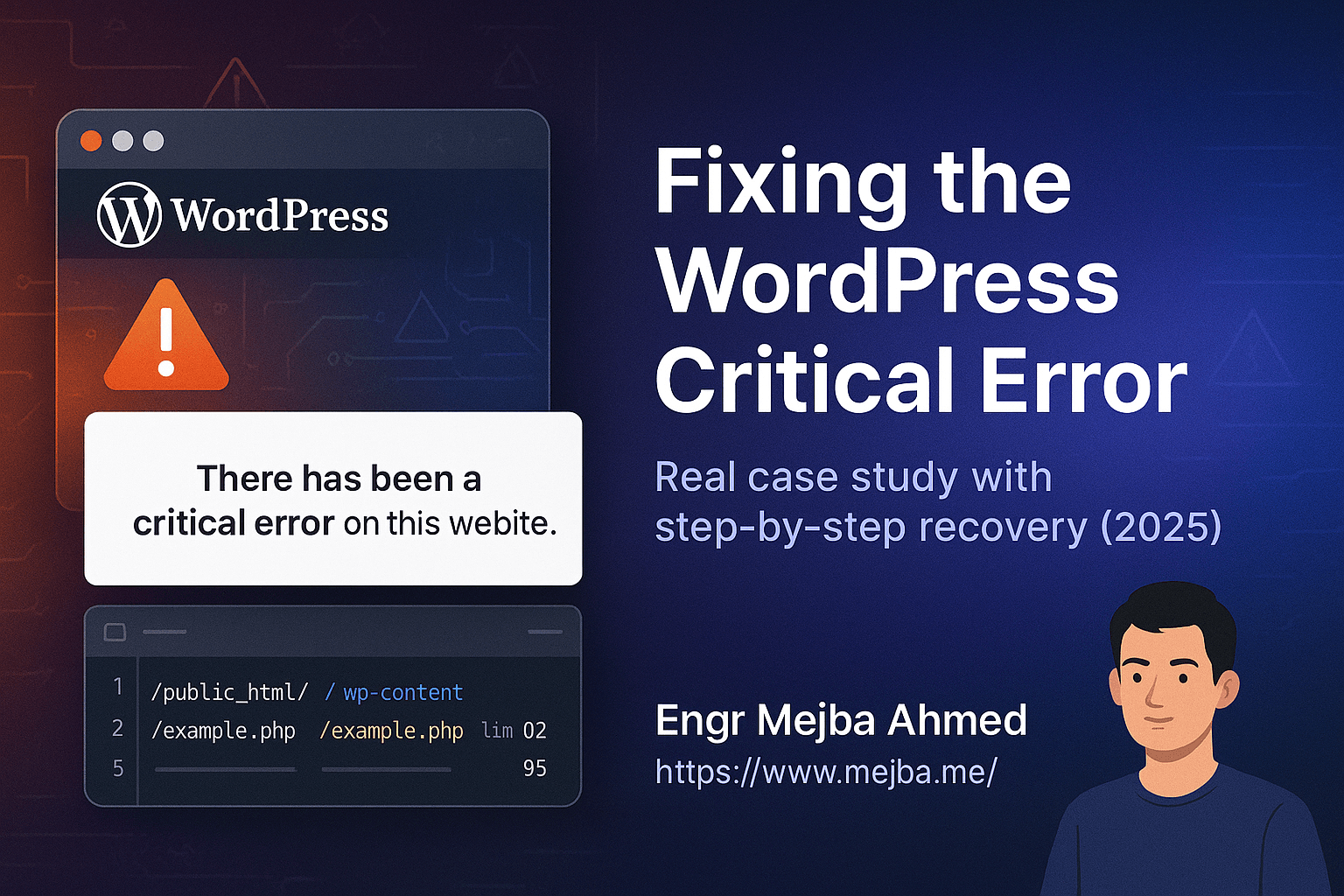
"There has been a critical error on your website." No pages, no admin dashboard, no warning. One of the sites my team manages went down with exactly that screen, and here is the thesis of this whole post: that message is not the error. It is WordPress hiding the error from your visitors. The real fatal error is sitting in a log file, and every minute you spend refreshing the page or waiting for a recovery email is a minute you are not spending reading it.
We got the site back the same day. This is the exact sequence we ran, including the two things the generic checklists never mention: why the recovery email often never arrives, and what actually happens in the database when you rename a plugin folder over FTP.
What the critical error screen actually means
Since WordPress 5.2, a fatal PHP error no longer produces a blank white screen. WordPress catches the fatal, swaps in the "There has been a critical error" page, and tries to email the site admin a recovery-mode link. The usual causes, roughly in order of how often I see them on client sites:
- A plugin or theme update that conflicts with your PHP version or another plugin
- A PHP version that is too old for code you just updated
- Memory exhaustion or a corrupted core file
- A half-finished update that left files in a mixed state
The screen tells you none of this. It is deliberately vague so your visitors do not see a stack trace. That is good for security and useless for you.
Why you should not wait for the recovery email
Every tutorial says "check your inbox for the recovery mode link." We checked. Nothing came, and nothing was ever going to come, for a reason worth understanding: the email goes to the admin address stored in Settings, which on older sites is frequently a defunct address nobody reads. And if the fatal error happens early enough in the request, or your server's mail function is part of what broke, WordPress cannot send anything at all.
Treat the recovery email as a bonus if it shows up. Your actual recovery path is server access: FTP, SFTP, or SSH. If you do not have those credentials on hand for your own site, getting them is the first fix to make after you are back online.
Step 1: Bisect the plugins over FTP
With the dashboard locked, we connected with FileZilla and went to /public_html/wp-content/plugins.
The blunt-force move is renaming the whole plugins folder, which deactivates everything. I avoid that on live sites because it takes down functionality you may need (caching, security, forms) while you debug. Instead, bisect: suspect the most recently updated plugin first. In our case a page builder had auto-updated the night before, so we renamed elementor to elementor-disabled.
The site partially loaded on the next refresh. Culprit confirmed.
Here is the detail that trips people up on the way back out: when WordPress notices a plugin folder is missing, it deactivates that plugin in the database. Renaming the folder back to elementor later does not reactivate it. You have to switch it on again from the Plugins screen. If you rename a folder back and the site "still seems fine," check whether the plugin is actually running before you declare victory.
Step 2: Read the real error in debug.log
A partially loaded site told us which plugin, not why. For that we enabled debug logging in wp-config.php:
define( 'WP_DEBUG', true );
define( 'WP_DEBUG_LOG', true );
define( 'WP_DEBUG_DISPLAY', false );
WP_DEBUG_DISPLAY stays false on a live site so errors go to the log, not the browser. We re-enabled the plugin briefly, refreshed once, and read /wp-content/debug.log:
Fatal error: Uncaught Error: Call to undefined function ...
An undefined-function fatal right after a plugin update almost always means one thing: the new plugin code calls a PHP function that your server's PHP version does not have. The plugin moved forward. The server did not.
Step 3: Check the PHP version and fix the mismatch
Over SSH:
php -v
The server was still on PHP 7.2, which reached end of life back in 2019. The plugin's current release had long since dropped support for it. That is the root cause, and it is why "restore a backup" alone would not have fixed anything. A backup restores the old plugin code, the site comes back, and the same crash returns on the next auto-update.
We upgraded PHP to 8.1 through the hosting control panel, restarted the web server, cleared the server-side cache, and reactivated the plugin. The critical error was gone on the next load.
One caution from doing this more than once: jumping several PHP major versions can break other old plugins even while it fixes the one that crashed. Skim debug.log again after the upgrade and click through your key pages before you close the ticket.
Step 4: Clean up what the crash left behind
The site rendered, but a few widgets and global settings had reset during the failed update cycle. We reconfigured the affected pages manually and pulled two sections from a recent UpdraftPlus backup, then flushed every cache layer: the caching plugin, the CDN, and browsers.
Partial restores like this are the argument for backups you can open surgically, not just full-site snapshots you restore all or nothing.
What we changed so it does not happen again
The error was a symptom. The process was the disease. Afterward we put four things in place on that site, and they are now standard on everything we manage:
- A staging copy. Plugin and core updates run on
staging.first, production second. Auto-updates for major plugins are off in production. - Daily automated backups with 30 days of retention, stored off-server.
- A PHP version policy. The server tracks a supported PHP version, checked whenever a major plugin update lands. Old PHP is the quiet cause behind a huge share of these crashes.
- Basic hardening, since a crash is a good excuse to audit: correct file permissions (644 files, 755 folders), PHP execution disabled in
/uploads/, and login attempt limiting. I covered the deeper server-side version of this in my WordPress EC2 hardening guide.
File permissions in particular cause their own family of update failures. If your updates die with "could not create directory" instead of a critical error, that is a different root cause with its own fix. And if your site goes down repeatedly rather than once, check disk usage before anything else. A full disk produces some of the strangest WordPress failures I have seen, which is its own story.
The 10-minute recovery checklist
When the critical error screen appears, run this order:
- Do not wait for the recovery email. Get FTP/SFTP or SSH access.
- Rename the most recently updated plugin's folder. Refresh.
- If the site returns, you have the culprit. If not, work through the other recently changed plugins, then the theme.
- Enable
WP_DEBUG_LOG, reproduce once, read/wp-content/debug.log. - Match the fatal error to a cause: undefined function usually means a PHP version mismatch; memory exhausted means raising
WP_MEMORY_LIMITor finding the hog; a missing file means a corrupted update worth re-uploading. - Fix the root cause, not just the trigger. Reactivate the plugin deliberately from the Plugins screen.
- Clear every cache layer before judging whether the fix worked.
If you write custom plugins yourself, defensive version checks prevent your own code from ever being the plugin in step 2. My custom WordPress plugin walkthrough covers the structure that makes that easy.
When the site is down and you are not comfortable in FTP
Everything above assumes you can calmly rename folders on a production server while the site is dark. If that is not you, or the debug log is pointing somewhere you do not recognize, this is exactly the kind of rescue work I take on. WordPress recovery, PHP upgrades, and the staging-and-backup setup that prevents round two are all part of the services I offer. Faster than learning FileZilla during an outage.