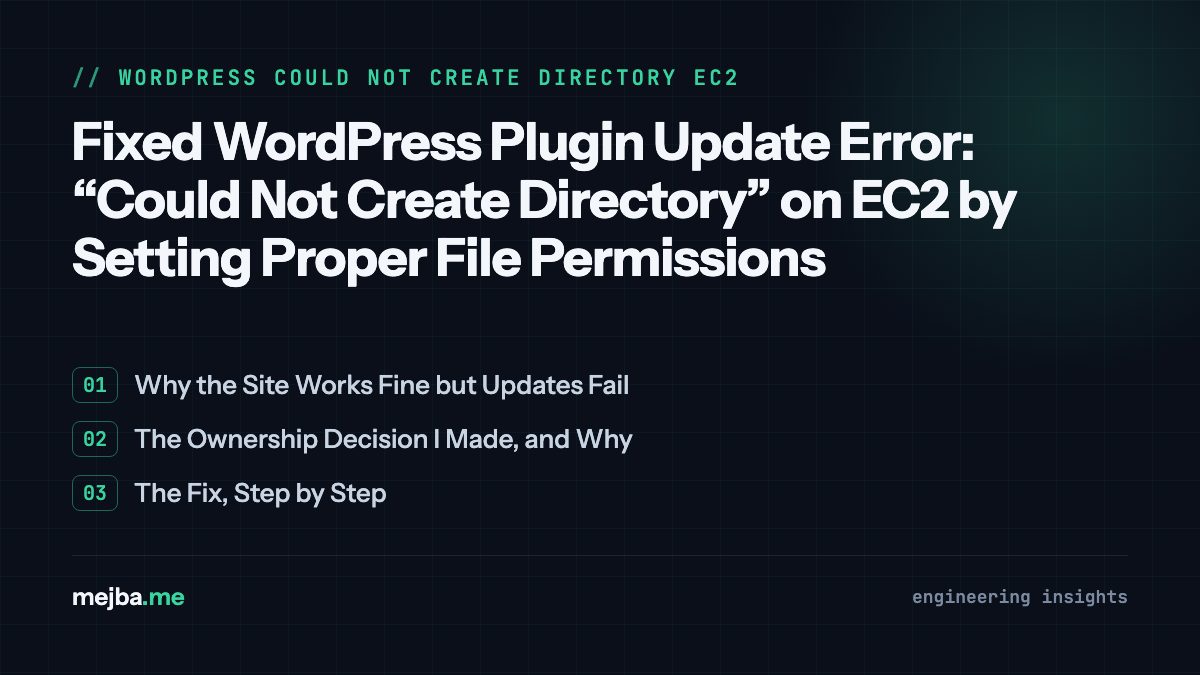
The "Update failed: Could not create directory" error has one cause, and it is not the one the error message suggests. WordPress is not confused about directories; the PHP process is being denied write access somewhere under wp-content, almost always because file ownership and the process user drifted apart. I hit this across several of my own blog sites hosted on a single EC2 instance, fixed it once by getting the ownership model right instead of chmod-ing in circles, and it has not come back since. This post is the exact fix, plus the mental model that turns this from a recurring mystery into a thirty-second, never-Google-it-again diagnosis.
The full error looks like this:
Update failed: Could not create directory.
/var/www/your-site.com/wp-content/upgrade/plugin-folder
Why the Site Works Fine but Updates Fail
Here is the detail that makes this error feel mysterious: the site itself runs perfectly. Pages load, the admin works, nothing else complains. Then a one-click plugin update fails.
The explanation is that serving pages only requires PHP to read files. Updating a plugin requires PHP to write — specifically, to create the wp-content/upgrade staging directory on demand, unpack the new plugin there, and swap it into place. Reads and writes have different permission requirements, so a server can be misconfigured for months and only reveal it the day you press Update. That is also why one site on a server can fail while its neighbors update fine: each site's ownership drifted independently — a migration copied as root, a backup restored under the wrong user, a well-meaning chown to your SSH user after an rsync.
So the diagnosis is always the same two questions. Who runs PHP? Who owns the path?
# who runs PHP (look at the pool user, often apache or nginx)
ps aux | grep php-fpm

# who owns the site files
ls -ld /var/www/your-site.com/wp-content
If the user in the first answer cannot write to the path in the second, you have found the entire problem.
The Ownership Decision I Made, and Why
The common advice is to hand everything to the web server user (chown -R apache:apache). It works, but on a multi-site server administered over SSH it creates a different annoyance: now you cannot conveniently edit or deploy files as your SSH user without sudo on every touch, and deploy scripts start fighting WordPress for ownership.
On my EC2 instance I went with the shared-group model that AWS's own tutorials use: files owned by ec2-user, group set to www, with the group containing the PHP process user. My SSH user owns the files for administration and deploys; PHP gets write access through the group. Both sides work without stepping on each other:
ls -ld /var/www/*
ls -ld /var/www/*/wp-content
I kept ownership as ec2-user consistently across every site on the box — consistency is half the fix, because permission bugs breed in the gaps between "this site is set up one way, that site another."
The Fix, Step by Step
1. Recreate the upgrade directory cleanly. If it exists with wrong ownership, WordPress cannot use it; if it does not exist, WordPress needs the right to create it. Reset it explicitly:
sudo rm -rf /var/www/your-site.com/wp-content/upgrade
sudo mkdir /var/www/your-site.com/wp-content/upgrade
sudo chown -R ec2-user:www /var/www/your-site.com/wp-content/upgrade
sudo chmod -R 775 /var/www/your-site.com/wp-content/upgrade
2. Normalize permissions across the site. Directories need execute-plus-write for the group; files need group write for updates to replace them:
sudo find /var/www/your-site.com -type d -exec chmod 775 {} \;
sudo find /var/www/your-site.com -type f -exec chmod 664 {} \;
3. Set the setgid bit on wp-content. This is the step most guides skip, and it is the one that makes the fix permanent:
sudo chmod g+s /var/www/your-site.com/wp-content
Without setgid, every new directory PHP creates is born with PHP's primary group, and the next update cycle can land you right back in permission mismatch. With setgid, everything created under wp-content inherits the www group automatically — the ownership model maintains itself instead of depending on humans remembering it.
4. Restart the stack so nothing serves from a stale state:
sudo systemctl restart php-fpm
sudo systemctl restart nginx
After this, plugin updates worked across every site on my instance, and the error has stayed gone.
What the fix is not: chmod 777. World-writable web roots make the error disappear by making every security boundary disappear with it. The correct fix is always alignment — process user, group, and path agreeing with each other — never blanket permission.
Verify Like You Mean It
"The error went away" is not verification. Three actions exercise three different write paths, and I run all of them after a permission fix: update a small plugin from the dashboard, upload a media file, and switch themes once. If all three succeed, the model is right, not just the one directory you touched.
Then check for the classic relapse: re-run ls -la on wp-content a day later and confirm nothing got re-owned by root. The most common way this error "comes back" is a nightly cron job or deploy script quietly resetting ownership — the fix worked, the automation undid it, and everyone concludes permissions are haunted. If you deploy through a pipeline, make the pipeline set ec2-user:www explicitly as its final step so deploys reinforce the model instead of eroding it.
The Trade-Off You Should Make Consciously
Group-writable wp-content is what makes one-click updates work — and it also means a compromised plugin can write anywhere WordPress can. That trade-off is acceptable on most sites, but make it deliberately. At minimum, add define('DISALLOW_FILE_EDIT', true); to wp-config.php to remove the built-in file editor attackers reach for first, and keep wp-config.php itself tighter than the rest (640). On sites where security outranks convenience, you can go further and hold plugin and theme directories read-only between deliberate maintenance windows. I covered the broader lockdown — SSH hardening, TLS, WPScan auditing — in my WordPress EC2 server hardening guide; the permission model here is the foundation that guide builds on.
The Sentence That Replaces This Whole Post
Every WordPress file-permission failure — updates, uploads, cache writes, translation downloads — reduces to one question: can the user running PHP write to the path PHP is trying to write? ps aux | grep php answers the first half, ls -la answers the second, and aligning them dissolves the entire class of errors at once. That model has outlasted every server I have run it on. It is also the same discipline that saved me during nastier incidents than this one — the 100% disk usage crash loop and the white-screen critical error both got resolved by reading what the server was actually saying instead of pattern-matching on the error text.
Permissions drift, so audit quarterly: one find for files not owned by your chosen user under the web root, one for anything world-writable. Two commands, five minutes, and the drift stays trivia instead of becoming an incident.
Running WordPress on cloud servers is a big part of my client work — if you would rather have your EC2 setup configured to this standard once, properly, my services cover exactly this kind of server work, from permission models to full hardening.