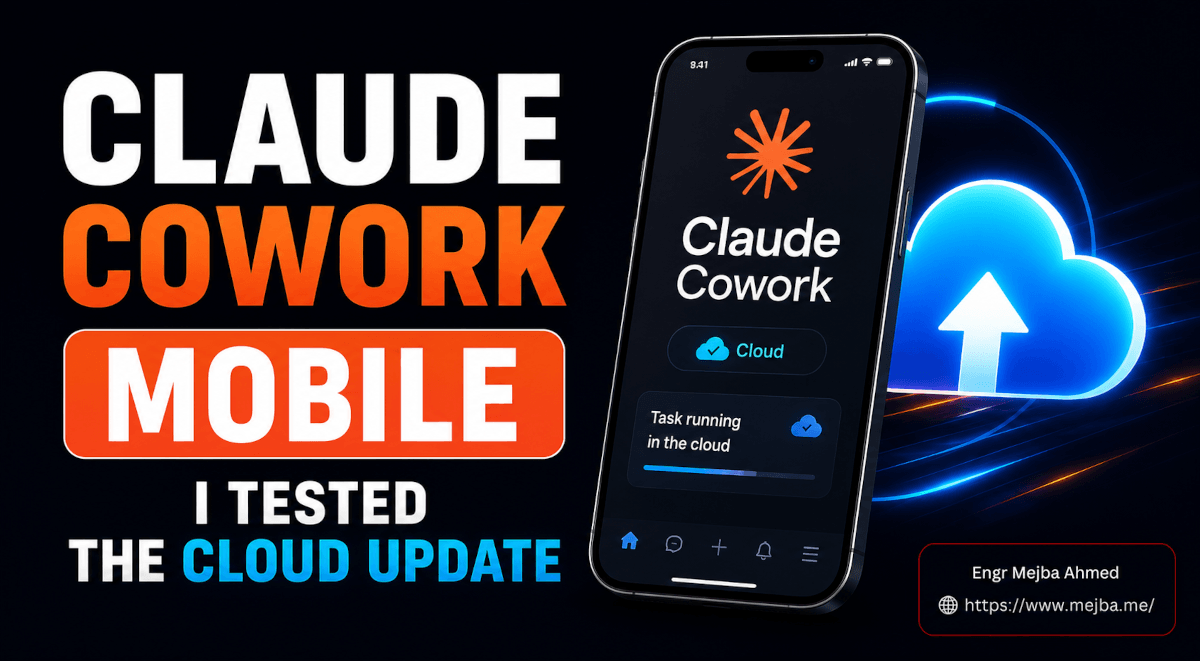
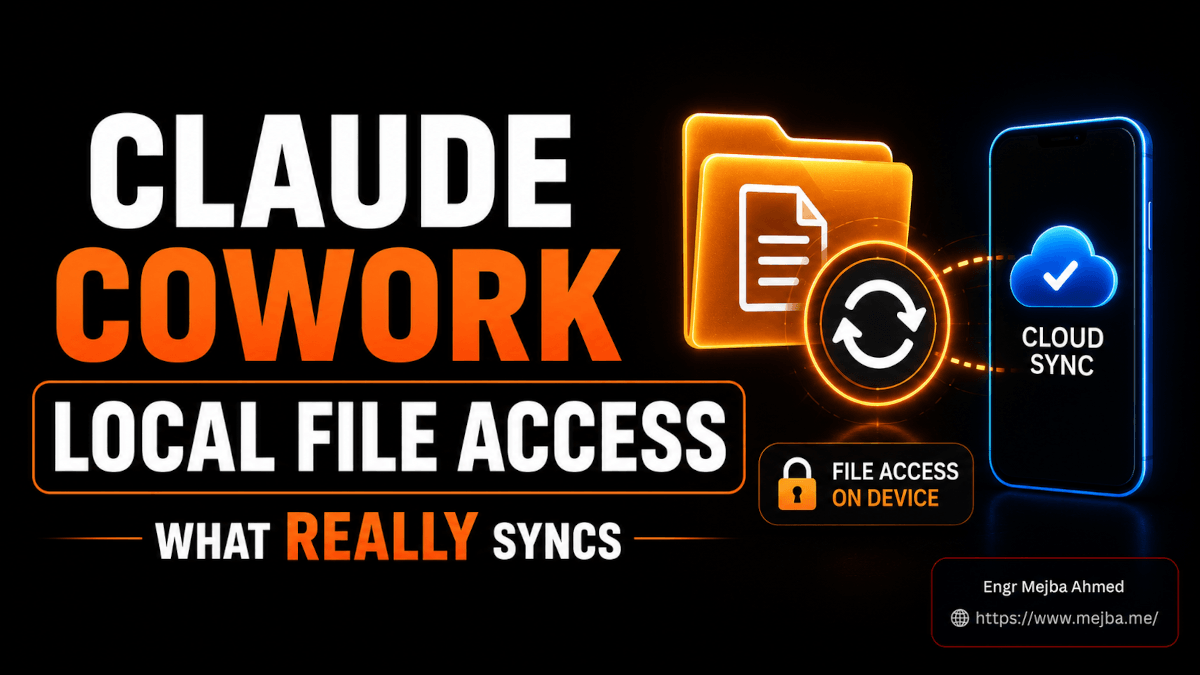
The task ran. The task synced. The task showed up on my phone. And then Claude, on a 6-inch screen in the back of a rideshare, told me it could not touch a single file in the folder I had pointed it at ten minutes earlier from my desk.
That was my introduction to the actual rules of Claude Cowork local file access after the cloud update: not the version in the announcement, the version that surfaces when you are three tasks deep and something quietly refuses to work. Anthropic's line is that your sessions go where you go, on any device. True, and doing a lot of hiding. Whether Claude can reach the real files on your real hard drive depends on three things most people never check: where the task was born, which approval setting you picked, and whether your desktop is still awake. I spent days deliberately breaking this to find the edges. Here is the map.
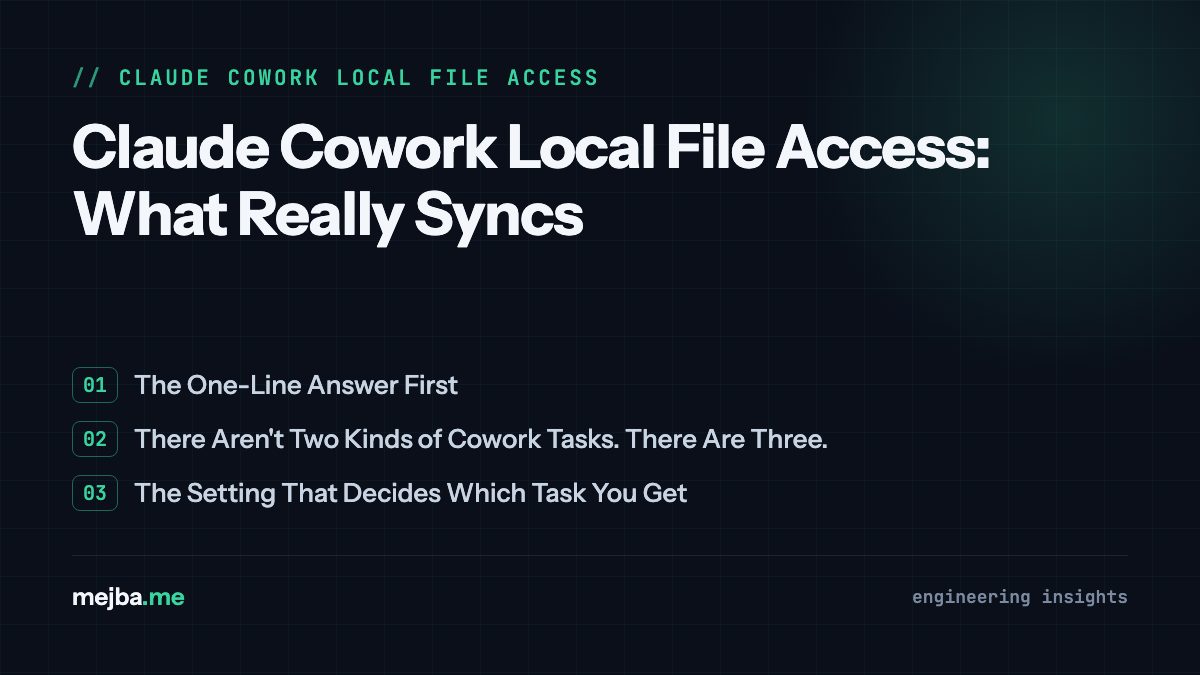
The One-Line Answer First
Since you probably searched for exactly this: Cowork only reaches local files through the desktop app, and a task can keep that access from your phone only while your computer is on with Claude Desktop running. Tasks you start on web or mobile never get local file access at all. Tasks you start on desktop keep it — but only with the right approval mode, and only while that machine stays awake. Anthropic's own help docs state the desktop-app requirement directly; what follows is how the pieces interact in practice.
Everything below is the why, the setup, and the trap that turns "it works" into "it silently stopped working."
There Aren't Two Kinds of Cowork Tasks. There Are Three.
Since the July 2026 update put Cowork on the web and the mobile apps with cloud execution, most explainers describe a binary: cloud sessions that sync everywhere, local sessions that stay on your desktop. Clean story, wrong count. There are three types, and the third is where all the confusion lives.
Type 1: the pure cloud task. Started on web or mobile, runs entirely on Anthropic's servers, files stored server-side. Visible on every device, and completely blind to your local disk. There is no bridge from a cloud sandbox to your machine, ever.
Type 2: the pure local task. Started on desktop with approvals skipped. Runs locally, touches real files, does not sync to the cloud. Invisible on web and mobile. Powerful on the box it was born on, stranded there.
Type 3: the hybrid. Started on desktop with manual approval. This is the actually-new thing: the task syncs to the cloud and keeps a live bridge to your local files. You can open it, monitor it, and continue it from your phone — while it still reaches into real folders on your desktop machine.
Type 3 is what "your work goes where you go" quietly describes when local files are involved. And it comes with a leash: the bridge exists only while the desktop is on and Claude Desktop is running. Close the lid and the phone still sees the task — the file access blinks out.
The Setting That Decides Which Task You Get
When you start a task on desktop, the approval choice reads like a convenience preference: how often should Claude interrupt you. In my testing it behaves as an architecture switch.
Skip all approvals: Claude runs the whole task with no pauses and no checks. Anthropic's safety guidance is blunt that you should reserve this for tasks where you completely trust every action, connector, and folder involved. And the behavior I kept reproducing: a skip-approvals task runs local-only. It does not appear on your other devices. You have built a Type 2.
Manually approve: Claude pauses on consequential actions (sending, spending, deleting, entering new folders) and asks. This is the mode that produced Type 3 behavior every time: cloud-synced, phone-visible, still wired to local files while the desktop was awake.
The trap, stated plainly: the freedom-flavored setting is the one that takes your portability away. On day one I set a file-sorting task to skip approvals so it would run unattended, walked away, and checked my phone an hour later. Nothing. The task was running perfectly, on my Mac, invisible to every device I own. Nothing was broken. I had told it to be a Type 2 and expected Type 3 behavior.
So the sentence worth memorizing: to keep local file access reachable from your phone, start the task on desktop and choose manual approval.
How to Tell Which Kind of Task You Have
The interface does tell you, once you know to look. Each task carries an icon for where it actually runs: a cloud icon for cloud-synced tasks (Types 1 and 3), a computer icon for local-only tasks (Type 2). Glance before you close the laptop and you know whether the task is coming with you.
One subtlety that catches people even after they learn the icons: a task you started on your phone wears the cloud icon, because it is a cloud task, but that icon says nothing about file access. Syncing and file reach are independent properties. A task can follow you to every device and still be permanently blind to your disk, because it was born somewhere that never had a bridge.
The Leash: Your Desktop Has to Stay Awake
The mechanism explains every limitation in this post, so it is worth seeing clearly. Your phone never talks to your files. It talks to the cloud session, and the cloud session reaches back through your running desktop app to touch the disk: only for folders you connected, only with permissions you set. The desktop is the bridge. Quit the app, let the machine sleep, and the cloud session survives, the task stays visible on your phone, and the file-access half goes dark.
This is why the "runs while your laptop is closed" excitement needs an asterisk the size of a billboard. Pure cloud work genuinely runs with every device off — I have had scheduled cloud tasks fire at 6 AM with my Mac shut, no problem, because they never needed my hardware. The moment a task depends on a local file, that independence evaporates. There is no cloud copy of your Documents folder.
My working model, compressed: cloud work is device-independent; local-file work is desktop-tethered, even when you drive it from your phone. The phone is a remote control for a bridge that has to stay standing.
The Playbook
Task needs no local files (research, drafting, connector-based work): start it anywhere. It is a Type 1, it syncs everywhere, no machine needs to stay awake. This covers more of real knowledge work than you would guess.
Task touches local files and you want remote reach: start on desktop, manual approval, confirm the cloud icon, leave the machine on. That is the hybrid sweet spot and the genuinely new capability.
Task touches local files, desk-only: skip approvals if you truly trust every action, and expect it to be invisible elsewhere. Fine, as long as it is a choice rather than a surprise.
My standing setup move: I keep one anchor task per key working folder — started at the desk with manual approval on a trivial prompt, which establishes a cloud-synced session holding local access to that folder. For the rest of the day I continue that task from wherever I am. One deliberate minute at the desk buys portable file access all day.
Three boring fixes if syncing misbehaves after an update: update every Cowork surface (a desktop/mobile version mismatch produces half-working sync), sign out and back in on every device so each re-authenticates against the cloud session model (this one fixes the most problems), and re-check the approval mode on any task you expected to be portable.
What I Got Wrong, So You Don't
I assumed cloud sync and file access traveled together — that a task appearing on my phone could do there whatever it could at my desk. Orthogonal properties. I assumed the least-annoying approval setting was the harmless default; it is actually a two-for-one consequence package, removing safety checks and stranding the task locally. And the limitation I would flag hardest: nothing here lets you keep local file access with the desktop off. If your work lives in local files and you travel with the laptop shut, this release does not solve your problem; it solves "my machine is on at home and I want to drive it from anywhere," which is a different, and still excellent, problem.
For the bigger picture around this: my first look at Cowork on mobile and web covers what the cloud update means beyond file access, Dispatch is the older desktop-remote-control model this replaces, scheduled task automation covers the cloud-side timers, and Cowork vs Claude Code settles which tool the task belonged in to begin with.
Tonight's five-minute experiment: point a desktop task at a real folder, set manual approval, confirm the cloud icon, leave the machine on, and continue the task from your phone. When the file operation succeeds from your pocket, you will have felt the entire architecture in one motion — and the rideshare moment I opened with will never happen to you.
My courses at AI School cover this class of agent-workflow setup as the tooling ships — approval modes, what stays on your machine, and how a task survives the handoff from desktop to phone. That is the guided version of tonight's experiment.