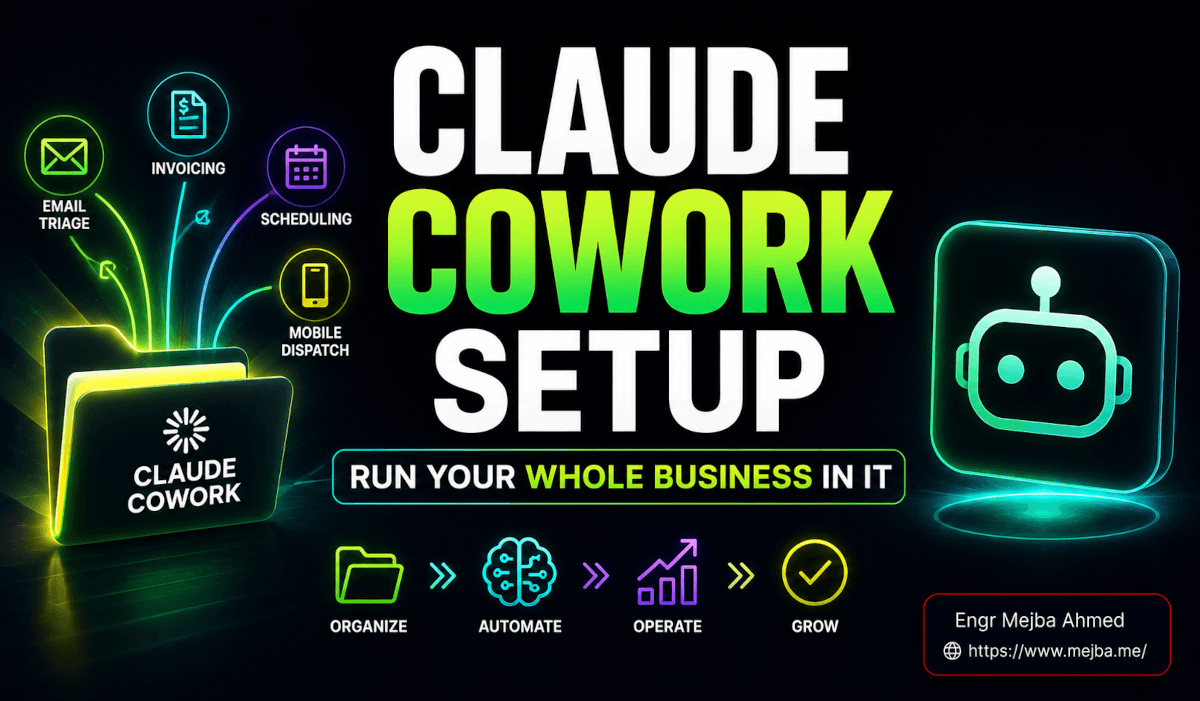
Claude Cowork Setup: Run Your Whole Business In It
The thing that finally made Claude Cowork click for me wasn't a feature. It was a folder.
A Claude Cowork setup, done right, isn't a chat history you scroll through. It's a directory sitting on your hard drive — a main instruction file at the top, a memory of past work underneath it, and a subfolder for every part of your business, each carrying its own instructions. Open that folder and you're looking at your company as a thing Claude can read, navigate, and operate inside. That's the part nobody explains well, and it's the part that turns a $20 subscription into something that actually runs your operations.
I'm going to walk you through building that folder from scratch — the architecture, the email triage skill, an invoicing system you describe in plain English, scheduling, and how to fire off work from your phone with Dispatch. This is the setup guide I wish I'd had when I first opened Cowork mode and stared at an empty workspace wondering where to even start.
One honesty note before we go further. Most of what follows comes from working through Cowork's setup loop and a detailed video walkthrough of someone running their business inside it — not a fabricated "I ran this and saved 31.7 hours" claim. Where I share real behavior, it's real. Where I'm describing how the system is designed to work, I'll say so. No invented metrics. That distinction matters more than any productivity stat I could make up.
Claude Cowork vs Claude Chat: why this isn't the same tool
Here's the difference in one line: Claude Chat answers a question and forgets you the moment you close the tab. Claude Cowork remembers, reads your files, and finishes multi-step work on your actual machine.
When you type into the regular Claude chat box, you get a one-off response. No persistent memory of your business. No access to your invoices, your client list, your inbox. You're the courier — copying context in, pasting answers out, stitching everything together by hand. It's a brilliant consultant who has amnesia between every sentence.
Claude Cowork is a different shape entirely. Announced in January 2026 as a research preview and now generally available on macOS and Windows since April 9, 2026, it runs as a mode inside the Claude desktop app, powered by Opus 4.7 with a one-million-token context window. It works in a folder you grant it access to. It reads the files there, learns your patterns from them, executes plans that span a dozen steps, and writes results back to disk. The chat is just the front door. The work happens in the filesystem.
I've made this comparison before from a few angles — my full Claude Co review after a month of daily use digs into the four capability pillars, and my side-by-side test of Codex, Cowork, and Gemini shows how the three "super agents" deliberately diverge. This post is narrower and more practical: how to actually set the thing up to run a business, not whether it's good. (Spoiler from those posts: it's good, with real caveats.)
The mental shift is the whole game. Stop thinking "AI chatbot." Start thinking "operating system for your operations." Once that clicks, the folder structure stops looking like overhead and starts looking like the point.
The five concepts that make a Cowork business run
Before you build anything, you need five vocabulary words. Skip these and you'll fight the tool. Internalize them and the setup writes itself.
The instruction file. This is the plain-text manual that tells Cowork how to operate inside a given folder. In the Claude ecosystem it's called CLAUDE.md — and this is my first fact-check flag for you. Some walkthroughs (and the brief that sent me down this path) call it "claw.md." That's a mishearing of "Claude md." The real, verifiable convention is CLAUDE.md. Claude reads it at the start of every single task, and crucially, every folder gets its own. A top-level one for global rules, and a more specific one inside each business subfolder.
The memory. Cowork keeps a running record of past interactions so it has historical context — what you asked for last week, decisions you made, work already done. I'm going to be careful here: the global memory in the Claude ecosystem lives in the ~/.claude/ directory, and I couldn't find a confirmed, user-facing "memory.md" file unique to Cowork the way the brief described it. So treat memory as a real capability — a log of past work Cowork draws on — without me asserting a filename I can't verify. When in doubt, let Cowork manage its own memory; don't hand-craft a file that may not exist.
Skills. A skill is a repeatable workflow you save once and trigger again and again. Instead of re-explaining your email tone every morning, you save an "email triage" skill and run it. Each skill is a folder with a SKILL.md file describing what it does and when to use it. I covered the skills primitive in depth in my Claude Code AI operating system blueprint — the same primitive powers Cowork, just wrapped in a desktop GUI instead of a terminal.
Connectors. These are the integrations that pull live data in and write changes back out — Gmail, Google Calendar, Notion, QuickBooks, and more. Without connectors, Cowork is a smart notebook that only knows what's on your disk. With them, it can read this morning's emails, check your calendar, and update your accounting.
The folder architecture. This is how it all hangs together: a main folder containing the global instruction file, the memory, and organized subfolders — one per workflow or business project — each with its own instruction file scoped to that job.
Hold those five in your head. Here's how they assemble into something you can actually run a business on.
Step-by-step Claude Cowork setup: building the OS folder
This is the part you came for. The setup itself is shorter than you'd expect, because Cowork builds most of the structure for you. You don't hand-craft thirty files. You describe what you want, and Cowork scaffolds it.
Step 1: Create your main folder
Make one folder somewhere stable on your machine. I'd call it cowork and keep it out of any folder that syncs aggressively to the cloud mid-task. Inside the Claude desktop app, switch from Chat to Cowork mode in the sidebar, click "Work in a folder," and point it at this directory.
Start cautious. Anthropic's own guidance is to begin with a low-stakes folder — Downloads or a dedicated project folder — before you give Cowork the keys to anything sensitive. You grant folder access deliberately; it does not roam your whole drive by default.
Step 2: Let Cowork generate the OS structure
Don't build the architecture by hand. Open a prompt in Cowork and describe the system you want. Something like:
"Set up this folder as an operating system for running my business. Create a top-level CLAUDE.md with global instructions about who I am and how you should behave. Then create subfolders for the workflows I'll add later — start with one for email and one for invoicing — and give each subfolder its own CLAUDE.md scoped to that job. Keep instruction files short and readable."
Cowork will scaffold the instruction files and subfolders for you. This is the single biggest time-saver in the whole process. You're not memorizing a directory layout — you're delegating it to the tool, then editing what it produces. Read every file it creates. Fix anything that's wrong before you continue. The instruction files are the foundation; everything downstream inherits from them.
Step 3: Use Obsidian only as a viewer
Here's a recommendation that'll save you a week of distraction. To browse and manage your Cowork folder, open it in Obsidian — but use it only as a viewer. Obsidian renders your markdown files cleanly, gives you a tidy sidebar of the whole structure, and lets you read instruction files at a glance. That's all you want from it.
Do not get pulled into Obsidian's note-taking universe. Don't start adding random folders, tags, daily notes, and plugins. Every stray folder you create by hand is a folder Cowork might misread or trip over. Obsidian is your window into the OS, not a second tool you're maintaining. Let Cowork own the structure. Use Obsidian to look at it.
That's the entire base setup. A main folder, a Cowork-generated skeleton, and a clean viewer. Now we make it actually do work.
How do I build an email triage workflow in Claude Cowork?
You build it by connecting Gmail, asking Cowork to learn your reply patterns from real emails, and saving the result as a reusable skill. Here's the concrete sequence.
First, connect Gmail through Cowork's connectors so it can read and draft inside your real inbox. Then give it a prompt that does two things at once — analyze and learn:
"Look at my last 50 received emails and the replies I sent. Group incoming mail into categories. Learn how I write replies — my tone, length, and sign-off. Build me files that capture this: a list of email categories, a contact exclusion list for people I never want auto-drafted replies to, and a tone-of-voice guide."
What Cowork produces from this is the interesting part. It doesn't just answer in chat — it writes files into your email subfolder. In the walkthrough I followed, the output was exactly that set of artifacts: an email-categories file, a contact exclusion list, and a tone-of-voice guide derived from how you actually write. Those files become permanent context. Every future triage run reads them and gets sharper.
Once you're happy with how it categorizes and drafts, save it as a skill. Ask Cowork directly: "Save this email triage workflow as a reusable skill so I can run it every morning." Now you have a one-command morning routine instead of a paragraph you retype daily.
A word of caution that comes straight from the design: an exclusion list exists for a reason. You do not want an agent auto-drafting replies to your lawyer, your biggest client mid-negotiation, or your spouse. Build that exclusion list early and keep it current. The triage skill is for clearing the noise, not for speaking on your behalf in the conversations that matter most.
This is the workflow that sold me on Cowork over plain chat. Chat could draft one reply. Cowork learns your inbox, builds the reference files, and turns the whole thing into a repeatable system that improves every time it runs.
Building an invoicing system you describe in plain English
The invoicing build shows off the part of Cowork that feels almost unfair: you dictate requirements in plain language, and it constructs the system.
No spreadsheet templates. No setup wizard. You just describe what you need:
"Build me an invoicing system in a new folder. I want to generate invoices using contact information pulled from my email. Track which invoices are paid and which are outstanding. Store my business details — company name, address, payment terms — so they auto-fill on every invoice."
Cowork creates a new subfolder for invoicing, drops in tracking files for invoice status, a business-info file holding your company details, and its own CLAUDE.md scoped to invoicing logic. The structure mirrors the email pattern: a dedicated folder, supporting data files, and a local instruction file that teaches Cowork how invoicing works for your business specifically.
One real-world gotcha worth flagging: skill creation isn't always automatic. Sometimes Cowork builds the folder and files but doesn't wrap the workflow into a saved skill on its own. If that happens, just ask: "Turn this invoicing workflow into a reusable skill." Manual request, problem solved. Don't assume every workflow auto-becomes a skill — check, and ask if it didn't.
For accounting-grade invoicing, this is also where connectors earn their place. The Claude for Small Business plugin connects Cowork to QuickBooks, PayPal, HubSpot, and more — so instead of a local tracking file pretending to be your books, Cowork can reconcile against your real accounting system. Start with the plain-English local version to learn the pattern, then graduate to connectors when you're ready to trust it with live financial data.
If you'd rather have someone architect this kind of business-wide automation for you end to end, building these Cowork and Claude Code systems for clients is exactly the kind of work I take on through my Fiverr profile. But honestly? The plain-English setup is approachable enough that most people should try it themselves first.
Scheduling and Dispatch: making Cowork work while you don't
A skill you have to trigger by hand is helpful. A skill that runs itself is an operating system. Cowork gives you two ways to get there — and both come with one critical limitation you have to design around.
Scheduling recurring workflows
Once a workflow runs cleanly, you can schedule it. Tell Cowork: "Run my email triage every morning at 7 AM." It saves that as a scheduled task and fires it on cadence. Daily inbox triage, a weekly invoice-status sweep, a Monday-morning client summary — anything repeatable becomes a standing routine.
Here's the limitation, and it's a big one: Cowork is local, not cloud. The work happens on your computer. So a scheduled 7 AM triage only runs if your machine is on and the Cowork desktop app is open at 7 AM. Close the laptop, and the schedule sleeps with it. This is a genuine architectural trade-off versus cloud-hosted automation — and it's the opposite of how Claude Code's cloud routines behave, which I broke down in the Claude Code operating system post. For Cowork, plan your schedules around hours your machine is actually awake.
Dispatch: your phone as a remote control
This is the feature that closes the "I'm away from my desk" gap. Dispatch lets you assign tasks from the Claude mobile app, and your desktop picks them up and runs them.
The mechanics are worth understanding precisely, because they explain the local dependency. Your phone is just the control interface — it sends instructions and receives results. The actual AI work, file reading, and connector calls all happen on your desktop, not on the phone and not in the cloud. So a task you dispatch from a coffee shop will execute when your computer reconnects and is available to run it. Dispatch is available on the Claude Max and Pro plans.
Picture the real flow: you're at lunch, remember you need a paid-versus-outstanding invoice report, and dispatch it from your phone. Your desktop — sitting open back at the office — wakes the task, pulls the data, and has the report waiting when you return. Your phone never did any heavy lifting. It just pointed the gun your desktop was holding.
The combination is the unlock. Scheduling handles the predictable, repeating work. Dispatch handles the "oh, I need this now" moments while you're away. Both lean on the same local machine. Respect that dependency and the system feels magical. Forget it and you'll wonder why your 7 AM task didn't run on the morning you took your laptop home.
What does Claude Cowork cost to run a business on?
Cowork is bundled into paid Claude plans, but the realistic floor for running a business on it is the Max plan, not the entry-level $20 tier.
The honest pricing picture, verified as of June 2026: Cowork is included in Claude Pro at $20/month, which is the entry point. But agent tasks burn dramatically more tokens than chat — on the order of 50 to 100 times more — so heavy daily use realistically wants Max 5x at $100/month or Max 20x at $200/month. The original January 2026 research preview was gated to Max subscribers specifically because of this token math.
So set expectations honestly. If you're curious and want to learn the patterns, $20 Pro gets you in the door and through the setup in this guide. If you're going to run email triage, invoicing, and scheduled reports across a real business every day, budget for Max. At $1,200/year for Max 20x, the question isn't "is it cheap" — it's "does it replace enough manual hours and tooling to clear that bar." For an operator drowning in operational busywork, it usually does. For a hobbyist, the free tier of Claude Chat may be plenty for now.
The practical playbook: recommendations that actually stick
After working through the full setup, here's the distilled advice — the stuff that determines whether your Cowork build becomes a system you rely on or a folder you abandon.
Define the workflow before you create the folder. Don't spin up subfolders speculatively. Decide what repeatable job you're automating — triage, invoicing, reporting — then let Cowork scaffold it. Random folders are how the structure turns to mush.
Connect everything you can. Cowork is only as smart as the context it can reach. The more connectors you wire — Gmail, Calendar, Notion, accounting — the less you have to spoon-feed it. Context is the fuel.
Expect one instruction file per workflow, and often a custom skill too. Each subfolder should carry its own CLAUDE.md. Each mature workflow should become a saved skill. If a skill didn't auto-create, ask for it manually.
Use scheduling for repetition — but remember the local leash. Scheduled tasks are gold for recurring work. Just never forget they run on your machine, so they need your machine on and the app open.
Use Dispatch when you're away. Your phone becomes the remote; your desktop does the work. It executes when your computer reconnects.
Keep file management dead simple. Let Cowork own the folder structure. Use Obsidian purely as a viewer. The fastest way to break a Cowork setup is to start manually reorganizing it like a Notion workspace.
Do those six things and you've got the discipline that separates a working AI operating system from a clever demo you stopped opening.
The real takeaway: a chatbot becomes a coworker
Strip away the folders and the skills and the connectors, and here's what Claude Cowork actually does: it turns AI from a thing you visit into a thing that works where you work.
A standard chatbot is a consultant in another building. You go to it, ask, carry the answer back, stitch it into your real environment by hand. Cowork lives in your building — in your folder, with your files, plugged into your tools, holding the memory of what it did last week. The instruction files teach it your business. The skills make your workflows repeatable. The connectors give it live context. Scheduling and Dispatch let it work whether you're at the desk or not.
And the part I keep coming back to: none of this requires you to write code. You describe what you want in plain English, Cowork builds the structure, and you refine it. A folder, a few instruction files, a handful of skills. That's the whole machine. It scales the way a good hire scales — you teach it one job well, then another, then another, until one Tuesday you realize the operational busywork that used to eat your mornings just... handles itself.
So here's what I'd do this week. Pick the single most repetitive task in your business — the inbox, the invoices, the weekly report. Open Cowork, make one folder, and build that one workflow end to end. Don't try to automate everything. Automate the one thing you dread, watch it run on a schedule, and let that prove the pattern before you expand.
What's the first job you'd hand to a coworker who never sleeps, never forgets, and reads every file you own?
FAQ
Frequently Asked Questions
Everything you need to know about this topic
It's called CLAUDE.md, not "claw.md." It's a plain-text markdown file that tells Cowork how to behave inside a folder, and Claude reads it at the start of every task. Every folder in your setup — top level and each subfolder — should have its own CLAUDE.md. See the setup steps above for how Cowork generates these for you.
Claude Cowork runs locally on your computer, not in the cloud. Scheduled tasks and dispatched tasks both execute on your machine, which must be on with the Cowork desktop app open. Your phone, via Dispatch, only sends instructions and receives results — the actual work happens on your desktop.
Claude Cowork is included in Claude Pro at $20/month as an entry point, but realistic daily business use needs Max 5x ($100/month) or Max 20x ($200/month) because agent tasks consume 50–100x more tokens than chat. Dispatch is available on both Pro and Max plans.
No. You describe what you want in plain English and Cowork builds the folder structure, instruction files, and skills for you. You read and refine what it produces. If you've ever organized files into folders, you have enough background to run a business workflow in Cowork.
Dispatch turns the Claude mobile app into a remote control for your desktop Cowork agent. You assign a task from your phone, and your computer picks it up and runs it — reading local files, pulling data through connectors, and compiling results — executing once your machine is available and reconnected.
Let's Work Together
Looking to build AI systems, automate workflows, or scale your tech infrastructure? I'd love to help.
- Fiverr (custom builds & integrations): fiverr.com/s/EgxYmWD
- Portfolio: mejba.me
- Ramlit Limited (enterprise solutions): ramlit.com
- ColorPark (design & branding): colorpark.io
- xCyberSecurity (security services): xcybersecurity.io