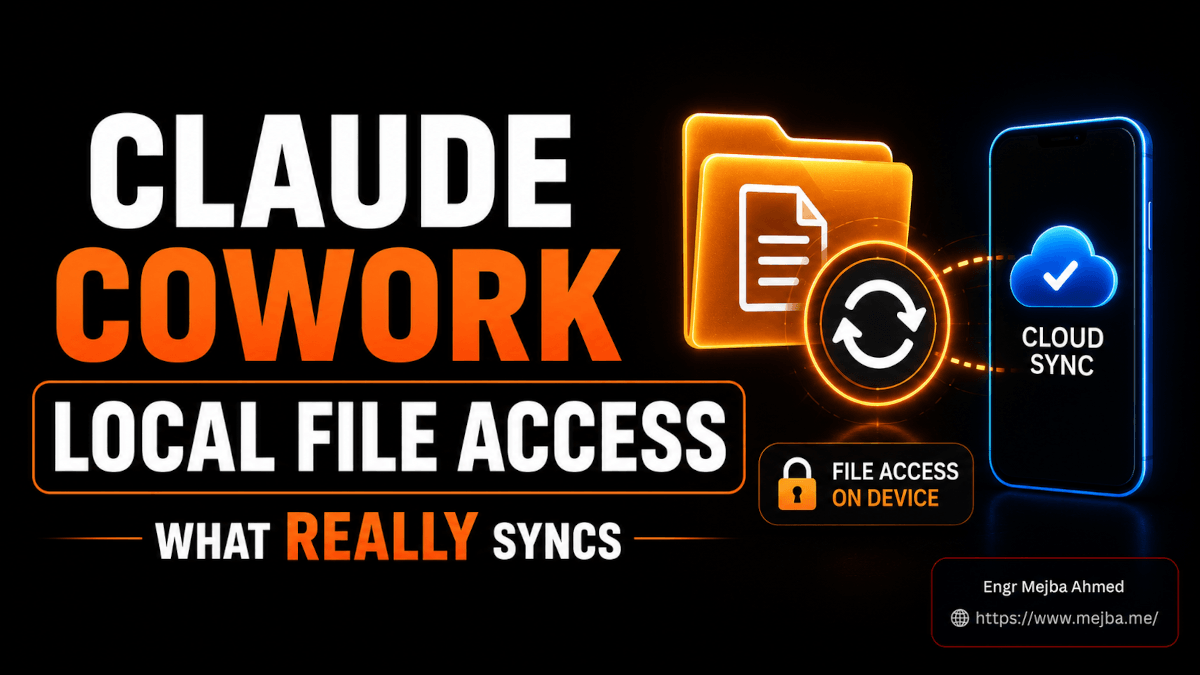
La tarea se ejecutó. La tarea se sincronizó. La tarea apareció en mi teléfono. Y entonces Claude, desde la interfaz de un coche compartido en una pantalla de 6 pulgadas, me dijo que no podía tocar ni un solo archivo de la carpeta que yo le había señalado diez minutos antes desde mi escritorio.
Esa fue mi introducción a las reglas reales del acceso a archivos locales de Claude Cowork tras la actualización cloud de julio de 2026 — no la versión del anuncio, sino la versión que aparece cuando llevas tres tareas encadenadas y algo se niega a funcionar en silencio. El blog de Anthropic dice que tus sesiones y archivos "van contigo, en cualquier dispositivo". Esa frase es cierta. También esconde muchísimo. Porque que Claude pueda alcanzar los archivos reales de tu disco duro real depende de tres cosas que la mayoría de la gente nunca piensa en comprobar: dónde nació la tarea, qué ajuste de aprobación elegiste y si tu ordenador de escritorio sigue despierto.
He pasado los últimos días rompiendo esto a propósito para encontrar los límites. Aquí está el mapa que me habría gustado tener el primer día: los tres tipos de tareas, el único desplegable que deja tu trabajo varado sin avisar y las condiciones exactas bajo las cuales tu teléfono puede — y no puede — alcanzar los archivos de tu portátil.
La respuesta en una línea, antes que nada
Aquí va la versión directa, porque probablemente es lo que buscabas: el acceso a archivos locales de Claude Cowork solo funciona a través de la app de escritorio, y una tarea solo puede mantener ese acceso desde tu teléfono mientras tu ordenador esté encendido con Claude Desktop en ejecución. Las tareas que inicias en web o móvil nunca obtienen acceso a archivos locales. Las tareas que inicias en escritorio lo conservan — pero solo si dejas esa máquina encendida, y solo si elegiste el modo de aprobación correcto.
Eso es todo en cuatro frases. Todo lo que sigue es el porqué, el cómo configurarlo y la trampa que convierte "funciona" en "dejó de funcionar en silencio" — porque la diferencia entre esos dos estados es un ajuste que casi nadie mira.
Si quieres la versión emocional y de gran panorama de lo que significa este lanzamiento — la historia de "tu asistente ahora sigue trabajando después de que cierres el portátil" — la escribí por separado en mi primer contacto práctico con Cowork en móvil y web. Este artículo es lo contrario. Este es el manual de ingeniería. Esto es lo que lees después de que se pase la emoción y estés intentando averiguar por qué la limpieza de archivos de ayer no aparece en tu teléfono.
Por qué esto importa ahora mismo, en concreto
Anthropic lanzó Cowork para iOS, Android y la web el 7 de julio de 2026, desplegándolo primero a los suscriptores de Max, con los límites de uso duplicados hasta el 5 de agosto para que la gente lo pusiera a prueba. Así que hay un reloj real corriendo. Tienes una ventana en la que experimentar cuesta, en la práctica, la mitad en tokens, y la jugada inteligente es descifrar las reglas de acceso a archivos ahora, mientras los errores son baratos, y no en septiembre, cuando cada tarea programada fallida te cueste cuota de verdad.
Pero aquí está la parte que hace que la pregunta del acceso a archivos locales sea urgente y no académica. Anthropic ha dicho públicamente que más del 90% de lo que hace Cowork no es desarrollo de software — es trabajo de conocimiento cotidiano, y aproximadamente la mitad de todo el uso es operaciones de negocio o creación de contenido. Eso significa que la mayoría de quienes usan Cowork no ejecutan sandboxes de código efímeros. Lo apuntan a carpetas reales — los documentos de clientes, las facturas, los archivos de proyectos de vídeo, la hoja de cálculo que vive en su carpeta de Documentos. Para esas personas, "¿puede Claude alcanzar mis archivos desde mi teléfono?" no es un extra agradable. Es toda la cuestión.
Y la respuesta que da el marketing — "tu trabajo va contigo" — es exactamente cierta para el trabajo nacido en la nube y exactamente falsa para el trabajo duro con archivos locales. Confunde ambas cosas y construirás un flujo de trabajo sobre un cimiento que no existe. Así que separémoslas con limpieza, empezando por lo que el anuncio pasa por alto por completo.
No hay dos tipos de tareas en Cowork. Hay tres.
Casi todos los artículos explicativos que he leído, incluidos los buenos, describen el nuevo Cowork como un binario: sesiones cloud que se sincronizan en todas partes y sesiones locales que se quedan en tu escritorio. Historia limpia. Recuento equivocado.
Hay tres, y el tercero es donde vive toda la confusión.
Tipo 1 — La tarea puramente cloud. La inicias en web o móvil. Se ejecuta por completo en los servidores de Anthropic, con sus archivos almacenados en el servidor. Aparece en todos tus dispositivos, incluido el escritorio. Es cómoda, portátil y completamente ciega a tu disco duro local. No puede abrir la factura de tu carpeta de Documentos porque, desde su punto de vista, esa carpeta no existe. No hay puente hacia tu máquina.
Tipo 2 — La tarea puramente local. La inicias en escritorio y — este es el disparador — la configuras para omitir todas las aprobaciones. Se ejecuta localmente en tu máquina, tocando archivos reales, y no se sincroniza con la nube. Es invisible en web y móvil. Es el Cowork de antes, en esencia: potente en la máquina donde se creó, varada allí.
Tipo 3 — La tarea híbrida, que es lo verdaderamente nuevo. La inicias en escritorio y la configuras para requerir aprobación manual. Ahora ocurre algo genuinamente distinto. La tarea se sincroniza con la nube y conserva un puente vivo hacia tus archivos locales. Puedes abrirla, monitorizarla y continuarla desde tu teléfono o el navegador — mientras sigue alcanzando las carpetas reales de tu máquina de escritorio.
El Tipo 3 es el lanzamiento. El Tipo 3 es lo que "tu trabajo va contigo" describe discretamente cuando hay archivos locales de por medio. Y el Tipo 3 viene con una correa: ese puente vivo hacia tus archivos solo existe mientras tu ordenador de escritorio esté encendido y Claude Desktop en ejecución. Cierra la tapa, y el teléfono seguirá viendo la tarea — pero el acceso a archivos se apaga.
Vuelve a leer esa estructura, porque todo el resto de este artículo son solo consecuencias de ella. Dos de los tres tipos de tareas no pueden tocar tus archivos locales en absoluto. Solo uno puede hacerlo en remoto. Y la diferencia entre los dos tipos de escritorio — el varado y el portátil — se reduce a un único desplegable que pulsaste sin leer.
El desplegable que lo decide todo
Cuando lanzas una tarea en Cowork de escritorio, hay un ajuste de aprobación. La mayoría de la gente lo trata como un interruptor de "cuánto quiero que me molesten los avisos de permisos". No lo es. Es el interruptor que determina si tu tarea es un Tipo 2 o un Tipo 3 — si se queda encadenada a tu escritorio o te sigue al teléfono.
Las dos opciones que importan aquí:
"Omitir todas las aprobaciones" — antes etiquetada como "actuar sin preguntar". Claude ejecuta toda la tarea sin pausas, sin comprobaciones, sin nada que verifique sus acciones contra tus permisos. La propia guía de seguridad de Anthropic es contundente con esta opción: solo deberías usarla cuando confías por completo en cada acción, conector, archivo y app que la tarea vaya a tocar. Y, crucialmente para lo que nos ocupa: una tarea configurada para omitir todas las aprobaciones se ejecuta solo en local. No se sincroniza con la nube. Elige esto y habrás construido un Tipo 2. Nunca aparecerá en tu teléfono, por mucho que quieras.
"Aprobar manualmente" — Claude se detiene en las decisiones de peso (enviar un correo, gastar dinero, borrar archivos, entrar en carpetas nuevas) y te pide un sí o un no. Como te consulta, consume más de tu límite de uso que el modo de omisión. Pero este es el ajuste que produce un Tipo 3: sincronizado con la nube, visible en el teléfono y todavía conectado a tus archivos locales mientras el escritorio esté despierto.
Así que aquí está la trampa, dicha sin rodeos. Si quieres iniciar en tu escritorio una tarea que toca archivos y luego seguir trabajando con ella desde tu teléfono, y eliges "omitir todas las aprobaciones" porque no quieres que te den la lata con avisos de permisos — acabas de garantizarte exactamente lo contrario de lo que querías. Has encadenado la tarea a tu escritorio. El ajuste que parece más libertad es el que te quita la portabilidad.
Me lo hice a mí mismo el primer día. Configuré una tarea de ordenación de documentos para omitir aprobaciones y que corriera sin supervisión, me fui, miré mi teléfono una hora después esperando ver progreso, y no encontré nada. La tarea funcionaba perfectamente — en mi Mac, invisible para todos mis demás dispositivos. Nada estaba roto. Simplemente le había dicho que fuera un Tipo 2 y luego esperé comportamiento de Tipo 3.
Esa es la frase más importante de este artículo, así que la pongo en su propio párrafo: para mantener el acceso a archivos locales alcanzable desde tu teléfono, inicia la tarea en el escritorio y elige "aprobar manualmente", no "omitir todas las aprobaciones".
Cómo saber qué tipo de tarea tienes
Anthropic incorporó un diagnóstico en la interfaz, y una vez que sabes dónde mirar, las conjeturas desaparecen.
Cada tarea lleva un icono que te dice dónde se ejecuta realmente:
- Un icono de nube significa que la tarea se ejecuta en la nube y se sincroniza entre tus dispositivos. Tipo 1 o Tipo 3.
- Un icono de ordenador significa que la tarea se ejecuta solo en local y se queda en esa máquina. Tipo 2.
Echa un vistazo al icono antes de cerrar el portátil y sabrás al instante si esa tarea viene contigo o se queda atrás. Si contabas con continuar algo desde tu teléfono y lleva un icono de ordenador, esa es tu advertencia: es una tarea solo local, y por mucho que refresques la app móvil no la vas a invocar.
Un detalle más de diagnóstico que pilla a la gente. Una tarea que iniciaste en web o teléfono mostrará el icono de nube — porque es una tarea cloud, un Tipo 1 — pero ese icono de nube no significa que pueda alcanzar tus archivos locales. No puede. Nada que inicies fuera del escritorio consigue jamás un puente hacia tu disco duro. El icono de nube te dice que la tarea se sincroniza; no dice nada sobre el acceso a archivos locales. Son dos propiedades separadas, y confundirlas es el segundo error más común que he visto cometer a la gente con este lanzamiento.
La lista de configuración para el acceso a archivos locales de Claude Cowork
Si actualizaste la app y esperabas que las tareas de Tipo 3 simplemente funcionaran, puede que te hayas encontrado con que no lo hacen — y la razón suele ser una de tres cosas aburridas y arreglables. Esta es la secuencia que seguí para que la sincronización cloud más el acceso a archivos locales se comportaran de forma fiable.
1. Actualiza cada instancia de Cowork a la última versión. Escritorio y móvil, ambos. Un desajuste de versiones entre tu teléfono y tu escritorio es la vía más rápida para conseguir una sincronización que funciona a medias — tareas que aparecen pero no se actualizan, o aprobaciones que no llegan. Actualízalo todo antes de intentar arreglar cualquier otra cosa.
2. Cierra sesión y vuelve a entrar en cada instancia. Este es el paso que la gente se salta, y es el que más problemas resuelve. La actualización cambia cómo tu sesión se autentica contra la nube, y los inicios de sesión existentes pueden quedar en un estado obsoleto. Algunas instancias me cerraron la sesión automáticamente tras actualizar; en otras tuve que salir y volver a entrar a mano. Hazlo en todas partes — escritorio y teléfono — para que cada dispositivo se reautentique contra el nuevo modelo de sesión cloud. Si tus tareas no se sincronizan tras la actualización, este es casi siempre el arreglo.
3. En el escritorio, elige "aprobar manualmente" para cualquier tarea nueva que quieras que sea portátil. Ya cubrimos el porqué. Este es el paso que convierte una tarea local en una híbrida. Conviértelo en hábito para cualquier cosa relacionada con archivos que quizá quieras tocar desde otro sitio.
Eso es todo. Tres pasos, y el de "cerrar sesión y volver a entrar en todas partes" carga con más peso del que le correspondería. Si has hecho los tres y una tarea iniciada en escritorio con aprobación manual sigue sin mostrar comportamiento de archivos locales en tu teléfono — comprueba si el escritorio sigue realmente encendido. Lo que nos lleva a la restricción que hace tropezar incluso a quienes lo configuran todo correctamente.
La correa: tu escritorio tiene que permanecer despierto
Aquí está la condición que separa "puedo acceder a mis archivos desde mi teléfono" de "puedo acceder a mis archivos desde mi teléfono a veces".
Una tarea de Tipo 3 — nacida en escritorio, con aprobación manual, sincronizada con la nube — puede alcanzar tus archivos locales desde un dispositivo remoto solo mientras la app Claude Desktop esté abierta en el ordenador encendido que contiene esos archivos. La documentación de ayuda de Anthropic lo dice directamente: una sesión remota alcanza tu ordenador solo cuando la app Claude Desktop está abierta, solo para las carpetas que hayas conectado allí y con los permisos que ya hayas establecido. Cada archivo local que la sesión toca se comprueba contra esos permisos antes de ejecutarse.
Desgranemos lo que eso significa en la práctica. Tu teléfono no está hablando con tus archivos directamente. Está hablando con la sesión cloud, y la sesión cloud está llegando de vuelta a través de tu app de escritorio, todavía en ejecución, para tocar el disco de verdad. Tu escritorio es el puente. Mata el puente — cierra el portátil, sal de la app, deja que la máquina se duerma — y la sesión cloud sobrevive, la tarea sigue ahí en tu teléfono, pero la mitad de acceso a archivos se apaga. Claude puede seguir haciendo cualquier cosa que viva en la nube. Simplemente no puede alcanzar una carpeta que solo existe en una máquina que ahora está dormida.
Por eso la emoción de "funciona con el portátil cerrado" necesita un asterisco del tamaño de una valla publicitaria. El trabajo puramente cloud — tareas de Tipo 1, operaciones puramente del lado del servidor — realmente se ejecuta con todos tus dispositivos apagados. He tenido tareas cloud programadas dispararse a las 6 de la mañana con mi Mac cerrado y sin conexión, y se ejecutaron sin problema, porque nunca necesitaron mi hardware. Pero en el momento en que una tarea depende de un archivo local real, esa independencia se evapora. El archivo vive en tu máquina. Alcanzarlo requiere que tu máquina sea alcanzable. No hay una copia en la nube de tu carpeta de Documentos que Anthropic pueda servir.
Una vez que interioricé esto, mi modelo mental se volvió simple: el trabajo cloud es independiente del dispositivo; el trabajo con archivos locales está atado al escritorio, incluso cuando lo diriges desde el teléfono. El teléfono es un mando a distancia para un puente que tiene que seguir en pie.
El manual práctico: encaja la tarea con las reglas
Se acabó la teoría. Así es como organizo el trabajo ahora que entiendo los tres tipos, ordenado por lo que intentas conseguir.
Si la tarea no necesita archivos locales en absoluto — investigar, redactar borradores, resumir, extraer de conectores cloud como Gmail o un rastreador web, generar algo desde cero — inicíala donde estés. Teléfono, navegador, escritorio, da igual. Será un Tipo 1, se sincronizará en todas partes y nunca tendrás que pensar en si una máquina está despierta. Esto es la mayoría del trabajo de conocimiento, sinceramente, y es el caso sin esfuerzo.
Si la tarea necesita tocar archivos reales de tu disco y quieres monitorizarla o continuarla en remoto — inicíala en escritorio, elige "aprobar manualmente", confirma que muestra el icono de nube y deja ese ordenador encendido con Claude Desktop en ejecución. Ahora tienes un Tipo 3: acceso a archivos en el escritorio, visibilidad y control desde tu teléfono. Este es el punto dulce híbrido, y es la capacidad genuinamente nueva por la que merece la pena reestructurar un flujo de trabajo.
Si la tarea necesita archivos locales pero solo la vas a ejecutar en tu escritorio — configúrala para omitir todas las aprobaciones si confías plenamente en cada acción, déjala correr sin supervisión en local y no la esperes en tu teléfono. Ese es un Tipo 2 deliberado. Perfectamente válido, siempre que lo hayas elegido en lugar de tropezarte con él.
Aquí está el movimiento de configuración que ahora uso para que el caso bueno sea automático. En la app de escritorio, selecciono la carpeta de trabajo clave a la que quiero que Claude tenga acceso, y luego inicio allí una tarea básica con un prompt trivial — literalmente lo justo para establecer la sesión contra esa carpeta con aprobación manual. Desde ese momento, la tarea está sincronizada con la nube y es alcanzable desde todos mis dispositivos mientras conserva su acceso a archivos locales en el escritorio. Se convierte en la sesión ancla que continúo desde donde esté. Una configuración deliberada en el escritorio, portátil para el resto del día.
Si prefieres que alguien te diseñe toda esta configuración multi-dispositivo para tu negocio — las conexiones de carpetas, las políticas de aprobación, las tareas programadas que se disparan en la nube y las híbridas que mantienen el acceso local — ese es exactamente el tipo de proyecto que acepto. Puedes ver mi trabajo en fiverr.com/s/EgxYmWD.
Cómo se compara esto con lo de antes — y con Dispatch
Para apreciar por qué el modelo de tres tipos es una mejora y no solo complejidad, ayuda recordar lo que era el Cowork remoto.
Antes de esto, si querías tocar una tarea desde tu teléfono, tu única opción real era Dispatch — y Dispatch funcionaba de forma completamente distinta. Convertía tu teléfono en un mando a distancia apuntado a un escritorio que tenía que permanecer despierto, ejecutándolo todo a través de una única conversación continua. Sin tareas separadas, sin sesiones cloud, solo una línea en vivo hacia un Mac que no podía dormirse. Recorrí sus rarezas en detalle cuando probé Dispatch en marzo, y la versión corta es que siempre se sintió como un apaño. El teléfono no era independiente; era una ventana hacia una máquina.
El nuevo modelo conserva lo único genuinamente útil de aquel arreglo — el acceso remoto a archivos locales a través de un escritorio en ejecución — pero reconstruye todo lo demás a su alrededor. Ahora tienes tareas distintas y separadas en lugar de un hilo interminable. Puedes ver cada tarea cloud desde móvil y web, incluidas las híbridas que siguen alcanzando archivos locales. Eliges el modelo de IA por tarea. Hay incluso un botón de dictado para entrada por voz cuando lanzas cosas desde el teléfono. Dispatch era una correa. Esto es una arquitectura de verdad, con la correa reservada solo para el caso específico que genuinamente la necesita — los archivos locales.
Y si quieres el recorrido más amplio de cómo manejar Cowork desde el bolsillo, mi artículo anterior sobre controlar Claude desde tu teléfono y mi análisis de la automatización de tareas programadas de Cowork siguen vigentes — pero este lanzamiento es la primera vez que el punto de inicio y el acceso a archivos se convirtieron en propiedades separadas y controlables en lugar de una única restricción fusionada.
En qué me equivoqué, y sobre qué te advertiría
Voy a ser honesto sobre las ideas equivocadas con las que llegué, porque probablemente también son las tuyas.
Asumí que "sincronización cloud" y "acceso a archivos locales" viajaban juntos — que una tarea que aparecía en mi teléfono podía hacer allí todo lo que podía hacer en mi escritorio. Falso. Son propiedades ortogonales. Una tarea puede sincronizarse perfectamente y aun así estar ciega a tu disco (cualquier Tipo 1), y el icono de nube no te dice nada sobre el alcance de archivos. Mantén esas dos propiedades separadas en tu cabeza y la mitad de la confusión se disuelve.
También asumí que el ajuste de aprobación que sonaba más seguro y menos molesto era la elección predeterminada inofensiva. También falso, en otra dirección. "Omitir todas las aprobaciones" no es solo un interruptor de comodidad — cambia la arquitectura de la tarea, forzándola a ser solo local, y elimina al mismo tiempo todas las comprobaciones de seguridad. Son dos consecuencias significativas escondidas detrás de un ajuste que se lee como "no me molestes". Yo trataría "omitir todas las aprobaciones" como una elección deliberada y de alta confianza, nunca como un valor por defecto, y no solo por la razón de la portabilidad de archivos — también por la de seguridad.
La limitación que señalaría con más fuerza: nada de esto te permite dejar el escritorio apagado y mantener el acceso a archivos locales. Si tu trabajo vive genuinamente en archivos locales y genuinamente lo necesitas mientras viajas con el portátil cerrado, este lanzamiento no resuelve eso. Resuelve maravillosamente el caso de "mi portátil está encendido en casa y quiero dirigirlo desde mi teléfono". No resuelve "mis archivos están en una máquina que está dormida". Si Anthropic acabará permitiendo que el trabajo local de escritorio se sincronice por completo con la nube es la pregunta abierta que estoy vigilando, y no han dicho nada. Hasta que lo hagan, planifica alrededor de la correa.
La conclusión que puedes aplicar esta misma noche
Vuelve a aquel coche compartido, teléfono en mano, tarea sincronizada pero archivos inalcanzables. Eso no era un bug. Era el sistema funcionando exactamente como fue diseñado, y mi modelo mental estando equivocado. La tarea me había seguido. Mis archivos no — porque no podían, desde una tarea que yo había iniciado de la forma equivocada con el ajuste equivocado.
El arreglo no fue técnico. Fue entenderlo. El trabajo cloud es portátil e independiente del dispositivo. El trabajo con archivos locales está atado al escritorio, alcanzable desde tu teléfono solo a través de un escritorio que permanece despierto, y solo cuando lo inicias en escritorio con aprobación manual. Tres tipos de tareas, un desplegable que decide cuál te toca, un icono que te dice la verdad, una correa que todavía no puedes cortar.
Así que aquí está tu jugada mientras los límites siguen duplicados hasta el 5 de agosto. Elige una carpeta en la que trabajes de verdad. Abre Cowork en tu escritorio, apunta una tarea a esa carpeta, configúrala en aprobación manual, confirma que muestra el icono de nube y deja tu ordenador encendido. Luego aléjate, abre la misma tarea en tu teléfono e intenta que Claude toque un archivo de esa carpeta. Cuando funcione, habrás sentido toda la arquitectura en un solo movimiento — y nunca volverás a preguntarte por qué algunas tareas alcanzan tus archivos desde tu bolsillo y otras se quedan ahí, luciendo un icono de nube que prometía más de lo que podía cumplir.
Acceso a archivos locales en Claude Cowork: preguntas que conviene zanjar
¿Puede Claude Cowork acceder a archivos locales desde mi teléfono o la web?
Solo de forma indirecta, y solo bajo condiciones específicas. La tarea debe iniciarse en la app de escritorio con el ajuste "aprobar manualmente", lo que la convierte en una tarea híbrida sincronizada con la nube, y tu ordenador de escritorio debe permanecer encendido con Claude Desktop en ejecución. El teléfono alcanza tus archivos a través de ese puente vivo del escritorio — nunca toca tu disco directamente.
¿Por qué mi tarea de Claude Cowork no aparece en mi teléfono?
Casi siempre porque es una tarea solo local. Si la configuraste en "omitir todas las aprobaciones", se ejecuta en local y no se sincroniza con la nube, así que es invisible en móvil y web. Revisa el icono de la tarea — un icono de ordenador significa solo local. Reiníciala en el escritorio con "aprobar manualmente" para hacerla portátil.
¿Cuál es la diferencia entre "aprobar manualmente" y "omitir todas las aprobaciones" en Cowork?
"Omitir todas las aprobaciones" se ejecuta sin comprobaciones de permisos y fuerza a la tarea a correr solo en local, así que no se sincronizará con tus otros dispositivos. "Aprobar manualmente" se detiene en las acciones sensibles para pedir tu confirmación, se sincroniza con la nube y mantiene el acceso a archivos locales alcanzable en remoto. La aprobación manual consume más de tu límite de uso, pero es el único modo que te da acceso portátil a archivos locales.
¿Funciona el acceso a archivos locales de Claude Cowork cuando mi ordenador está apagado?
No. El acceso a archivos locales requiere que la app Claude Desktop esté abierta en una máquina encendida. Las tareas puramente cloud funcionan sin problema con todos los dispositivos apagados, pero cualquier tarea que toque archivos de tu disco duro real necesita esa máquina despierta y alcanzable, porque no existe una copia en la nube de tus carpetas locales.
¿Cómo configuro la sincronización cloud de Claude Cowork tras la actualización de julio de 2026?
Actualiza las apps de escritorio y móvil a la última versión, y luego cierra sesión y vuelve a entrar en cada instancia para que cada dispositivo se reautentique contra el nuevo modelo de sesión cloud. Para tareas portátiles con acceso a archivos, inicíalas en el escritorio y elige "aprobar manualmente". El paso de cerrar sesión y volver a entrar resuelve la mayoría de los problemas de sincronización que la gente encuentra justo después de actualizar.
La conclusión que puedes aplicar esta misma noche
Aquí está todo en una línea: el acceso a archivos locales sigue a tu máquina, no a tu inicio de sesión. Si la tarea toca archivos de tu escritorio, se ejecuta donde viven esos archivos — y un teléfono no puede alcanzarlos una vez que tu escritorio se duerme.
Clasifica tu trabajo en los tres cubos de este artículo, elige el desplegable correcto antes de empezar y mantén el escritorio despierto para cualquier cosa ligada a archivos. Haz eso y el momento del coche compartido con el que abrí — Claude mirando una carpeta que no puede tocar — simplemente deja de ocurrir.
Si estás integrando Cowork en un flujo de trabajo de equipo real y quieres que la configuración se ponga a prueba, hago ese tipo de trabajo a través de Ramlit. Para alguien que trabaja en solitario, en cambio, la lista de pasos de arriba es todo lo que necesitas.