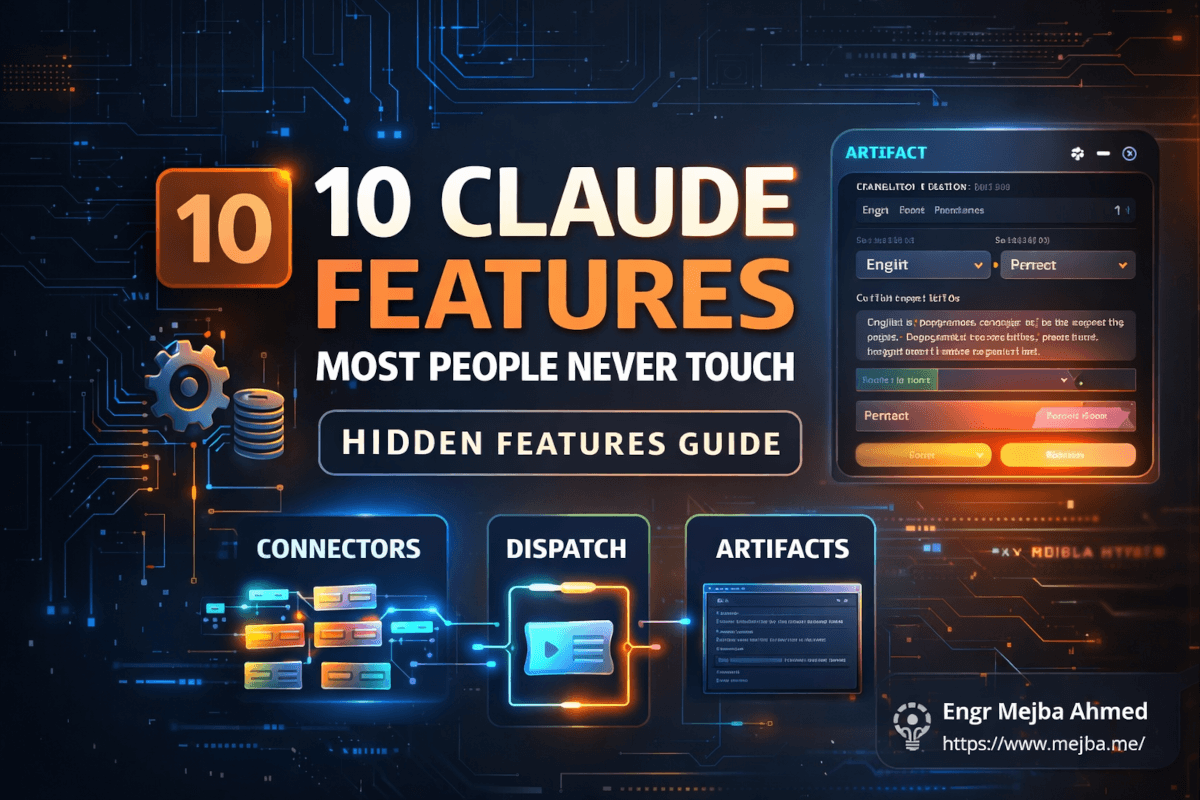
10 Claude Features Most People Never Touch
I switched from ChatGPT to Claude seven months ago. For the first three months, I used it the same way I'd used every other AI chatbot -- paste a question, get an answer, copy the output, close the tab.
Then someone on Twitter shared a screenshot of a working translation app running inside a Claude chat window. Not a code snippet. Not instructions on how to build one. A live, functional application with a text input, language selector, and real-time translation -- all generated as an artifact that anyone could use without writing a single line of code.
I stared at that screenshot for an uncomfortable amount of time. Because I'd been paying for Claude Pro for three months and had no idea it could do that.
That discovery sent me down a rabbit hole that lasted about two weeks. I started clicking on every menu option I'd ignored, testing every feature I'd assumed was just cosmetic polish, and asking Claude to do things I didn't think were possible. What I found changed how I work -- and I'm not exaggerating when I say some of these features cut entire tools out of my daily stack.
Most Claude users interact with maybe 30% of what the platform offers. The other 70% sits untouched because Anthropic doesn't exactly scream about these capabilities from the rooftops. Some are buried in settings panels. Others require a specific setup step that takes two minutes but that nobody bothers with. A few are so powerful they border on absurd -- and I'll get to the most absurd one in feature number six.
Here are ten features I tested, broke, rebuilt, and now use daily. Not theoretical capabilities. Not "wouldn't it be cool if" speculation. Actual features that work right now, as of March 2026, that most Claude users have never opened.
The first one took me two minutes to set up and immediately made three other apps redundant.
1. Connectors -- The Feature That Killed Three Apps in My Stack
Connectors let Claude talk directly to the tools you already use. Gmail. Google Calendar. Notion. Google Drive. Slack. Dropbox. As of March 2026, Anthropic has shipped over 38 connectors covering most of the productivity stack a typical knowledge worker relies on.
The setup takes about two minutes per connector. You go to Settings, click Connectors, authenticate with your Google account or Notion workspace or whatever service you're linking, and that's it. Claude now has read and write access to that service.
Here's what changed for me the moment I connected Gmail and Google Calendar.
I used to start every morning with a ritual: open Gmail, scan for anything urgent, switch to Calendar, check what's coming, switch to Notion, review my task board. Three apps, three context switches, about fifteen minutes of mental warm-up before I actually started working.
Now I open Claude and type: "What's on my plate today? Check email for anything urgent, show me my calendar, and pull my active tasks from Notion."
One prompt. One response. Everything I need in a single window.
But the real power isn't just reading data -- it's acting on it. I can tell Claude "Draft a reply to that email from the client about the Q2 timeline and schedule a 30-minute follow-up call for next Tuesday afternoon." It drafts the email in my voice, creates the calendar event, and waits for my confirmation before sending. No tab switching. No copy-pasting. No "let me check my calendar and get back to you."
The connectors I use daily and what they replaced:
- Gmail connector replaced my morning email triage routine -- Claude sorts, summarizes, and drafts replies
- Google Calendar connector replaced my scheduling back-and-forth -- Claude checks availability and creates events
- Notion connector replaced my manual task board updates -- Claude pulls active tasks and marks completions
- Google Drive connector replaced file searching -- Claude finds and summarizes documents I describe loosely
One caveat worth mentioning: the connectors work best for straightforward read-write operations. Complex Notion database queries with multiple filters sometimes return incomplete results, and I've had the Calendar connector occasionally miss events from shared calendars. For 90% of daily use, though, they're rock solid.
The setup cost is two minutes per connector. The time savings compound to roughly 45 minutes a day in my workflow. That math is absurd, and I'm annoyed I waited three months to discover it.
Now -- connectors give Claude access to your data. The next feature gives it a memory for how you work.
2. Skills -- Teaching Claude Your Workflows Once (Then Never Again)
Skills were the feature that made me delete every saved prompt I had.
Here's the problem Skills solve. Every knowledge worker has repeatable processes. Drafting outreach emails with a specific structure. Cleaning messy CSV files before importing them. Generating weekly reports in a particular format. Before Skills, you had two options: re-explain the process every single time, or maintain a growing library of saved prompts you'd paste at the beginning of each conversation.
Both options waste time. Both break when you want to modify the process even slightly.
Skills let you teach Claude a workflow once, and it executes that workflow consistently from that point forward. You can create a Skill from any chat interaction -- if Claude just did something exactly the way you wanted, you can save that interaction as a Skill. Next time you need the same process, Claude already knows the steps, the format, the tone, and the edge cases.
I built a Skill for my client email drafts. The process used to be: open the client's project notes, review the latest status, draft an update email that's professional but warm, include specific deliverables completed this week, mention any blockers, and close with next steps and a timeline. Every time I'd write one, I'd spend a few minutes remembering the format and tone.
The Skill handles all of that. I type "Send a weekly update to [client name]" and Claude pulls the relevant project context, structures the email exactly how I've trained it, and formats it with the right sign-off. The first time I used it, the output was about 95% ready to send -- I changed one sentence and hit go.
The creation process is straightforward. After Claude completes a task the way you want, click the three-dot menu and select "Save as Skill." Give it a name and a trigger description -- something like "When the user asks for a client update email." Done. Claude now recognizes that pattern and applies the Skill automatically.
I have eleven Skills running right now. Three for different types of emails. Two for data cleaning workflows (CSV and Excel). One for generating code review summaries. One for structuring meeting agendas. And four for content workflows across my different brands.
The compound effect is significant. I wrote about Claude Skills in detail in my Skills guide, where I break down the five patterns that actually matter. But the short version is: if you're doing the same type of task more than twice a week, it should be a Skill.
There's a nuance most people miss, though. Skills aren't just "saved prompts with a fancy name." They capture the full behavioral pattern -- the reasoning steps, the format decisions, the quality checks. A saved prompt tells Claude what to produce. A Skill teaches Claude how to think about producing it. That distinction matters when you start handling edge cases.
Skills give Claude procedural memory. The next feature gives it contextual identity.
3. Projects with Custom Instructions -- Different Brains for Different Work
This feature is the reason I stopped accidentally sending casual language to enterprise clients and technical jargon to non-technical stakeholders.
Projects let you create dedicated workspaces inside Claude, each with its own custom instructions, uploaded reference files, and conversation history. Think of each Project as giving Claude a different personality, knowledge base, and set of rules depending on what you're working on.
I run four separate Projects:
Client Communications -- Custom instructions tell Claude to maintain a professional but approachable tone, reference the company's brand guidelines (uploaded as a PDF), and always include specific deliverables with dates. Every email, proposal, and update generated in this Project sounds like it came from a polished agency.
Personal Content -- Instructions set the voice to casual-technical, first-person, with a willingness to share mistakes and honest opinions. This is where I draft blog posts, social media content, and newsletter copy. The tone is completely different from the client Project, and Claude never mixes them up.
Meal Planning -- Yes, I have a meal planning Project. Instructions include my dietary restrictions, preferred cuisines, and a constraint to keep grocery lists under 15 items. I uploaded a spreadsheet of staple ingredients I always have on hand. Claude plans my weekly meals in about thirty seconds, and the grocery lists it generates are genuinely useful because it knows what's already in my kitchen.
Code Architecture -- Instructions specify my tech stack (Laravel, React, TypeScript, Tailwind), coding conventions, and architecture patterns. Reference files include my project's API schema and database ERD. When I ask architectural questions in this Project, Claude's answers are calibrated to my specific setup -- not generic advice that assumes I'm using Express.js.
The setup takes about five minutes per Project. Go to the Projects panel, create a new one, write your custom instructions, and upload any relevant files. The instructions persist across every conversation within that Project, so you never re-explain context.
Here's what makes this genuinely powerful: the uploaded files function as persistent knowledge. When I upload my brand guidelines PDF to the Client Communications Project, Claude doesn't just acknowledge the file -- it references specific elements from it when generating content. It pulls the exact hex codes from my color palette. It uses the approved terminology from the style guide. It follows the email signature format from the brand manual.
You're essentially giving Claude a dedicated brain for each domain of your work. And unlike switching between different AI tools for different tasks, everything lives in one platform with one subscription.
The caveat: Projects don't talk to each other. If you discover a useful pattern in one Project, you'll need to manually add it to others where it's relevant. Cross-Project intelligence isn't a thing yet.
Projects give Claude context. The next feature gives it a canvas.
4. Interactive Visuals -- Charts and Diagrams That Actually Respond to Clicks
I assumed Claude's visual capabilities were limited to generating static images or describing what a diagram should look like. Wrong on both counts.
Claude generates interactive SVG diagrams, flowcharts, data visualizations, and architectural diagrams directly inside the chat window. These aren't screenshots. They're functional visual elements you can hover over, click into, and explore without leaving the conversation.
I tested this with a neural network architecture I was trying to explain to a non-technical stakeholder. Instead of fumbling through a verbal explanation or switching to Excalidraw, I typed: "Create an interactive diagram of a transformer architecture with attention heads, showing how data flows from input embeddings through the layers."
Claude generated a clean SVG diagram with labeled components, directional arrows showing data flow, and hover states that highlighted each layer's role when I moused over it. The stakeholder could click through the diagram and understand the architecture visually without me saying another word.
The chart capabilities are equally useful. Feed Claude a dataset -- paste a table, upload a CSV, or just describe the numbers -- and ask for a visualization. It produces interactive charts where you can hover over data points to see exact values, toggle series on and off, and zoom into specific ranges.
I've used this for:
- Sprint velocity charts that update when I paste new data from Linear
- System architecture diagrams for client presentations
- Decision flowcharts for complex deployment processes
- Comparison matrices that visually map feature sets across competing tools
The practical advantage over standalone diagramming tools: iteration speed. I can say "make the database layer more prominent and add a caching layer between the API and database" and Claude regenerates the diagram in seconds. In a dedicated tool, that's a five-minute drag-and-drop exercise. In Claude, it's a sentence.
The limitation: these visuals live inside the Claude conversation. You can screenshot them or download the SVG, but there's no direct export to Figma or other design tools. For quick working diagrams and client-facing explanations, they're excellent. For polished final deliverables, you'll still want a dedicated tool.
Speaking of deliverables -- the next feature creates actual files you can hand to people.
5. Downloadable Files -- Real Documents, Not Just Text
This feature shipped to all Claude users (including free accounts) on February 11, 2026, and it's more capable than most people realize.
Claude creates actual, editable files. PowerPoint presentations. Word documents. Excel spreadsheets. PDFs. Not markdown that you manually paste into Google Docs -- real .pptx, .docx, .xlsx, and .pdf files that download to your machine ready to open in their native applications.
I put this through a real stress test: building a client pitch deck from scratch.
My prompt: "Create a 10-slide pitch deck for a SaaS startup called PulseMetrics that does real-time analytics for e-commerce stores. Include a problem slide, solution slide, market size, competitive landscape, business model, team placeholder, traction metrics, and a closing CTA. Use a clean, modern design with dark backgrounds."
What I got back was a .pptx file with ten properly formatted slides. The layouts were clean. The text hierarchy made sense. Each slide had a coherent structure with headers, body text, and placeholder areas for graphics. Was it designer-quality? No. Was it good enough to start a conversation with a potential investor? Absolutely -- and I'd spent sixty seconds instead of two hours.
The iterative editing is where this gets practical. After downloading the first version, I said: "Make slide 3 more data-heavy -- add a table showing TAM, SAM, and SOM with specific numbers. Also, the font on slide 7 feels too small."
Claude regenerated the file with those specific changes. No starting over. No opening PowerPoint and manually adjusting layouts. Conversational iteration on actual document files.
I also tested Excel file generation with a financial model template, and Word document creation for a proposal with proper heading hierarchy, styled tables, and a table of contents. Both worked as expected -- the outputs weren't perfect, but they were 80% of the way there, which is exactly the right threshold for a first draft you plan to refine.
Anthropic also launched a Microsoft Office add-in on February 20, 2026, for paid tiers. Claude for PowerPoint works directly inside the application, which means template-aware slide generation without leaving PowerPoint. I haven't tested the add-in extensively yet, but the concept of having Claude understand your existing slide templates is compelling.
Files are useful. But what if Claude could build entire applications inside the chat window? That's feature number six, and it's the one that made me question what a chatbot even is anymore.
6. Artifacts -- Live Applications Running Inside Your Chat
This is the feature that started my entire discovery journey, and after two months of daily use, it's still the one that impresses me most.
Artifacts are interactive, functional mini-applications that Claude generates and runs directly in a sidebar panel within your conversation. Not code snippets you copy. Not mockups you look at. Working applications with user interfaces, logic, state management, and real-time interactivity.
I've generated:
- A project tracking dashboard with drag-and-drop Kanban columns, due date filtering, and priority sorting
- A currency converter that pulls exchange rate data and calculates conversions with a clean input interface
- An invoice generator with customizable fields, automatic tax calculations, and PDF export
- A Pomodoro timer with session tracking, break notifications, and a weekly productivity summary
- A color palette generator that creates harmonious palettes with contrast ratio checks for accessibility
Each of these was generated from a single prompt. Each runs inside the Claude interface. Each can be shared via a link that anyone can access -- even people without a Claude account. That sharing capability alone makes artifacts useful for client work, team collaboration, and quick prototyping.
But here's the part that borders on surreal: artifacts can call Claude internally.
That means you can build an artifact -- say, a translation app -- and within that artifact, the translation logic actually calls Claude's API to perform the translation in real time. The artifact isn't just a static UI. It's an AI-powered application using the same intelligence that built it.
I built a meeting notes processor this way. The artifact has a text area where you paste raw meeting notes. When you click "Process," it calls Claude internally to extract action items, decisions, and follow-ups, then displays them in a structured format with assignee fields and due dates. The entire thing was generated in one prompt, runs inside Claude's interface, and performs AI-powered analysis within itself.
The artifact catalog at claude.ai shows what the community has built, and some of these creations are genuinely impressive -- interactive data explorers, educational simulations, financial calculators, even games. All running inside a chat window.
For a deeper look at how I use Claude for building things fast, my Cowork daily workflow piece covers the broader automation angle.
Artifacts transform Claude from a question-answering tool into something closer to a development platform. And I haven't even gotten to the features that let Claude work when you're not watching.
7. Model Switching -- Picking the Right Brain for the Job
Most Claude users stick with whatever model loads by default. That's like owning a toolkit with three different saws and only ever using one.
Claude offers three model tiers, each optimized for different work:
Opus 4.6 -- Released February 5, 2026, this is the heavyweight. A million-token context window. Native multi-agent collaboration. The deepest reasoning capabilities. I use Opus for complex code architecture decisions, long-form content generation, multi-step research tasks, and anything where I need Claude to hold massive context -- like analyzing an entire codebase or processing a 200-page document. It's slow relative to the other models, and it burns through credits faster. But for hard problems, nothing else comes close.
Sonnet 4.6 -- The workhorse. Released February 17, 2026. Balanced between capability and speed. I use this for 70% of my daily interactions: email drafting, code reviews, data analysis, content editing, brainstorming. It's fast enough to feel conversational and smart enough to handle non-trivial tasks without struggling.
Haiku -- The speedster. Lightning fast, roughly 3x cheaper than Sonnet. I use it for quick lookups, simple formatting tasks, and rapid-fire questions where I need answers in seconds, not quality essays. "What's the Tailwind class for a 2-column grid with gap-4?" Haiku answers before I finish reaching for the documentation.
The switching mechanism is simple -- there's a model selector in the chat interface. Click it, pick your model, and the next response uses that model. You can switch mid-conversation.
My workflow pattern: start complex sessions with Opus to do the heavy thinking and establish direction. Switch to Sonnet for iterative refinement and execution. Drop to Haiku for quick verification questions. The cost difference is substantial -- an hour of Opus work costs roughly what three hours of Sonnet work costs. Being intentional about model selection saved me about 40% on my monthly Claude costs without reducing output quality.
Knowing which model to use is important. But what if Claude could work even when your computer is across the room? That's where the next feature gets interesting.
8. Claude Dispatch -- Your Phone Becomes a Remote Control
Dispatch shipped on March 18, 2026, and it immediately changed how I think about downtime.
The concept: you pair your phone with your desktop Claude session by scanning a QR code. Once paired, you can send instructions from your phone that Claude executes on your computer. Your desktop becomes the workhorse; your phone becomes the remote control.
I tested this during a coffee run. Standing in line at the coffee shop, I pulled out my phone and sent a Dispatch message: "Research the top 5 open-source alternatives to Notion in 2026. Compare their self-hosting requirements, feature sets, and community activity. Save a summary to my Desktop."
By the time I sat back down at my desk with my coffee, Claude had completed the research, compiled a comparison table, and saved a markdown file to my Desktop folder. The task took about eight minutes to execute -- time I would have spent standing in line doing nothing.
Other tasks I've dispatched from my phone:
- "Organize today's downloads folder -- sort by file type and delete anything over 30 days old"
- "Find all PDF invoices in my Documents folder from Q1 2026 and create a summary spreadsheet with vendor names and amounts"
- "Pull my GitHub notifications from the last 24 hours and summarize any PRs that need my review"
The pairing process is painless -- QR code scan, done. The latency between sending a command from your phone and seeing execution begin on your desktop is usually under ten seconds. And because Dispatch runs through the Co-work engine, it has access to your connectors, your files, and your full desktop environment.
The limitation: Dispatch requires your desktop to be on and Claude to be running. It's not a cloud worker -- it's a remote trigger for your local machine. If your laptop is closed, Dispatch messages queue but don't execute until you open it again.
Still -- the mental model shift is real. Tasks that would normally wait until "I get back to my desk" now start the moment I think of them. That reclaimed dead time adds up to something significant across a week.
Dispatch is remote control. The next feature is full autopilot.
9. Co-work -- The Feature That Functions Like an Actual Employee
I covered Co-work extensively in my dedicated review, but it deserves a spot on this list because most Claude users either don't know it exists or assume it's just a rebranded chatbot.
Co-work is an autonomous agent that runs on your desktop computer. You give it a goal, and it works independently -- browsing the web, managing files, creating documents, conducting research, interacting with applications -- until the task is done. You don't need to babysit it. You don't need to approve each step. You set it loose and come back to finished work.
The screenshot organization story I told in my full review still blows people's minds: 2,900 screenshots analyzed by visual content, sorted into named folders, and renamed with descriptive labels. All while I made coffee.
But Co-work's capabilities have expanded significantly since that initial testing. The biggest addition: computer use. Claude can now literally move your mouse cursor, click buttons, type into applications, navigate your browser, and fill in spreadsheets. It's not simulating these actions in a sandbox -- it's controlling your actual computer.
I watched Co-work fill out a ten-field form in a web application, switching between browser tabs to look up the correct values, then submitting the form and verifying the confirmation page. That's not a chatbot. That's closer to a remote employee who happens to execute instructions with perfect accuracy (when the task is within its capability range).
The honest reality check: Co-work's success rate on complex, multi-step tasks hovers around 50%. Simple tasks like file organization, web research, and document generation work reliably. But when you ask it to navigate complex web interfaces with unusual layouts, or chain together more than five or six dependent steps, it can stall or make mistakes. I've learned to scope my Co-work tasks tightly -- clear goal, defined boundaries, explicit success criteria.
When it works, though, it changes your relationship with busywork entirely.
One feature left. It's the simplest on this list, and somehow the one that ties everything together.
10. Global Instructions -- The Setting That Makes Claude Feel Like Your Claude
Global Instructions are the reason my Claude interactions feel personalized from the first message, every single time, across every Project, every conversation, every model.
You find them in Settings. It's a text field where you describe your preferences, communication style, role, and any persistent context you want Claude to always know. These instructions apply to every interaction across the entire platform -- not just one Project, not just one conversation, but everything.
My Global Instructions include:
- My role (software engineer, AI developer, content creator)
- My preferred communication style (direct, skip the caveats, assume technical competence)
- My tech stack (so Claude never suggests tools I don't use)
- A note about my four brands and their distinct voices
- "Don't start responses with 'Great question!' or 'Absolutely!' -- just answer"
- "When I ask about code, show the code first, explain after"
- "Default to practical solutions over theoretical ones"
The effect is subtle but cumulative. Without Global Instructions, every new conversation starts from zero -- Claude treats you like a stranger. With them, every conversation starts from a baseline of shared context. Claude knows who you are, how you work, and what you care about before you type your first word.
The interaction between Global Instructions, Project-level custom instructions, and Skills creates a layered intelligence system. Global Instructions set the foundation. Project instructions add domain-specific context. Skills provide procedural knowledge. Together, they transform Claude from a general-purpose AI into something that feels genuinely personalized.
I've experimented with different levels of detail in my Global Instructions. Too sparse (just your name and role) and you don't notice much difference. Too detailed (a 2,000-word document about your entire life) and Claude sometimes over-applies the context in weird ways. The sweet spot seems to be around 200-400 words -- enough to establish your identity and preferences, not so much that it constrains Claude's flexibility.
One thing worth noting: Global Instructions and Project instructions can technically conflict. If your Global Instructions say "always be formal" but your Personal Content Project says "be casual and conversational," the Project instructions win within that Project. Claude handles this gracefully -- I've never seen it get confused by conflicting layers.
What This All Adds Up To
Here's the thing I wish someone had told me seven months ago: Claude isn't a chatbot you ask questions to. It's a platform you configure, connect, and customize until it functions as an extension of how you already work.
Each feature on this list is useful individually. Connectors save time. Skills reduce repetition. Projects maintain context. Artifacts create working tools. But the compounding effect of using them together is what changes the game.
My current Claude setup: Global Instructions establish my identity and preferences. Four Projects give Claude different brains for different work. Eleven Skills handle my recurring workflows. Five connectors link Claude to the tools I use daily. Dispatch lets me start tasks from my phone. Co-work handles the tasks I don't want to do myself. And model switching ensures I'm using the right amount of intelligence for each job.
That's not a chatbot. That's a system. And building that system took me about three hours total -- the vast majority of which was deciding what I wanted, not figuring out how to implement it.
If you're still using Claude the way you used it when you first signed up -- opening the web interface, typing a question, copying the answer -- you're operating a sports car in first gear. These features exist. They work. Most of them take minutes to set up.
Pick one from this list. The one that made you think "wait, it can do that?" Set it up today. Then come back for the rest tomorrow.
Your future self will wonder how you ever worked without them.
Claude Features: Quick Answers
Are Claude connectors available on the free plan?
Connectors require a paid Claude plan (Pro at $20/month or higher). The free tier does not include connector access. Once activated on a paid plan, setup takes roughly two minutes per service -- authenticate, grant permissions, and start using the connected data in your conversations.
Can Claude artifacts really call Claude inside themselves?
Yes. Artifacts can make internal API calls to Claude, enabling AI-powered functionality within the artifact itself. A translation app artifact, for example, uses Claude to perform live translations. These self-referencing artifacts are among the most powerful yet least-known capabilities. See the artifact catalog for community examples.
What is Claude Dispatch and how does it work?
Claude Dispatch pairs your phone with your desktop Claude session via QR code, letting you send task instructions remotely. Your phone acts as a remote control; your computer does the work. Dispatch launched March 18, 2026, and requires Claude desktop app to be running on your computer for tasks to execute.
Which Claude model should I use for everyday tasks?
Sonnet 4.6 handles roughly 70% of daily tasks well -- it balances speed and intelligence for email drafting, code reviews, data analysis, and content editing. Reserve Opus 4.6 for complex reasoning and large-context tasks. Use Haiku for quick lookups where speed matters more than depth.
How do Global Instructions differ from Project custom instructions?
Global Instructions apply to every Claude interaction across all Projects and conversations -- they set your baseline identity and preferences. Project instructions apply only within a specific Project workspace. When they conflict, Project instructions take priority within that Project. The two layers work together to create personalized, context-aware responses.
Which Claude Feature to Explore First
Artifacts, projects, system prompts — most Claude users never touch the features that would save them the most time. The gap isn't capability; it's discovery. Start with the one that fits how you already work.
Spend ten minutes with one this week and see what changes. My live artifacts test and Claude Cowork business setup go deeper.
If you want help getting more out of Claude across a team, that's something I do through Ramlit.