Claude Desktop App Becomes an Agentic OS
The first time I dragged a client folder onto the new Claude desktop app icon, I did the thing every engineer does when something works the way it should: I stared at the screen for about ten seconds, then said "wait, that's it?" out loud, to nobody, on a Saturday morning.
I expected friction. I expected a "set up your workspace" wizard. I expected the usual five-step ceremony every desktop app makes you walk through before it deigns to do real work. Instead, the folder dropped in. Claude indexed the structure. The markdown plan sidebar populated itself with a draft outline of what I'd been working on the night before — pulled from the actual notes file sitting in the folder. A second session opened in a side panel without me asking, ready for a different client.
I closed three terminal windows and a Cursor tab in the next sixty seconds.
That sounds like a small moment. It isn't. For the last year, the Claude desktop app has been the weak link in Anthropic's stack — a glorified ChatGPT clone that lived in a separate world from the agentic patterns I'd been running in Claude Code's terminal. If you wanted projects, file context, parallel work streams, or anything that resembled a real workstation, you went to the CLI. The desktop app was where you pasted a paragraph and asked a question. Two different products, two different mental models, one logo.
This update collapses that gap. The Claude desktop app agentic OS update finally brings the structured-filesystem-as-context pattern — the same pattern that made Claude Code feel like a senior engineer instead of a smart autocomplete — to the app most people actually have open all day. And the second-order effects on a multi-client workflow are bigger than the changelog suggests.
Let me show you what I mean.
What "Agentic OS" Actually Means When You Stop Saying It Like a Buzzword
Half the AI Twitter timeline is using the phrase "agentic OS" to mean "the AI does stuff," which is unhelpful. Here's the working definition I've landed on after a year of building inside this pattern: an agentic OS is a system where a structured filesystem holds your project's context, data, outputs, and rules, and the AI loads that context dynamically per session. The filesystem is the operating system. The model is the runtime. Sessions are processes.
That's not metaphor. It's how Claude Code has worked for months in the terminal: you cd into a folder, Claude reads CLAUDE.md, scans the structure, picks up your skills directory, sees what's in the working tree, and starts executing against that context. Reset the session and it reloads. The folder is the program.
The desktop app, until last week, didn't work that way at all. It worked like a chat interface. Each conversation was an island. There was a Projects feature, but it was essentially a folder of saved chats with a system prompt — not a real file context. If you wanted Claude to know your client's brand voice, your folder structure, and the three reference documents that define how you do design reviews, you pasted them into the chat. Every time. Across every session. It was 2023's pattern shipped in 2026's wrapper.
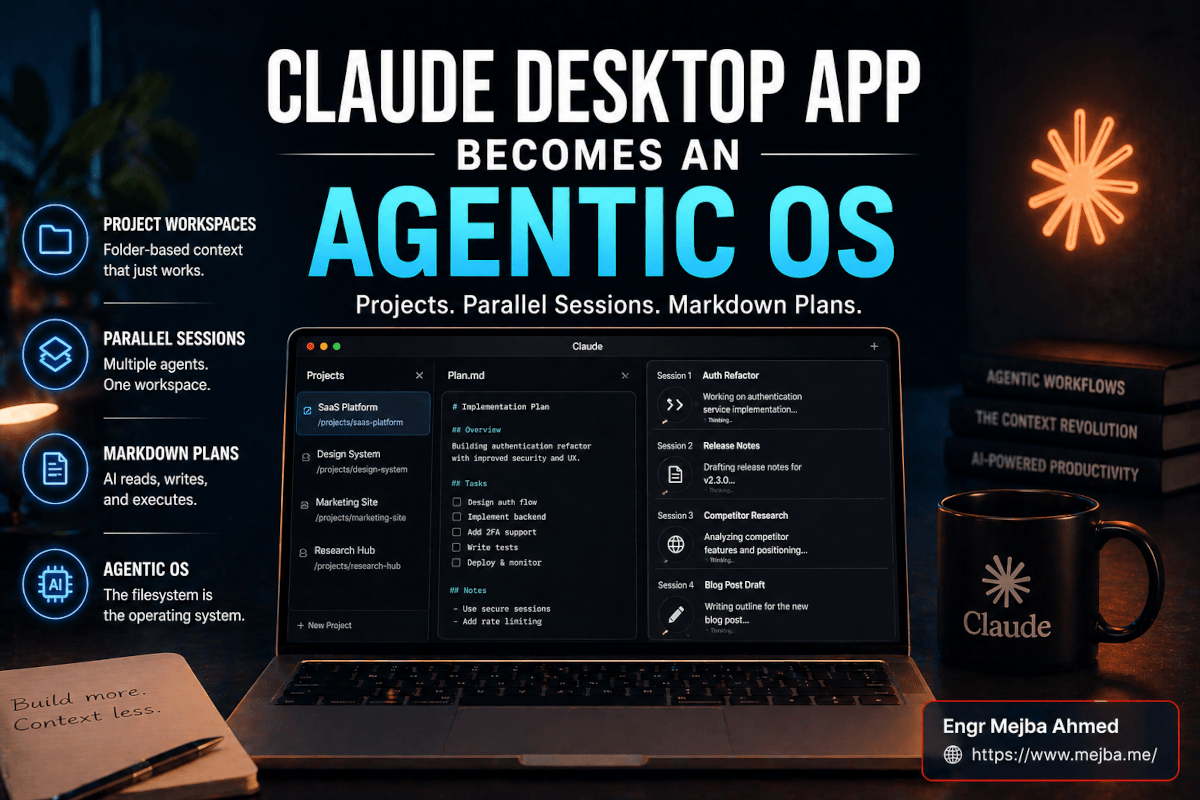
The update doesn't add a new feature. It changes what the app is. The desktop app is now a workspace built around folders, not threads. You point it at a directory — a client folder, a project root, a research workspace — and every session you open inside that directory inherits the file context, the markdown notes, the structure, and any plans living in there. It's the agentic OS pattern, finally native to the app most users are willing to open.
That's the headline. Now let me get into what that actually changes when the rubber hits the road.
The Five Things That Actually Matter (With Receipts)
I've been running my real client work inside this for the better part of a week. Three SaaS clients. One brand identity refresh. One internal product I'm building. I'm not going to walk through every menu item — Anthropic's release notes do that fine, and the official Claude Code desktop redesign post covers the developer-side equivalents in detail. I'm going to walk through the five behaviors that changed how I actually work.
1. Multiple Parallel Sessions That Don't Collide
I'm running four sessions simultaneously as I write this. Two on a single client (one writing the implementation plan for an auth refactor, one drafting client-facing release notes for the same project). One on a different client doing competitive research. One on this blog post you're reading right now.
Each session has its own scrollback, its own context, its own progress. They don't bleed into each other. I can flip between them in the sidebar — same way you flip between tabs in a browser, except each tab is an active agent doing real work in the background. When I tab back, the session is exactly where I left it, except sometimes it's three steps further along because Claude kept working while I was elsewhere.
Before this update, I ran parallel sessions by stacking terminal windows. It worked, but it was loud. Window management on a 14-inch laptop screen is a tax I paid every time I context-switched. The native sidebar collapses that tax to zero. I didn't realize how much friction the multi-window dance was adding until it stopped existing.
The non-obvious benefit: I can start a long-running task in one session, jump to a different session, do a 20-minute focused chunk of work, and come back. The first session has finished. The second one I started is mid-flight. A third one I haven't touched yet is sitting there waiting. This is what concurrency feels like for knowledge work, and the desktop app shipped it before any of the IDE plugins did.
2. Project-Centric Workspace That Sees Your Actual Files
Pick a folder. Not "create a project." Not "configure a workspace." Pick a folder you already have on disk — your client folder, your code repo, your research notes — and the app treats it as the working context.
In the left rail, you get the file tree. Folders. Subfolders. Output files. Markdown notes. Whatever lives there. Click any file and it opens in the main pane. Edit a markdown file and the changes save back to disk. Drop a new file in via Finder and the app sees it within seconds. There is no upload. There is no sync. There is no "import." It's your filesystem, made visible inside the app you're already chatting with.
Why this matters: every meaningful workflow I run has a folder behind it. My ColorPark brand brief workflow has a folder per client — 00-brief.md, 01-mood.md, 02-tokens.md, 03-final-system.md. My security audit workflow has a folder per engagement with subfolders for findings/, evidence/, and report-drafts/. My content workflow has, well, what you're reading right now sitting in content/mejba.me/.
Before the update, getting Claude to "see" any of this required either pasting files into the chat or running Claude Code in the terminal alongside the desktop app, which defeated the point of having both. Now I open the app, point at the folder, and Claude reads the structure on session start. Which leads directly into the next behavior.
3. Context-Aware Session Init That Pulls What's Relevant
Start a new session inside a folder, and Claude doesn't ask "what do you want to do?" It asks something closer to "what are we working on next?" — because it's already read the directory structure, scanned the markdown notes, and has a working sense of the project state.
I tested this with a client folder I hadn't touched in three weeks. New session. Claude opened with: "Looks like you're working on the Q2 brand refresh — last note in 01-mood.md was about pulling reference imagery from three competitor sites. Want to continue from there or start somewhere else?" That's not magic. It's just the agentic OS pattern doing what it's always done in the terminal — except now it's surfacing it in a clean UI instead of a wall of monospaced text.
The session init pulls:
- The folder structure (so it knows what's there)
- Any markdown plan files (so it knows the intended sequence)
- Recent files modified (so it knows what's hot)
- A summary of subfolder contents (so it doesn't have to guess what
findings/means)
You can override any of it with a system prompt or a project-level CLAUDE.md, but the default is good enough that I haven't bothered for most folders. The sane default is the unsung feature here. Most "AI workspace" tools require you to configure your way into something useful. This one is useful out of the gate.
4. The Markdown Plan Sidebar That Replaced My Whiteboard
This is the feature I didn't know I needed and now can't imagine working without.
There's a sidebar — collapsible, pinned to the right side of the workspace — that renders any plan file as live markdown. Headings become collapsible sections. Checklists are interactive. Code blocks render with syntax highlighting. Internal links jump between sections. It's a markdown viewer, but it's wired into the active session: when Claude updates the plan during a session, the sidebar updates in place, and when I edit the sidebar, the underlying file on disk updates instantly.
What this collapses: the entire "plan in one place, work in another, copy-paste between them" routine. My old workflow involved a Notion doc with the plan, a terminal with Claude Code executing the plan, and a third window for output. Three contexts. Three places to forget which version was current. Now the plan is the sidebar, the work is the main pane, and they're the same file.
I've been writing plans in markdown for two years — partly because plain text outlasts every tool I've tried, partly because Claude reads markdown better than any other format. The sidebar finally treats markdown plans the way they deserve to be treated: as live documents the AI and I are co-editing, not as a static input I paste into a chat.
For the multi-client workflow, this is the unlock. Each client folder has its own plan.md. Open the client, the sidebar populates. The session knows the plan. I know the plan. We're all looking at the same thing. The "where were we?" question disappears.
5. Split View, Multiple Windows, and Real Display Real Estate
Drag a session from the sidebar into the main pane and it splits. Drag another and it splits three ways. Pop a session out into its own window and you can have four independent windows running simultaneously across two monitors. Resize them like real windows. Snap them to corners. Treat them like the workstation tools they actually are.
This sounds like a small UI thing. It's not. It's the difference between using the app as a chat tool and using it as a workstation. On my external monitor, I currently have: client A's session full-screen on the left, client B's session split with its plan sidebar on the right, and a third floating window with my personal project sitting on the laptop screen. Three different brains. One unified app. Zero context-switch tax.
A small thing that surprised me: the windows persist across restarts. Quit the app, relaunch, and your layout comes back exactly. Sessions are still there. Plans are still loaded. It's the kind of detail that signals the team built this for people who actually use desktop software all day, not just for demo videos.
If you want a deeper look at how I structured my parallel agent setup before this update made it native, my breakdown of running parallel agents with Claude Code covers the git worktree pattern that solved this in the terminal. The desktop app version is faster to set up but less flexible — both have a place.
Where It Still Falls Short (And Why VS Code Isn't Dead Yet)
I'd be doing you a disservice if I told you this update is finished. It isn't. There are real gaps, and a few of them are the kind of thing that will pull you back into your old tools at the worst possible moment.
PNG outputs from skills render as code, not as images. I use the Excalidraw skill regularly to generate quick architecture diagrams. In the terminal version of Claude Code, the skill outputs a PNG file and any reasonable file viewer renders it. In the desktop app, the PNG output renders as a base64 blob in the chat — looks like a wall of garbled code instead of an image. Click through to the file in the file tree and it opens fine in the system viewer. But the inline preview is broken for PNGs. Anthropic has acknowledged this is a known issue and a fix is on the way, but right now, if your workflow leans on visual outputs, plan to open them in Preview manually.
Hidden directories don't show up in the file tree. Anything with a leading dot — .env, .claude/, .git/, the skills/ folder if you've configured it as hidden — is invisible in the desktop app's file browser. You can't see them, you can't open them, you can't edit them inside the app. For me, this is the single biggest gap. Most of my serious skill work happens in .claude/skills/ directories, and editing those files is a regular part of my day. The desktop app pretends they don't exist. VS Code shows them by default.
Credential files are read-only at best. Even if a hidden file weren't hidden, the desktop app doesn't have a great pattern for editing .env files or anything sensitive. It's not designed as a code editor for ops files, and that's fine in principle — but it does mean any workflow that involves "tweak the env, restart the agent, watch what happens" still requires me to alt-tab into VS Code. That's a workflow seam I notice every single day.
The integrated editor is good, not great. For markdown, it's excellent. For most config files and small TypeScript or Python edits, it's fine. For anything that needs Language Server features — autocomplete, type hints, jump-to-definition, find-references — it's not even trying to compete with a real IDE. And it shouldn't. But that means the desktop app is a workspace, not a replacement for your editor. You'll still have VS Code or Cursor open for actual code work.
So here's how I'm splitting my time now: the Claude desktop app is where I run client work, write plans, manage sessions, and keep multiple projects alive in parallel. VS Code is where I edit hidden files, handle complex code refactors, and do anything that needs proper LSP support. Claude Code in the terminal is where I run long-running scripted agent workflows that don't need a UI at all. Three tools, three jobs, one filesystem underneath. The agentic OS pattern works because all three see the same folder structure and the same plan files.
If you're running a security or compliance workflow where the visibility of .env and hidden config files is non-negotiable, the Claude Code desktop security upgrade covers the trade-offs in more depth. Different audiences, different risk profiles.
How I Actually Set It Up (The 12-Minute Version)
The fastest way to get value out of this is to stop reading and start setting up. Here's the exact sequence I ran on my first morning with the update. It took twelve minutes. It replaced about three days of accumulated workflow drift.
Step one — pick your top three project folders. Not all of them. The three you actually touch every day. For me: my agency client folder, my personal blog content folder, and the build-in-public project I've been shipping at night. Three, no more.
Step two — open the app and drag the first folder onto the workspace. The app will prompt you to confirm it as a project workspace. Confirm. The file tree populates in the left rail. Don't configure anything yet. Just look at it. Notice what's there. Notice what's missing.
Step three — write a one-paragraph project.md at the root if there isn't one. Three or four sentences explaining what this project is, who it's for, and what state it's in. This is the single highest-leverage thing you can do. The session init reads it on every new session and it sets the context perfectly. I keep mine to under 200 words. Anything longer gets ignored.
Step four — create or open plan.md and pin it to the markdown sidebar. If you have an existing plan in any format, paste it in and let Claude clean up the markdown structure in a fresh session. If you don't, ask Claude to draft one based on what's in the folder. The plan will be wrong on the first pass. That's fine. You'll iterate it twice and it'll be right.
Step five — start three sessions in the same workspace. One for "current task," one for "research," one for "review." Don't overthink the names. The point is to feel the parallel session model. Run them at the same time. Move between them. Notice that none of them lose context.
Step six — repeat steps two through five for the other two folders. By the end you'll have three workspaces, three plan files, and somewhere between six and nine active sessions. That's your new baseline.
Step seven — close every other AI tab and window for a day. This one's optional but I recommend it. The first day I forced myself to live entirely inside the desktop app, I learned more about its limits and its strengths than I would have learned in a week of half-using it.
If you want a deeper architectural take on how to structure those folders for maximum agent leverage, my walkthrough of the Claude Code agentic OS framework covers the pattern in detail — same principles, applied to the terminal-first version of the workflow.
What This Means for Multi-Client Work
I run more than one thing at a time. Most of the people reading this do too. The honest test of any "workspace" tool isn't how it handles a single project — it's how it handles five.
Before this update, my multi-client workflow had a specific shape. Each client lived in its own folder on disk. Each had a Notion page or a local markdown file with the plan. Each had its own Claude Code terminal session, sometimes two. To switch between them, I'd cd into the new folder, re-up the Claude Code session, paste in the relevant context, and start working. The switch cost me about three to five minutes of friction — not because the tools were slow, but because the re-grounding was slow. I had to remind myself where this client's project was, what state it was in, what the next move was.
The desktop app collapses that re-grounding to about six seconds. Click the workspace. The plan loads in the sidebar. The most recent session shows where I left off. The file tree reminds me what's there. I'm working again before I've finished the sip of coffee I started while switching. Multiplied across four or five client switches a day, that's somewhere around 15 to 20 minutes of friction that just disappeared. Across a week, that's a real chunk of recovered focus.
Pair that with the parallel session model and the math gets weirder. I can have a long-running task running in client A's workspace while I'm actively writing in client B's. The agent does its thing in the background. I check on it when I context-switch back. The "Claude is busy, I have to wait" pattern is gone for any work that doesn't require my immediate input.
This is the part I want you to sit with: the productivity gain isn't the parallel sessions themselves. It's the elimination of the cost of running parallel sessions. You could always run multiple Claude Code instances. You just paid for it in terminal-window-management overhead and context-switching tax. Native parallel sessions don't make Claude faster. They make me faster, by removing the tax.
If you'd rather have someone build this kind of multi-client agentic setup for you instead of figuring it out from scratch, I take on workflow architecture engagements through Fiverr — you can see what I've built at fiverr.com/s/EgxYmWD. For solo operators, though, the twelve-minute setup above will get you most of the way there on your own.
The Surprising Second-Order Effect: I Closed VS Code More Than I Expected
Here's the result I didn't predict.
I started the week assuming the desktop app would replace my chat tool but leave my code editor untouched. By Wednesday, I was reaching for VS Code maybe a third as often as I had the week before. Not because the desktop app's editor is better than VS Code — it isn't, and I said so above — but because most of what I was doing in VS Code wasn't actually code editing. It was reading files. Cross-referencing markdown notes. Editing config docs. Reviewing diffs. The desktop app handles all of those well enough that the friction of opening a separate IDE wasn't worth it for a five-line markdown edit.
VS Code is now what it should have been all along: my deep-code-work tool. When I need to refactor a TypeScript module across six files with proper type checking, I'm there. When I need to write a complex regex with a real linter, I'm there. When I need to debug something with breakpoints, obviously, I'm there. But for the dozens of small file edits that fill a working day — adjust this markdown plan, update that env note, tweak this prompt file — the desktop app is now closer to hand and at least as fast.
The honest summary: the Claude desktop app didn't replace any of my tools. It absorbed the easy parts of three of them — chat, file viewing, light editing — and let me reach for the heavyweight tools only when I actually need them. That's a quieter kind of upgrade than "X is dead, long live Y," but it's the kind that actually compounds.
What I'm Watching Next
A few things I'm watching as the rough edges get filed down.
The PNG rendering fix is at the top of my list. The skills ecosystem leans heavily on visual outputs — Excalidraw, Mermaid, Figma exports — and an agentic OS that can't render its own visual artifacts inline is missing a layer of polish. Once that ships, the desktop app becomes the obvious default for any visual-heavy workflow.
Hidden file visibility is the harder one. There's a real tension between "this is a clean workspace for non-developers" and "I need to edit .claude/skills/ without leaving the app." My guess is Anthropic ships a power-user toggle within a quarter — show hidden files, edit env files, the whole bit. If they don't, the gap between the desktop app and a real IDE will stay wider than it needs to.
The bigger question, the one I don't have an answer to yet: does the desktop app start to absorb features that have lived in the browser-based Claude experience? Projects, artifacts, computer use, the whole Co-work pattern? My bet is yes, and I think the next six months will show the desktop app become the canonical surface for serious Claude usage, with the browser app reduced to a quick-question tool. The agentic OS pattern doesn't really fit a browser tab. It fits a workstation.
If you want a primer on how the broader desktop automation story has been playing out — Claude Co-work, Dispatch, the remote-agent stack — I covered the Claude Co-work desktop automation experience in detail back when those features first landed. The desktop app update is the next chapter of that same story.
The Question Worth Sitting With
The thing I keep coming back to is this: for the last decade, every productivity app has been competing for the same square inch of attention. Notion versus Obsidian versus Roam versus Apple Notes. VS Code versus JetBrains versus Sublime. ChatGPT versus Claude versus Gemini. Tab management. Window switching. The constant low hum of "where did I put that thing."
What the agentic OS pattern does, quietly, is make the filesystem the source of truth again. Your folders are your projects. Your markdown is your plan. Your AI is your runtime. The tool you use to interact with all three is interchangeable — terminal today, desktop app tomorrow, who knows what next year — because the substrate underneath is just files. Files that have been on every operating system since 1969. Files that will outlast every "workspace" tool I've ever paid for.
The Claude desktop app didn't add features this update. It joined a pattern. And once you've worked inside the pattern for a week, going back to chat-as-an-island feels like going back to writing emails in Notepad after using Gmail.
So here's the question I'd leave you with, the one that's been rolling around my head all week: when the substrate underneath your work is just files, and the AI runtime can plug into any of those files instantly, what's actually still differentiated about the apps you've been paying for? My short answer: less than I thought. My longer answer is what the next six months of this blog will be about.
For tonight, I'm going to close every tab I'm not using, drop my next client folder onto the desktop app, and see how far I can push it before something breaks. If you've been waiting for permission to do the same, this is it.
FAQ
Frequently Asked Questions
Everything you need to know about this topic
No — they're related but distinct. The Claude Code desktop redesign (April 14, 2026) targets developers with an integrated terminal, diff viewer, and parallel coding sessions. The Claude desktop app agentic OS update brings folder-based project workspaces, markdown plan sidebars, and parallel sessions to the general-purpose chat app. Same family, different audiences. See the section above for the split-view setup I use across both.
For light file editing, plan management, and multi-client workflow orchestration, yes — I reach for VS Code about a third as often as before. For deep code work needing LSP features, debugging, or hidden file editing (.env, .claude/), no. The honest pattern is to use the Claude desktop app as your workspace and your IDE as your code-deep-work tool.
Three known gaps: PNG outputs from skills render as code blocks instead of images (fix expected), hidden directories like .claude/ and .env are invisible in the file tree, and the integrated editor lacks Language Server features. None are dealbreakers for most workflows, but plan around them if your work depends on visual outputs or hidden config files.
Drag a folder onto the app to create a workspace, then open multiple sessions inside that workspace from the sidebar. Each session has independent context. Drag sessions into the main pane to split-view them, or pop them into separate windows for multi-monitor setups. Layouts persist across restarts. Full twelve-minute setup walkthrough is in the section above.
Yes — pin any markdown file to the right-side plan sidebar and it renders as live, editable markdown. Edits save back to disk instantly. When Claude updates the plan during a session, the sidebar reflects the change in place. This is the single feature that replaced my Notion-plus-terminal workflow most cleanly.
Let's Work Together
Looking to build AI systems, automate workflows, or scale your tech infrastructure? I'd love to help.
- Fiverr (custom builds & integrations): fiverr.com/s/EgxYmWD
- Portfolio: mejba.me
- Ramlit Limited (enterprise solutions): ramlit.com
- ColorPark (design & branding): colorpark.io
- xCyberSecurity (security services): xcybersecurity.io