📝 KI-Tools

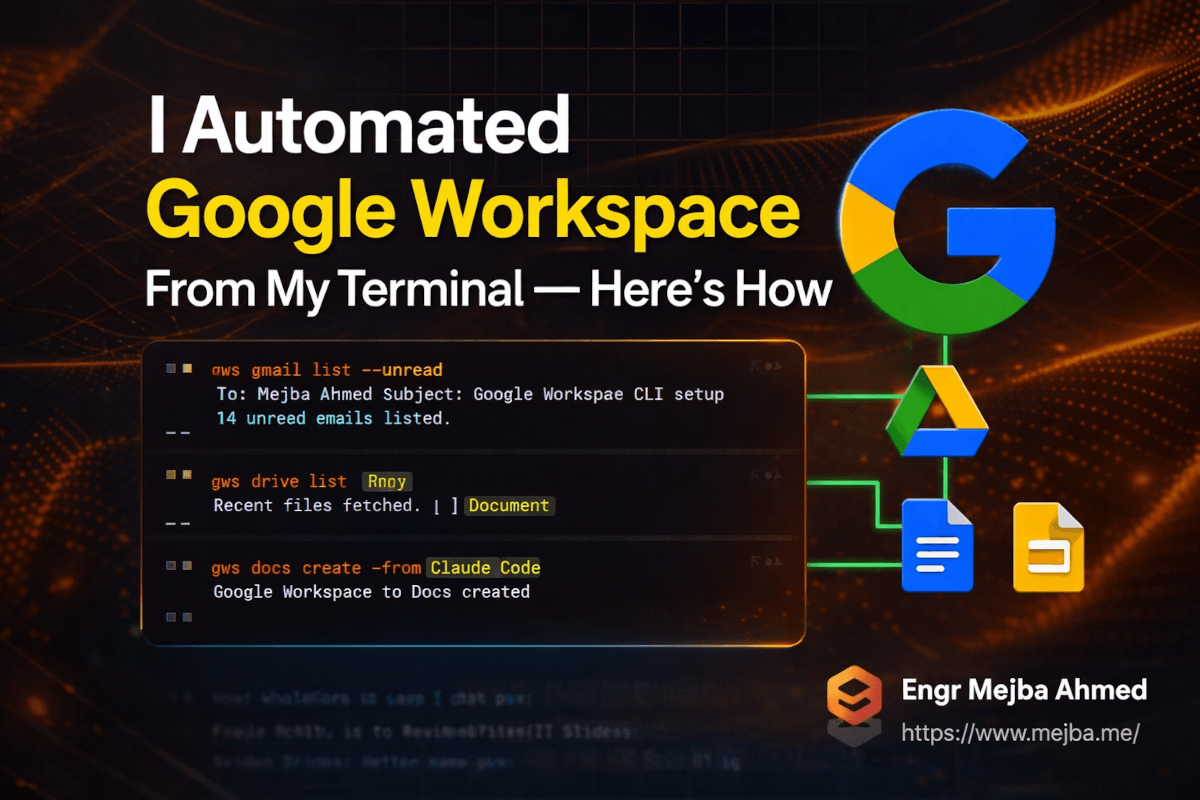
I Automated Google Workspace From My Terminal — Here's How

I Automated Google Workspace From My Terminal — Here's How It was a Tuesday morning, and I had fifteen unread client emails, three Google Docs to upda...

19 min

Lesezeit

3,626

Wörter

Mar 12, 2026

Veröffentlicht

Engr Mejba Ahmed

Geschrieben von

Engr Mejba Ahmed

Artikel teilen

I Automated Google Workspace From My Terminal — Here's How

I Automated Google Workspace From My Terminal — Here's How

It was a Tuesday morning, and I had fifteen unread client emails, three Google Docs to update, a calendar invite to send, and a slide deck that needed formatting before a 10 AM call. The kind of morning that feels like you're already losing before you've even started.

I opened my terminal — not Gmail, not Drive, not Slides. My terminal.

Twenty minutes later, I'd triaged every email by business priority, updated two Docs, and had a formatted slide deck waiting in my browser. I hadn't clicked a single button in any Google Workspace app.

What changed wasn't my workflow philosophy or some productivity hack. What changed was a single tool I'd started testing two weeks earlier: the Google Workspace CLI — or GWS CLI for short. And the more I use it, the more I understand why the developer community keeps calling it "insanely overpowered."

This is the post I wish existed before I spent a weekend figuring out how it all fits together. We're going through setup, real-world usage, the honest limitations, and the specific workflows that have genuinely changed how I build and manage projects.

One warning before we get into it: this CLI is in active beta. The authentication flow occasionally throws errors that feel cryptic. The slide formatting isn't pixel-perfect. But the core functionality — the ability to control your entire Google Workspace from a single unified command line — is already production-ready for the right use cases. By the end of this post, you'll know exactly which those are.


What the Google Workspace CLI Actually Is (And Why It's Different)

Before diving into setup, the framing matters here. Because there's a real risk of dismissing GWS CLI as "just another wrapper around the Google APIs." That's not what this is.

GWS CLI is an open-source, free command-line interface that gives you unified access to Google Drive, Gmail, Calendar, Docs, Sheets, Slides, and the Admin SDK through a single tool. One binary, one authentication setup, one interface — across all of Google Workspace.

But the part that makes it genuinely powerful is the skills system.

Skills are multi-step workflow recipes. Pre-built chain commands that automate tasks you'd otherwise handle through multiple API calls, authentication checks, and data transformations. GWS CLI ships with over 100 of these out of the box. Things like:

  • Reading data from Google Sheets and generating a formatted Google Doc report
  • Finding open calendar slots and scheduling meetings automatically
  • Labeling, triaging, and archiving emails based on custom priority rules
  • Creating Google Slides presentations with content injected from external sources
  • Downloading YouTube video transcripts and formatting them directly into a Google Doc

That last one is the one that first made me stop and think "okay, this is different." Because doing that with raw API calls — authentication, transcript download, document creation, content injection with proper formatting — is genuinely complex. With GWS CLI running inside Claude Code, it's a single workflow.

The CLI is built JSON-first, which means every response it returns is structured and machine-readable. That makes it almost comically compatible with AI agents. Pass a command to Claude Code, get back clean JSON, parse it, act on it. The feedback loop is tight.

What it isn't: officially supported by Google in any enterprise capacity. GWS CLI lives on GitHub, maintained by the open-source community, currently in pre-1.0 development. Breaking changes happen. New API endpoints from Google Workspace get integrated automatically, which is a feature, but it also means the tool evolves fast. If you need stability guarantees and enterprise SLAs, this isn't there yet. If you're a developer who wants to build powerful workflows and doesn't mind an occasional re-auth dance — you're going to love it.

The GitHub repository is here: https://github.com/googleworkspace/cli


Why This Matters Right Now for AI Developers

The most valuable use case for GWS CLI isn't "replace your manual Workspace clicks with terminal commands." That's too narrow. The real opportunity is: use it as the connective tissue inside AI agent workflows.

Here's the problem it solves. When you're building AI agents that interact with Google Workspace, you have two traditional paths:

Path one: write custom API integration code. Build authentication, handle token refresh, manage API quotas, write adapters for each service. It works, but you're spending most of your time on infrastructure that isn't the actual thing you're building.

Path two: use the official Google Workspace APIs directly from within your agent. More flexible, but more complex. Every service has different endpoints, different authentication scopes, different response formats. There's no unified mental model.

GWS CLI is a third path — and for Claude Code specifically, it's the one that makes the most sense right now.

The reason is simple. Claude Code uses terminal commands as tool calls. When you give Claude Code access to a shell, it can run GWS CLI commands natively. No custom API integration needed. No authentication code to maintain. The CLI handles all of that, and Claude gets clean, structured JSON responses it can act on immediately.

I've been building an AI-driven executive assistant on top of this setup — it handles email triage, meeting prep, document generation, and weekly report creation. The GWS CLI is what makes that assistant genuinely autonomous instead of just pattern-matching.

But here's where things get even more interesting: the visual validation layer. I'll come back to that in the implementation section.


Before You Install: What You Actually Need

Getting GWS CLI running requires a bit of groundwork. Nothing complicated, but there are three things you need before the installation will work cleanly:

1. A Google Cloud Project — The CLI authenticates through OAuth 2.0 via a Google Cloud project you control. This is free to create and doesn't require billing unless you hit very high API usage thresholds.

2. Enabled APIs — Depending on which Workspace services you want to access, you'll need to enable the corresponding APIs in the Google Cloud Console. Google Drive API, Gmail API, Google Docs API, Calendar API, Slides API, Sheets API — enable the ones you plan to use.

3. OAuth 2.0 Client Credentials — The CLI needs a client ID and client secret to authenticate. You'll download these as a JSON file during setup.

Two installation paths exist: automatic (using the G-Cloud CLI) and manual. I went manual the first time because I wanted to understand exactly what was happening under the hood. If you're setting this up for the first time, I'd recommend the same — it takes maybe 15 extra minutes and means you won't be debugging mystery configuration issues later.


How to Install and Configure GWS CLI (Manual Path)

This is the complete walkthrough. No steps skipped, no "refer to the docs for this part."

Step 1: Create a Google Cloud Project

Go to the Google Cloud Console and create a new project. Name it something descriptive like "Claude Code GWS" or "Workspace CLI Dev." This project will house your API credentials and OAuth configuration.

Step 2: Enable Required APIs

From your new project, navigate to "APIs & Services" → "Library." Enable each API you plan to use:

  • Google Drive API
  • Gmail API
  • Google Docs API
  • Google Calendar API
  • Google Slides API
  • Google Sheets API

Don't enable everything speculatively — enable what you need. This keeps your OAuth scopes clean and reduces the permission surface area when you're setting up the consent screen.

Step 3: Configure the OAuth Consent Screen

Navigate to "APIs & Services" → "OAuth consent screen." For personal use or internal tools, select "Internal" as your user type. Fill in the app name, user support email, and developer contact information.

If you're building something for external users, select "External" — but be aware you'll need to go through Google's app verification process to remove the unverified app warning.

Step 4: Create OAuth Client Credentials

Navigate to "APIs & Services" → "Credentials" → "Create Credentials" → "OAuth client ID."

Select Desktop app as the application type. Give it a name. After creation, download the JSON file containing your client ID and client secret. This is important — store this file somewhere secure.

Step 5: Clone the Repository and Place Credentials

git clone https://github.com/googleworkspace/cli.git
cd cli

Check the documentation in the cloned repository for the exact configuration directory path — it's typically somewhere like ~/.config/gws/ or a project-local config folder. Place your downloaded credentials JSON in the expected location. The README.md in the repo will have the current path (this is one of those spots that's changed between releases).

Step 6: Install Dependencies

# Follow the installation instructions in the repo README
# This typically involves npm install or pip install depending on the implementation

The README walks through this clearly. The setup script also checks for prerequisites and will tell you if something is missing.

Step 7: Authenticate

gws o login

This opens a browser tab. Select your Google account, grant the requested permissions, and confirm. You'll see a confirmation in the terminal when authentication succeeds.

One gotcha here: if the OAuth consent screen shows an "unverified app" warning, that's expected for development credentials. Click "Advanced" → "Go to [app name] (unsafe)" to proceed. This warning goes away once your app is verified or you switch to an internal audience.

Step 8: Verify the Setup

Test that everything is working:

# List recent files in Google Drive
gws drive list

# Get unread emails
gws gmail list --unread

# Check upcoming calendar events
gws calendar events list

If you get structured JSON back for each of these, you're set. If you hit API permission errors, go back to Step 2 and double-check that the relevant API is enabled in your Cloud project.


The Skills System: Where GWS CLI Gets Interesting

Once you have the base setup working, the skills library is what you'll actually spend your time with.

A skill is a named, multi-step workflow. Instead of chaining together six separate CLI commands manually, you invoke the skill and it runs the full sequence. Think of it as a macro system for your Workspace.

Some examples of what skills can do:

Email triage skill: Retrieves your unread emails, scores each one by business priority using defined criteria, marks low-priority emails as read, flags high-priority ones for follow-up. I run this every morning. The output is a ranked list I can scan in thirty seconds instead of spending fifteen minutes processing my inbox manually.

Google Doc from template skill: Takes a template document ID, fills in dynamic content from a JSON payload or another Google Sheet, and creates a new formatted Doc. Genuinely useful for client reports, weekly summaries, and any document you create more than once.

Calendar gap-finding skill: Queries your calendar for the next week and identifies available time slots within your defined working hours. Feed it a meeting duration and it tells you exactly when you're free.

Sheet-to-report skill: Reads data from a Google Sheet — sales figures, analytics, whatever you track — and generates a formatted Google Doc report with sections, headers, and summary text.

The 100+ pre-built skills cover the most common Workspace automation needs. But you can also define your own, which is where things get genuinely powerful for developer workflows.

That said — there's one capability I want to address directly, because it surprised me the first time I tested it.


The Slide Deck Problem (And the Solution That Actually Works)

Programmatically creating Google Slides through any API is... imperfect. The GWS CLI skills for Slides generation work, but the output often has spacing issues, inconsistent text sizing, and layout problems you wouldn't accept if you were creating slides manually.

This isn't a flaw in GWS CLI specifically — it's an inherent challenge with programmatic slide generation. The Slides API gives you control over individual elements, but "the visual output looks professional" requires a lot more than correctly placed elements.

Here's what actually works: integrating GWS CLI with browser automation for visual validation.

The workflow I settled on goes like this:

  1. GWS CLI generates the initial slide deck via skill
  2. Claude Code uses browser automation tools (Chrome DevTools via Playwright or a headless browser) to open the slide in a browser
  3. The browser captures screenshots of each slide
  4. Claude Code analyzes the screenshots, identifies spacing issues, formatting inconsistencies, and visual problems
  5. A correction plan is generated and executed via additional API calls
  6. The process repeats until the slides pass visual quality checks

It sounds complex, but once the pipeline is set up, it runs automatically. The first pass creates the deck. The visual audit identifies problems. The correction pass fixes them. Total time for a branded 10-slide deck: five to eight minutes, versus the thirty minutes it would take me manually.

The key insight is that you're not trying to get perfect output from a single API call. You're building a feedback loop. Generate → audit → correct → validate. That loop is what produces professional output.

If you'd rather have someone build this kind of pipeline from scratch for your specific workflow, I take on custom AI automation engagements. You can see what I've built at fiverr.com/s/EgxYmWD.


What This Looks Like Inside Claude Code

The real power of GWS CLI comes from pairing it with Claude Code as the orchestrating agent. Here's what that actually looks like in practice.

When Claude Code has terminal access and GWS CLI is installed, it can use Workspace commands as native tool calls. No custom function definitions. No API integration code in your project. The CLI handles authentication, the Claude Code session handles orchestration, and you describe what you want in natural language.

A practical example: I gave Claude Code a YouTube video link — a client project overview — and asked it to create a Google Doc resource guide. Claude Code:

  1. Downloaded the video transcript via a bash command
  2. Ran a GWS Docs skill to create a new document
  3. Used the transcript content to populate sections, headers, and a CTA block
  4. Returned the Doc link in the terminal

The resulting document had proper formatting — headers, embedded links, structured sections. Not raw markdown pasted into a doc, but an actually formatted Google Doc. The whole thing took under three minutes.

What makes this qualitatively different from raw API calls isn't the speed. It's the mental overhead. When Claude Code is handling the orchestration, you're describing intent ("create a resource guide from this transcript") instead of programming steps. The CLI translates your intent into API operations. You stay at the problem level instead of dropping into implementation details.

The JSON-first response format is a big part of why this works. Every GWS CLI command returns machine-readable output. Claude can parse it, reason about it, and make decisions. "These three emails have the highest business priority scores — should I draft responses for them?" That kind of agentic behavior becomes possible when your tool gives you structured data instead of human-readable prose.


The Honest Assessment: Where GWS CLI Stands Right Now

There are a few things I'd want someone to know before they invest time setting this up.

The authentication can be finicky. I've had sessions where running three consecutive commands triggered a re-auth prompt. Not constantly, but often enough that it's worth knowing. The workaround is usually running gws o login again and restarting your session. It's annoying, not blocking — but if you're building automation that runs unattended, test the auth persistence carefully before deploying.

It's not enterprise-ready. Google maintains this as a developer tool, not a production service. There are no SLAs, no guaranteed uptime for the CLI itself, and the pre-1.0 status means breaking changes can appear between versions. If your production workflow depends on this, keep your GWS CLI version pinned and test upgrades carefully before updating.

The slide generation quality requires the feedback loop. Going in expecting perfect slide output on the first API call will disappoint you. But treating the generation as step one of a multi-pass process produces good results. Adjust your expectations accordingly — this is a workflow design choice, not a fundamental limitation.

The skills library is genuinely valuable, but the documentation is incomplete in places. Some skills have thorough documentation. Others are better understood by reading the source. For anything complex, budget time to read through the implementation before deploying it in a production workflow.

What I will say clearly: the core functionality is solid. File search across Drive, Gmail triage, Calendar operations, Doc and Sheet creation — all of these work reliably. The rough edges are mostly at the edges of the feature set, not in the core operations.

And the trajectory matters here. GWS CLI is under active development. New API endpoints from Google Workspace get integrated automatically. The community is contributing skills. The path to a polished 1.0 release looks clear. The question is just whether the current state is good enough for your use case — and for most developer-driven automation workflows, the answer is yes.


What Consistent Use Actually Produces

Across the two months I've been using GWS CLI as part of my regular workflow, the pattern that's emerged is clear: I spend significantly less context-switching time on administrative Workspace tasks.

The morning email triage that used to take fifteen to twenty minutes now takes about two minutes — running the priority-scoring skill and scanning the output. Document generation for client reports that used to be forty-five minutes of manual formatting now takes under ten minutes with the skill pipeline. Calendar management that required back-and-forth checking is now a single command.

None of these are dramatic transformations in isolation. But added up across a work week, it's meaningful. The compounding effect of automation is that you don't just save time on individual tasks — you reduce the cognitive cost of task-switching. Not having to open Gmail to check what's urgent, not having to open Slides to create a new deck, means your terminal stays your primary interface. That's a real productivity gain, even if it's hard to quantify precisely.

For AI builders specifically: if you're building Claude Code agents that interact with Google Workspace in any way, GWS CLI should be your default integration approach. The alternative — writing and maintaining custom API integration code for each service — isn't a better use of your time.

The skills system also gives you a pattern for how to think about automating any repetitive Workspace workflow. Identify the sequence of operations, find or build the skill, integrate it into your Claude Code workflow. That thinking compounds too.


GWS CLI Will Keep Getting More Powerful

The feature I'm most interested in watching develop is the auto-discovery system. When Google Workspace adds new API endpoints, GWS CLI picks them up automatically. That means the tool's capabilities grow without requiring a new release or manual integration work on your end.

That's not a small thing. It means GWS CLI has a compounding advantage over custom API integration code — which ages and requires maintenance as APIs evolve. A tool that self-updates its capabilities against a growing API surface is genuinely different from what we've had before.

Here's the question I keep coming back to: if your AI agent could do everything you currently do manually in Google Workspace — write the emails, generate the reports, schedule the meetings, create the slide decks — what would you actually do with that reclaimed time?

I'm still answering that for myself. But I know the first step is getting the infrastructure right. And GWS CLI is, right now, the best infrastructure I've found for making Workspace operations accessible to AI agents.

Try installing it this week. Run through the manual setup, get authentication working, and spend thirty minutes with the skills library. The setup investment is under two hours. What you get back is a fundamentally different relationship with Google Workspace automation.


FAQ

Frequently Asked Questions

Everything you need to know about this topic

Google Workspace CLI (GWS CLI) is an open-source command-line interface that provides unified access to Google Drive, Gmail, Calendar, Docs, Sheets, Slides, and Admin services through a single tool. It includes 100+ pre-built workflow automation "skills" and returns JSON-structured responses, making it highly compatible with AI agents like Claude Code.

Install GWS CLI by cloning the GitHub repository from https://github.com/googleworkspace/cli, then completing either the automatic setup (using G-Cloud CLI) or the manual setup (creating a Google Cloud project, enabling APIs, and configuring OAuth 2.0 credentials). Authentication is completed via gws o login, which triggers a browser-based OAuth flow.

Yes — GWS CLI integrates natively with Claude Code. Because Claude Code can execute terminal commands as tool calls, it can run GWS CLI commands directly, receive structured JSON responses, and orchestrate multi-step Workspace workflows without requiring custom API integration code. For the full implementation approach, see the Claude Code integration section above.

GWS CLI is an open-source project maintained on GitHub and is considered a beta developer tool as of early 2026. It is not officially enterprise-supported by Google in the traditional sense — there are no SLAs or guaranteed stability commitments. It is free, actively developed, and functional for developer use cases, but pre-1.0 status means breaking changes can occur between versions.

Programmatic Google Slides generation through any API produces formatting inconsistencies because precise visual layouts require element-by-element positioning that doesn't automatically account for text reflow and spacing. The recommended approach is a multi-pass visual validation loop: generate the initial deck with GWS CLI, use browser automation to screenshot each slide, analyze the output for formatting issues, and run a correction pass. This loop reliably produces professional-quality results.

🤝 Let's Work Together

Looking to build AI systems, automate workflows, or scale your tech infrastructure? I'd love to help.

Coffee cup

Hat Ihnen dieser Artikel gefallen?

Ihre Unterstützung hilft mir, mehr tiefgehende technische Inhalte, Open-Source-Tools und kostenlose Ressourcen für die Entwickler-Community zu erstellen.

Verwandte Themen

Engr Mejba Ahmed

Über den Autor

Engr Mejba Ahmed

Engr. Mejba Ahmed builds AI-powered applications and secure cloud systems for businesses worldwide. With 10+ years shipping production software in Laravel, Python, and AWS, he's helped companies automate workflows, reduce infrastructure costs, and scale without security headaches. He writes about practical AI integration, cloud architecture, and developer productivity.

Discussion

Comments

0

No comments yet

Be the first to share your thoughts

Leave a Comment

Your email won't be published

18  -  16  =  ?

Weiter lernen

Verwandte Artikel

Alle anzeigen

Comments

Leave a Comment

Comments are moderated before appearing.

Learning Resources

Expand Your Knowledge

Accelerate your growth with structured courses, verified certificates, interactive flashcards, and production-ready AI agent skills.

Sample Certificate of Completion

Sample certificate — complete any course to earn yours