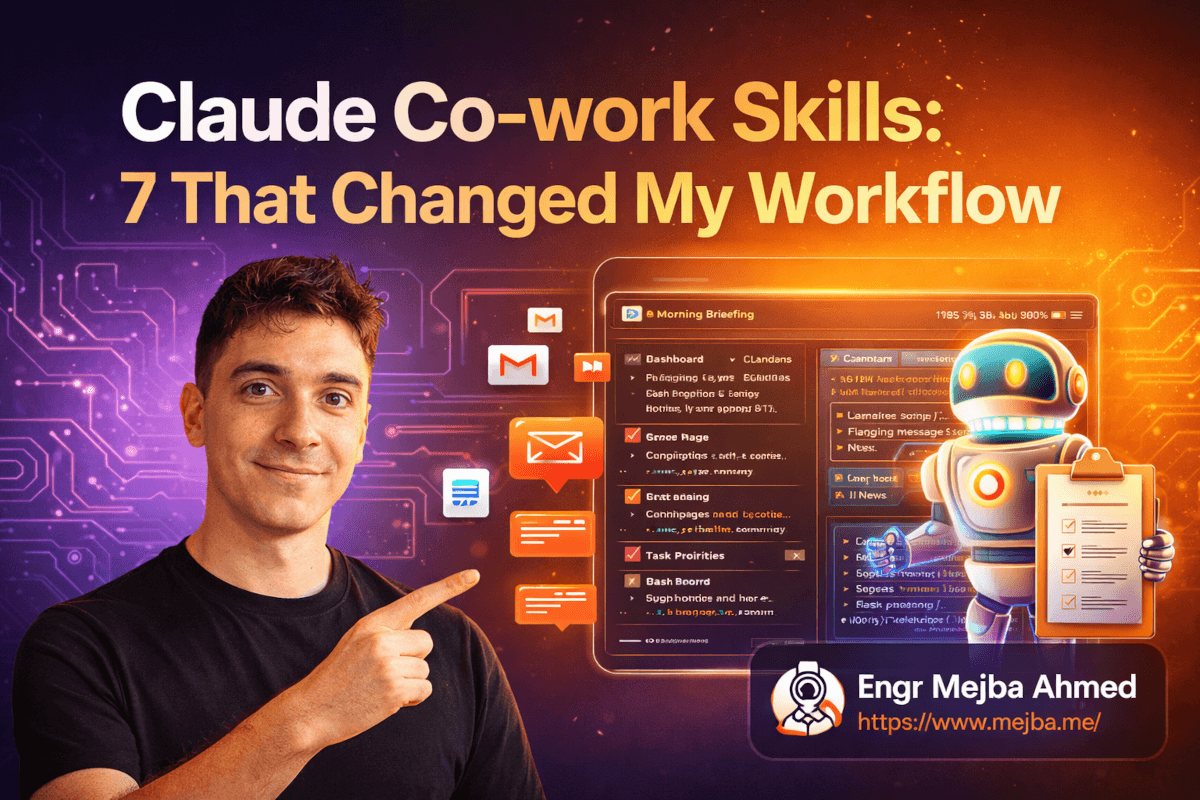
Claude Co-work Skills: 7 die mijn werkwijze voorgoed veranderden
Vroeger begon ik elke ochtend op dezelfde manier. Gmail openen. Slack checken. Agenda bekijken. Drie AI-nieuwsbrieven doorscannen. Trello erbij pakken. Tegen de tijd dat ik daadwerkelijk begon te werken, waren er veertig minuten verdampt — en had ik nog geen enkele regel code geschreven of één beslissing genomen die ertoe deed.
Toen richtte ik een Morning Briefing-skill in Claude Co-work in, plande die om 6:45 uur 's ochtends, en verbond hem via connectors met mijn agenda, e-mail en nieuwsbronnen. De volgende ochtend werd ik wakker met een prachtig opgemaakte HTML-pagina op mijn dashboard. Agenda-afspraken, geprioriteerde e-mails, het belangrijkste AI-nieuws — alles op één plek. Gestructureerd. Met kleurcodes. Klaar voor gebruik.
Dat bespaarde me zevenendertig minuten. Op dag één.
Maar dit is wat me écht overtuigde — en dit is het deel dat de meeste mensen missen over Claude Co-work Skills. Ze beantwoorden niet alleen vragen. Ze genereren daadwerkelijke bestanden. Markdown-documenten. Interactieve HTML-pagina's. JSON-exports voor tools als Excalidraw. Echte, tastbare resultaten die je kunt delen, bewerken en waarop je kunt voortbouwen. Het verschil tussen Claude een vraag stellen en een skill draaien is het verschil tussen advies krijgen en werk gedaan krijgen.
De afgelopen drie weken heb ik zeven specifieke skills die Anthropic voor Co-work heeft gebouwd, geïnstalleerd, aangepast en uitvoerig getest. Sommige zijn werkelijk transformerend. Een paar hebben ruwe randjes waar ik eerlijk over wil zijn. En eentje — de Skill Creator — opende een deur die ik niet verwachtte, eentje die verandert hoe ik over AI-automatisering denk.
Laat me je door alle zeven loodsen, wat ze in de praktijk doen, en de workflowcombinaties die Claude van een assistent veranderden in iets dat meer op een teamlid lijkt.
Waarom de meeste mensen Claude verkeerd gebruiken (en het niet weten)
Hier is een patroon dat ik constant zie. Iemand krijgt toegang tot Claude, stelt een paar vragen, krijgt redelijke antwoorden en denkt dat ze gezien hebben wat de tool kan. Misschien gebruiken ze het voor het opstellen van e-mails of het uitleggen van codefragmenten. Prima toepassingen, absoluut. Maar het is alsof je een Zwitsers zakmes koopt en alleen de flesopener gebruikt.
Claude Co-work Skills draaien het model volledig om. In plaats van een prompt te typen en een antwoord te lezen, activeer je een voorgedefinieerde workflow die precies weet wat hij moet doen, welk formaat hij moet produceren en waar de output moet worden opgeslagen. Zie skills als recepten — jij levert de ingrediënten (een vergadertranscript, een onderwerp, één zin), en de skill handelt het koken, opmaken en serveren af.
De installatie is eenvoudig. Download een ZIP-bestand met de instructiebestanden van de skill (het zijn gewoon markdown-bestanden — leesbaar en bewerkbaar), en upload ze via de Claude Co-work-interface: Customize, dan Skills, dan Upload. Geen API-keys nodig voor de basisskills. Geen configuratiebestanden om te debuggen. Ik had alle zeven in minder dan vijftien minuten geïnstalleerd.
Wat dit krachtig maakt, is niet één enkele skill — het is het ecosysteem. Skills produceren bestanden. Connectors laten die skills communiceren met je agenda, e-mail, Slack, en via Zapier met meer dan 8.000 andere applicaties. Geplande taken draaien skills automatisch op een terugkerend schema. Wanneer je alle drie de lagen combineert, gebeurt er iets interessants.
Je stopt met AI als tool te gebruiken. Je begint het in te zetten als een medewerker.
Dat klinkt misschien als hype. Dat dacht ik ook, totdat ik zag wat de Morning Briefing kon doen wanneer ik het verbond met echte databronnen en het op een dagelijks schema zette. Dat brengt me bij de zeven skills die ik heb getest — te beginnen met degene die mijn ochtenden voorgoed veranderde.
De zeven skills die daadwerkelijk leveren
1. Morning Briefing — Mijn nieuwe eerste medewerker
Ik noemde deze al, maar ik deed hem tekort. De Morning Briefing-skill somt niet alleen je agenda-afspraken en ongelezen e-mails op. Hij verzamelt data uit meerdere bronnen, prioriteert wat belangrijk is en produceert een op maat gemaakte HTML-pagina die eruitziet als een persoonlijk dashboard.
Dit is wat de mijne elke ochtend om 6:45 uur genereert:
- Agendablok — De vergaderingen van vandaag met deelnemers, tijden en links, gesorteerd op urgentie in plaats van chronologische volgorde
- E-mailsamenvatting — Gemarkeerde berichten en threads die een reactie nodig hebben, met samenvattingen van één regel zodat ik kan triëren zonder elk bericht te openen
- AI-nieuwsfeed — Topverhalen van bronnen die ik heb opgegeven in de skillconfiguratie (ik heb hem naar een paar RSS-feeds en nieuwsbrieven verwezen die ik vertrouw)
- Taakprioriteiten — Gebaseerd op deadlines en context uit mijn gekoppelde projectmanagementtools
De output is één HTML-bestand. Niet een chatreactie die verdwijnt wanneer ik het venster sluit — een daadwerkelijk bestand dat ik kan bookmarken, met mijn team kan delen of de hele dag kan raadplegen.
Ik heb de mijne aangepast door het markdown-instructiebestand van de skill te bewerken. Het kleurenschema aangepast aan mijn huisstijl. Een sectie toegevoegd voor openstaande klantfacturen (binnengehaald via een Zapier-connector). De weerwidget verwijderd omdat ik in Dhaka woon — ik weet al dat het warm wordt. Een CSS-snippet voor dark mode toegevoegd omdat ik mijn briefing voor zonsopgang bekijk. Kostte misschien tien minuten.
De skillinstructies zijn gewoon tekstbestanden. Als je een markdown-document kunt bewerken, kun je de output aanpassen aan je exacte workflow.
Eén ding dat ik wil signaleren: de kwaliteit van de briefing hangt volledig af van wat je eraan koppelt. Als je alleen je agenda aansluit, krijg je een verheerlijkte agendaweergave. De magie ontstaat wanneer je drie, vier, vijf databronnen invoert. Dan begint het minder als een samenvatting te voelen en meer als een strategisch overzicht van je dag.
Maar rapporten genereren is één ding. Wat gebeurt er wanneer je Claude nodig hebt om na te denken — om daadwerkelijk iets te onderzoeken en een document te produceren dat je met een gerust hart naar een klant zou sturen?
2. Research Assistant — De skill die mijn eerste opzet verving
Ik test veel AI-tools. Dat betekent dat ik elke week uren besteed aan het lezen van documentatie, het vergelijken van functies en het samenvatten van bevindingen tot iets samenhangends. De Research Assistant-skill comprimeerde dat proces op een manier die ik oprecht niet had verwacht.
Zo werkt het. Je geeft het een onderwerp — alles van "vergelijk serverless frameworks voor Python in 2026" tot "wat zijn de juridische implicaties van eigendom van AI-gegenereerde code." De skill gaat diep. Hij zoekt, verzamelt en produceert een gestructureerd document met een managementsamenvatting, gedetailleerde secties, geciteerde bronnen en zelfs een aanbevolen leeslijst.
Het outputformaat is jouw keuze. Markdown of HTML. Ik ga meestal voor markdown omdat ik het rechtstreeks in mijn blogconcepten of documentatierepo's kan plaatsen. Maar de HTML-versie is gepolijst genoeg om zonder aanpassingen naar een niet-technische klant te sturen.
Ik testte het op een onderwerp dat ik goed ken — het agentframework van Claude Code versus de Codex-aanpak van OpenAI — specifiek om te zien of het iets accuraat zou produceren. Het resultaat was verrassend degelijk. Niet perfect. Het miste nuance rond hoe Claude Code omgaat met bestandssysteemrechten. Maar de structuur was uitstekend, de bronnen waren echt en actueel, en de managementsamenvatting bespaarde me ongeveer een uur schrijfwerk.
Het kernpunt: dit is geen vervanging voor expertise. Het is een vervanging voor de vervelende eerste-opzetfase. Ik bewerk nog steeds intensief en verifieer beweringen. Maar starten vanuit een goed gestructureerd onderzoeksdocument in plaats van een leeg vel? Dat is een fundamenteel andere ervaring.
Hier een praktische tip waar ik een paar pogingen voor nodig had — wees specifiek met je onderzoeksprompts. "Onderzoek AI-agents" geeft je een generiek overzicht. "Onderzoek de top vijf frameworks voor het bouwen van autonome AI-agents in Python, vergelijk prijzen, communitygrootte en productiegereedheid per maart 2026" geeft je iets dat je daadwerkelijk kunt gebruiken.
En als we het toch over dingen hebben die je daadwerkelijk kunt gebruiken — de volgende skill lost een probleem op dat me letterlijk jarenlang heeft geërgerd.
3. Meeting Notes to Action Items — Eindelijk vergaderingen die iets opleveren
Ik moet iets bekennen. Ik ben waardeloos in vergadernotities. Ik schrijf óf te veel en lees ze nooit terug, óf ik schrijf niets en ben de helft van wat besproken is de volgende dag vergeten. Deze skill loste een probleem op dat ik veel te lang had genegeerd.
Je voert er een vergadertranscript in — plak het erin, upload een bestand, of koppel het via een connector aan je transcriptietool — en het produceert een schoon markdown-document met vier secties: samenvatting, belangrijke beslissingen, actiepunten met verantwoordelijken en deadlines, en vervolgvragen.
De actiepuntensectie is de echte goudmijn. Elk punt krijgt een verantwoordelijke, een deadline (afgeleid uit de gesprekscontext) en een prioriteitsniveau. Ik draaide het op een transcript van een klantgesprek van veertig minuten, en het haalde negen actiepunten eruit die exact overeenkwamen met wat ik zou hebben opgeschreven als ik het hele gesprek perfect had opgelet. Wat, eerlijk gezegd, niet zo was. Ik was ook een Docker-build aan het debuggen in een andere terminal. Oordeel niet.
Wat deze skill bijzonder nuttig maakt, is de sectie met vervolgvragen. Het identificeert dingen die besproken maar nooit opgelost zijn — onderwerpen waarbij iemand zei "dat zoeken we later uit" of waarbij een beslissing werd gesuggereerd maar nooit expliciet bevestigd. Dat zijn de punten die door de mazen glippen en twee weken later problemen veroorzaken. Ze automatisch naar boven halen is het hele installatieproces waard.
Ik heb de mijne via een connector gekoppeld aan de Slack van ons team, en nu worden de actiepunten na elke vergadering automatisch in ons projectkanaal gepost. Die ene integratie elimineerde het "wacht, wie zou dat doen?"-gesprek dat vroeger minstens twee keer per week voorkwam.
De beperking die het vermelden waard is: transcriptkwaliteit doet er enorm toe. Voer er een schoon Otter.ai- of Fireflies-transcript in en je krijgt uitstekende resultaten. Voer er automatisch gegenereerde ondertitels van een luidruchtig Zoom-gesprek in en je krijgt actiepunten die... creatief zijn, laten we zeggen. Rommel erin, rommel eruit geldt nog steeds.
Alles wat ik tot nu toe heb beschreven, produceert tekstgebaseerde output. De volgende twee skills doen iets dat ik oprecht indrukwekkend vind — ze creëren visuele, interactieve content vanuit eenvoudige tekstprompts.
4. Slide Deck Generator — Eén zin naar een volledige presentatie
Ik zal er direct over zijn: ik dacht niet dat dit goed zou werken. Presentaties genereren met AI klinkt als een gimmick. Elke tool die ik heb geprobeerd, produceert slides die eruitzien alsof ze ontworpen zijn door iemand die gisteren PowerPoint heeft leren kennen.
De Slide Deck Generator-skill heeft me van gedachten doen veranderen.
Je geeft het één zin — "Maak een presentatie over het implementeren van zero-trust beveiliging voor remote engineering teams" — en het produceert interactieve HTML-slides. Geen PowerPoint-bestanden. Geen Google Slides. Daadwerkelijke HTML-pagina's met overgangen, gestructureerde lay-outs en schone typografie die je rechtstreeks vanuit een browser kunt presenteren.
Ik testte het voor een klantpitch. De prompt: "Maak een presentatie van 12 slides over waarom middelgrote bedrijven in 2026 naar Kubernetes moeten migreren, met focus op kostenbesparingen en teamproductiviteit."
Het resultaat had bewerking nodig — ik zou AI-gegenereerde slides niet presenteren zonder review. Maar de structuur was logisch, de gespreksonderwerpen relevant en de lay-out schoon genoeg dat mijn bewerkingen verfijning waren, geen reconstructie. Twintig minuten polijsten versus twee uur vanaf nul opbouwen.
Het HTML-formaat heeft een onverwacht voordeel: versiebeheer. Ik plaatste het gegenereerde bestand in een Git-repo, maakte mijn bewerkingen en heb nu volledige wijzigingshistorie. Probeer dat maar eens met PowerPoint.
Eén kanttekening — de skill bevat geen afbeeldingen. Je krijgt goed gestructureerde tekstslides met goede hiërarchie, maar screenshots, grafieken of foto's zijn voor jouw rekening. Voor technische presentaties waar inhoud belangrijker is dan visuele elementen, is dit een echte tijdsbesparing. Voor marketingpresentaties die zwaar ontwerp nodig hebben, is het een startpunt, geen eindproduct.
De visuele mogelijkheden worden interessanter met de volgende skill. Hier begon ik Claude Co-work dingen te zien doen die ik bij geen enkele AI-tool had gezien.
5. Visual Explainer — Interactieve leerpagina's die daadwerkelijk iets leren
Deze skill verraste me het meest. Je beschrijft een complex onderwerp, systeem of proces, en het bouwt een interactieve webpagina met klikbare diagrammen, uitklapbare secties en visuele uitleg die het concept oprecht makkelijker te begrijpen maakt.
Ik testte het met iets dat ik regelmatig aan klanten uitleg: hoe een CI/CD-pipeline werkt van code-commit tot productie-deployment. De skill produceerde een HTML-pagina waar je op elke fase van de pipeline kon klikken — bronbeheer, build, test, staging, productie — en kon zien wat er in die fase gebeurt, welke tools doorgaans worden gebruikt en wat er mis kan gaan.
Dit is geen statische infographic. De elementen zijn interactief. Klik op de "testing"-fase en deze klapt uit om unittests, integratietests en end-to-end tests als subprocessen te tonen. Beweeg over een component en je krijgt een tooltip met extra context. Het voelt als een leermiddel, niet als een document.
Ik zag direct de toepassing voor klant-onboarding. Wanneer ik nieuwe klanten in ons ontwikkelproces bij Ramlit introduceer, is er altijd een "hoe werkt dit allemaal?"-gesprek. Nu kan ik een op maat gemaakte visuele uitleg genereren voor hun specifieke architectuur en hen een HTML-bestand sturen dat ze op hun eigen tempo kunnen verkennen. Het heeft minstens twee vergaderingen per nieuwe klantrelatie vervangen.
De aanpassing werkt op dezelfde manier als bij andere skills — bewerk het markdown-instructiebestand om de stijl te wijzigen, je huisstijlkleuren toe te voegen of het niveau van technisch detail aan te passen. Ik heb de mijne aangepast met het kleurenpalet van Ramlit en ons logo in de header gezet. Tien minuten bewerken voor een tool die ik tientallen keren zal gebruiken.
Waar het tekortschiet: echt complexe systemen met meer dan vijftien of twintig componenten beginnen rommelig aan te voelen. De lay-outs werken prachtig voor processen met vijf tot tien stappen. Daarbovenuit moet je dingen opsplitsen in meerdere explainers of wat visuele concessies accepteren. Het is een beperking die goed is om te weten voordat je je hele microservices-architectuur in één pagina probeert te persen.
Over het visualiseren van systemen gesproken — de volgende skill pakt hetzelfde probleem op een andere manier aan, en het is misschien de meest ontwikkelaarsvriendelijke tool in de hele collectie.
6. Diagram Generator — Van tekst naar Excalidraw in seconden
Als je ooit vijfenveertig minuten hebt geworsteld met een diagramtool om een systeemarchitectuurdiagram te maken, gaat deze skill je onredelijk blij maken.
Je beschrijft wat je wilt in gewone tekst — "toon de datastroom tussen onze React-frontend, Node.js API-gateway, PostgreSQL-database en Redis-cache, inclusief authenticatie via Auth0" — en de skill genereert een professioneel diagram geëxporteerd als JSON. Geen PNG. Geen PDF. Een JSON-bestand dat je rechtstreeks in Excalidraw kunt importeren.
Dat laatste deel is belangrijk. Excalidraw is mijn favoriete diagramtool omdat het diagrammen produceert die er handgetekend uitzien (wat klanten geweldig vinden — gepolijste diagrammen voelen intimiderend, schetsmatige voelen samenwerkingsgericht). JSON-output krijgen betekent dat ik het gegenereerde diagram kan importeren, elementen kan verplaatsen, notities kan toevoegen, kleuren kan wijzigen en de definitieve versie kan exporteren in elk gewenst formaat.
Ik genereerde zeven diagrammen in één middag. Zeven. Een databaseschema, twee API-flowdiagrammen, een deployment-pipeline, een netwerktopologie en twee componentarchitectuurweergaven. Hetzelfde werk zou me het grootste deel van een dag hebben gekost met draw.io of Lucidchart.
De kwaliteit varieert afhankelijk van de complexiteit. Eenvoudige diagrammen met vijf tot acht componenten komen er bijna perfect uit — duidelijke lay-out, logische verbindingen, juiste labels. Complexe diagrammen met meer dan vijftien componenten produceren soms overlappende elementen of onhandige routering van verbindingslijnen. Maar aangezien de output bewerkbaar JSON is, kost het oplossen van lay-outproblemen in Excalidraw een fractie van de tijd vergeleken met helemaal opnieuw bouwen.
Pro-tip: vermeld relatietypen in je beschrijving. In plaats van "toon User en Database," zeg "toon User stuurt queries naar API, API leest van Database, API schrijft naar Cache." Hoe specifieker je bent over verbindingen en de richting van de datastroom, hoe beter het gegenereerde diagram.
Ik ben dit als onderdeel van mijn documentatieworkflow gaan gebruiken. Elk technisch document dat ik schrijf, bevat nu minstens één gegenereerd diagram. De drempel om visuele documentatie te maken is zo laag geworden dat ik het daadwerkelijk consequent doe — en dat is het hele punt.
Zes skills is al een krachtige toolkit. Maar de zevende skill verschilt van alle andere. Het produceert geen document of diagram. Het produceert méér skills.
7. Skill Creator — De skill die skills bouwt
Dit is degene die het spel verandert.
De Skill Creator begeleidt je bij het bouwen van een aangepaste skill op maat van elke workflow die je kunt beschrijven. Het gebruikt een conversatie-interface — het vraagt wat je wilt dat de skill doet, welke invoer nodig is, welk formaat de output moet hebben en met welke tools of databronnen het moet verbinden. Vervolgens genereert het de skillbestanden die je kunt installeren, net als de vooraf gebouwde skills.
Ik gebruikte het om een skill te maken die ik al een tijdje wilde: een wekelijkse klantrapportgenerator. Ik beschreef mijn eisen — haal data op uit onze projectmanagementtool, vat voltooide taken en komende mijlpalen samen, formatteer het als een HTML-rapport met Ramlit-huisstijl inclusief briefhoofd, en voeg een sectie toe voor blokkades en risico's. De Skill Creator leidde me door het proces, stelde verduidelijkende vragen over opmaakvoorkeuren en produceerde een werkende skill in ongeveer twaalf minuten.
De skill is niet direct perfect. Ik moest het instructiebestand bewerken om de toon te verfijnen (het was te formeel voor hoe ik met klanten communiceer) en het HTML-template aanpassen. Maar de basis was solide, en ik genereerde binnen een uur na het starten van het proces klantrapportages.
Hier is waarom dit verder reikt dan mijn specifieke gebruik. Elk beroep heeft repetitieve documentworkflows. Advocaten stellen contracten op. Marketeers maken campagnebriefings. Projectmanagers schrijven statusupdates. Docenten bouwen lesplannen. De Skill Creator verlaagt de drempel voor iedereen — niet alleen ontwikkelaars — om die repetitieve taken om te zetten in geautomatiseerde skills.
Ik zag een niet-technische vriendin de Skill Creator gebruiken om een skill te bouwen die social media contentkalenders genereert. Nog nooit een regel code geschreven. Beschreef in gewoon Nederlands wat ze wilde, beantwoordde vervolgvragen, en had een werkende skill in vijftien minuten.
Dit is het deel van Claude Co-work dat me anders laat denken over het platform. De mogelijkheid om je eigen skills te maken betekent dat het meegroeit met je behoeften. Je hoeft niet te wachten tot Anthropic bouwt wat je nodig hebt. Je bouwt het zelf.
Maar het maken van individuele skills is slechts het begin. De echte kracht ontstaat wanneer je ze aan elkaar begint te koppelen.
Connectors en geplande taken — Waar skills autonoom worden
Hier moet ik het hebben over de infrastructuurlaag die alles hierboven tien keer krachtiger maakt. Skills op zichzelf zijn nuttig. Skills verbonden met je daadwerkelijke tools, draaiend op geautomatiseerde schema's? Dat is een heel andere categorie.
Connectors laten Claude Co-work communiceren met externe applicaties. Directe integraties bestaan voor veelgebruikte tools — Google Calendar, Gmail, Slack, Microsoft 365. Voor al het andere overbruggen Zapier MCP-servers het gat, met toegang tot meer dan 8.000 applicaties. CRM's, boekhoudsoftware, projectmanagementtools — als Zapier het ondersteunt, kun je het koppelen.
Het opzetten van een connector omvat het authenticeren van Claude Co-work bij de doeltoepassing. Directe integraties gebruiken standaard OAuth. Zapier-verbindingen vereisen het configureren van een Zapier MCP-server. Reken op vijftien tot dertig minuten voor je eerste connector, minder zodra je het patroon begrijpt.
Geplande taken laten je elke skill op een terugkerend schema draaien zonder handmatige tussenkomst. Per uur, dagelijks, wekelijks — jij stelt de frequentie in en Claude handelt de uitvoering af. Mijn ochtend-briefing draait dagelijks om 6:45 uur. Mijn klantrapportgenerator draait elke vrijdag om 15:00 uur. Mijn nieuwsonderzoek-skill draait elke maandagochtend zodat ik verse contentideeën heb voor de week.
De combinatie van connectors en geplande taken creëert iets dat kwalitatief anders aanvoelt dan "een AI-tool gebruiken." Wanneer mijn ochtend-briefing automatisch agendadata, e-mailsamenvattingen en nieuwsfeeds ophaalt, ze formatteert tot een dashboard in huisstijl en klaar heeft staan voordat ik wakker word — dat is geen assistentie. Dat is delegeren.
Ik wil eerlijk zijn over de beperkingen hier. Connectors kunnen uitvallen. API-tokens verlopen. Zapier heeft snelheidslimieten en af en toe downtime. Ik heb ochtenden gehad waarop de briefing mijn agenda-afspraken miste omdat het OAuth-token van Google vernieuwd moest worden. Het systeem vereist onderhoud — niet dagelijks, maar je kunt het niet instellen en voor altijd vergeten. Controleer je connectors maandelijks. Houd je Zapier-integraties up-to-date. Behandel het als elk ander stuk infrastructuur.
De geplande taken hebben ook een eigenaardigheid: ze draaien ongeacht of verbonden databronnen beschikbaar zijn. Als je e-mailconnector niet werkt wanneer de ochtend-briefing draait, krijg je een briefing zonder de e-mailsectie — geen foutmelding. Ik heb een Slack-notificatie ingesteld die me waarschuwt als een geplande skill output produceert die aanzienlijk korter is dan gebruikelijk. Dat vangt de meeste storingen op.
Ondanks deze ruwe randjes is de autonome workflowcapaciteit wat Claude Co-work onderscheidt van elke andere AI-tool die ik heb gebruikt. ChatGPT geeft je antwoorden. Claude Co-work geeft je een medewerker. Eentje die in het weekend werkt, geen ziektekostenverzekering nodig heeft en nooit een terugkerende taak vergeet.
Dat gezegd hebbende, er zijn eerlijke afwegingen waar ik het over moet hebben.
Wat niemand je vertelt over AI-skillautomatisering
Ik heb tot nu toe een vrij optimistisch beeld geschetst. Tijd voor wat eerlijkheid.
De opstartkosten zijn reëel. Het installeren van zeven skills kostte vijftien minuten. Ze allemaal verbinden met mijn daadwerkelijke tools, aanpassen aan mijn voorkeuren en op schema's laten draaien? Dat was dichter bij een volledige dag. Niet omdat een enkele stap moeilijk was, maar omdat de cumulatieve configuratie optelt. Je bewerkt markdown-bestanden, stelt OAuth-flows in, configureert Zapier MCP-servers, test outputs, past opmaak aan en lost connectorproblemen op. Als je hier instapt met de verwachting van plug-and-play, word je teleurgesteld.
Skillkwaliteit varieert met promptkwaliteit. Dit geldt voor alle AI-tools, maar het is extra merkbaar bij skills omdat de output een document is, geen chatreactie. Een vage prompt produceert een vaag document. Ik leerde extreem specifiek te zijn in mijn skillinvoer — niet alleen "onderzoek AI-agents" maar "onderzoek productieklare AI-agentframeworks voor Python, vergelijk LangChain, CrewAI en AutoGen, met specifieke aandacht voor enterprise-deploymentoverwegingen en communityondersteuning per maart 2026." De extra dertig seconden die je besteedt aan het formuleren van de prompt bespaart twintig minuten bewerking van de output.
De Research Assistant hallucineert bronnen. Zelden, maar het gebeurt. Ik vond twee gevallen in ongeveer vijftien onderzoeksdocumenten waarbij een geciteerde bron of niet bestond of niet zei wat de skill beweerde. Verifieer altijd citaten voordat je ze in klantgericht werk gebruikt. Ik houd nu een mentale checklist bij — controleer elke URL, lees elke geciteerde passage, bevestig elke statistiek. Het is een noodzakelijke gewoonte.
HTML-outputs zijn niet universeel toegankelijk. De Slide Deck Generator en Visual Explainer produceren HTML-bestanden die er geweldig uitzien in moderne browsers. Maar als je publiek zakelijk is en vastzit aan Internet Explorer (ja, sommige enterprises verplichten het nog steeds in 2026), werken de interactieve functies mogelijk niet goed. Ik heb HTML-slides naar PDF moeten converteren voor twee klanten die ze niet native konden bekijken. Geen dealbreaker, maar goed om te weten.
Aangepaste skills hebben iteratie nodig. De Skill Creator is indrukwekkend als eerste opzet, maar ik heb nog geen enkele aangepaste skill gemaakt die bij de eerste poging perfect werkte. Reken op twee of drie revisierondes. Bewerk het instructiebestand, test de output, pas aan, herhaal. De conversatie-interface maakt dit relatief pijnloos, maar de verwachting moet iteratie zijn, niet perfectie.
Hier is mijn eerlijke inschatting van waar deze technologie vandaag staat: het is een echte productiviteitsvermenigvuldiger voor iedereen die regelmatig werkt met documenten, rapporten, onderzoek of presentaties. Het is geen toverstaf die de behoefte aan menselijk oordeel, bewerking of kwaliteitscontrole elimineert. De mensen die de meeste waarde uit Claude Co-work Skills halen, zijn degenen die het behandelen als een capabel junior teamlid — geweldig in eerste opzetten, snel in routinewerk, maar nog steeds review en begeleiding nodig hebbend.
Dat is eigenlijk een vrij goede positie voor een tool. Laat me je laten zien hoe de cijfers eruitzien wanneer je het op die manier gebruikt.
Wat er veranderde na drie weken
Ik heb drie weken lang zorgvuldig mijn tijd bijgehouden na het opzetten van alle zeven skills. Niet omdat ik van nature georganiseerd ben (dat ben ik niet), maar omdat ik echte cijfers wilde, geen onderbuikgevoelens.
Ochtendroutine: Gedaald van 37-40 minuten naar ongeveer 8 minuten. De briefing handelt de aggregatie af; ik review en prioriteer alleen. Over drie weken is dat ruwweg zeven uur teruggewonnen.
Onderzoekstaken: Een typische diepgaande onderzoekstaak die me 3-4 uur kostte, duurt nu ongeveer 90 minuten. De skill handelt de eerste opzet en bronaggregatie af. Ik besteed mijn tijd aan analyse, verificatie en het toevoegen van persoonlijke ervaring. Besparing per taak van ongeveer 2 uur.
Vergaderopvolging: Ik besteedde vroeger 15-20 minuten na elke vergadering aan het uitwerken van notities en actiepunten. Nu is het ongeveer 3 minuten — transcript plakken, skill draaien, output reviewen, posten naar Slack. Met ruwweg 8 vergaderingen per week is dat meer dan 2 uur bespaard per week.
Presentaties: 4 presentaties gemaakt in drie weken. Geschatte tijdsbesparing versus helemaal opnieuw bouwen: ongeveer 6 uur totaal.
Diagrammen: 11 diagrammen gegenereerd. Vorige gemiddelde tijd per diagram was ongeveer 45 minuten in Lucidchart. Gemiddelde tijd met de skill plus Excalidraw-opschoning: ongeveer 12 minuten. Totale besparing: ruwweg 6 uur.
Totale geschatte tijdsbesparing over drie weken: ongeveer 25-30 uur.
Dat is geen verzonnen getal. Het is ook geen pure besparing — ik heb een deel van die tijd geherinvesteerd in het aanpassen van skills en het onderhouden van connectors. Nettobesparing, rekening houdend met overhead, ligt dichter bij 20 uur over drie weken.
De tijdsbesparing is betekenisvol, maar de kwaliteitsverbetering is misschien nog belangrijker. Mijn vergadernotities zijn consistenter. Mijn onderzoeksdocumenten zijn beter gestructureerd. Mijn klantrapportages zien er professioneler uit. Skilltemplates dwingen structuur en volledigheid af op manieren die mijn gehaaste handmatige proces nooit deed.
Snelle resultaten versus langetermijnwinst — de ochtend-briefing en vergadernotitie-skills leveren direct waarde. De research assistant en presentatiegenerator hebben een paar keer gebruik nodig voordat je je prompts goed genoeg hebt gekalibreerd voor consistent goede output. De diagramgenerator is directe waarde als je al Excalidraw gebruikt. De Skill Creator is een langetermijninvestering die zich over maanden terugbetaalt naarmate je je persoonlijke skillbibliotheek uitbouwt.
Eén metric die ik niet had verwacht bij te houden: stress. Er is iets oprecht rustgevends aan weten dat je ochtend-briefing al klaar is voordat je wekker afgaat. Dat je vergadernotities schoon en volledig zullen zijn, ongeacht hoe afgeleid je was tijdens het gesprek. Dat je klantrapport vrijdagmiddag opgesteld zal zijn, of je er nu aan had gedacht om eraan te beginnen of niet. De vermindering van cognitieve belasting is echt en groeit met de tijd.
Nu de vraag die voor jou waarschijnlijk het meest uitmaakt.
Je eerste 24 uur met Claude Co-work Skills
Als alles wat ik heb beschreven nuttig klinkt en je je afvraagt waar je moet beginnen, is hier de exacte volgorde die ik zou aanbevelen.
Uur 1: Installeer en test de Morning Briefing. Download de skill-ZIP, upload hem via Customize, dan Skills, dan Upload. Draai hem handmatig met alleen je agenda gekoppeld. Bekijk wat het oplevert. Dit geeft je de snelste feedbackloop en de meest directe waarde.
Uur 2: Stel je eerste connector in. Google Calendar is het makkelijkste startpunt. Authenticeer via de connectors-interface en test of data correct doorstroomt naar je ochtend-briefing.
Uur 3: Installeer de Meeting Notes-skill en draai hem op een echt transcript. Plak een transcript van je meest recente vergadering erin. Review de output. De kwaliteit zal je overtuigen (of niet — beter om dat vroeg te weten).
Uur 4: Plan je ochtend-briefing in. Stel het in om 30 minuten voordat je normaal begint te werken te draaien. Morgenochtend zie je het verschil.
Na die eerste dag, voeg skills één voor één toe. Installeer de Research Assistant wanneer je een onderzoekstaak hebt. Probeer de Diagram Generator wanneer je een architectuur moet documenteren. Bewaar de Skill Creator voor week twee, nadat je begrijpt hoe de bestaande skills werken en kunt verwoorden welke aangepaste skills je nodig hebt.
Probeer niet alles tegelijk te installeren en elke tool op dag één te koppelen. Die fout maakte ik. Je eindigt met een bende half geconfigureerde connectors en skills die je niet goed hebt getest. Sequentiële opzet, één skill tegelijk, elk volledig geconfigureerd en getest voordat je naar de volgende gaat.
Aanpassing is waar je na de opzet de meeste tijd aan zult besteden — en eerlijk gezegd, waar je dat ook zou moeten. De standaardskills zijn goed. De op-jouw-workflow-afgestemde skills zijn transformerend. Bewerk die markdown-instructiebestanden. Pas outputformaten aan. Voeg je huisstijlkleuren toe. Verwijder secties die je niet nodig hebt.
Het moment dat me bijbleef
Drie weken geleden besteedde ik mijn eerste veertig minuten elke ochtend aan het schakelen tussen zes verschillende apps, om een beeld van mijn dag samen te stellen. De informatie bestond — verspreid over tools die niet met elkaar praten, begraven in notificatiebadges en ongelezen-tellers. De ochtend was niet moeilijk. Het was gewoon verspilling.
Vanmorgen werd ik wakker, opende één HTML-bestand en wist precies hoe mijn dag eruitzag. De klantmeeting om 10 uur had drie agendapunten waarvoor ik me moest voorbereiden. Twee e-mails hadden voor de middag een reactie nodig. Een artikel dat ik had gebookmarkt over de laatste API-wijzigingen van Anthropic was samengevat in drie bullet points.
Om 7:15 was ik code aan het schrijven. Niet aan het triëren. Niet aan het schakelen. Code schrijven.
Dat is wat skills doen wanneer ze goed zijn opgezet. Ze maken je niet slimmer of creatiever. Ze verwijderen de wrijving tussen jou en het werk dat er echt toe doet. En in een vakgebied waar de tools elk kwartaal veranderen en de verwachtingen maar blijven stijgen, is wrijving verwijderen alles.
Dus hier is mijn vraag aan jou: wat is de meest repetitieve, tijdrovende documentworkflow in je week? Dat ding dat je elke dinsdag of elke vrijdag doet, dat een uur kost en elke keer hetzelfde patroon volgt?
Dat is je eerste aangepaste skill. Bouw hem.
Let's Work Together
Looking to build AI systems, automate workflows, or scale your tech infrastructure? I'd love to help.
- Fiverr (custom builds & integrations): fiverr.com/s/EgxYmWD
- Portfolio: mejba.me
- Ramlit Limited (enterprise solutions): ramlit.com
- ColorPark (design & branding): colorpark.io
- xCyberSecurity (security services): xcybersecurity.io