Claude Code Mobile Workflows: Code From Anywhere
I was sitting in a dentist's waiting room when my deployment broke.
Not a small break. The kind where a Slack notification from your monitoring bot makes your stomach drop — 502 errors cascading across three microservices, a database migration that ran in staging but choked in production, and a client who was about to demo the platform to their board in forty-five minutes.
My laptop was at home. My desktop was at home. All I had was my phone and a growing sense of dread.
Six months ago, that scenario ends with me sprinting to my car. Today, I pulled up Claude Code on my phone, connected to my desktop machine through a secure tunnel, and had an AI agent diagnosing the migration failure within ninety seconds. I approved the fix from the passenger seat of my wife's car while she drove us home. The client's demo went fine. They never knew.
That moment crystallized something I'd been circling for weeks: Claude Code's mobile capabilities have quietly become one of its most powerful features, and almost nobody is using them to their full potential. Most developers know about Remote Control — I wrote a deep dive on that feature when it first shipped. But Remote Control is just one workflow in a spectrum that ranges from "quick check from the couch" to "full local machine access from anywhere on Earth."
I've spent the last month testing every mobile workflow Claude Code supports. I've coded from airport lounges, coffee shops, a moving train, and yes — that dentist's waiting room. Some workflows are dead simple. Others require a power-user setup that takes thirty minutes but pays dividends for months. And the tradeoffs between them aren't obvious until you've hit the walls yourself.
Here's everything I learned — the setups that worked, the ones that frustrated me, and the exact configuration I now use daily.
The Four Mobile Workflows (And When Each One Makes Sense)
Before we get into setup guides and terminal commands, you need a mental model. Claude Code doesn't have "one mobile mode." It has four distinct workflows, each with different capabilities, different limitations, and different setup costs. Picking the wrong one for your situation is the fastest way to get frustrated and conclude that mobile coding doesn't work.
Here's the map:
| Workflow | Local File Access | Setup Time | Best For |
|---|---|---|---|
| Remote Control (Desktop to Mobile) | Full | 2 minutes | Continuing active desktop sessions on the go |
| Claude Code on the Web (Cloud) | None | Zero | Quick tasks, new repos, parallel work queues |
| Server Mode (Mobile to Desktop) | Full | 10-15 minutes | Starting fresh sessions on your desktop from mobile |
| Power User Stack (Tailscale + Termius + tmux) | Full | 30 minutes (one-time) | Unrestricted access to any project, any time, anywhere |
The first three are built into Claude Code itself. The fourth is a custom setup using external tools that removes every limitation of the others. Most developers will use a combination of two or three of these depending on the situation.
I'm going to walk through each one in the order I discovered them — which also happens to be the order of increasing power and complexity. But here's the thing most articles won't tell you: you probably don't need all four. Understanding the tradeoffs lets you pick the right two for your workflow and ignore the rest.
Workflow 1: Remote Control — The Gateway Drug
If you've used Claude Code for more than a week, you've probably already encountered Remote Control. It's the simplest mobile workflow and the one Anthropic designed as the entry point. I covered the detailed setup and security model in an earlier post, so I'll focus on the practical patterns here rather than repeating the basics.
The core concept: you start a Claude Code session on your desktop, enable Remote Control, and your phone becomes a live window into that session. Every message, every file edit, every tool call syncs in real time. Your phone isn't running Claude Code — it's controlling the instance that's already running on your machine.
What makes it great:
Your entire local environment stays intact. MCP servers, custom skills, project configurations, filesystem access — all of it works exactly as it does when you're sitting at your desk. The AI agent running on your machine doesn't know or care that your instructions are coming from a phone instead of a keyboard.
The setup is genuinely two minutes. Run claude remote-control in your project directory, scan the QR code with your phone, done. Or if you're mid-conversation, type /rc and scan. I've configured mine to be always enabled by default — one less step when I need to grab my phone and walk away from my desk.
Where it falls apart:
The session must start on your desktop. You can't initiate a Remote Control session from your phone. If you left the house without starting Claude Code first, this workflow is useless to you. I learned this the hard way on a Saturday morning when I had an idea for a feature while grocery shopping, pulled out my phone, and realized I had no active session to connect to.
There's also the terminal dependency. Your desktop terminal must stay open. Close the lid on your laptop, let it sleep, or lose power — the session dies. The 10-minute network timeout is real too. If your home internet hiccups for longer than roughly ten minutes, the session disconnects and you lose the conversation context.
My real usage pattern:
I use Remote Control almost every day, but always reactively. I'm working at my desk, something pulls me away — a meeting, a walk, a kid who needs attention — and I /rc my way to mobile before I stand up. It's the "don't break the flow" workflow. It's not the "start something new from the couch" workflow.
That distinction matters, and it's what pushed me toward the other three options.
Workflow 2: Claude Code on the Web — The Cloud Shortcut
This one surprised me. When Anthropic launched Claude Code on the web, I assumed it was a watered-down version — a marketing checkbox for "works on mobile." I was wrong. It's a genuinely different tool with a genuinely different use case.
Claude Code on the web runs entirely in Anthropic's cloud infrastructure. You open it in your mobile browser or the Claude iOS/Android app, pick a GitHub repository, and start a session. Claude clones the repo into a secure cloud environment, does the work, and when it's done, you get a ready-to-merge pull request.
No desktop required. No terminal. No SSH. No configuration.
The workflow in practice:
I was at a coffee shop when a contributor opened an issue on one of my open-source repos — a CSS rendering bug in the documentation site. I opened Claude Code on the web from my phone, authorized the repo (a one-time step through GitHub), described the bug, and let Claude work. Eight minutes later, I had a PR with the fix. I reviewed the diff on my phone, approved it, and merged. Total time from notification to deployed fix: twelve minutes, from a coffee shop, on a phone.
That's the magic of the cloud workflow. For self-contained tasks against GitHub repos, nothing else comes close to the speed of going from "I should fix that" to "it's fixed."
What you lose:
Everything local. Your MCP servers don't exist in the cloud environment. Your custom Claude skills aren't loaded. Your .claude/ directory configurations, your local databases, your environment variables — none of it transfers. The cloud environment is a clean sandbox with your repo code and nothing else.
This means the cloud workflow is perfect for:
- Bug fixes in open-source projects
- Quick feature additions to repos that don't depend on local services
- Parallel task queues — spin up five cloud sessions on five different repos simultaneously
- Prototyping new ideas in fresh repositories
And it's terrible for:
- Projects that depend on local databases or services
- Workflows that use MCP servers or custom tool configurations
- Anything that needs access to files outside the repository
- Work that requires your specific development environment
The repo authorization friction:
Here's the part that's slightly clunky. Before you can use a GitHub repo with Claude Code on the web, you need to authorize it through the GitHub integration. This is a one-time step per repo, but it has to be done through the mobile browser — the GitHub mobile app doesn't support it. The flow is: open github.com in your phone's browser, navigate to the repo, then authorize it in Claude Code's settings.
Not terrible, but not seamless either. I've pre-authorized all my active repositories so I never hit this friction in the moment. If you maintain more than a handful of repos, I'd recommend doing the same during a quiet afternoon rather than fumbling with OAuth flows when you actually need to ship something.
Creating new repos from mobile:
This works, but with a caveat. GitHub's mobile app doesn't support creating new repositories — you need the full mobile web interface. Navigate to github.com/new in your phone's browser, create the repo, authorize it in Claude Code, and then start a cloud session. I've used this flow to spin up new project repos from my phone and have Claude scaffold the entire codebase. It works. It's not elegant. But when inspiration strikes and you want to capture momentum, "not elegant but functional" beats "I'll do it when I get home" every time.
Workflow 3: Server Mode — Starting Desktop Sessions From Your Phone
This is where the mobile story gets genuinely powerful, and where most people stop reading because the setup sounds intimidating. It shouldn't be. Server Mode is the bridge between "my phone can only continue existing sessions" and "my phone can start any session on any project."
The concept: you configure your desktop machine to run Claude Code in server mode. It sits there listening for connections. From your phone — through the Claude mobile app — you can start a brand new session on any project directory on your desktop, with full access to your local filesystem, MCP servers, and custom skills.
Think of it as Remote Control, but in reverse. Instead of "I'm at my desk and want to go mobile," it's "I'm on my phone and want to reach back to my desk."
Setting it up:
On your desktop, run:
claude server-mode --remote-control
This starts Claude Code in a persistent server state. It displays a session URL and listens for incoming connections from your authenticated devices. The --remote-control flag is critical — without it, the server accepts local connections only.
You'll want to keep this running in a dedicated terminal tab or, better yet, inside a terminal multiplexer like tmux (more on that in the power-user section). The server process needs to stay alive for mobile connections to work.
From your phone, open the Claude app, and your desktop machine appears as an available connection target. Select it, choose a project directory, and you're in — a fresh Claude Code session running on your hardware, controlled from your phone.
Why this matters more than it sounds:
The difference between cloud sessions and server mode sessions is the difference between "AI that can edit your code" and "AI that can work in your actual environment." When I connect to my desktop through server mode, Claude has access to:
- My local PostgreSQL databases for testing
- My Docker containers and Kubernetes clusters
- My MCP servers (the Figma integration, the Notion bridge, my custom SEO toolkit)
- My project-specific
.claude/configurations and custom skills - Files outside the repository — documentation, design assets, configuration files
That last point is underrated. Half my workflow involves Claude referencing files across multiple projects. The cloud environment can't do that. Server mode can.
The honest limitation:
Your desktop needs to be on, connected to the internet, and running the server process. If your machine is a laptop that sleeps when you close it, server mode is unreliable. If your home internet goes down, you lose access. This isn't a criticism — it's a physical constraint. Your phone is connecting to your actual machine, and actual machines can be unavailable.
Which brings us to the setup that solves everything.
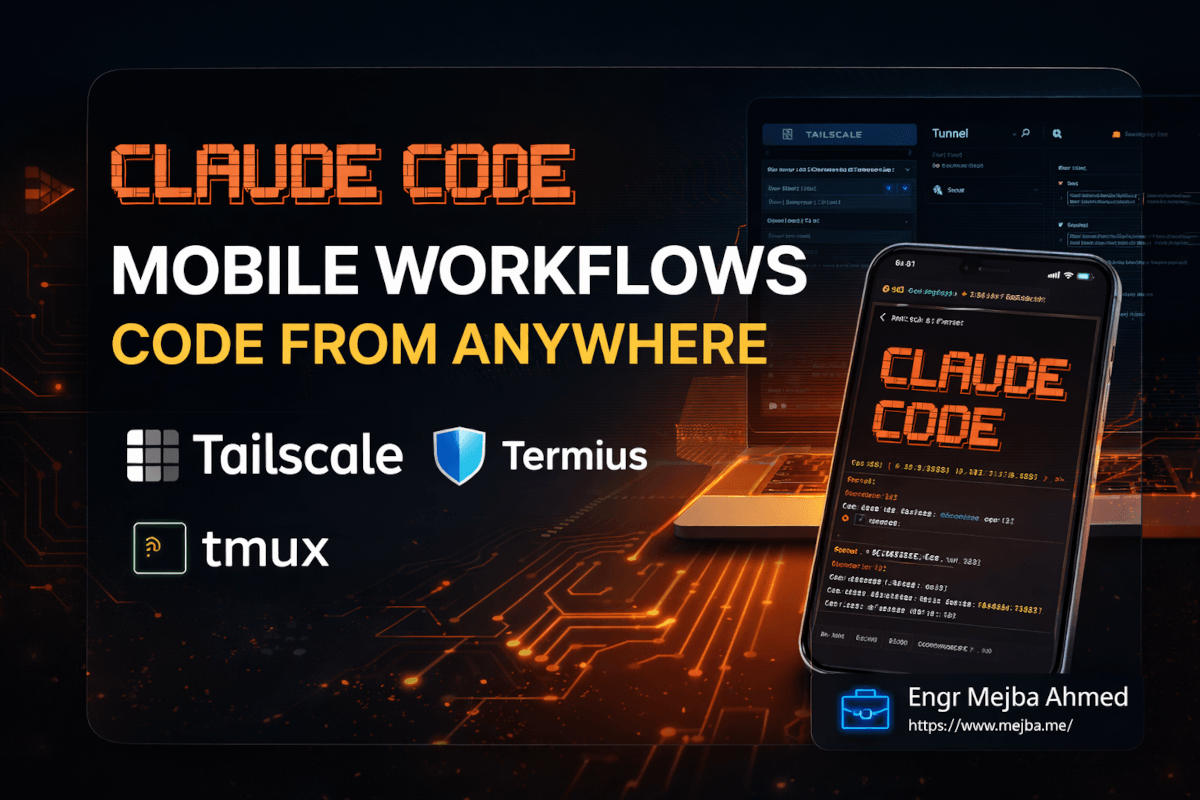
Workflow 4: The Power User Stack — Tailscale + Termius + tmux
This is what I actually use. Every day. From everywhere.
The first three workflows all share a common limitation: they depend on Claude Code's built-in networking to bridge your phone and your desktop. That networking is good — encrypted, secure, well-designed — but it's constrained. You need an active Claude session before you can connect. Your terminal must stay open. Network interruptions kill the connection.
The power user stack sidesteps all of those constraints by giving you raw terminal access to your desktop from your phone. Once you have that, you can start Claude Code, stop Claude Code, switch projects, manage processes, and do literally anything you could do sitting at your keyboard. Your phone becomes a full-power terminal, not just a Claude Code remote control.
Three tools make this work:
Tailscale creates a secure, encrypted mesh network between all your devices. Your phone, your desktop, your laptop, a cloud VM — they all join the same private network and can reach each other directly, regardless of what WiFi network or cellular connection they're on. No port forwarding. No router configuration. No exposing your machine to the public internet.
Tailscale's free tier supports up to 3 users and 100 devices — more than enough for a solo developer. I've been on the free plan for months with zero friction. The paid plans start at $5/month if you need more users or features, but honestly, I haven't needed to upgrade.
Termius (or Blink Shell, or any SSH client) gives you a proper terminal interface on your phone. Termius is my pick because the iOS keyboard experience is the least painful I've found — and "least painful" matters enormously when you're typing commands on a phone. It supports SSH key authentication, connection profiles, and persistent sessions.
tmux is the secret weapon that makes the whole stack reliable. It's a terminal multiplexer — a program that keeps terminal sessions alive independent of your connection. Start a tmux session, run Claude Code inside it, disconnect from SSH, close the Termius app, put your phone in your pocket, fly to another country, reconnect — and your Claude Code session is exactly where you left it. Every message, every file, every agent state. tmux doesn't care that you disappeared for three hours. The session kept running on your desktop the entire time.
This is the critical difference from Remote Control's 10-minute timeout. tmux sessions survive indefinitely. Your Claude Code agent can be mid-task, processing a complex refactor across twenty files, and you can disconnect and reconnect at will without losing a single byte of context.
Setting Up the Power Stack (One-Time, 30 Minutes)
Here's the exact setup I use. This assumes a Mac desktop, but the same approach works on Linux. Windows users can use WSL2.
Step 1: Install and configure Tailscale on your desktop
# macOS - Install via Homebrew
brew install tailscale

# Start the Tailscale daemon
sudo tailscaled install-system-daemon

# Authenticate - this opens a browser window
tailscale up
After authenticating, note your machine's Tailscale IP address. It'll be something like 100.x.x.x. You can find it with:
tailscale ip -4
Step 2: Install Tailscale on your phone
Download Tailscale from the App Store (iOS) or Play Store (Android). Sign in with the same account you used on your desktop. Your phone and desktop are now on the same private network. You can verify by pinging your desktop's Tailscale IP from your phone.
Step 3: Enable SSH access on your desktop
On macOS, enable Remote Login:
# Enable SSH via command line
sudo systemsetup -setremotelogin on

# Or: System Settings → General → Sharing → Remote Login → On
Make sure SSH is working over Tailscale by testing from another device:
ssh [email protected]
Pro tip: Set up SSH key authentication instead of password auth. It's both more secure and faster from a phone where typing passwords is painful.
# On your phone (in Termius, generate a key pair)
# Copy the public key to your desktop:
ssh-copy-id [email protected]
Step 4: Install tmux on your desktop (if not already present)
brew install tmux
Create a minimal tmux configuration that makes mobile use bearable:
# ~/.tmux.conf
set -g mouse on           # Enable touch scrolling
set -g history-limit 50000 # Keep plenty of scrollback
set -g status-style 'bg=#333333 fg=#ffffff'
set -g default-terminal "screen-256color"
Step 5: Install Termius on your phone
Download Termius from the App Store. Create a new host connection:
- Hostname: your desktop's Tailscale IP (100.x.x.x)
- Username: your Mac username
- Authentication: SSH key (configured in step 3)
Save the connection. Tap it. You should see your desktop's terminal prompt.
Step 6: The actual workflow
From your phone, open Termius and connect to your desktop. Then:
# Start a new tmux session named 'claude'
tmux new -s claude

# Navigate to your project
cd ~/projects/your-project

# Start Claude Code with remote control enabled
claude --remote-control
Now you have two ways to interact with Claude:
- Directly through the terminal in Termius (typing commands)
- Through the Claude mobile app via Remote Control (the nicer UI)
I typically start the session in Termius, then switch to the Claude app for the actual conversation. The Claude app's interface is designed for mobile — better keyboard handling, markdown rendering, code syntax highlighting. Termius is my backstage pass; the Claude app is where I do the actual work.
When you need to disconnect:
Just close Termius. Or close the Claude app. Or put your phone in your pocket. tmux keeps the session alive on your desktop. When you come back — whether that's five minutes or five hours later — reconnect via Termius and reattach:
tmux attach -t claude
Everything is exactly where you left it. Claude might have finished a task while you were gone. The output is sitting there in your terminal, waiting for you to read it.
Why This Stack Beats the Built-In Options
I want to be direct about the tradeoffs because understanding them is the whole point.
The built-in Remote Control is simpler — no question. Two-minute setup versus thirty minutes. No additional software. Anthropic handles the networking. For casual mobile use — checking on an agent, approving a few edits while walking the dog — Remote Control is the right choice. I still use it daily.
But Remote Control has a hard ceiling. You can't start new sessions from mobile. You can't switch projects. You can't manage your machine. The 10-minute network timeout means unreliable connections on spotty mobile networks. And if your terminal closes, the session is gone.
The power stack has no ceiling. I've started Claude Code sessions from airport WiFi in three different countries. I've switched between five projects in a single mobile session. I've kicked off a long-running agent task, put my phone away for two hours, and come back to a completed feature branch with twenty-seven file changes — all without the session ever being at risk of timing out.
The thirty-minute setup cost pays for itself the first time you need to do real work from your phone and the built-in tools can't reach.
What I Got Wrong (And What You Probably Will Too)
I want to share three mistakes I made while building my mobile workflow, because I see other developers making the same ones.
Mistake 1: Treating mobile coding as "desktop coding on a smaller screen."
My first instinct was to use my phone the same way I use my desktop — reading code diffs, reviewing file trees, typing detailed instructions. This is miserable. Phone screens are small. Phone keyboards are imprecise. Fighting that reality leads to frustration.
The mental shift that changed everything: mobile Claude Code is for directing, not implementing. I give higher-level instructions from my phone than I do from my desktop. Instead of "refactor the authentication middleware to use JWT with RS256 signing and add the public key rotation endpoint," I say "the auth system needs to move to JWT — you know the codebase, make it happen, and I'll review the PR." Claude has enough context from the project files and conversation history to fill in the details I'd normally specify.
This took real trust-building. I had to verify that Claude's autonomous decisions matched my standards across a dozen projects before I was comfortable giving that level of latitude. But once the trust was established, mobile coding became dramatically more productive. I'm not a typist on my phone — I'm a director.
Mistake 2: Not pre-authorizing GitHub repos.
The first time I tried to use Claude Code on the web from my phone for a client emergency, I spent four minutes fumbling through GitHub's OAuth flow on a mobile browser. Four minutes doesn't sound like much, but when a production system is down, every second feels like a year. Pre-authorize every repo you might need. Do it now, on your desktop, where the flow takes fifteen seconds. Your future self, panicking in a parking lot, will thank you.
Mistake 3: Ignoring tmux until I needed it.
I ran the power-user stack without tmux for the first two weeks, thinking "my connection is stable enough." It worked fine until I was on a train, mid-conversation with Claude about a tricky database schema change, and my phone switched cell towers. The SSH connection dropped. The Claude Code session — which had been running for forty minutes and had deep context about the schema design — was gone. I had to start over.
I installed tmux that evening. The next time my connection dropped on a train, I reconnected and typed tmux attach -t claude. Every single message was there. Claude was mid-sentence when I disconnected. It finished the sentence when I reconnected. The session didn't even notice I'd left.
tmux isn't optional for mobile workflows. It's the seatbelt. You don't skip it because the road looks smooth.
Choosing Your Workflow: A Decision Framework
After a month of testing every combination, here's my practical recommendation based on who you are and how you work.
If you code from a single desktop and occasionally step away:
Use Remote Control. Enable it by default in your Claude Code settings. Learn the /rc shortcut. That's it. You don't need the complexity of the other workflows, and adding unnecessary infrastructure creates maintenance burden with no payoff.
If you want to fix bugs and ship quick PRs from your phone: Add Claude Code on the web to your toolkit. Pre-authorize your active GitHub repos. Use it for self-contained tasks that don't need your local environment. Combined with Remote Control, this covers 80% of mobile use cases.
If you want full local access from mobile and you're comfortable with some setup:
Add Server Mode. Configure your desktop to run claude server-mode --remote-control on startup. This gives you the power of your local environment from your phone without any third-party tools. The only constraint is your desktop needs to be on and online.
If you want the "code from literally anywhere" setup with zero compromises: Build the full power stack. Tailscale (free), Termius (free tier works), tmux (free, pre-installed on most systems). Thirty minutes of setup, and you never think about mobile coding limitations again.
I run all four. Remote Control for quick step-aways. Cloud sessions for parallel open-source work. Server Mode as a backup. And the Tailscale + Termius + tmux stack as my daily driver for anything serious. The workflows complement each other rather than compete.
What's Coming Next — And Why I'm Paying Attention
The mobile coding experience has improved dramatically in the last three months alone. When Remote Control first launched as a research preview in February 2026, it was the only option. Now we have four distinct workflows, community-built tools like Happy offering alternative mobile clients, and Anthropic actively developing the cloud environment feature set.
A few things I'm watching:
The cloud environment keeps getting more capable. When gh CLI support was added in late 2025, it unlocked GitHub operations directly from cloud sessions. If Anthropic adds MCP server support to cloud environments — even a curated subset — the gap between cloud and local sessions narrows significantly.
Session persistence is the next frontier. Right now, Remote Control sessions die when your terminal closes. The tmux workaround fixes this, but a native solution would lower the barrier for developers who don't want to manage terminal multiplexers. I wouldn't be surprised to see Anthropic address this directly.
And the mobile app itself keeps getting better. The keyboard handling, the code rendering, the conversation management — each update makes phone-based coding feel less like a compromise and more like a genuine workflow. We're not at parity with desktop. But we're closer than I expected to be in March 2026.
Here's what I keep coming back to: the question isn't "can you code from your phone?" anymore. That's been answered. The question is "which coding workflow do you reach for when you're not at your desk?" And the answer depends on what you're building, where you are, and how much setup you're willing to invest upfront.
My dentist's office moment taught me something I didn't expect. The value of mobile coding isn't about working more hours. It's about decoupling your creative and productive moments from your physical location. Some of my best architectural decisions have happened on walks, in waiting rooms, and on trains — moments where the distance from my desk gave me distance from my assumptions. Having the ability to act on those insights immediately, rather than hoping I remember them later, has changed not just where I work but how I think about work.
Set up one of these workflows this weekend. Start with Remote Control if you've never tried it. Graduate to the power stack when you hit the ceiling. And the next time you're stuck somewhere without your laptop, open your phone and start building.
Claude Code Mobile Workflows: Common Questions
Can I use Claude Code on my phone without any setup?
Yes — Claude Code on the web runs entirely in Anthropic's cloud and requires zero local setup. Open it in the Claude iOS or Android app, connect a GitHub repository, and start coding. You won't have access to local files or MCP servers, but for self-contained tasks against GitHub repos, it works immediately.
Does Claude Code Remote Control work on Android?
Remote Control works on both iOS and Android through the official Claude app. The setup process is identical — run claude remote-control on your desktop, scan the QR code with your phone. The feature requires a Claude Pro or Max plan subscription.
What happens to my Claude Code session if my phone disconnects?
It depends on your setup. With Remote Control alone, a network interruption longer than roughly 10 minutes kills the session. With the tmux power-user stack, your session survives indefinitely — tmux keeps it running on your desktop regardless of your phone's connection state. Reconnect and type tmux attach to resume exactly where you left off.
Is the Tailscale + Termius + tmux setup secure?
Tailscale creates an encrypted WireGuard mesh network between your devices — no traffic touches the public internet. SSH adds another encryption layer. Combined with key-based authentication (no passwords), this setup is arguably more secure than most cloud-based alternatives. Tailscale's free Personal plan supports up to 3 users and 100 devices as of March 2026.
Can I start a new project from my phone using Claude Code?
Yes, through two methods. Claude Code on the web lets you create and scaffold new repos from your mobile browser (create the repo at github.com/new, authorize it, then start a cloud session). With the power-user stack, you can SSH into your desktop from your phone and start Claude Code in any directory — new or existing — with full local environment access.
Whether to Code From Your Phone
Fixing production issues, reviewing PRs, and deploying from a phone sounds like a gimmick until the one time you need it on a Saturday — then mobile Claude Code workflows are the difference between shipping a fix and waiting for your laptop. It's an insurance policy that occasionally becomes a superpower.
Set up the mobile flow once so it's ready before you need it. My Cowork mobile and cloud guide and Cowork local file access go deeper.
If you want a mobile-ready agent workflow built for you, that's something I do through Ramlit.