Connect Claude to WordPress with Novamira (Free Setup)
I spent twenty minutes one Saturday morning trying to talk Claude into building a new "Speaking" page on my WordPress site. Not via copy-paste. Not by generating HTML I'd then dump into the editor. I wanted Claude — the chat window on my desktop — to reach into the WordPress database, create the page, drop in an Elementor layout, and hand me back a preview link. The kind of workflow that would have sounded like science fiction even six months ago.
It worked. Mostly. The first time, Claude created the page but stuffed everything into a raw HTML widget that broke the second I tried to edit anything visually. The second time, I gave Claude one extra sentence in the prompt and it built the page properly — with Elementor containers, a heading widget, a button widget, image blocks I could actually click and adjust. Three minutes from "create me a speaking page" to a working layout. No login. No editor. No file upload.
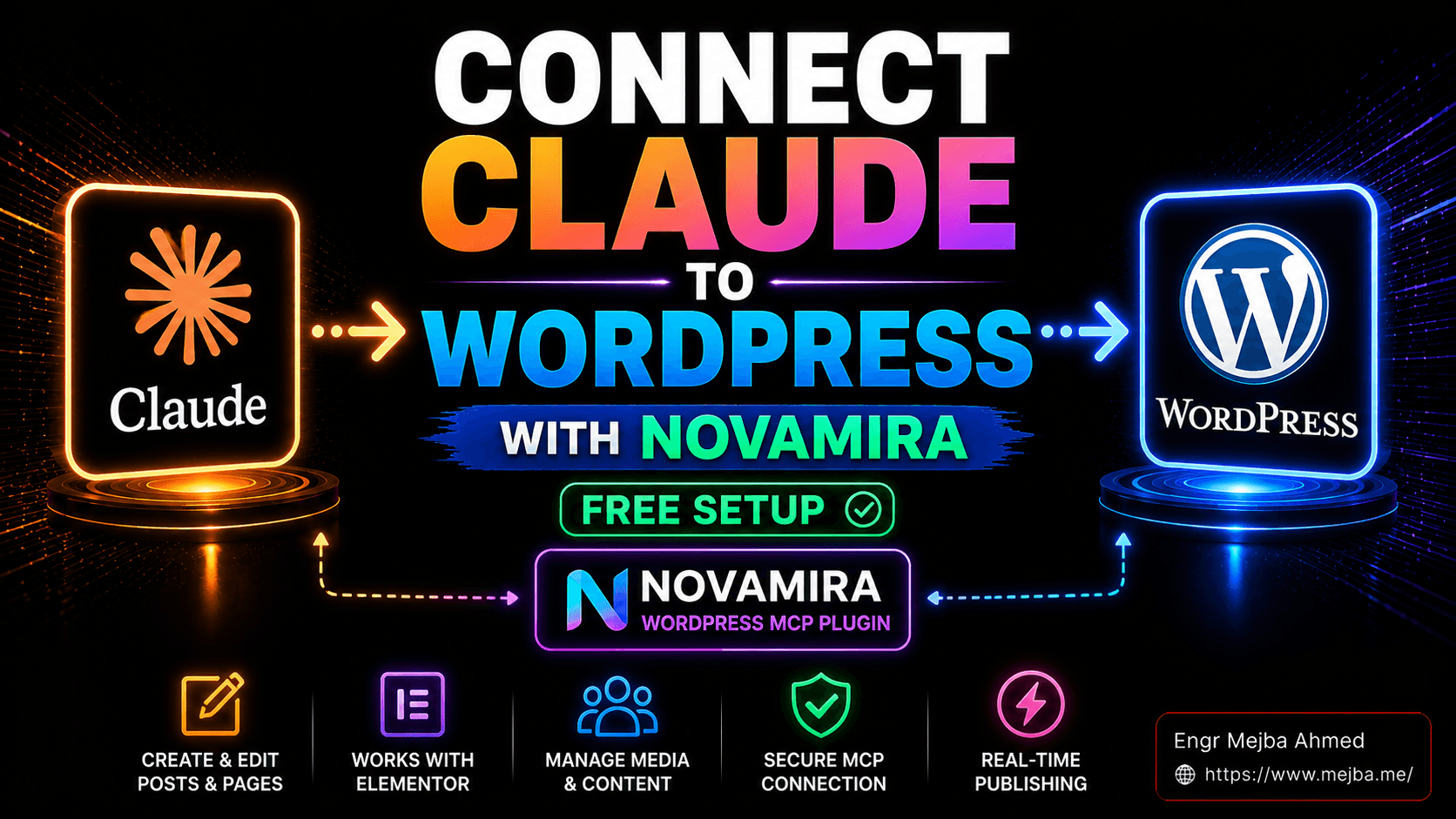
The piece that made it possible is a free WordPress plugin called Novamira. It runs an MCP server directly inside your WordPress install — meaning Claude doesn't just suggest changes to your site, it makes them, via the same REST endpoints and database calls a logged-in developer would. There's nothing else in the WordPress-AI integration space right now that gives you this level of control for zero dollars.
But — and this is the part most tutorials skip — there are a half-dozen ways this setup goes sideways if you don't know what to watch for. The Mac client behaves differently than Windows. The default page-builder output is uneditable garbage unless you instruct Claude explicitly. The "Save As" trap will quietly bury your config file and you'll spend an hour wondering why the connection won't take. And the Pro version is genuinely worth thinking about even if the free version covers 80% of what most people want.
I'm going to walk you through the exact setup I'm running on May 2026, what to skip, what to enable, the prompts that produce editable Elementor layouts instead of HTML soup, and where the Pro upgrade actually pays for itself. By the end you'll have Claude wired into a WordPress site of your own, with realistic expectations about what it can and can't do.
Let's start with what Novamira actually is — because the marketing copy undersells it.
What Novamira Actually Does (And Why It's Different)
If you've been following the Model Context Protocol space for the last year, you've probably tried at least one WordPress MCP. There's the official adapter from WordPress.org. There are InstaWP's managed connectors. There are half a dozen open-source projects on GitHub that wrap the REST API.
Most of them give Claude partial access to your WordPress site. Posts. Pages. Maybe taxonomies if you're lucky. The MCP server speaks REST, the REST endpoints expose a subset of WordPress, and you're stuck with whatever the WordPress core team decided to expose three releases ago. Want to inspect plugin settings? Want to touch a theme file? Want to query a custom post type that some weird plugin registered without REST support? You're out of luck.
Novamira works at a different layer. It runs as a plugin inside WordPress, which means it has the same runtime access PHP code has — the full database, all active plugins' APIs, the filesystem, the theme. When Claude asks Novamira to "create a page with this Elementor layout," it's not POSTing to /wp-json/wp/v2/pages and hoping the JSON-API supports your widgets. It's calling WordPress functions directly, the same way Elementor's own editor does when you click Save.
The practical implication: Claude can read the existing site structure before taking any action. It can query what post types exist, which page builder is active, what taxonomies are set up, which Elementor templates already live in the library. Then it builds new content that fits the existing site instead of dropping in mismatched garbage.
I tested this myself the first day I installed it. I asked Claude to "add a new project page that matches the style of my existing project pages." With most WordPress MCPs you'd need to paste in your existing CSS or describe the design verbally. With Novamira, Claude inspected an existing page first, identified the Elementor structure I was using, then created the new page in the same pattern. I had to nudge it once on spacing. That was it.
There's a real catch worth naming upfront. Novamira gives the AI deep write access to your site. That's exactly what makes it powerful — and exactly why you should never point it at a production WordPress install until you've tested the workflow on a staging copy first. The Novamira team is explicit about this: it's designed for development and staging environments. New PHP files it creates are sandboxed and recoverable, but you should always run a backup before any agent session that touches the site.
If that scares you off, fair. If it just makes you more careful, keep reading.
The Install: What "Two Minutes" Actually Means
The Novamira docs claim a two-minute install. That's accurate if you've installed WordPress plugins before and you have Claude Desktop already configured. If either of those is new to you, budget fifteen minutes and a cup of coffee.
Here's the actual flow I followed, with the trip-wires I hit highlighted.
Step 1: Download the Plugin
Head to novamira.ai and grab the free plugin ZIP from the download page. It's a roughly 800 KB file as of May 2026 — small, which is unusual for a plugin that does this much.
A note on trust: this plugin will have read/write access to your entire WordPress site. Before installing, glance at the plugin's track record. The Novamira team has been shipping updates regularly throughout 2026, the source is reviewable, and the install base is growing fast. It's not a random GitHub project from someone you've never heard of. Still — install it on a site you can roll back, not your main client production environment.
Step 2: Upload via WordPress Plugin Manager
In your WordPress admin, go to Plugins → Add New → Upload Plugin. Pick the Novamira ZIP. Install. Activate. Done.
If you get a "the file exceeds the maximum upload size" error, that's a WordPress config issue (not Novamira's fault). Edit your php.ini to bump upload_max_filesize and post_max_size past 1 MB, or use FTP to drop the unzipped folder directly into wp-content/plugins/.
Step 3: Open the Novamira Tab in WP Dashboard
After activation, you'll see a new "Novamira" tab in your admin sidebar. Click it. The setup screen walks you through enabling the AI connection.
Here's the first decision worth thinking about. Novamira ships with an "Atomic editor" toggle that's on by default. This was added because the latest Elementor versions support a new "atomic" widget structure. In my testing, I had better luck deactivating the Atomic editor and enabling the standard "container" feature instead. Why? The atomic structure is newer, less battle-tested, and Claude occasionally generates malformed atomic widgets that break the editor. Containers are the modern Elementor layout primitive everyone has used since 2022. They just work.
Your mileage may vary if you're on Elementor's bleeding edge. For most sites, flip Atomic off, containers on, move on.
Step 4: Generate an Application Password
This is where Novamira hands the keys to Claude. WordPress has a built-in feature called Application Passwords — secure tokens that let third-party apps authenticate without using your main login.
Go to Users → Profile, scroll down to "Application Passwords," enter a name like "Novamira-Claude," and click "Add New Application Password." WordPress will display a 24-character password in groups of four, separated by spaces. Copy the entire string including the spaces. The spaces matter — they're part of the password.
The password is shown exactly once. If you lose it, you regenerate it. Don't try to memorize it.
Step 5: Download the JSON Configuration File
Back in the Novamira tab, there's a button to download a pre-configured JSON file for Claude Desktop. The file is platform-specific — Novamira generates a slightly different version for Windows and Mac because the file paths Claude Desktop expects are different.
Pick the right one. Save it somewhere you can find again.
This config file is what tells Claude Desktop "here's an MCP server you should connect to, here's the URL, here's the auth token." Without it, Claude has no idea your WordPress site exists.
Step 6: Open Claude Desktop Settings → Developer Tab
In Claude Desktop, open Settings, then click the Developer tab. You'll see an "Edit Config" button. Click it. This opens (or creates) a file called claude_desktop_config.json in your user directory.
If you've never set up an MCP server before, this file might be empty or contain {}. If you have other MCP servers configured already, it will have an "mcpServers" block with your existing servers.
This is the trap that ate an hour of my Saturday. You must use Save, not Save As. I'm not joking. When you open the config file and paste in the Novamira contents, your text editor will sometimes default to "Save As" if it doesn't recognize the file type, and it'll save the new config to a totally different location than where Claude Desktop reads from. Claude will keep loading the old (empty) config. You'll keep wondering why the Novamira connector isn't showing up.
If you have existing MCP servers in the config, merge the Novamira "mcpServers" block into your existing one — don't blow away the whole file. Same pattern I covered when I broke down my working MCP setup for Claude Code — keep the file additive, not destructive.
Step 7: Fully Restart Claude Desktop
Quit Claude Desktop completely. Not just close the window — fully quit the application from the menu bar (Mac) or system tray (Windows). MCP servers only load at startup. If you just close the window and reopen it, the connection won't refresh.
Relaunch Claude. Open a new chat. Look at the bottom-right corner — you should see a connector indicator showing "Novamira" as connected. Click it to verify the status.
If it's not connected, the most common culprits are:
- You saved the config to the wrong location (the Save As trap)
- You pasted the Application Password without the spaces
- You forgot to fully quit and restart Claude Desktop
- Your WordPress site is on
http://and your Mac Claude is blocking the insecure connection (use HTTPS, even on staging)
Now we're at the part that actually matters: what to say to Claude once it's connected.
The Mac vs Windows Reality Nobody Mentions
Before we get to the prompts, a piece of honesty that took me a week to figure out. Claude Desktop on Windows and Claude Desktop on Mac do not behave identically when running MCP servers in May 2026.
On Windows, the Novamira connector reliably starts up on every Claude restart. I've had maybe one connection failure across twenty sessions, and that was because the WordPress site itself was down.
On Mac — and I say this as a primary Mac user — the experience is rougher. Roughly one in five Claude restarts on my M2 MacBook results in the Novamira connector showing as failed-to-start. Usually a second restart fixes it. Occasionally I have to manually re-paste the config. There's a known issue with how Claude Desktop on macOS handles certain MCP STDIO/HTTP timing edge cases that hasn't been fully resolved.
If you're on Mac and the connector throws errors that don't make sense, the fix is almost always one of:
- Quit Claude completely (Cmd+Q, don't just close the window)
- Wait ten seconds
- Reopen Claude
- Open a new chat (not an existing one — the old session's connector state is stale)
This isn't Novamira's fault — it's a Claude Desktop quirk on macOS. The Novamira team has flagged it in their docs. If you can choose, run this on a Windows machine. If you can't, build the restart-twice habit into your workflow.
Your First Real Command
Connection verified. New chat open. Now what do you actually say?
The temptation is to fire off something ambitious. "Build me a landing page for my SaaS product with a hero, three feature blocks, testimonials, pricing, and a footer CTA." Resist that temptation for your first command. You want to verify the connection works on something small before you trust it with something big.
My recommended first command:
Create a new draft page called "Test Page" with a heading that says "Hello from Claude" and a paragraph below it.
That's it. Watch Claude announce that it's calling the Novamira connector. Watch it create the page. Hit refresh in your WordPress admin. The page should be there, in Draft status, with the heading and paragraph as requested.
If that works, congratulations — you have a working AI-WordPress connection. You're already in the top 5% of WordPress users in May 2026.
Now, the next command. This one tests something subtler:
Create another draft page called "Test Elementor Page." Use Elementor containers and widgets — not raw HTML. Add a heading widget that says "Hello", a text widget with a short paragraph, and a button widget linking to /contact.
The difference between this command and the first one is the explicit page-builder instruction. Watch what happens. Open the page in the WordPress admin, click "Edit with Elementor," and inspect what Claude built. You should see actual Elementor widgets — a heading widget you can click to edit text, a text widget with its own settings panel, a button widget with the link field pre-filled.
If instead you see one big HTML block containing all three elements stuffed together, your prompt wasn't explicit enough — or Claude defaulted to its HTML fallback. Re-prompt with stronger language: "Use individual Elementor widgets only. Each element must be its own widget so I can edit it visually."
This is the single most important lesson in working with Claude + Novamira + a page builder: Claude will default to HTML output unless you explicitly demand widgets. And HTML output is essentially useless if you want to edit visually later.
Elementor Widgets vs HTML: The Difference That Matters
Let me show you why this distinction matters in practice.
When Claude generates a page using Elementor widgets, each element on the page is a first-class object Elementor knows about. You can:
- Click any element to open its settings panel
- Drag it to reorder
- Adjust spacing, colors, typography through Elementor's visual controls
- Duplicate or remove individual pieces
- Apply animations or scroll effects through the UI
When Claude generates a page using a single HTML widget containing everything, the page renders fine on the front-end — but in the editor you see one giant code block. You can:
- Edit the raw HTML/CSS
- That's it.
A non-technical client cannot edit raw HTML. A designer who knows Elementor but not code cannot tweak that page. You yourself, six months from now, will not enjoy hunting through a 300-line HTML block to change a button color.
| Aspect | Elementor Widgets | HTML Widget Only |
|---|---|---|
| Visual editability | High — click any element to edit | None — raw code only |
| Design fidelity | Matches the rest of your site | Often visually inconsistent |
| Workflow compatibility | Seamless with Elementor | Requires manual rebuild |
| Client handover | Safe — they can edit visually | Risky — only devs can touch it |
| AI default behavior | Requires explicit prompt | Default fallback |
The fix is simple. Every time you ask Claude to build something complex via Novamira, include this in the prompt: "Use Elementor containers and individual widgets — no raw HTML widgets." Make it a copy-paste boilerplate you append to every page-building request.
You'd think Claude would learn this preference across a session. It does, mostly. But in a fresh chat, the default reasserts itself. Don't trust it to remember — instruct it explicitly every time. After two weeks of using Novamira daily, this is the single biggest workflow lesson I can pass on.
Beyond Pages: What I've Actually Built With This
Pages and draft posts are the obvious starting point. They're not where Novamira gets interesting.
In the last three weeks I've used Claude + Novamira to:
Bulk-fix metadata on 40 existing posts. I had a chunk of older posts where the meta descriptions were either missing or were the auto-generated WordPress default (the first 160 characters of the post). I asked Claude to query all posts older than six months with weak meta descriptions, generate a better one for each based on the actual content, and update them. It took one prompt and roughly four minutes. Doing this manually would have been a half-day project.
Audit my taxonomies. I had thirty-seven categories on a blog that needed maybe twelve. I asked Claude to inspect the categories, identify ones with fewer than three posts, suggest merges based on topical similarity, and produce a re-tagging plan. Then I asked it to execute the plan. The result: twelve clean categories, every post re-tagged correctly, in about six minutes.
Generate a custom post type for "Speaking Engagements." Not just the post type registration — the supporting fields (event name, date, location, slides URL, video URL), the archive page template, an Elementor template for individual entries, and a sample entry pre-populated. The whole thing took one paragraph of prompt and roughly twelve minutes for Claude to build out.
Clone an existing landing page with variant copy. I had a high-performing landing page. I asked Claude to create a duplicate with different headline copy (which I provided), different CTA wording, and an A/B test attribute on the body class. It cloned the Elementor structure perfectly, swapped only the text I specified, and left every visual element identical.
The pattern here: any WordPress task that involves touching multiple posts or pages with similar logic applied to each is suddenly trivial. The tedious bulk operations that used to eat half your day collapse into a single conversation.
What it's not good at: design from scratch. If you give Claude a blank prompt like "build me a beautiful homepage for a yoga studio," the result is competent but generic. Same blocky layouts. Same beige color palettes. Same stock-photo placeholders. The AI isn't a designer. It's a fast pair of hands. You bring the vision, it executes the labor.
If you want help thinking about the design side rather than the build side, I covered the broader question of what good AI-assisted design actually looks like in my breakdown of the Claude + Canva workflow. Different stack, same principle: AI is a multiplier on taste, not a substitute for it.
When Novamira Pro Earns Its Money
The free Novamira plugin gets you the core capability — Claude can read and write your WordPress site. That alone is worth the install.
Novamira Pro is a different proposition. As of May 2026, it's in beta with launch pricing that looks like this:
- €49/year for 3 websites (launch price; regular €69)
- €99/year for up to 1,000 websites (Agency plan; launch price; regular €149)
- €199 lifetime for the Agency plan (launch price; regular €299)
What you actually get for the money:
Deeper Elementor and Bricks expertise. Pro teaches Claude about modern Elementor v4 atomic widgets, dynamic tags, global classes, variables, and interactions. In practice, this means Claude generates more polished layouts on the first try, with fewer prompts to refine. The example design from the Novamira team — a modern design-agency homepage built from a single-paragraph prompt — is achievable on Pro because the model has been primed with deep page-builder knowledge.
Persistent memory across sessions. Pro adds AI memory so Claude remembers context about your site between conversations. The brand colors you used last week, the typography scale you established, the custom widgets your theme depends on. Without memory, every chat starts fresh and you re-explain everything.
Curated skills for specific stacks. ACF, JetEngine, Meta Box, Bricks. If you're building sites on these stacks, Pro understands how the pieces fit together. Free Novamira doesn't.
Better validation. Pro inspects what it built and self-corrects more aggressively. Fewer broken layouts. Fewer "oh, the widget needs a different parameter" follow-up prompts.
Who should buy it: agencies building multiple client sites on WordPress (the €99/year Agency plan pays for itself in roughly two sites of saved time). Solo designers who live in Elementor or Bricks and want the AI to genuinely understand the page-builder's vocabulary. Anyone running a content-heavy site where the AI memory between sessions saves real time.
Who should stick with free: hobbyists and bloggers who just want Claude to create posts and pages occasionally. The free version covers that use case completely.
I bought the Pro license after about two weeks of free usage. The deciding factor for me wasn't the Elementor expertise — it was the memory. Re-explaining my site's structure every time I opened a new chat was the friction point that pushed me over.
The Honest Verdict After Three Weeks
This setup is genuinely one of the most useful AI integrations I've added to my workflow in 2026. It's also not magic.
What it does well:
- Bulk content operations that would take hours manually
- Site structure tasks (creating post types, fields, taxonomies)
- Cloning and modifying existing pages
- Generating draft posts you'll then edit
- Auditing and cleaning up site metadata
What it does adequately:
- Building new pages from detailed prompts (good with practice and explicit instructions)
- Working with custom themes (if the theme is conventional)
- Multi-language site management (limited tooling, more brittle)
What it struggles with:
- Pure design work without strong direction
- Very complex page-builder layouts on first attempt
- Anything requiring deep aesthetic judgment
- Production environments without backup discipline (don't do this)
The biggest risk isn't technical — it's behavioral. Once you have an AI that can edit your WordPress site, you'll be tempted to point it at production. Don't. Build a staging-first habit. Backup before sessions. Review changes before publishing. The same rules you'd apply to a junior developer with database access apply here, doubled, because the AI moves faster than a junior developer would.
The biggest opportunity is also behavioral. The teams who win with this stack aren't the ones who treat it like a magic content generator. They're the ones who treat Claude + Novamira like a very fast intern — someone who needs clear instructions, supervision, and a defined scope, but who can then execute that scope at a speed no human can match.
I'm planning to use this for a client site rebuild next month. Not autonomously — collaboratively. I'll do the design and IA work. Claude will do the build labor. We'll see how the math actually shakes out compared to a traditional build.
Whatever happens, I won't be going back to building WordPress sites entirely by hand. That ship sailed the first afternoon I watched Claude create a custom post type, register the fields, build the archive template, and populate sample entries in twelve minutes flat.
If you've been waiting for the right moment to wire Claude into your WordPress workflow, this is it. The plugin is free. The setup is twenty minutes. The downside if it doesn't fit your workflow is that you uninstall a plugin. The upside is that you compress weeks of repetitive WordPress work into single afternoons.
Install it tonight. Build a test page. See what it feels like to talk to your CMS instead of clicking through it.
FAQ
Frequently Asked Questions
Everything you need to know about this topic
Yes, the core Novamira WordPress plugin is completely free and provides full MCP access to your WordPress site from Claude Desktop. You only pay if you want Novamira Pro, which adds Elementor/Bricks expertise, persistent memory, and curated skills for stacks like ACF and JetEngine. The Free version covers most personal and small-business use cases.
Yes. Novamira works with Claude Desktop, Claude Code, Cursor, VS Code with Copilot, Windsurf, Zed, Warp, Cline, Gemini CLI, and OpenCode. The same MCP connection works across all of them — you just point each client at the same Novamira endpoint and Application Password.
Technically yes, but the Novamira team explicitly recommends against it. The plugin is designed for development and staging environments where you can roll back changes safely. Always run Novamira on a staging copy first, take a backup before any agent session, and only push changes to production after manual review. See the install walkthrough above for the recommended setup.
You didn't tell Claude explicitly to use Elementor widgets. By default, Claude falls back to single HTML widget output, which is technically functional but uneditable visually. Add this to every page-building prompt: "Use Elementor containers and individual widgets — no raw HTML." The full prompt pattern is covered in the Elementor Widgets vs HTML section above.
Windows is significantly more stable as of May 2026. Mac users experience occasional connector startup failures that usually resolve with a full quit-and-restart of Claude Desktop. The Novamira plugin itself is identical — the difference is in how Claude Desktop handles MCP servers on each platform.
Let's Work Together
Looking to build AI systems, automate workflows, or scale your tech infrastructure? I'd love to help.
- Fiverr (custom builds & integrations): fiverr.com/s/EgxYmWD
- Portfolio: mejba.me
- Ramlit Limited (enterprise solutions): ramlit.com
- ColorPark (design & branding): colorpark.io
- xCyberSecurity (security services): xcybersecurity.io