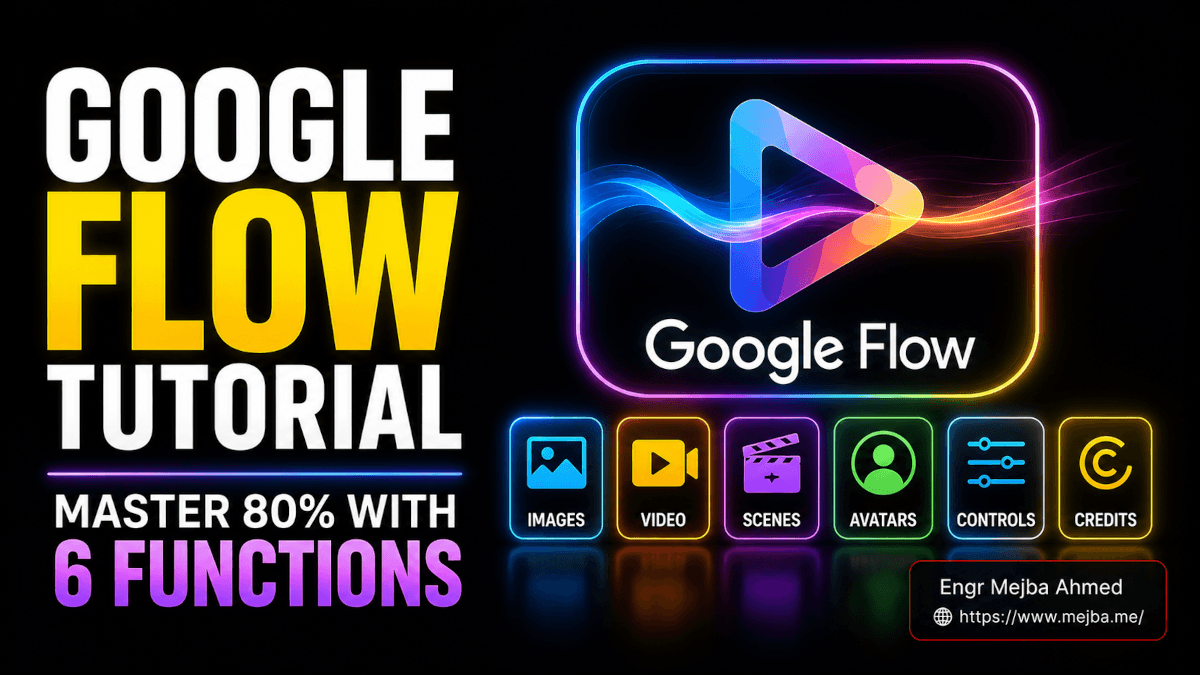
Google Flow Tutorial: Learn the 6 Functions That Run 80% of It
The first time I opened Google Flow, I closed it within ninety seconds. Not because it was bad — because there were too many buttons. A prompt box, a model dropdown, aspect ratio toggles, credit counters ticking somewhere in the corner, tabs for media and scenes, an avatar thing, an agent thing. It had the energy of a video editor, an image generator, and a chatbot that had all moved into the same apartment and refused to label their shelves.
So I did what I always do when a tool feels overwhelming. I ignored 80% of it on purpose.
This Google Flow tutorial isn't a tour of every panel. After a few weeks of actually using Flow to make images and short clips, I found that roughly six functions carry almost all the weight. Create an image. Edit it. Reuse it for consistency. Turn it into video. Stitch clips into a scene. Watch your credits. Learn those, in that order, and you can do most of what people pay for Flow to do. Everything else is a bonus you discover later, once your hands already know the rhythm.
Here's the path I wish someone had handed me on day one.
What Google Flow Actually Is (and Why It Feels Heavier Than It Is)
Google Flow is Google's AI creative studio for generating images and video, available at flow.google and bundled into a Google AI subscription. Under the hood it wires together Google's generative models — Nano Banana 2 for images and Veo 3.1 for video — into one workspace where the output of one becomes the input of the next.
That last part is the whole point. Flow isn't trying to be the fastest single-image generator (the Gemini app already does that, and faster). It's built so that an image you make becomes the seed for a video, and that video becomes a clip in a longer scene. It's a pipeline pretending to be an app. If you've built a 3D animated site in Google AI Studio, Flow is the video-and-image cousin — same Google-AI DNA, different job.
The reason it feels heavy is that the interface shows you the entire pipeline at once, even when you only need the first stage. New users try to read every control before generating anything. Don't. The fastest way to understand Flow is to make one ugly picture of a cat and then improve it. I'm serious — that's literally the lesson plan below.
One quick orientation note before we touch a button. Flow organizes everything into projects. A project is a container holding all the images, videos, scenes, and references for one idea — a short film, an ad, a set of product shots. You don't dump everything into one endless feed. You create a project, and the assets inside it can reference each other. That detail matters more than it looks like right now, and it'll click into place around the consistency section.
If you've followed my hands-on test of Gemini Omni's video generation, Flow will feel like its more deliberate, project-based sibling. Omni is for fast clips in a chat. Flow is for building something with parts that talk to each other.
Project created. Let's make that cat.
Function 1: Generate Your First Image
Open a new project and your eyes land on the prompt box. This is the command center for the entire tool — every image, every video, every edit starts here. Think of it less like a search bar and more like the cockpit. Most of your time in Flow happens inside this one box and the menu attached to it.
Before you type anything, set four things. They're small, they're fast, and getting them right the first time saves credits.
- Image or video. There's a menu in the prompt box that switches what you're generating. Start it on image. Video costs dramatically more (more on that later), so you never want to fat-finger your way into a video generation when you meant to make a picture.
- Aspect ratio. Flow supports the ratios you'd expect — 16:9 for YouTube and desktop, 9:16 for Shorts, Reels, and TikTok, plus square and other options. Pick the shape of the thing you're ultimately making. If this image is destined to become a vertical video later, set 9:16 now so the framing matches downstream.
- Number of outputs. This is one of Flow's quietly great features. Unlike the Gemini app, which hands you one result, Flow lets you generate several at once — 4 is a sensible default, 2 if you want to conserve. More options per generation means you're more likely to get a keeper without re-rolling.
- Model. Pick your image model from the dropdown. Nano Banana 2 is the default and, as of mid-2026, image generation in Flow with Nano Banana runs at zero credits — meaning you can iterate on images all day without burning your budget. That's not a small detail. It's the entire reason the workflow I'll give you later starts with images.
Now type the simplest possible prompt: a cat.
Hit generate, and Flow produces four images at once. They appear together so you can preview them side by side and pick your favorite. Notice the credit cost shown before you commit — Flow tells you what a generation will deduct up front, and with Nano Banana 2 on images, that number is often zero. Always glance at it anyway. Building the habit now prevents a nasty surprise later when you switch to video.
You've made your first image. Anticlimactic, right? Good. The boring part is over.
Function 2: Edit an Image Without Starting Over
Here's where most people get stuck, because editing in Flow doesn't work the way Photoshop trained your brain. There are no layers, no lasso, no clone stamp. You edit by describing the change in plain language.
Click the image you want to change. The prompt box now points at that specific image. Say your cat is lying on a blue blanket and you want it red. You don't re-describe the whole scene. You just type the change: make the blanket red.
Flow regenerates the edit and — this is the part I love — places it alongside the original instead of replacing it. You get a before-and-after pair you can toggle between before deciding which to keep. If the red looks wrong, the blue version is still right there, untouched. Nothing is destroyed until you choose.
Those edits don't vanish into the void, either. They're preserved as variations linked to the original, so your project keeps a little family tree of every version you tried. That history is genuinely useful when a client says "actually, go back to the second one" three days later.
A small honest moment: the first week, I kept re-typing entire prompts to make tiny edits, then wondering why my results drifted so much. Of course they did — a full prompt is a full re-roll, and the model reinterprets everything. The fix is almost stupidly simple. Edit = click the image, describe only the change. Keep the instruction surgical. "Make the blanket red," not "a cat on a red blanket in a cozy room with warm light." The narrower the instruction, the more the rest of the image survives intact.
Function 3: Keep a Character Consistent Across New Images
This is the function that separates people who use Flow from people who fight it.
Say you've got a cat you love. Now you want a brand-new image — same cat, but up a tree. If you just type a cat in a tree, you'll get a cat in a tree. Not your cat. A stranger cat. The model has no idea your previous cat was special.
The move is to reference your existing image. Because everything lives inside a project, you can pull a previous image in as a reference and then write the new prompt. Add the cat image, type the same cat sitting in a tree, and Flow carries the character forward — the markings, the build, the vibe of that specific cat. Want to push further? Reference it again and add make it winter. Same cat, snow on the branches.
This is the cleanest mental model I can give you, and it's the one I wish I'd had on day one:
- Editing = you click an existing image and describe a modification to it. The result is a variation of that image.
- Creating new with consistency = you add previous images as references, then submit a new prompt. The result is a fresh image that remembers your character.
One is "change this picture." The other is "make a new picture that knows about my old ones." Confusing the two is the single most common reason beginners get inconsistent results and assume the tool is broken. It isn't. You just told it to do the wrong job.
Housekeeping while you're here: as you generate, you'll accumulate duplicates and dead ends. Move the junk to trash so your reference pool stays clean. When you later reference "all the cat images," you don't want six failed rolls polluting the signal. A tidy project is a consistent project.
Function 4: Turn an Image Into Video
Switch the prompt box menu from image to video. The whole feel changes — and so does the cost, which is why we waited until now.
Flow gives you two ways to feed a video generation, and the difference is worth understanding:
- Frames — you provide start (and sometimes end) frames, and Flow animates between them.
- Ingredients — you provide images plus a text prompt, and Flow composes a video from those parts.
For most beginner workflows, ingredients is the friendlier path, because it lets you hand Flow your perfected cat image and a simple instruction, then let it figure out the motion. That's the route I'd start on.
Match the aspect ratio of the video to your reference image. If your cat image is 16:9 and you generate a 9:16 video, Flow has to crop or pad, and you lose the careful framing you set up. Keep the shapes aligned end to end.
A few realities to set expectations:
- You generate one video at a time, not four. Video is expensive in credits, so Flow doesn't let you spray-and-pray the way it does with images. Choose carefully.
- The current best video model is Veo 3.1 — that's what you want selected for quality.
- Duration is adjustable — a setting like 6 seconds is a sane starting point. Longer clips cost more credits, so duration is a direct dial on your budget.
- It takes about a minute. Image generations are near-instant; video makes you wait. That's normal. Go refill your coffee.
Try it: reference your cat image, set ingredients, set 6 seconds, and prompt the cat rolls over on his back. Wait the minute. You'll get a short clip of your cat — the consistent one — actually moving. The first time that lands, it stops feeling like a toy.
If you want a deeper look at how Google's video model behaves under stress, the motion quirks and prompt sensitivity I hit testing Gemini Omni carry straight over to Flow — same underlying temperament, same things to prompt around.
Function 5: Edit and Compile Clips Into a Scene
You edit video the same way you edit images — by describing the change. Click a clip, type the adjustment, and Flow regenerates. The muscle memory you built in Function 2 transfers directly. That consistency in the interface is, honestly, one of Flow's underrated strengths.
The bigger payoff is scenes. A scene is multiple clips compiled into one longer sequence. Picture a tiny story: a woman searching her apartment for her cat, then a cut to the cat rolling over somewhere it absolutely shouldn't be. Two clips, one little narrative. In Flow you bring those clips together into a scene and shape them as a unit.
Inside the scene you can:
- Trim clips so the cuts land cleanly and the continuity holds.
- Rearrange the order — drag the cat reveal earlier or later to change the joke's timing.
- Fix glitches and sync — patch the small visual hiccups and timing drift that AI video still produces.
Then you save the scene. Saved scenes live under the scenes tab, and all your raw assets sit under all media. Knowing those two tabs exist saves you the panic of thinking you lost work — your individual clips and your stitched scenes are filed separately, on purpose.
This is the part where Flow stops being an image toy and starts being a lightweight editing studio. Not a Premiere replacement — but for assembling AI clips into a coherent short, it's genuinely capable. If you already run an AI video production pipeline with tools like HeyGen and ElevenLabs, Flow slots in neatly as the generation-and-rough-cut stage before you move to finishing.
How Do You Download Images and Videos From Google Flow?
To download a single image or video in Google Flow, open the three-dot menu on the asset and choose your resolution from the export options. That's the quick answer for individual assets.
Scenes work a little differently, and this trips people up. A scene is a stitched sequence, not a single clip, so the three-dot trick on the timeline won't give you the combined file. Open the scene first, then use the download button inside the scene view — Flow renders all the trimmed, rearranged clips into one continuous video. Miss this step and you'll end up exporting clips one at a time and wondering where your edit went.
Quick rule to remember: individual asset → three-dot menu. Full stitched scene → open it, download from inside. Two different doors for two different things.
The Workflow That Saves You Credits: Image → Video → Scene
If you take one thing from this entire Google Flow tutorial, take this order. Image first. Then video. Then scene. In that exact sequence, every time.
Here's the reasoning, because the order isn't arbitrary:
- Images are cheap and fast. With Nano Banana 2 running at zero credits and near-instant generation, this is where you should do all your experimenting. Get the look exactly right — the character, the lighting, the composition — while it costs you nothing and takes seconds.
- Video is expensive and slow. Veo 3.1 burns real credits and makes you wait a minute per clip. You do not want to discover your cat's face looks wrong after spending credits animating it.
- Scenes are the assembly stage. Only once your clips are individually good do you compile them.
The mistake I watched myself and everyone around me make: jumping straight to video with a rough idea, generating an expensive clip, hating it, and re-rolling — at full credit cost — over and over. That's how you blow through a monthly allotment in an afternoon.
Flip it. Perfect the image while it's free. Animate only the image you already love. Compile only the clips that already work. You'll spend a fraction of the credits and get better output, because each stage builds on something you've already validated. That same principle — cheap iteration up front, expensive commitment last — is the one I lean on for every AI tool workflow I rely on.
If you'd rather have someone design a full image-to-video pipeline for your brand or product line — the project structure, the reference library, the export presets — that's the kind of build I take on. You can see my work and reach me at fiverr.com/s/EgxYmWD.
Function 6 (Bonus): Avatars and the Agent
These two aren't strictly necessary to be productive in Flow, but they're the features people get most excited about, so here's the honest version of each.
Avatars let you put yourself into your generations. You create one by scanning a QR code with your phone, which opens a capture page in Chrome — a short selfie video and a few spoken words to record your face and voice. (You need to be logged into the same Google account on your phone as your Flow account, or the handoff won't connect.) Flow sends the avatar back to your workspace, and from then on you can drop your likeness into images and videos like any other character. Want yourself as a knight riding a unicorn? That's a prompt away. It's an experimental, paid-tier feature, so expect rough edges — but when it lands, it lands.
The Agent is a conversational assistant built into the prompt box. Instead of you driving every generation manually, you describe the idea and the Agent helps develop it through back-and-forth, then handles the image and video generation for you. Tell it you want a short animated film for your kid featuring a red panda, and it'll work with you to shape and produce it. Think of it as the difference between operating the tool and briefing a collaborator who operates it for you.
I treat both as the second layer — useful, fun, occasionally rough. Master the first five functions before you lean on these, because the Agent works far better when you already understand what "good" looks like in Flow.
Understanding Google Flow Credits (Before You Run Out)
Every generation in Flow deducts credits, and how many you get depends on your Google AI plan. Run out before your monthly reset and you're locked out of the expensive stuff until the calendar flips. So you watch the number.
Here's the state of play in mid-2026:
- Google AI Pro — about $19.99/month, includes 1,000 credits per month plus access to Flow with Veo 3.1 and Nano Banana Pro. This is the entry point most creators land on.
- Google AI Ultra — Google restructured this at I/O 2026 into two tiers. The $100/month Ultra plan includes about 10,000 credits per month, and the $200/month Ultra plan includes about 25,000 credits.
- Free tier — any Google account gets a small daily allotment (in the region of 50 credits a day) plus a one-time starter bonus the first time you open the studio, enough to test the waters with a couple of clips a day.
Two habits keep you out of trouble:
- Check the credit cost before every generation. Flow shows it up front. Images on Nano Banana 2 are often zero; video on Veo 3.1 is where the spending happens. The number is right there — read it.
- Watch your balance and usage history in the account menu. If you're working toward a deadline, knowing you've got 200 credits left versus 2,000 completely changes how aggressively you should be generating video.
This is also why the Image → Video → Scene order isn't just tidy — it's economical. Free image iteration plus expensive-but-deliberate video equals a monthly allotment that actually lasts. If you're choosing a plan, my honest take is that Pro is plenty for learning and light projects; only step up to Ultra once you're producing video regularly enough to feel the 1,000-credit ceiling. For where Flow sits among the other models and tools I track, I keep notes in my AI tools roundup.
You Now Know 80% of Google Flow
Remember the cat? We made it, recolored its blanket, sent it up a tree, dropped it into winter, rolled it onto its back in a six-second clip, and cut that clip into a tiny scene. Along the way you learned the prompt box, models, aspect ratios, output counts, editing, references for consistency, video ingredients, scene compilation, exporting, avatars, the Agent, and credits.
That's not a teaser of Flow. That is Flow, for the vast majority of real work. The advanced corners — the deeper frame controls, the finer audio and music tools, the experimental settings — are exactly that: corners. You'll wander into them naturally once the core loop is automatic, and they'll make sense precisely because you built the foundation first.
So here's your one job in the next 24 hours. Open Flow, make a new project, and run the full loop once: a free image, perfect it, animate one six-second clip, and download it. Don't aim for art. Aim for reps. The moment that loop feels boring is the moment Flow stops being overwhelming and starts being yours.
What's the first thing you'd put up that tree?
FAQ
Frequently Asked Questions
Everything you need to know about this topic
Google Flow is Google's AI creative studio for generating images and videos from text prompts, available through a Google AI subscription at flow.google. It combines Nano Banana 2 for images and Veo 3.1 for video into one project-based workspace where assets reference each other.
Google Flow is included in Google AI plans — Google AI Pro at about $19.99/month with 1,000 monthly credits, and Google AI Ultra at $100/month (around 10,000 credits) or $200/month (around 25,000 credits). A free Google account gets a small daily credit allotment to try it. See the credits section above for the full breakdown.
Editing means clicking an existing image and describing a change to it, producing a linked variation. Creating new with consistency means adding previous images as references, then submitting a fresh prompt so the new image keeps your character. Confusing the two is the top cause of inconsistent results.
Reference your existing image inside the project before writing a new prompt — Flow carries that character's features into the new generation. Because all assets live in one project, you can reference the same character across many images and videos. The consistency section above walks through the cat example step by step.
Video generation uses Veo 3.1, a far heavier model than the image models, so Flow limits you to one video output at a time and shows a higher credit cost before you generate. Images on Nano Banana 2 are often free, which is why the recommended workflow perfects images first, then animates.
Go Run the Loop Once
That's the whole thing — a free image, one deliberate clip, a quick scene stitched together. I still open Flow the same way every time: cheap experiments first, expensive renders only once the picture already earns them. Build the reps this week and the wall of buttons quietly turns into muscle memory.