
Claude Desktop on the Mac has a voice shortcut, and if you have tried it, you already know the annoyance this post fixes: press Caps Lock, speak, and your words land in a floating popup window instead of the chat input you are staring at. Then you click an arrow to send. My position after months of daily use is that you should turn Claude's shortcut off entirely and use macOS native dictation instead, because it puts your words directly into the input field, works in every app, and turns "speak, click, confirm" into "speak, press Enter." The whole change takes about two minutes, and I built a complete restaurant website with it to prove the workflow holds up. The demo video is below.
Why the popup exists, and why it is in your way
The popup is not a bug. Claude's voice shortcut is designed for Quick Entry: you are working in some other app, you want to ask Claude something without switching windows, so the shortcut summons a small floating capture box from anywhere. For that use, the popup is the feature.
The problem is that when you are already inside Claude Desktop, composing a long prompt, the same design adds a step. Your dictation lands in a detached window, and you confirm it into the conversation instead of just talking into the box you were going to type into. For hands-free building sessions, where you are dictating one instruction after another, that extra hop breaks the rhythm every single time.
The insight that unlocks the fix: you do not need Claude to handle voice at all. macOS ships a system-level dictation engine that types into whatever text field has focus. Point it at Claude's chat input and the popup problem disappears.
Step 1: Turn on macOS dictation
- Apple menu, then System Settings
- Keyboard, then Dictation
- Toggle Dictation on
- Set the shortcut to Press Globe key twice
- Enable Auto-punctuation
- Pick your microphone source
Auto-punctuation is worth enabling even though it feels odd for a day. Without it you have to say "comma" and "period" out loud, which is fine for short bursts and miserable for a three-paragraph prompt.
Step 2: Disable Claude's own voice shortcut
- Open Claude Desktop
- Settings, then General
- Set Voice shortcut to No shortcut
- Optionally disable the Quick access shortcut too, if you never use Quick Entry from other apps
This step matters because leaving both active means two systems are listening for voice triggers, and sooner or later you will invoke the wrong one mid-thought. One input method, no ambiguity.
Step 3: Speak straight into the chat
- Click inside Claude's chat input field so it has focus
- Press the Globe (Fn) key twice
- A small microphone icon appears at your cursor
- Speak your message
- Press Globe again or click Done
- Your text is sitting in the input field; press Enter to send
That is the entire loop. No popup, no confirmation click, and because it is the system engine, the identical gesture dictates into your editor, your terminal, your email, anywhere a cursor blinks.
Claude's shortcut versus macOS dictation
| Feature | Claude voice shortcut | macOS dictation |
|---|---|---|
| Where text lands | Floating popup | Directly in the input field |
| Extra steps | Click arrow to send | Just press Enter |
| Works everywhere | Only Claude | Any app on the Mac |
| Customization | Limited | Full macOS control |
The demo: a restaurant site built entirely by voice
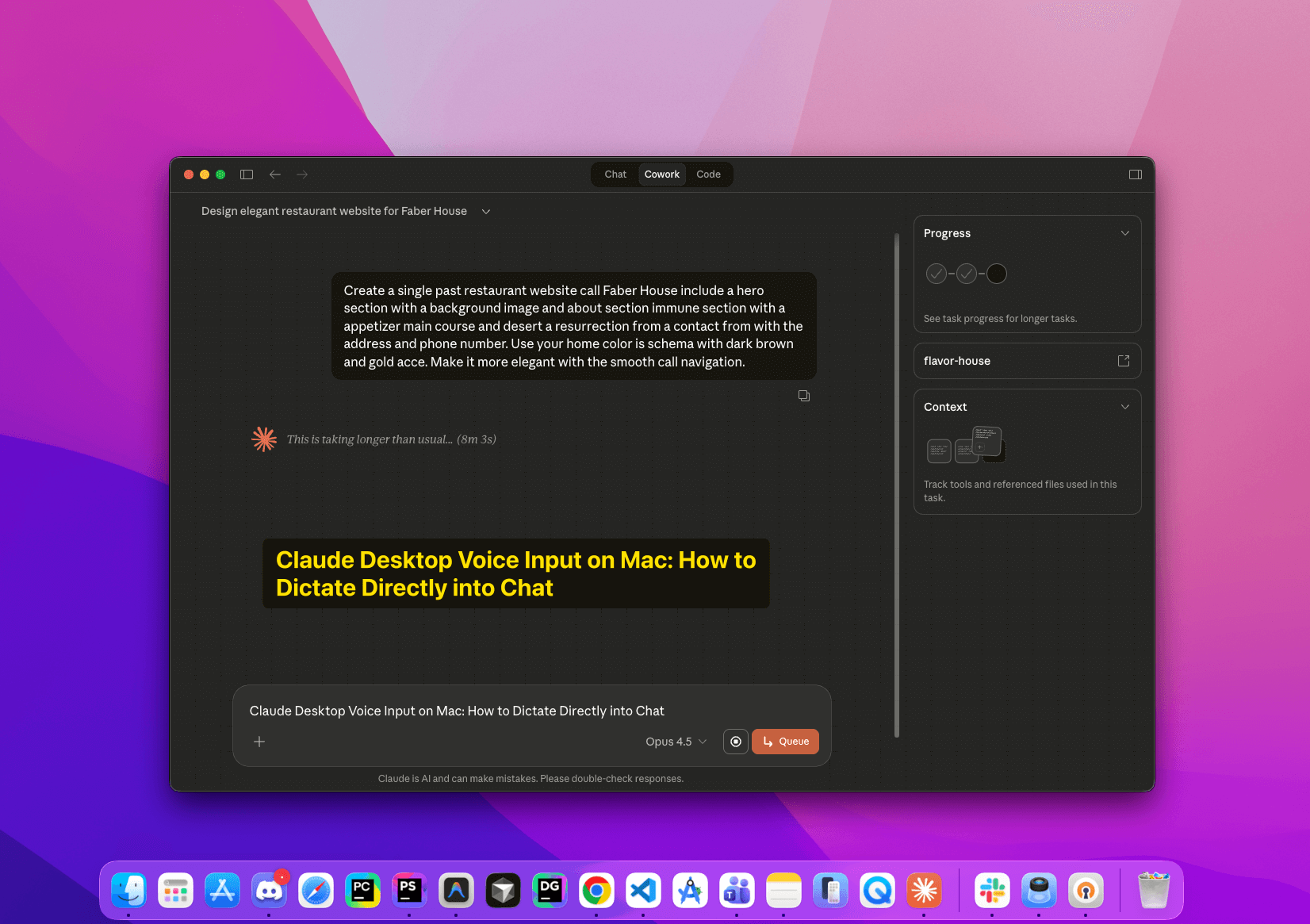
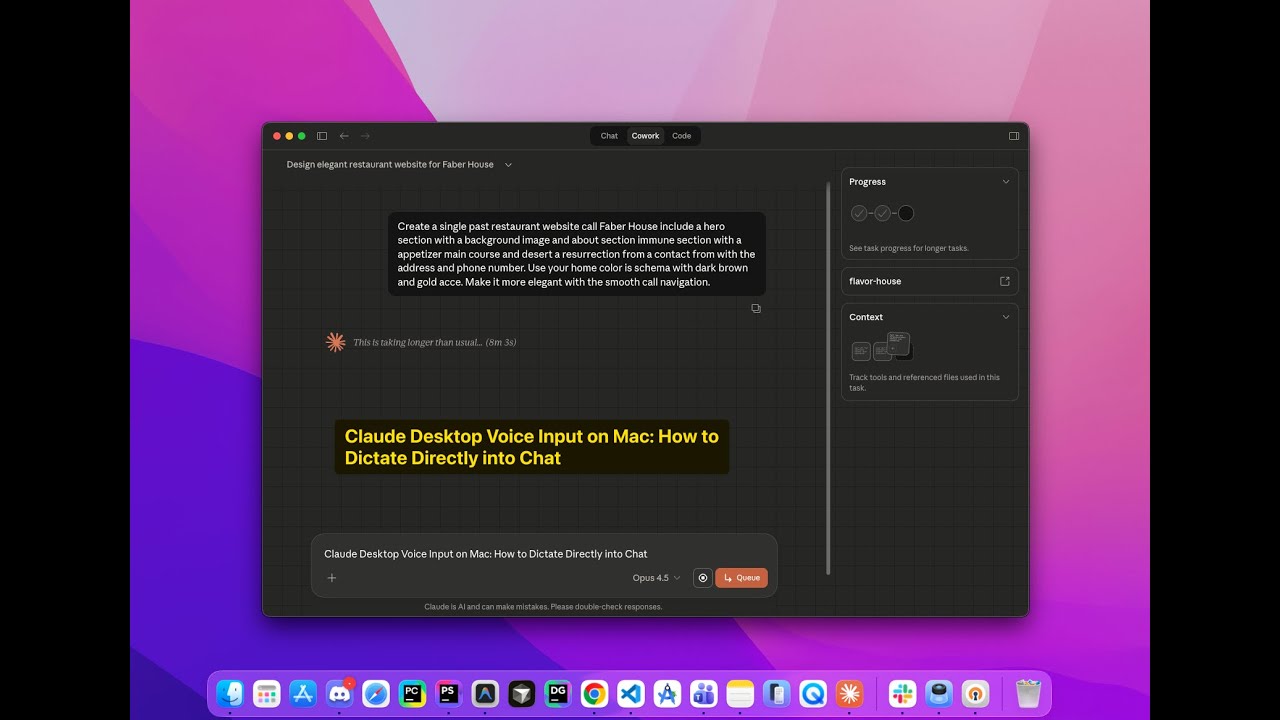
To test whether this holds up beyond one-line questions, I built a complete single-page restaurant website called Flavor House without touching the keyboard except to press Enter. Hero section with a call to action, an about section, a menu split into appetizers, mains, and desserts, a reservation form with date and time pickers, a contact section with address and hours, all responsive.
The full session is recorded here:
The dictated prompt that kicked it off, verbatim in spirit:
"Create a single page restaurant website called Flavor House. Include a hero section with a background image, an about section, a menu section with appetizers, main courses and desserts, a reservation form, and a contact section with address and phone number. Use a warm color scheme with dark brown and gold accents. Make it modern and elegant with smooth scroll navigation."
Notice how much specification fits in one spoken breath. That is the quiet advantage of dictation: because talking costs less effort than typing, you naturally include the context and constraints you would have trimmed from a typed prompt to save keystrokes. My spoken prompts are consistently more detailed than my typed ones, and the outputs are better for it. That squares with everything I have learned about prompting rules that reduce the model's guessing: the model performs to the specificity you give it, and voice makes specificity cheap.
Troubleshooting the three common failure points
When dictation cuts out or seems dead, check these in order, because they cover every failure I have hit in months of daily use.
Microphone permission. System Settings, Privacy & Security, Microphone. macOS updates occasionally reset the grant, and dictation fails silently without it.
AirPods battery. When AirPods run low, the mic can quietly drop to a lower-quality codec and transcription accuracy falls off a cliff. For long dictation sessions, the built-in mic or a wired input is more reliable than it has any right to be.
Focus. The system types where the cursor is. If the chat input does not have focus when you hit the shortcut, your words go nowhere, or worse, into another app. Click into the prompt box first, every time. It becomes muscle memory within a day.
For code identifiers and technical terms, spell the first occurrence ("capital F, lowercase lavorHouse") and Claude will infer the rest from context. You are not dictating to a dumb transcriber; the model on the other end repairs reasonable transcription noise.
Making it a daily habit
The setup only pays off if invoking it is thoughtless. The double-tap of the Fn key is now as automatic for me as Cmd+Tab. My rule of thumb: anything over two sentences gets spoken, not typed. I talk through the goal, the constraints, and the context, spend ten seconds cleaning the transcript, and send.
Who this genuinely serves, beyond the novelty: developers managing RSI or repetitive strain, anyone with accessibility needs that make sustained typing costly, and anyone who thinks better out loud. Brainstorming into a prompt is a different cognitive mode than composing one, and some problems untangle faster spoken.
Voice input is also a gateway drug. Once speaking to Claude Desktop feels normal, the natural next steps are Claude's conversational voice mode, which I reviewed separately, and driving longer builds away from the desk entirely, which is the territory of my Claude Code remote control setup. And if you are deciding whether the desktop app deserves a place in your workflow at all, my Claude Desktop app review covers where it beats the terminal and where it does not.
The honest limits
Dictation will not replace typing for everything. Precise code edits, regex, anything symbol-heavy: type those. Accents and technical vocabulary occasionally trip the transcriber, and a noisy room degrades everything. The win is specifically on long-form natural language, which happens to be exactly what good prompting is made of. Speak the intent, type the surgery.
The prompts I dictate most, the ones that reliably produce full working pages and apps, live in my prompt library, free to lift and adapt. Load one up, press the Globe key twice, and read it out loud with your own project's details. That is the fastest way to feel what hands-free building is actually like.