I was seventeen minutes into a forty-three-minute tutorial on MCP server configurations when I realized I only needed one specific thing: how to handle authentication for custom plugins. Seventeen minutes of context-setting, intro sequences, and background explanation — all to get to the part that actually mattered for my problem.
That was last Tuesday. By Wednesday, I'd discovered a feature YouTube quietly rolled out that would have saved me those seventeen minutes — and honestly, it's changed how I consume video content entirely.
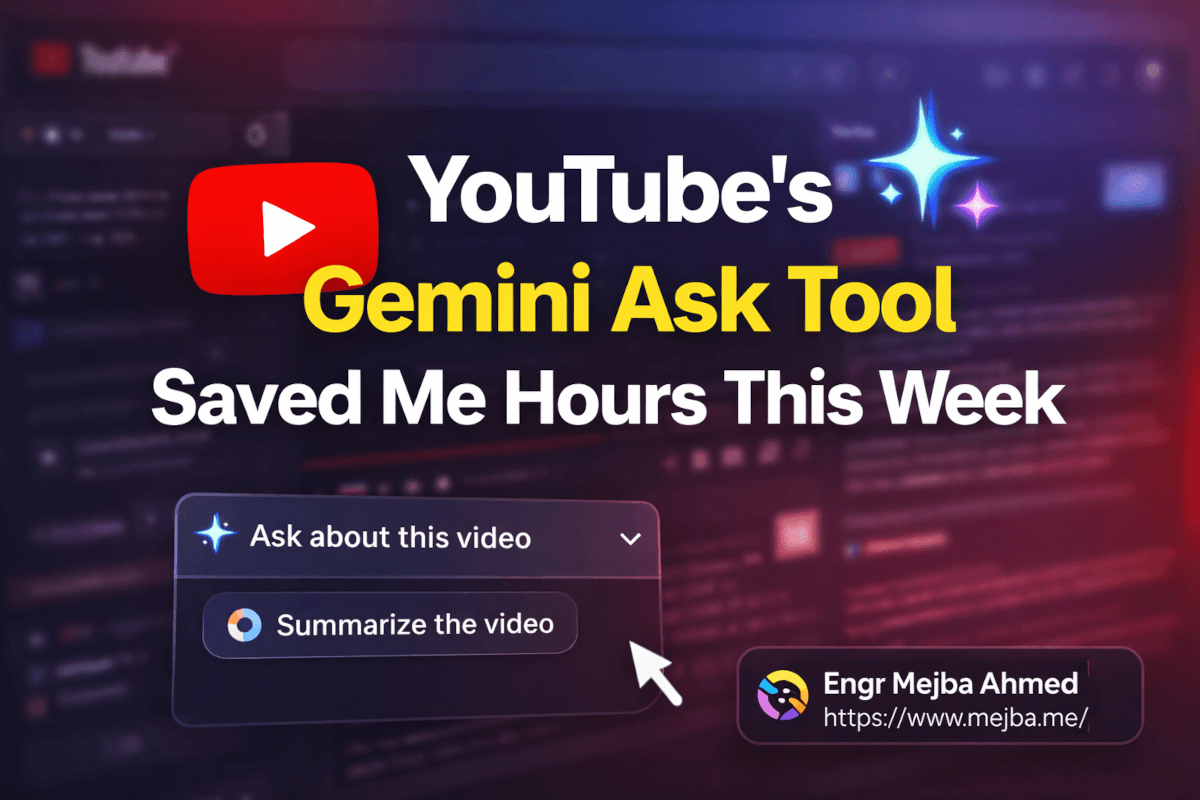
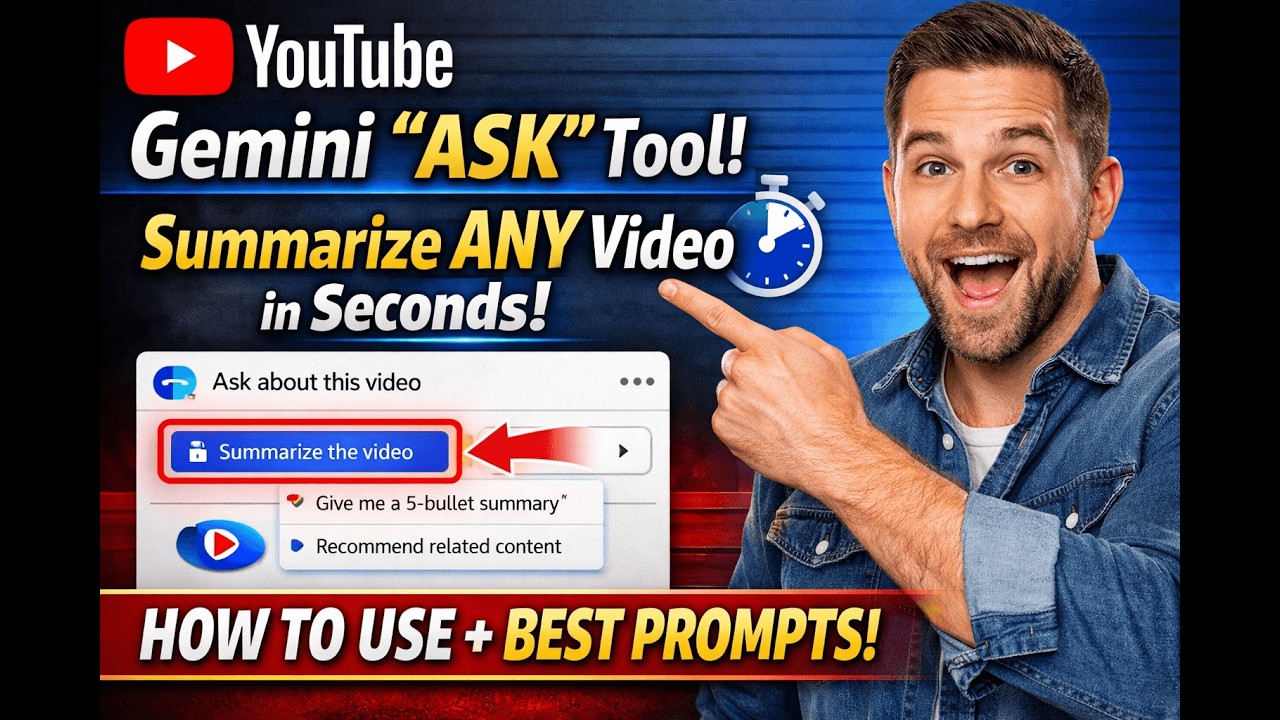
Right there on the YouTube interface, next to the like button and the share button, sits a small button labeled "Ask." Click it, and a panel opens on the right side of the video. At the top: "Ask about this video." Below that, a "Summarize the video" button. And below that, a text field where you can type literally any question about the video's content.
It's powered by Gemini. And it works shockingly well.
I stumbled on it by accident — noticed the panel while watching a video about Claude's new Co-work plugins. Clicked "Summarize the video" mostly out of curiosity. In about four seconds, I had a structured breakdown of every major point the creator covered, organized by topic, with enough detail to know exactly which sections I needed to watch and which ones I could skip.
Four seconds versus forty-three minutes. That math hit me hard.
I've since used this tool on probably sixty or seventy videos over the past week. Research videos, coding tutorials, product reviews, conference talks. And I've developed a set of techniques that squeeze significantly more value out of it than just hitting the summarize button. Let me show you how I actually use it — and why I think most people who discover this feature will underuse it dramatically.
How the Gemini Ask Panel Actually Works
The feature appears on many YouTube videos as a panel on the right side of the player. You'll see it labeled "Ask about this video" with Gemini's sparkle icon. Not every video has it yet — Google is still rolling it out — but the coverage is expanding quickly. I'd estimate about 70-80% of the English-language tech content I watch now has the panel available.
When you open it, you get three interaction modes.
Pre-built buttons appear first. "Summarize the video" is always there. Below it, YouTube generates context-specific suggestions based on the video's content. On a coding tutorial, you might see "What tools are mentioned?" or "Explain the main concept." On a product review, you might see "What are the pros and cons?" These suggestions are surprisingly relevant — Gemini clearly analyzes the video's transcript and generates questions a viewer would actually want answered.
The text input field at the bottom is where the real power lives. You can ask anything about the video's content in natural language. "What are the main steps?" works. So does "Explain the authentication section in simple terms" or "What did the presenter say about pricing?" or "Give me a one-paragraph summary focused only on the technical implementation."
Follow-up questions work too. The panel maintains conversation context, so you can drill down. "Summarize the video" → "Tell me more about the third point" → "What specific tools did they recommend for that?" Each response builds on the previous one.
The responses come back in seconds — typically two to five seconds for a summary, slightly longer for detailed questions. They're generated from the video's transcript, which means Gemini has access to everything the presenter said, not just the title and description. The accuracy has been strong in my testing. Not perfect — I'll get to the limitations — but strong enough that I trust it for initial triage and note-taking.
Here's something I didn't expect: the responses include timestamps. When Gemini references a specific point from the video, it often tells you roughly where in the video that topic appears. So the tool doesn't just replace watching — it helps you navigate to exactly the part you need to watch.
That changes the entire value proposition. It's not "watch the video OR read the summary." It's "read the summary, identify what matters, then watch only those sections." The combination is faster than either approach alone.
The Five Prompts That Changed How I Learn From Videos
After a week of heavy use, I've settled on five prompts that consistently produce the most useful outputs. These aren't the obvious ones — "summarize the video" works fine, but these go deeper.
Prompt 1: "Turn this video into a checklist of action steps"
This is my most-used prompt, and it works best on tutorials, how-to videos, and process walkthroughs. Instead of a narrative summary, you get a numbered list of specific things to do.
I used this on a thirty-minute video about setting up a CI/CD pipeline with GitHub Actions. The response: twelve clear action steps, in order, with the key configuration details from each step included. I followed the checklist while building the pipeline, glancing back at the video only when a step needed visual confirmation. What would have been a "watch five minutes, pause, implement, rewatch, implement" cycle became a smooth, linear execution.
The checklist format also makes incredible study notes. If you're learning from YouTube — and in 2026, who isn't? — asking for a checklist converts passive watching into active implementation material.
Prompt 2: "What does the presenter say about [specific topic] and do they recommend for or against it?"
This is my research prompt. When I'm evaluating a technology or approach and watching multiple videos on the topic, I don't need full summaries. I need each presenter's specific position on the thing I'm researching.
I used this across eight videos about React Server Components versus traditional client-side rendering. Instead of watching eight hours of content, I asked each video the same question. In about three minutes total, I had eight different expert perspectives with their specific arguments for and against. One of them raised a performance concern that none of the others mentioned — a detail I would have easily missed if I'd been skimming the videos at 2x speed.
Prompt 3: "List every tool, library, framework, or service mentioned in this video with a one-line description of how it's used"
Developer videos are gold mines of tool recommendations, but they're scattered across thirty-minute conversations. This prompt extracts every single one.
I tested it on a conference talk about modern web development stacks. The response listed fourteen tools with context: not just "Tailwind CSS" but "Tailwind CSS — used for utility-first styling, presenter recommends v4 for the new architecture." That level of contextual extraction from a single prompt is something I previously had to take notes for manually.
Prompt 4: "What are the three strongest arguments and the three weakest points in this video?"
This is my critical thinking prompt, and it's become essential for evaluating opinion-heavy content. Tech YouTube is full of strong takes — "this framework is dead," "this tool replaces everything" — and this prompt forces a balanced perspective.
On a video arguing that traditional coding is obsolete, Gemini identified the three strongest supporting arguments (economic pressures, AI capability growth, historical parallels with automation) and three weaknesses (survivorship bias in examples, no distinction between prototyping and production, and missing discussion of maintenance complexity). That analysis took four seconds and would have taken me ten minutes of active critical viewing to produce.
Prompt 5: "Give me bullet points I can send to a colleague who needs the key takeaways but won't watch the video"
Probably my most practical prompt for day-to-day work. The output is already formatted for Slack or email — concise, professional, hit the key points, skip the filler. I use this two or three times a week when someone shares a video in a work channel and the team needs the highlights.
The trick with all five of these prompts: be specific about the output format you want. "Summarize this" gives you a paragraph. "Give me bullet points" gives you bullets. "Turn this into a checklist" gives you a checklist. "Give me a one-paragraph summary" gives you exactly that. Gemini follows formatting instructions consistently, so use them.
The Workflow That 10x'd My Video Research
Individual prompts are useful. But the real productivity leap came when I chained them into a workflow. Here's the process I now follow for every research video:
Step one: Triage. Click "Summarize the video." Read the summary in five seconds. Decide: is this video relevant to what I'm researching? If not, move on. This single step eliminates about 40% of videos from my watch queue — videos whose titles promised relevance but whose actual content was too basic, too advanced, or off-topic.
Step two: Extract. If the video is relevant, ask for the specific information I need. "What does this video say about [my research topic]?" or "List the technical recommendations related to [my specific problem]." This gives me the targeted insights without the surrounding content.
Step three: Evaluate. If the video makes claims I want to assess, ask for the strong and weak arguments. This takes four seconds and gives me a critical lens before I've invested any viewing time.
Step four: Deep dive selectively. Based on steps one through three, I now know exactly which sections of the video deserve actual watching. I skip to those timestamps, watch at 1x speed with full attention, and ignore the rest.
Step five: Export. Ask for the colleague-ready bullet points or action checklist. Copy to my notes. Done.
Total time per video: usually two to four minutes instead of the full video length. For a typical research session where I'm evaluating ten to fifteen videos on a topic, that's the difference between a full day of viewing and about forty-five minutes of targeted extraction.
I want to be clear about what's happening here. I'm not replacing watching videos. I'm replacing the wasteful parts of watching videos — the triage, the scanning, the "is this relevant?" evaluation, and the passive rewatching of sections I only half-absorbed the first time. The parts that actually require video — visual demonstrations, nuanced explanations, seeing code being written in real time — I still watch. I just get to them faster.
Where This Breaks Down (Because It Does)
I've been enthusiastic, so let me be honest about the failure modes. There are three that matter.
Visual content gets missed. Gemini works from the transcript. If the presenter shows something on screen without verbally describing it — a code snippet, a diagram, a UI walkthrough — the Ask tool doesn't capture it. I've had responses that said "the presenter discusses a configuration file" when what actually happened was the presenter showed the file on screen without reading it aloud. For coding tutorials where half the value is in the screen share, this is a real limitation.
My workaround: when Gemini's summary feels thin on a technical video, that's usually a signal that the video is heavily visual and needs actual watching. The tool's limitations become a useful signal.
Nuance and tone get flattened. When a presenter says something sarcastically, or qualifies a recommendation with subtle body language and vocal emphasis, Gemini often reports it as a straightforward statement. I caught this on a video where the presenter said "sure, you could use microservices for your to-do app" — clearly sarcastic — and Gemini listed "microservices architecture" as a recommendation. The literal transcript missed the tone entirely.
For opinion-heavy content, this matters. Always verify strong claims from the summary by watching the relevant section. The timestamps Gemini provides make this easy.
Long, unstructured videos produce weaker summaries. A well-structured twenty-minute tutorial with clear sections produces excellent summaries. A rambling sixty-minute livestream with tangents and audience interactions produces summaries that miss key points or misattribute context. The tool works best when the video has a coherent structure — which, to be fair, correlates well with the videos that are worth watching in the first place.
Despite these limitations, I find myself using the tool on essentially every video I open. Even when I know I'll need to watch the full thing, the five-second summary tells me what to expect and primes my brain for the key points. That alone improves how much I retain from watching.
The Bigger Implication Nobody's Discussing
Here's what's been nagging at me since I started using this tool heavily.
YouTube has 800 million videos. The vast majority of useful information locked inside those videos was, until now, only accessible by watching them. You couldn't search inside a video's content. You couldn't query a specific moment. You couldn't extract structured data from a presenter's words. The information existed, but extracting it required the same time investment as when the video was recorded.
Gemini's Ask tool cracks that open. Not perfectly, not completely, but meaningfully. Information that was trapped in video format is now queryable in natural language.
Think about what that means for learning. Every conference talk from the past five years is now a queryable knowledge base. Every tutorial, every code walkthrough, every expert interview — you can ask specific questions and get specific answers without watching a single minute.
I tested this theory. I took a complex topic I wanted to understand — agent-to-agent communication protocols — and instead of my usual approach (find three or four good videos, watch them all, take notes), I used the Ask tool across twelve videos in about twenty minutes. Asked each video the same three targeted questions. Compiled the responses. Had a comprehensive, multi-perspective understanding of the topic with specific expert opinions and recommended tools.
Twenty minutes for what previously took half a day. And because I was asking focused questions rather than passively absorbing, my retention of the material was noticeably better.
This doesn't make video obsolete. Great presenters deliver understanding through narrative, pacing, and visual demonstration in ways that text extraction can't replicate. What it makes obsolete is inefficient video consumption — the hours spent watching content that's 80% irrelevant to your specific need.
How I've Integrated This Into My Daily Workflow
Practical integration matters more than theoretical excitement, so here's exactly how this tool fits into my day.
Morning research (15 minutes). I check my subscriptions, open any relevant new videos, and run the triage workflow on each. Summarize, assess relevance, extract key points. In fifteen minutes I've processed what used to take ninety minutes of watching.
Deep learning sessions. When I'm learning something new and have five to ten videos queued, I extract checklists and tool lists from all of them first. Then I watch only the one or two videos that have the best structural walkthrough, using the checklists from the others as supplementary material.
Client work. When a client sends a video reference — "build something like what this person demonstrates" — I use the Ask tool to extract the specific technical requirements, architecture decisions, and implementation details. Then I share the structured breakdown with the client to confirm scope before writing a line of code.
Content research. When I'm writing about a topic and want to reference what other creators are saying, the Ask tool lets me survey ten to fifteen videos in thirty minutes. I get specific claims, opinions, and recommendations from each, giving my writing a broader evidence base than I could build by watching everything.
The common thread: the tool is most valuable when you know what you're looking for. Undirected "summarize everything" is helpful but basic. Targeted "tell me specifically about X" is where the real time savings live.
What This Means For How You Should Use YouTube
I want to leave you with a reframe that's been useful for me.
Before this tool, YouTube was a commitment. Opening a video meant committing twenty, thirty, sixty minutes to find out if it contained what you needed. That commitment created friction. You'd bookmark videos to "watch later" (which meant never). You'd skip potentially useful content because you couldn't justify the time investment. You'd watch at 2x speed and miss nuances because the only time-saving option was compression.
Now YouTube is a database. You query it. You get answers. You selectively deep-dive into the parts that warrant full attention. The commitment is measured in seconds, not minutes, and the decision to invest more time is informed rather than speculative.
I've gone from watching about two hours of YouTube content per day to watching about forty minutes — while extracting more useful information than before. The raw viewing time dropped by two-thirds. The learning output increased.
That's not a productivity hack. That's a fundamental change in how video content works as a knowledge source.
The feature is rolling out broadly right now. Next time you open a YouTube video, look for the "Ask" button below the player or the panel on the right. Click "Summarize the video." Watch what happens in four seconds. Then type a specific question about something you actually want to know.
I guarantee you'll never go back to watching an entire video just to find the one part that matters. And once that shift clicks, you'll start wondering why you accepted the old way of consuming video for as long as you did.
I know I am.
Asking Better Questions of Video
The YouTube Gemini Ask tool rewards specificity — ask for the exact technique, timestamp, or comparison you need, and hour-long videos collapse into thirty-second answers. My (this guide) and NotebookLM for research go deeper.
If you want video research workflows built, that's something I do through Ramlit.