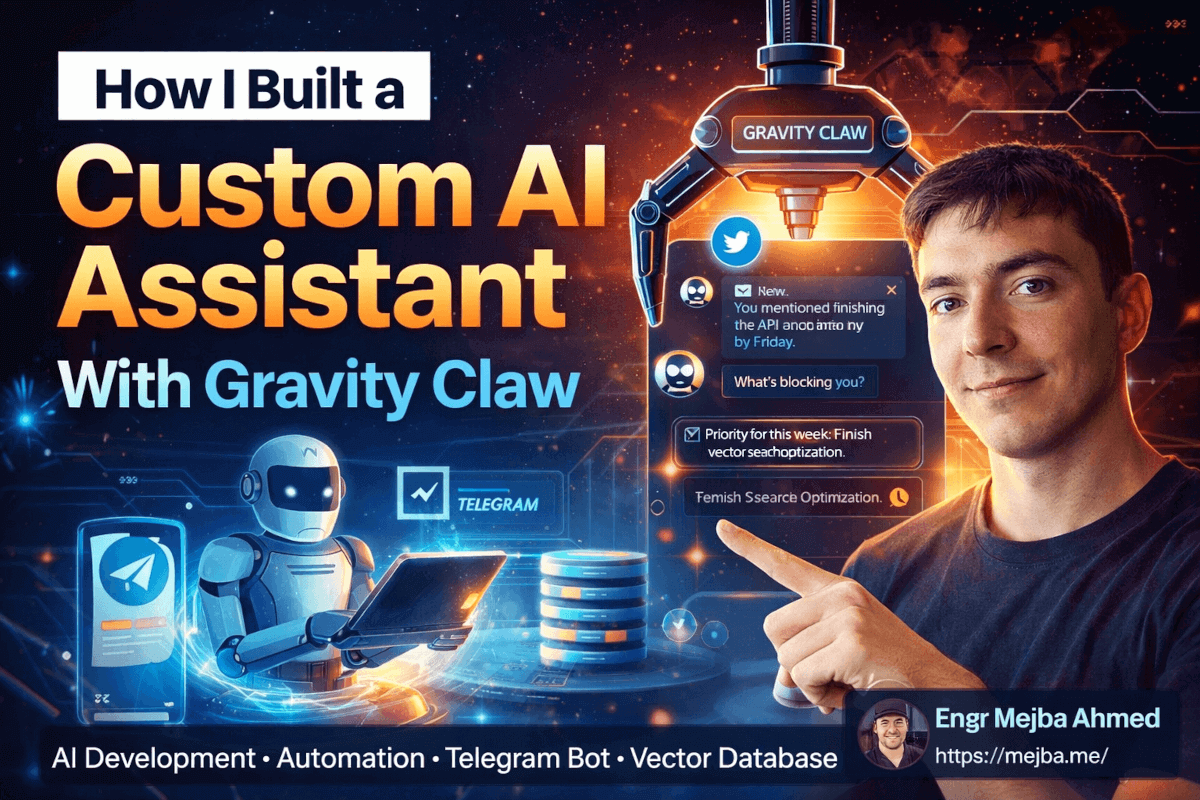
Three weeks ago, I was staring at my Telegram app at 11 PM, and my AI assistant — one I'd built myself — sent me a message I never asked for. "You mentioned wanting to finish the API migration by Friday. You haven't touched it in two days. What's blocking you?"
I didn't program that exact message. I didn't schedule it manually. The thing just knew because it remembered a conversation from four days earlier, pulled context from its semantic memory, and decided — on its own heartbeat cycle — that I needed a nudge. That moment right there? That's when I realized I'd accidentally built something more useful than any SaaS productivity app I've ever paid for.
The system behind this is called Gravity Claw, and it runs on a framework called Anti-Gravity. If you've been following the open-source AI agent space, you might have heard of OpenClaw or Claudebot — Gravity Claw builds on top of that foundation, but takes it somewhere genuinely different. I'm talking about voice messages, three-tier memory that actually works, connections to every app you use, and a proactive heartbeat system that turns your bot from a reactive tool into something that feels like a digital co-founder.
Here's what I want to walk you through: exactly how I set the whole thing up, what surprised me, what broke (a lot broke), and why I think this approach to AI assistants is going to make the current crop of chatbot wrappers look primitive within a year.
But first, you need to understand the problem I was actually trying to solve — because it's probably the same one keeping you up at night.
The Problem With Every AI Assistant You've Tried
I've used them all. ChatGPT with custom instructions. Claude Projects with uploaded files. Notion AI. Various Telegram bots built on top of OpenAI's API. They all share the same fundamental limitation: they forget you exist the moment the conversation ends.
Sure, some of them have "memory" now. ChatGPT remembers that I prefer TypeScript over JavaScript. Fantastic. But ask it what I was working on last Tuesday, or what I said my priorities were for Q1, and you get a blank stare. That's not memory. That's a sticky note.
The deeper problem runs even worse than forgetfulness, though. Every one of these tools is a black box hosted on someone else's server. My API keys are floating through third-party infrastructure. My conversation data — including client project details, business strategies, sometimes even credentials I paste in without thinking — lives on machines I don't control.
I'd been telling myself this was fine. Acceptable trade-off. Cost of doing business.
Then I saw a security report showing over 40,000 exposed bot instances running on public infrastructure, many with API keys and user data sitting in plaintext. That number hit differently when I realized three of my own experimental bots were probably in that count.
Something had to change. I needed an AI assistant that ran on my machine, stored data in my databases, and gave me enough control to build exactly the features I wanted without depending on someone else's product roadmap. That's when I found Jack Roberts' breakdown of Gravity Claw, and everything clicked.
What I'm about to show you isn't just another chatbot tutorial. By the end of this, you'll have an AI assistant that listens to voice messages, talks back in a custom voice, remembers everything important about your life and work, connects to your email and project tools, and proactively checks in with you — all running locally on your laptop with zero data leaving your machine.
The framework Jack uses to build this is called CLAUSE, and honestly, it's one of the cleanest approaches to AI system architecture I've seen. Let me break down what each letter means and then we'll get into the actual build.
The CLAUSE Framework — Why This Architecture Actually Makes Sense
Most tutorials for building AI assistants start with "install the library, call the API, print the response." You get a working chatbot in 20 minutes and then spend the next 6 months trying to make it actually useful. The CLAUSE framework flips that. It's a five-step methodology that builds each layer of capability on top of the last.
C — Connect. Get your foundation running. Anti-gravity installed, Telegram bot created, Docker and Node.js set up, API keys configured. This is your base layer.
L — Listen. Give your bot ears. Voice message support through Whisper transcription, plus the ability to speak back using 11 Labs' text-to-speech. This alone transforms the interaction from "typing on a keyboard" to "talking to someone while I'm cooking dinner."
A — Archive. Build the memory system. Not a simple chat log — a three-tier architecture with core memory (always present), conversation buffer (recent context), and semantic long-term memory powered by vector search. This is where Gravity Claw stops being a chatbot and starts being an assistant.
U — Wire (the U stands for Unite, but think of it as wiring things together). Connect your bot to the rest of your digital life through MCP servers. Gmail, Notion, GitHub, Supabase — whatever you use, you can plug it in.
S — Sense. Give your bot a heartbeat. Instead of waiting passively for you to type something, it can proactively reach out with reminders, accountability check-ins, and contextual nudges based on what it knows about your schedule and goals.
Each layer builds on the previous one. You can't have meaningful proactive messages (Sense) without memory (Archive). You can't have useful memory without a reliable communication channel (Connect). The architecture is elegant because it's sequential — and because you can stop at any layer and still have something useful.
I stopped at Listen for the first week, just to test voice interactions. Then I added Archive, and the whole experience leveled up overnight. The gap between having memory and not having memory is the difference between a calculator and a colleague.
Here's the thing that most people won't tell you about building systems like this: the technical setup is the easy part. The hard part — and where I spent most of my time — is in the decisions around memory architecture and personality tuning. Let me walk you through the actual implementation, including the parts where I made choices I later regretted.
Setting Up the Foundation — Connect and First Contact
Step one is straightforward but detail-sensitive. You need four things installed before you touch any AI code: Anti-Gravity (the platform), Telegram (your communication channel), Docker, and Node.js. I'm running macOS, but the setup works the same on Linux. Windows users need WSL.
Step 1: Install Anti-Gravity and create your Telegram bot.
Open Telegram, search for @BotFather, and create a new bot. You'll get a bot token — a long string that looks like 7234567890:AAH.... Save this somewhere safe. Then grab your own Telegram user ID by messaging @userinfobot. You'll need this for whitelisting.
## Clone the anti-gravity repo
git clone https://github.com/anti-gravity-dev/anti-gravity.git
cd anti-gravity

## Install dependencies
npm install

## Copy the environment template
cp .env.example .env
Step 2: Configure your environment variables.
Open that .env file and fill in three critical values:
TELEGRAM_BOT_TOKEN=your_bot_token_here
OPENROUTER_API_KEY=your_openrouter_key_here
ALLOWED_USER_IDS=your_telegram_user_id
That ALLOWED_USER_IDS line is important. It restricts bot access to only your Telegram account. No one else can message your bot and get responses. I initially skipped this during testing and got spam messages within hours from bots scanning for open Telegram endpoints. Don't skip it.
Step 3: Start the bot and verify the connection.
docker compose up -d
Send a test message to your bot on Telegram. If everything is wired correctly, you should get a response from whatever model you configured through OpenRouter. I'm using Claude through OpenRouter because the response quality for conversational interactions is significantly better than GPT-4 for this use case — but your mileage may vary.
Pro tip: If the bot isn't responding, check Docker logs first. Nine times out of ten, it's a malformed bot token or a missing environment variable. The error messages are surprisingly helpful once you know where to look.
docker compose logs -f
At this point, you have a working AI chatbot on Telegram. Functional, but basic. You can type messages, get responses, and that's about it. The real magic starts when you give it ears.
Teaching Your Bot to Listen and Speak — The Voice Layer
This is where Gravity Claw starts feeling different from every other Telegram bot you've played with. Voice input and output changes the entire interaction dynamic.
Step 4: Enable voice transcription with Whisper.
Anti-gravity has built-in support for voice message handling, but you need a transcription service. Two options: run Whisper locally (free but CPU-intensive) or use OpenAI's Whisper API ($0.006 per minute — absurdly cheap).
I started with local Whisper. Mistake. On my M2 MacBook Pro, transcription took 8-12 seconds for a 30-second voice message. That delay killed the conversational flow. Switched to the API, and transcription drops to under 2 seconds. For $0.006 per minute, the API is a no-brainer unless you're processing thousands of messages daily.
WHISPER_API_KEY=your_openai_api_key
WHISPER_MODE=api  # or 'local' for on-device
Once configured, send a voice message to your bot on Telegram. It transcribes the audio, processes the text through your AI model, and sends back a text response. Already useful — but we can go further.
Step 5: Add voice replies with 11 Labs.
This one's optional but transformative. 11 Labs provides text-to-speech with emotional intelligence — the generated voice doesn't sound robotic. It sounds like someone actually talking to you.
ELEVENLABS_API_KEY=your_api_key
ELEVENLABS_VOICE_ID=your_chosen_voice_id
Browse 11 Labs' voice library to pick a voice that matches the personality you want. I tested five different voices before settling on one. The difference between voices isn't just accent or pitch — some voices sound more authoritative, some more casual, some more empathetic. Pick one that matches how you want your AI to interact with you.
After configuring the voice, your bot responds to voice messages with voice messages. You're literally having a spoken conversation with your AI assistant through Telegram while walking your dog or driving. I use this daily now. It's replaced Siri entirely for me — and I'm not exaggerating when I say Siri wasn't even in the same league.
Here's an important detail most tutorials skip: the latency budget. From the moment you finish speaking to the moment you hear the response, you're stacking three API calls: Whisper transcription, LLM inference, and 11 Labs synthesis. On a good day, total round-trip is 4-6 seconds. On a bad day (OpenRouter congestion), it can stretch to 12+ seconds. I've found that responses under 5 seconds feel conversational. Anything over 8 seconds breaks the flow.
You can optimize this by choosing lower-latency models on OpenRouter and using 11 Labs' "turbo" mode for voice synthesis. Small tweaks, big difference.
Alright, you've got a bot that can hear you and talk back. Impressive party trick, genuinely useful for hands-free interaction. But the next layer — memory — is what separates a clever toy from an actual assistant.
The Memory Architecture That Changed Everything
I'll be honest: I didn't expect the memory system to matter as much as it does. I figured "good AI model + conversation history" would be enough context for a useful assistant. Wrong. Spectacularly wrong.
Here's the problem with simple conversation history: context windows have limits. Even with Claude's 200K token window, you can't stuff every conversation you've ever had into the prompt. And even if you could, you wouldn't want to — the model gets worse at following instructions when drowned in context. It's like trying to have a focused conversation in a room where every previous conversation you've ever had is playing on speakers simultaneously.
Gravity Claw's memory system solves this with three distinct tiers, each serving a different purpose:
Tier 1: Core Memory
This is a small block of text (500-1,000 tokens) that's always present in the system prompt. Think of it as your bot's permanent knowledge about you. Your name, your role, your key projects, your communication preferences, important dates. This never gets displaced by conversation flow.
I store mine in a file called soul.md — and yes, the name is a bit dramatic, but it's accurate. This is the soul of your assistant's understanding of who you are.
## Core Memory
- Name: Mejba Ahmed
- Role: Software Engineer, AI Developer
- Current Focus: AI agent systems, Claude Code ecosystem
- Communication Style: Direct, technical, appreciates humor
- Key Projects: Content automation system, security audit tools
- Timezone: GMT+6
Tier 2: Conversation Buffer
The last N messages (configurable, but I use 20) from your current and recent conversations. This gives the bot immediate context without loading your entire history. Standard stuff, but the implementation matters — Anti-gravity stores these in SQLite locally, so they persist across Docker restarts.
Tier 3: Semantic Long-Term Memory (The Game Changer)
This is where Pinecone comes in. After every conversation exchange, the system automatically extracts important facts, preferences, and commitments from the conversation and stores them as vector embeddings in a Pinecone index. When you ask a new question or start a new conversation, the system performs a semantic search against this index to pull in relevant past context.
The beauty of this approach: it doesn't dump everything into the prompt. It retrieves only what's relevant to the current conversation. Ask about a project you discussed two weeks ago, and the system pulls in the specific details from that conversation — not every conversation you've had since.
PINECONE_API_KEY=your_api_key
PINECONE_INDEX=gravity-claw-memory
PINECONE_ENVIRONMENT=us-east-1
Setting up Pinecone is straightforward. Create a free account, spin up an index with 1536 dimensions (to match OpenAI's embedding model), and plug the credentials into your environment file. The free tier gives you enough storage for thousands of memory entries — more than enough for personal use.
What surprised me: The memory system learns your patterns faster than I expected. After about a week of regular use, my bot could reference project details, personal preferences, and even ongoing commitments without me repeating them. I mentioned once that I was switching from VS Code to Cursor for AI-heavy projects, and three weeks later when I asked for help with a keybinding issue, it assumed Cursor without me specifying. Small thing. Huge impact on the feeling that this assistant actually knows me.
What went wrong: Early on, the memory extraction was too aggressive. The system was storing trivial details — "user said good morning at 9:14 AM" — alongside important facts. This polluted the semantic search results. I ended up tuning the extraction prompt to focus on actionable information: decisions made, preferences stated, commitments given, and project updates. Everything else gets filtered out.
Here's a comparison that helped me understand why this three-tier approach beats simpler alternatives:
| Feature | Gravity Claw (SQLite + Pinecone) | Basic Chat History | Cloud-hosted Vector DB |
|---|---|---|---|
| Data Location | Your machine | Your machine | Third-party cloud |
| Search Type | Semantic (meaning-based) | Sequential (scroll) | Semantic |
| Privacy | Complete | Complete | Varies |
| Cost | Free (Pinecone free tier) | Free | Monthly fees |
| Relevance | High (vector similarity) | Low (recency bias) | High |
| Setup Time | 15 minutes | 0 minutes | 30+ minutes |
With memory in place, we're about to connect this thing to the rest of your digital life. That's where the MCP integrations come in — and where I accidentally gave my bot access to my entire email inbox. More on that in a second.
Wiring Into Your Digital Life With MCP Servers
MCP — Model Context Protocol — is one of those technologies that sounds like enterprise jargon until you see it work. Then it clicks immediately. Think of MCP servers as universal adapters that let your AI assistant talk to other software through a standardized interface. Instead of writing custom API integrations for every service you want to connect, you drop in an MCP config file, provide the necessary API keys, and your bot can suddenly read your emails, check your GitHub notifications, query your Notion databases, or trigger Zapier automations.
Step 6: Add your first MCP integration.
I started with Zapier's MCP because it gives you a gateway to basically anything. Gmail, Google Calendar, Slack, Trello — if Zapier supports it (and Zapier supports everything), your bot can access it.
The setup process involves copying an MCP configuration file into Anti-gravity's config directory and providing your Zapier API credentials. Each MCP server exposes a set of "tools" that the AI model can call when relevant.
After connecting Zapier with Gmail access, I tested by asking my bot: "What's the subject line of my last email?" It came back with the correct answer in under 3 seconds. No custom code. No API wrangling. Just config and credentials.
But here's where I need to give you an honest warning — the one most tutorials conveniently skip.
The MCP permission model is powerful, and power can bite you. When I first set up Gmail access through Zapier, I gave it full read/write permissions because I wanted to test sending emails through my bot. Within a day, I realized I'd essentially given my AI model the ability to compose and send emails from my account without any confirmation step. One hallucinated instruction and it could have sent a gibberish email to a client.
I immediately locked it down to read-only. Lesson learned. Start with the minimum permissions you actually need and expand later. This isn't paranoia — this is basic security hygiene that applies doubly when you're giving AI models access to your real accounts.
Other MCP integrations worth setting up:
- GitHub MCP — Let your bot check PR status, review notifications, and summarize code changes. I use this every morning: "Any new PRs or issues on my repos?" gives me a 30-second standup without opening GitHub.
- Notion MCP — Query your databases, create pages, update project statuses. Powerful if you run your life out of Notion.
- Supabase MCP — Direct database access for projects built on Supabase. I use this to check production metrics without opening a dashboard.
Each integration takes about 5 minutes to configure. The compounding effect is wild. After a week, my bot had access to my email, my code repos, my project databases, and my task management system. Asking it "What should I focus on today?" actually produces a useful answer because it can cross-reference multiple data sources.
Pro tip: Create a dedicated Zapier account for your bot with only the integrations you explicitly want. Don't connect it to your personal Zapier account that has 40 other automations running. Blast radius containment — same principle I apply to production deployments.
If you've made it this far, you already have something most people would consider a complete AI assistant. Voice interaction, long-term memory, app integrations — that's a full-featured system. Most guides stop here.
We're not stopping here. The next feature is the one that genuinely changed my daily routine.
The Heartbeat System — When Your AI Checks In On You
Passive AI assistants sit and wait. You ask, they answer. That's fine for customer support bots. But a personal assistant — a real one — doesn't wait for you to remember to ask. It notices patterns. It follows up. It holds you accountable.
Gravity Claw's heartbeat system is a scheduled process that triggers at configurable intervals (I run mine daily at 8 AM and 6 PM). At each heartbeat, the bot reviews its memory, checks your recent activity (or lack thereof), and sends a proactive message.
Step 7: Configure the heartbeat.
The heartbeat configuration lives in a simple cron-style setup within Anti-gravity. You define when it fires and what context the bot should consider when generating its message.
My morning heartbeat is configured to:
- Review any commitments or deadlines I mentioned recently
- Check if there are unread emails or GitHub notifications
- Generate a brief, personalized message that's part accountability, part planning
The result looks something like this (actual message my bot sent me last Tuesday):
"Morning. You've got 3 unread GitHub notifications — two are PR reviews on the content system repo. You mentioned wanting to finish the vector search optimization by end of week. Based on your schedule, this afternoon looks like the best window. Also, you got an email from a potential client about a security audit — might want to respond before noon."
That message took my bot about 4 seconds to generate. Doing the same thing manually — checking GitHub, reviewing my email, cross-referencing with my stated priorities — would have taken me 15 minutes. Multiplied by every morning, that's nearly 2 hours saved per week on just the morning check-in.
The evening heartbeat is different. It's reflective rather than planning-oriented. Something like: "You closed 3 PRs today and responded to the client email. The vector search optimization is still pending — want to block time for it tomorrow?"
The psychology here matters. I've tried every productivity app, every habit tracker, every accountability system. Most of them fail because they're impersonal. A notification that says "Don't forget your goals!" means nothing. A message that says "You said you'd finish the API migration, and you haven't touched it — what's the blocker?" hits different because it's specific, it's contextual, and it's based on something I actually said.
Here's what I didn't expect: the heartbeat system made me more honest with myself. When you know your AI is going to follow up on what you said you'd do, you either do it or you have to articulate why you didn't. That articulation alone is valuable — it forces you to confront whether your priorities are actually aligned with your actions.
Deploying to the Cloud — When Your Laptop Sleeps
One genuine limitation of a local-first architecture: when your laptop is off, your bot is off. For the first two weeks, this was fine. I'm at my computer most of the day anyway. But the heartbeat system changed the equation — I wanted my 8 AM message even on mornings when I hadn't opened my laptop yet.
Step 8: Deploy to Railway.
Railway is a cloud platform that makes deployment simple. You push your code, Railway builds it, and it runs in a container that stays alive 24/7. No port forwarding, no server management, no SSL certificate headaches.
## Install Railway CLI
npm install -g @railway/cli

## Login and initialize
railway login
railway init

## Deploy
railway up
The key security consideration: your environment variables (API keys, Telegram token, user ID whitelist) get configured in Railway's dashboard, not in code. They're encrypted at rest and never exposed in logs. The bot is still whitelisted to only respond to your Telegram user ID, so even though it's running in the cloud, no one else can interact with it.
Cost: Railway's free tier covers a basic Gravity Claw deployment. If you need more compute (running local Whisper, for example), the paid tier starts at $5/month. I'm paying $5/month and it's the best $5 I spend on any tool.
Pro tip: Use Anti-gravity's skills system to manage deployments. You can create a skill that pushes code updates to Railway automatically when you make changes locally. No manual deployment steps, no SSH, no CI/CD pipeline to maintain. Just make your change, trigger the skill, and your cloud instance updates within 60 seconds.
What Nobody Tells You About Building Your Own AI Assistant
Here's the part of the post where I get real about the experience — the stuff that doesn't make it into demo videos.
The personality tuning takes longer than the technical setup. Getting the bot's voice right — through the soul.md file and system prompt configuration — took me about a week of iteration. Too formal and it felt like talking to a customer service bot. Too casual and it gave sloppy responses. Too eager and the heartbeat messages felt nagging. The sweet spot is surprisingly narrow, and you'll only find it through trial and error.
I rewrote my soul.md file probably fifteen times. The version that finally clicked has three key characteristics: it's direct (no hedging language), it's specific about my work (references actual projects and tools), and it has a subtle dry humor that matches how I communicate. Your personality tuning will be completely different — and that's the point. This is your assistant.
Memory contamination is a real problem. I mentioned this earlier, but it deserves emphasis. If your memory extraction prompt isn't carefully tuned, your vector database fills up with noise. The symptoms are subtle: responses become less focused, the bot starts referencing irrelevant past conversations, and semantic search returns tangential results instead of precise ones.
My fix: I added a weekly memory cleanup step where I review what the bot has stored and prune low-value entries. Takes 10 minutes, keeps the system sharp. I'm working on automating this — having the bot itself evaluate and prune its own memory — but that's a future project.
MCP integrations can be fragile. Third-party APIs change. Zapier occasionally updates their MCP interface. 11 Labs adjusts their rate limits. Any of these can break your setup without warning. I've had mornings where my heartbeat message came through as plain text because the 11 Labs API was down. Not a disaster, but it's a reminder that complexity has costs.
The biggest misconception I had going in: I thought building a custom AI assistant would be harder than using a commercial one. The opposite is true. The initial setup takes a Saturday afternoon. After that, customizing and extending it is easier than trying to work around the limitations of ChatGPT or any other locked-down platform. Want a new feature? Add it. Want different behavior? Change the prompt. Want to connect a new service? Drop in an MCP config. The control is intoxicating once you have it.
The Results After Three Weeks of Daily Use
Here's what measurably changed in my workflow since switching to Gravity Claw:
Response time on client emails: Dropped from an average of 4 hours to under 1 hour. Not because the bot responds for me — I'd never automate that — but because the morning heartbeat flags important emails before I start my day. I handle them first instead of discovering them mid-afternoon.
Context switching during deep work: Reduced by roughly 40%. Instead of checking GitHub, email, and Notion separately, I ask my bot for a status update. One message, one response, back to work. I tracked this over two weeks using Toggl, and the time savings are real.
Forgotten commitments: Before Gravity Claw, I'd tell someone "I'll send that over tomorrow" and forget about 20% of the time. The bot caught every single one. Zero missed commitments in three weeks. That alone has been worth the setup time.
Daily planning time: Cut from 25 minutes to about 8 minutes. The morning heartbeat does 70% of the planning work before I even engage.
What I'd do differently if I started over: I'd skip local Whisper entirely and go straight to the API. I'd spend more time on the soul.md file before adding memory. And I'd start with read-only MCP permissions for everything, expanding only when I have a specific use case that requires write access.
Realistic expectations: This isn't magic. It's infrastructure. Like any infrastructure, it needs occasional maintenance. API keys expire. Models get updated. You'll want to tweak the personality over time as your needs evolve. Budget 30 minutes per week for maintenance during the first month, dropping to almost zero after that.
What This Means for the Future of Personal AI
The real insight from building Gravity Claw isn't technical — it's philosophical. We've been thinking about AI assistants as products someone else builds for us. ChatGPT, Claude, Gemini — these are platforms, not yours. You rent access, you get a generic experience, and you hope the product team builds the features you need.
Gravity Claw represents a different path. One where you own the infrastructure, control the data, design the personality, and choose the integrations. Where your AI assistant is as unique as your workflow because you built it that way.
This isn't for everyone right now. You need comfort with the command line, a willingness to debug Docker containers, and patience for prompt tuning. But the barrier is dropping fast. Anti-gravity abstracts away most of the hard stuff. The CLAUSE framework makes the architecture approachable. And communities are forming around these tools that make troubleshooting much less lonely.
I built Gravity Claw on a Saturday afternoon and spent the next three weeks making it mine. It knows my projects, my communication style, my priorities. It follows up on my commitments, surfaces information I'd miss, and genuinely makes me better at my work.
So here's my challenge to you: this weekend, set aside 3 hours. Get through the Connect and Listen steps. Just get a voice-enabled Telegram bot running. You'll know within the first conversation whether this is something worth going deeper on.
And when your bot sends you its first unsolicited message at 8 AM on a Monday morning — reminding you about that thing you said you'd do but haven't — you'll understand why I haven't touched Siri, Alexa, or any commercial assistant since.
The question isn't whether AI assistants will become personal infrastructure. They will. The question is whether you'll build yours, or wait for someone else to build a generic one and charge you monthly for the privilege.
I know which side I'm on.
Whether to Build Your Own
A custom AI assistant Gravity Claw build makes sense when off-the-shelf tools miss your exact loop — otherwise you're maintaining infrastructure for fun. My OpenClaw assistant build and Agent SDK guide go deeper.
If you want a custom assistant built for your workflow, that's work I take on through Ramlit.