

The moment that earned my trust was not the edit — it was the question. I asked Claude to update a phone number on a live Wix site, in plain English, without opening the page builder. It read the published page, updated the number in the header and the hero, then scanned the rest of the site and found a third phone number in the footer that matched neither the old one nor the new one. It did not touch it. It asked: update this one too, or leave it?
That footer number was an old support line we were deliberately keeping. A blind automation would have pattern-matched "phone number" and overwritten it, or ignored it entirely. This paused and asked. I manage sites for clients as part of my agency work, and that flag-and-ask behavior — not the speed — is what makes editing a Wix site with Claude something I now do for real maintenance instead of demos.
What the Wix MCP server actually is
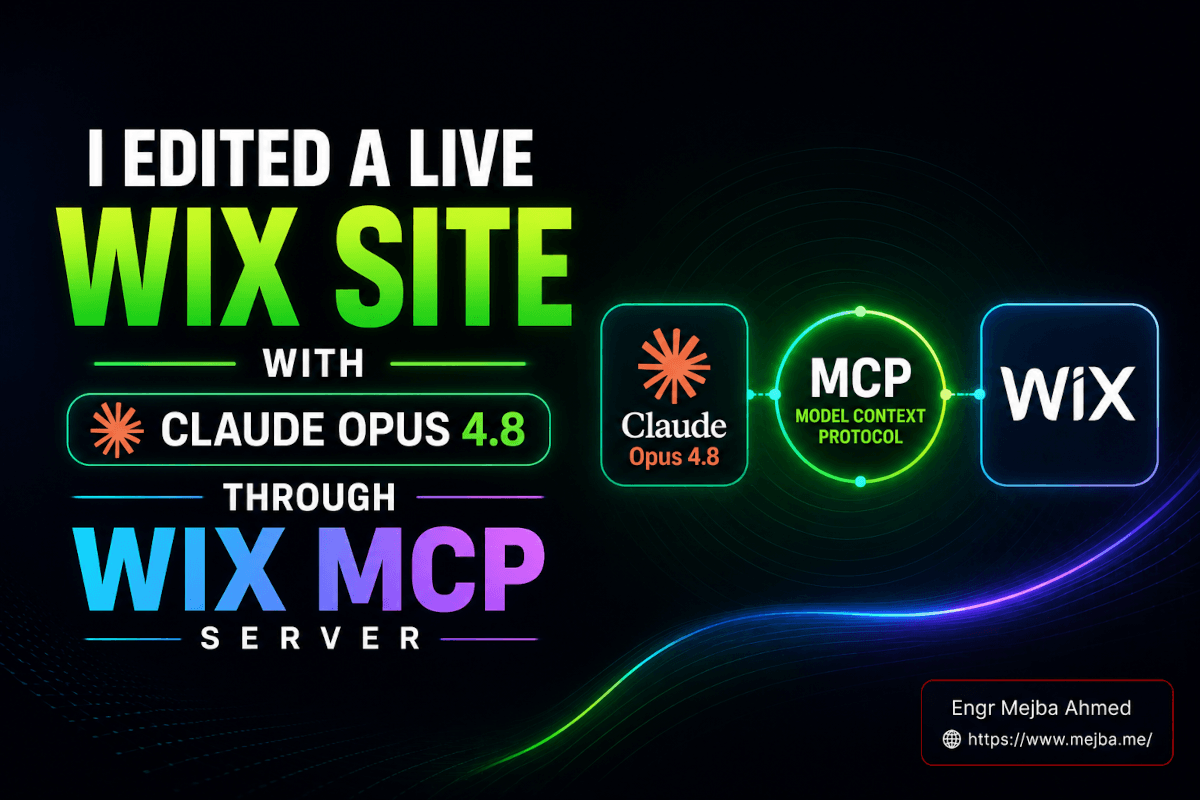
The Wix MCP server is a connector that lets Claude read from and write to a live Wix site through natural language, using the Model Context Protocol — the open standard Anthropic introduced so every AI-to-tool integration would not need a custom build. The client is the AI app (Claude), the server is the tool (Wix, who builds and maintains it), and they speak a shared protocol. Once you understand how one MCP connector behaves, you understand the shape of all of them — the same pattern as the rest of my working MCP lineup for Claude.
The reason this is reliable enough to publish with: a Wix site is a structured object — pages, sections, elements, collections, products, blog posts — that Wix already exposes through its own APIs. The MCP server gives Claude a governed window into that model. When I say "update the phone number," Claude is not simulating clicks like a brittle browser bot. It is making structured changes through the same API surface Wix's own tools use. Per Wix's developer documentation, the server exposes roughly a dozen structured tool categories covering site management, CMS data, eCommerce, and blog content; you never memorize them, because Claude maps your plain-English intent onto the right tools.
Setup: one authorization, no config files
The Wix MCP is a built-in, first-party connector in Claude, listed among the Anthropic-reviewed integrations. The flow:
- Open the connectors area in the Claude app (Anthropic has shuffled the label between "Connectors," "Extensions," and "Directory" across releases — look for the panel that browses reviewed connectors).
- Search for Wix and select it.
- Authorize your Wix account through the standard OAuth sign-in. You are not handing Claude your password — you are granting scoped, revocable access through Wix's own login screen.
That is genuinely all of it. A manual route exists for developers who want the server inside Cursor, Windsurf, or a custom agent setup, but for editing a live site the built-in connector is the right answer, and you will never see a config file. If you remember hand-editing JSON and restarting the app to discover a typo'd path, the contrast is stark.
The permissions you are actually granting
One-click can hide a lot, so treat these as non-negotiable habits — especially with client sites on the account:
- Read the authorization screen. Know whether you granted publish rights or just read access. For many workflows, read-and-draft is plenty and you publish manually.
- Keep publish a deliberate command. Claude can publish; it does not have to publish automatically. Mine stays in a review posture — it makes edits, shows me the diff of what changed, and waits. The phone-number change only went live because I explicitly said so.
- Confirm the target site out loud. If fifteen client sites live on one Wix account, the connector sees all of them. Name the site precisely and check that Claude echoed back the right one before saying go.
- Revoke after one-offs. Access you are not using is just attack surface. Wix account settings kills the token instantly.
I write about security often enough on the cyber side of my work to state the principle plainly: convenience and exposure scale together. The connector is safe by design — OAuth, scopes, revocation, a real company maintaining the server — but "safe by design" assumes you use the controls. The unfriendly version of the footer moment is an AI with publish rights, no review step, and a vague instruction. The same onboarding discipline I laid out for giving AI agents access safely applies here word for word.
The loop: read, edit, verify, publish
The thing that makes this trustworthy is not any single step — it is the sequence.
Read the live state first. Before changing anything, ask what is there now: "What's the phone number on the landing page?" You are establishing ground truth against the published site, not a stale draft or a guess. This one habit prevents the most common AI editing failure: confidently changing something that was not what you thought it was.
Describe the outcome, not the mechanics. "Update the primary contact number to 555-0142 everywhere it appears." You do not narrate clicks. Vague instructions produce vague edits — "make the contact info better" is a bad prompt; a specific outcome with scope is a good one.
Let it scan for collateral, and answer its questions deliberately. The footer moment only protects you if you read the question instead of steamrolling it with "yeah, do it." The flag-and-ask behavior is the best safety feature in the loop; rushing past it throws that away.
Verify against the live URL. After publishing, have Claude re-read the live page and confirm the change rendered. "I updated it" and "I confirmed it's live" are different claims. If it does not verify on its own, make it a required step: "Confirm the new number is showing on the live landing page."
Where this beats the visual editor — and where it loses
The conversation wins when the change is content: phone numbers, headlines, prices, business hours, product descriptions, a typo in the footer. It wins bigger when the change spans pages — "find every instance and update it" is one sentence in chat and a miserable scavenger hunt in a builder. And it wins hardest for sites you do not live inside daily: if you touch a client's Wix dashboard once a quarter, describing the change beats re-learning the UI every time.
The visual editor still wins when the change is spatial or aesthetic. "Move this 12 pixels," "make it feel more balanced," exploratory design where you do not yet know what you want — natural language is bad at "a little to the left." That boundary matches everything I have learned building sites for local businesses with Claude: AI is phenomenal at the content and structure layer and still clumsy at the pixel and feel layer. The honest framing is not "the page builder is dead." It is that you now reach for the conversation first and the canvas only when you need your eyes.
The skill that is left when the tool dissolves
Days after that phone-number edit, here is what stuck with me. I did not need to know where the header element lives in the Wix editor. I did not need to remember the publish workflow. What I needed was to describe the outcome precisely, and to judge whether the result was right — including recognizing that the footer number was a deliberate keep, not a mistake. Claude had the judgment to ask; I needed the judgment to answer well. The tools are dissolving into language, and what compounds is your ability to direct and to verify.
If you have a Wix site and ten spare minutes, do the low-stakes version tonight: connect the connector and just read. Ask what your hero headline says and watch it pull the real, published answer. Change nothing. That single read is the moment this stops being a chatbot and starts being a hand on your site that checks its work.
And if the site in question is a client portfolio you would rather not experiment on, get in touch — setting up governed AI editing workflows with the review gates already wired is exactly the kind of maintenance engagement I take on.