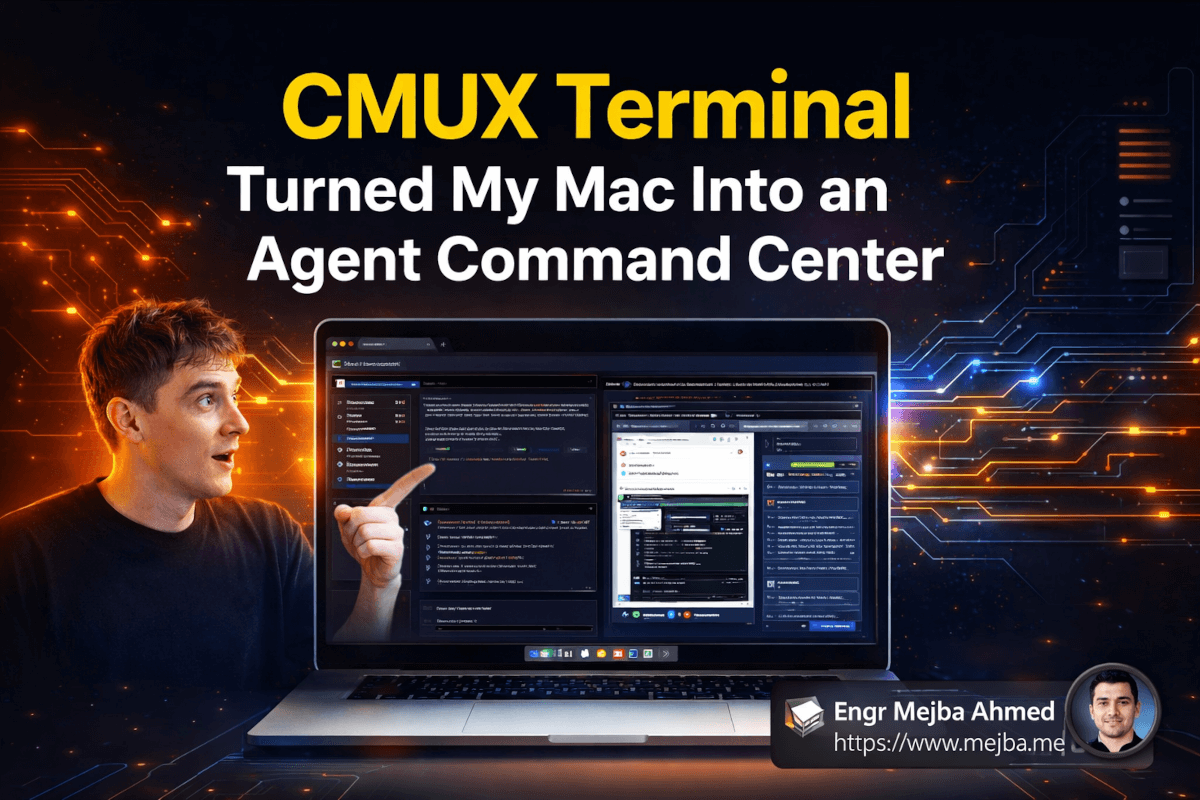

CMUX Terminal Turned My Mac Into an Agent Command Center
I was three panes deep in my terminal last Tuesday — one running Claude Code on a refactoring task, another monitoring logs, and a third where I was manually copying output between windows like some kind of digital switchboard operator. That's when I realized how broken the standard terminal experience is for anyone working with AI coding agents.
We've got models that can reason through complex codebases, generate entire components, and debug production issues autonomously. And we're running them inside terminal emulators designed in the 1980s. The tooling hasn't caught up to the workflow.
Then I found CMUX.
It's a native Mac terminal built from the ground up for coding agents — and after spending a week with it, I'm genuinely angry at how much time I wasted fighting my old setup. But the real story isn't just about a prettier terminal. It's about what happens when your development environment actually understands that AI agents aren't just running commands — they're collaborating with you.
What Makes a Terminal "Agent-Native" (And Why It Matters)
Here's the thing most people don't think about: when you run an AI agent in a standard terminal, the agent is essentially blind. It can read and write text. That's it. It can't control the layout. It can't open a browser to verify its work. It can't spawn a parallel instance to handle a subtask. It can't even flash a notification to tell you it's done.
CMUX changes this by giving agents a communication channel — JSON messages over a Unix socket — that lets them actually interact with the terminal environment. Not just output text into it, but control it.
Think of it like the difference between texting someone instructions versus sitting next to them at a shared workstation. Same person, same skills, vastly different effectiveness.
The architecture is clean: CMUX is a native Mac app built on LibGhosty for terminal rendering, WebKit for browser integration, and BondSplit for layout management. The CLI tool (CMOX) communicates with the app through that Unix socket, and any agent harness — Claude Code, custom setups, whatever you're running — can send commands through it.
That native Mac foundation matters more than you'd think. Memory management is noticeably better than Electron-based terminals. The app feels snappy in a way that web-wrapped tools just... don't. When you're running multiple agent instances simultaneously (and you will be), that performance headroom becomes critical.
But architecture talk is boring. Let me show you what this actually looks like in practice.
The Browser-in-Terminal Trick That Changed My Debugging
My first "wait, what?" moment with CMUX came when I watched an agent open a browser pane — inside the terminal — perform a Google search, click through links, and pull information back into the coding workflow. All without leaving the terminal window.
I've been using AI coding agents for months, and every time one of them needed to verify something on the web, the workflow broke. The agent would suggest I check a URL. I'd switch to Chrome. I'd find the page. I'd copy the relevant info. I'd paste it back into the terminal. Multiply that by twenty times a day and you've got a real productivity leak.
With CMUX, the agent just... handles it. Opens a split pane with WebKit rendering, navigates to the page, interacts with elements, and can even pop open developer tools for debugging. The browser isn't a separate app — it's another pane in your workspace, controlled by the same agent that's writing your code.
I tested this with a real task: debugging a CSS layout issue where a component looked fine in my local environment but broke on a specific viewport width. My Claude Code agent opened the relevant page in a CMUX browser pane, inspected the element, identified the conflicting media query, and fixed it — all in one continuous flow. No context switching. No copy-pasting between apps.
That seamless loop — code, verify, fix — is what agent-native actually means. Not a marketing term. A workflow transformation.
Multi-Agent Orchestration: Running Parallel Brains
Here's where CMUX gets genuinely powerful, and where I started rethinking how I structure my development sessions.
CMUX supports running multiple agent instances in split panes simultaneously. Not just multiple terminal sessions — multiple agents that can coordinate, share results, and close their panes automatically when they're done.
I set up a test: two Claude Code instances running in parallel split panes. One was doing project understanding — mapping the codebase structure, identifying patterns, documenting dependencies. The other was running code analysis — looking for potential bugs, performance issues, and security concerns. Both agents worked independently, finished their tasks, communicated results back to the main instance, and their panes closed automatically.
Read that again. The panes closed automatically. The agents cleaned up after themselves.
This sounds like a small thing, but anyone who's managed multiple terminal sessions knows the pain of having fifteen open panes, half of which finished their work twenty minutes ago and are just sitting there taking up screen real estate. CMUX's approach — spawn agents, let them work, collect results, clean up — is how multi-agent workflows should work.
I started using this pattern daily. Morning code review: spawn one agent for logic analysis and another for style/convention checking. Feature development: one agent exploring the existing implementation while another scaffolds the new component. Bug investigation: one agent reproducing the issue while another traces the code path.
The parallel execution cuts my wait time roughly in half for tasks that decompose naturally into independent subtasks. And since each agent gets its own pane, I can visually monitor progress without any agents stepping on each other's context.
The Notification System You Didn't Know You Needed
I'll admit — when I first read about CMUX's custom notification system, I thought it was a gimmick. Flashing pane borders? Sounds like something from a gaming terminal.
Then I ran a long refactoring task, tabbed away to write documentation, and missed the completion by fifteen minutes because I forgot to check the terminal. Classic.
After that, I set up CMUX's notification triggers. When an agent completes a significant task — finishing a test suite, completing a code review, hitting an error that needs human input — the pane border flashes. It's a visual interrupt that's noticeable without being obnoxious. No sound, no popup, no notification center badge. Just a subtle "hey, look over here" signal.
The implementation is straightforward: agents send a trigger flash command through the CLI, and CMUX handles the visual response. You can customize which events trigger notifications, so you're not getting flashed every time an agent outputs a line of text.
Where this really pays off is during those multi-agent sessions I described earlier. Three agents running in parallel, each in its own pane, each flashing when they need attention. I can focus on something else entirely and still catch completions within seconds. It's a small feature that eliminates a real friction point.
Setting Up Your Workspace: Power and Pain
CMUX's workspace customization is impressively flexible. You can add branch names and icons to your workspace using SF Symbols — those native Apple icons that look sharp on retina displays. Tab renaming, progress bars, custom colors, sidebar logs — it's all there.
I set up a workspace with my branch name and a git icon in the header, color-coded panes for different agent roles (blue for analysis, green for generation, red for testing), and a progress bar that updates as my agents work through task lists. The result looks like a proper mission control dashboard, not a terminal.
Here's the honest part, though: setting this up was more painful than it should be.
The current setup process requires manually copying and pasting skill configurations and notification settings. There's no automated setup script that detects your agent harness and configures things accordingly. Other tools in this space — like skills.sh — have solved this with automated detection. CMUX hasn't yet.
I spent about forty-five minutes getting my workspace configured the way I wanted it. Once configured, it's been rock solid. But that initial friction is real, and I know plenty of developers who'd bounce off the tool before getting through setup.
My other gripe: the demo workflow disables sandboxing in Claude Code to avoid errors. I understand why — sandbox restrictions can block the Unix socket communication — but running without sandboxing makes me uncomfortable from a security perspective. This needs a proper solution, not a workaround.
If CMUX adds an automated setup flow and solves the sandboxing compatibility issue, adoption would accelerate significantly. The core product is excellent. The onboarding experience needs work.
The Unix Socket Architecture: Why It's Clever
For the technically curious — and if you're reading a post about terminal emulators for coding agents, you probably are — the Unix socket communication layer is worth understanding.
Most terminal customization tools work by parsing terminal output or injecting escape codes. Both approaches are fragile. They break when output formats change, they're hard to extend, and they create a tight coupling between the tool and the specific terminal emulator.
CMUX takes a fundamentally different approach. The CMOX CLI sends structured JSON messages over a Unix socket to the CMUX app. The messages are typed, versioned, and self-describing. Want to create a new split pane? Send a JSON message. Open a browser? JSON message. Trigger a notification? JSON message.
This means any agent harness that can write to a Unix socket — which is basically all of them — can control CMUX. Claude Code with hooks, custom Python agents, shell scripts, whatever. The protocol doesn't care about your agent framework. It just needs valid JSON and a socket path.
I tested this by writing a simple bash script that opens a split pane, runs a command, captures the output, and closes the pane. Twelve lines of code. The simplicity of the integration point is a deliberate design choice, and it pays dividends when you're building custom workflows.
The T-Max compatible commands in CMOX are a nice touch too — if you're coming from another terminal multiplexer, the learning curve is gentler than starting from scratch.
How CMUX Compares to My Previous Setup
Before CMUX, my agent development environment was a Frankenstein setup: iTerm2 with tmux for pane management, a separate Chrome window for verification, a notification script I'd cobbled together with osascript, and a lot of manual context switching.
It worked. Barely. Every few hours, something would break the flow — a lost tmux session, a missed notification, an agent that needed web access and couldn't get it without my manual intervention.
With CMUX, the workflow is unified. Everything lives in one window. Agents control their own panes. Browser access is native. Notifications are built in. And Ghosty configuration compatibility means my font settings, color schemes, and keybindings transferred over without reconfiguring everything from scratch.
The productivity difference is hard to quantify precisely, but here's a rough estimate: I'm spending about 30% less time on environment management — switching windows, checking on agents, copying data between contexts — and that time goes directly back into actual development work. Over a full day, that's easily an extra hour of focused coding.
The one thing I miss from my old setup: iTerm2's search-across-all-panes feature. CMUX doesn't have a unified search yet, and when you're looking for a specific error message across multiple agent outputs, you have to check each pane individually. Minor inconvenience, but worth noting.
The Bigger Picture: Terminals Are the Next Battleground
CMUX isn't just a better terminal. It's an early signal of something bigger happening in developer tools.
We've spent the last two years upgrading our AI models — better reasoning, longer context, more capabilities. But the interfaces we use to interact with those models? Mostly unchanged. We're driving Ferraris on dirt roads.
CMUX is one of the first tools I've used that takes the agent-native interface seriously. The idea that your development environment should be designed around human-AI collaboration, not just human-computer interaction. That agents aren't just running inside your terminal — they're first-class participants in your workspace.
I think we'll see this pattern expand rapidly. Terminal emulators that understand agents. IDEs that treat AI as a collaborator, not a plugin. Development workflows that are designed from the start for parallel human-AI execution.
The teams and developers who adopt these tools early will have a compounding advantage. Not because the tools are magic, but because they remove friction that accumulates into hours of wasted time every week.
Should You Switch?
If you're a Mac user running AI coding agents regularly — especially Claude Code — CMUX is worth trying. You can check it out at cmux.dev. The multi-agent orchestration alone justifies the learning curve. The browser integration seals the deal.
If you're doing occasional agent work or primarily working on Linux/Windows, wait. CMUX is Mac-only and the benefits scale with how agent-heavy your workflow is. Light users won't see enough return to justify the setup cost.
If you're building custom agent tooling, pay close attention to CMUX's Unix socket architecture. It's the cleanest integration pattern I've seen for agent-terminal communication, and the approach is worth stealing even if you don't use CMUX itself.
One specific thing to try first: set up a two-agent parallel workflow for your most common development task. Run one agent for analysis and one for generation in side-by-side panes. If that workflow feels like a revelation — and I suspect it will — you'll find yourself rebuilding your entire development process around CMUX's capabilities within a week.
That's what happened to me. I installed it to test. A week later, I'd restructured my daily workflow around multi-pane agent orchestration. Not because CMUX told me to, but because once you experience what an agent-native terminal makes possible, going back to a regular terminal feels like typing with gloves on.
Let's Work Together
Looking to build AI systems, automate workflows, or scale your tech infrastructure? I'd love to help.
- Fiverr (custom builds & integrations): fiverr.com/s/EgxYmWD
- Portfolio: mejba.me
- Ramlit Limited (enterprise solutions): ramlit.com
- ColorPark (design & branding): colorpark.io
- xCyberSecurity (security services): xcybersecurity.io