📝 Claude Code

Claude Code Tutorial: From Zero to First Build

Claude Code Tutorial: From Zero to First Build The first time I ran Claude Code from the terminal, I gave it a single line of instruction and watched...

16 min

Read time

3,020

Words

Feb 26, 2026

Published

Engr Mejba Ahmed

Written by

Engr Mejba Ahmed

Share Article

Claude Code Tutorial: From Zero to First Build

Claude Code Tutorial: From Zero to First Build

The first time I ran Claude Code from the terminal, I gave it a single line of instruction and watched it generate a working 2D game in about four minutes.

Not a toy demo. A playable top-down shooter — HTML, CSS, JavaScript, game loop, collision detection, the whole thing — sitting in my project folder and running in a browser before I'd finished my coffee.

I've been coding professionally for years. I know how long it takes to build something that actually works from scratch. Four minutes is not that. Four minutes is something else.

What surprised me wasn't the speed — I expected AI to be fast. What caught me off guard was how structured the process felt. Claude didn't just dump code at me. It planned first, proposed the architecture, waited for my confirmation, then built it methodically. The output was organized, readable, and documented. Not vibe-coded garbage that technically runs and structurally makes no sense.

That gap between what I expected and what I got is exactly why I wanted to write this guide. Most Claude Code tutorials either target developers who already know the tool or skip too quickly past the parts that actually trip people up.

This one doesn't. Whether you've never opened a terminal in your life or you're a developer who's heard about Claude Code but never sat down with it properly — this covers what you actually need to know, in the order you actually need to know it.

One thing I'll mention now and come back to later: there's a persistent memory feature that almost nobody talks about in beginner tutorials, and it's probably the single most important thing to set up before your first real project. Keep that in mind as you read through.


What Claude Code Actually Is (And What It Isn't)

Before setup, the mental model matters. Claude Code gets described a lot as "an AI coding assistant" — which is accurate but undersells what makes it different.

Most AI coding tools are integrated into editors. You write code, the AI suggests completions or answers questions in a sidebar. The workflow is human-led; the AI assists. Claude Code flips this. You describe what you want to build in natural language, and the AI generates, modifies, and manages the codebase. You're directing, not typing.

It's a CLI tool — a command-line interface — which means it runs inside your terminal. Not a desktop app with buttons and menus. A terminal prompt where you type instructions and Claude builds. The terminal-first design is intentional: it keeps Claude Code close to where code actually lives and gives it direct access to your file system, running processes, and shell commands.

Anthropic does have a separate desktop app for Claude — a visual interface with chat mode, code mode, and GitHub integration. That tool is excellent for beginners who want a gentler on-ramp. But the CLI is where the real power sits, and this guide focuses there.

Claude Code requires a paid Claude subscription: Pro, Max, Teams, or Enterprise. You can also use an API key with credits. One honest note on cost: heavy use burns through credits faster than you'd expect, especially on complex projects with the most powerful model. Starting on a cheaper plan and upgrading once you know your usage patterns is the sensible move.

The models available — Opus, Sonnet, and Haiku — aren't just quality tiers. They're different tools for different jobs. Opus for complex architecture and multi-file reasoning, Sonnet for balanced mid-level work, Haiku for fast iteration on simple tasks. You switch between them during a session with /model. Understanding which model to reach for is something you develop with use, not something you figure out upfront.


Getting Set Up: The Part Every Tutorial Rushes Past

Installation is terminal-based. Windows users should open PowerShell; Mac and Linux users use Terminal. The exact install command differs by OS and is in Anthropic's documentation — I'm not going to paste a command here that might be outdated by the time you read this.

After installation, you authenticate through your Anthropic or Claude account in the browser. That part is straightforward.

The step that trips up a lot of beginners: when you first navigate to a project folder, Claude Code will ask you to trust that directory. This is a security check — you're explicitly telling Claude Code it has permission to read and modify files in that location. Don't skip past this carelessly. Understand what folder you're in and what you're granting access to.

Now — before you do anything else — install Git.

I say this with emphasis because it's the single most consequential setup step and the one most tutorials treat as optional. It isn't. Working with AI-generated code without version control is a specific kind of pain: the AI produces something that works, you iterate on it, something breaks, and you have no way to get back to the working state.

Git is the checkpoint system. Every time you reach a state you're happy with, you commit. If anything breaks — AI hallucination, bad instruction, unexpected edge case — you revert. Claude Code can assist with Git installation if you're not familiar with the terminal, including handling the admin privilege requests that come up on Windows.

After Git is set up locally, connect it to a free GitHub account using gh auth login. Claude can run this command for you. What you get: your code backed up remotely, a history of every working state, and the ability to share or collaborate if you want to. This setup takes maybe fifteen minutes and saves you from hours of pain later.

Pairing Claude Code with a code editor completes the setup. VS Code and Cursor both work well. The workflow is: open your project folder in the editor, use the editor's integrated terminal to run Claude Code, and watch the file explorer update in real time as Claude generates and modifies files. The visual layer makes the process significantly more readable than a raw terminal, especially when you're managing multi-file projects.

One practical tip about the editor pairing: keep the file explorer and the terminal side by side. When Claude generates a new file, click it open immediately and skim it before the next instruction. You're not reviewing every line — you're building a mental map of what exists so your subsequent instructions are accurate. Telling Claude to "update the header component" when the file is actually named navbar.jsx wastes a round-trip. Knowing your file structure means your prompts land cleanly on the first attempt.

Cursor has a slight edge over VS Code here because its own AI integration works naturally alongside Claude Code without the two getting in each other's way. You can use Cursor's inline suggestions for small edits while using Claude Code for anything involving multiple files or project-wide reasoning. The tools complement rather than compete.


The Three Modes That Change How You Work

Claude Code has three operating modes, each useful for different situations. Switching between them is a single Shift + Tab.

Ask mode is the default. Claude prompts you before executing any command or writing any file. Every action requires your explicit confirmation. This is the right mode for unfamiliar territory — when you're working in a codebase you didn't build, on a task with high risk of breaking something, or any time you want full visibility before Claude acts.

Auto-accept mode (sometimes called coding mode) removes the confirmation step. Claude executes edits and runs commands automatically. The speed advantage is real: tasks that require dozens of small file modifications move significantly faster without constant approval prompts. Use this for projects you understand well and trust Claude to handle, not for your first few sessions with an unfamiliar codebase.

Planning mode is the one most beginners skip and most advanced users swear by. Before writing a single line of code, Claude generates a detailed plan — the architectural approach, the file structure, the order of implementation, the edge cases it anticipates. You review the plan, modify it if needed, and then confirm. Claude builds according to the plan.

The difference in output quality between jumping straight to coding and running planning mode first is not subtle. The planned approach produces code that hangs together as a system. The jump-straight-in approach produces code that works for the described task and often needs restructuring the moment you ask for anything adjacent to the original request.

For any project larger than a single file, start in planning mode. The few minutes it takes to generate and review a plan pays for itself immediately.


Your First Real Project: How the Workflow Actually Flows

Here's how a real project session looks from start to finish.

Open your terminal (or the integrated terminal in your editor), navigate to the folder where you want the project to live, and launch Claude Code. Trust the directory when prompted.

Switch to planning mode with Shift + Tab. Describe your project in natural language — be specific about what you want. "Build a 2D top-down shooter game" gets you something. "Build a 2D top-down shooter game in vanilla JavaScript with keyboard controls, a player health system, enemies that respawn after being destroyed, and a score counter displayed in the top right corner" gets you something significantly better. Specificity is a skill in AI-assisted development, and it compounds quickly.

Claude generates a plan. Read it. Actually read it — don't just scroll to the bottom and confirm. The plan tells you what assumptions Claude is making. If you see something that doesn't match your intent, correct it before the build starts. Changing direction during a plan costs you thirty seconds. Changing direction after twenty files have been generated costs you much more.

Confirm the plan. Watch Claude build.

The project will include a .claw folder that Claude uses for internal tracking. You don't need to manage this manually. Your actual project files appear alongside it. When the build finishes, test the output — in the case of a web project, open the generated HTML in a browser and interact with it. Real testing surfaces real problems that no amount of code review finds.

Iterate from there. "The enemy respawn is too fast, add a three-second delay" is a valid instruction. "The score counter font should match the overall game aesthetic" is a valid instruction. Natural language refinement works throughout the session — you don't have to switch to a coding mindset to make adjustments.

After a meaningful iteration — something works the way you want, a feature is complete, a bug is fixed — commit to Git. This takes ten seconds. git add . then git commit -m "player health system working". Claude Code can handle this for you if you'd rather not type the commands manually: just ask it to commit the current state with a descriptive message and it will. The discipline of committing at stable points is what separates productive AI-assisted development from sessions that end with "I need to start over because I can't get back to when it worked."

Two shortcuts worth knowing immediately: Alt + Enter (Windows) or Option + Enter (Mac) inserts a line break inside your prompt without submitting it. Essential for multi-paragraph instructions. Esc Esc (two quick presses) clears the current prompt if you want to start your instruction over. And @ followed by a filename lets you reference a specific file in your instruction — "update the logic in @game.js to increase enemy speed by 20% after each wave" is more precise than "update the game logic," and precision is what keeps sessions on track.


The Features That Changed How I Actually Work

Persistent memory with CLAUDE.md.

Sessions don't retain unlimited context. When you close Claude Code and reopen it the next day, it starts fresh. For a short script, this is fine. For a project you're building over days or weeks, it's a serious problem — every session requires re-explaining what the project is, what conventions you're using, what decisions you've already made.

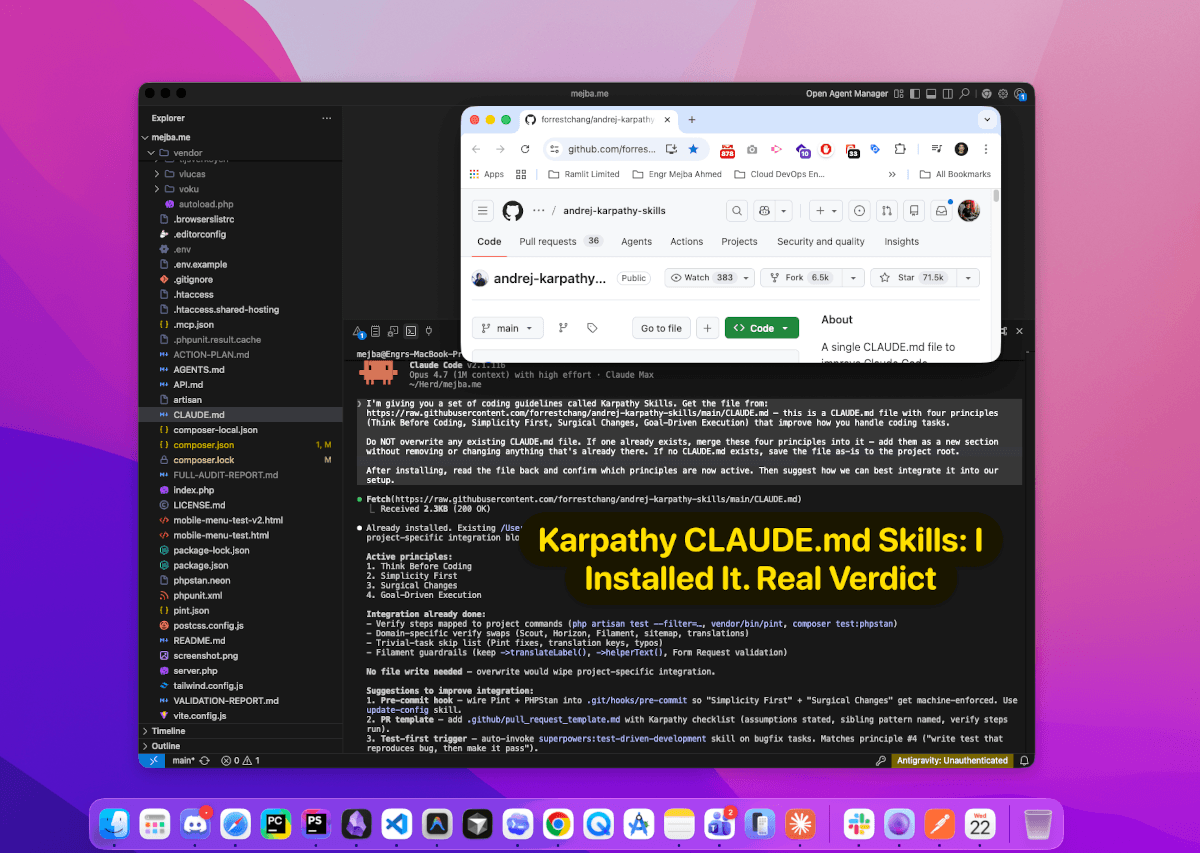
CLAUDE.md solves this. Created with the /init command (sometimes shown as /nit in documentation), it's a markdown file that lives in your project root and stores everything Claude needs to maintain continuity: project overview, design patterns, naming conventions, architectural decisions, constraints, and any preferences for how Claude should behave in this specific codebase.

Every new session, Claude reads CLAUDE.md first. It picks up where you left off without you having to re-brief it.

Invest time in writing a good CLAUDE.md at the start of any multi-session project. Update it when you make significant decisions mid-project. Think of it as the project brief you'd write for a new team member — comprehensive enough that someone with no prior context could understand the system.

Model selection mid-session.

The /model command lets you switch between Opus, Sonnet, and Haiku at any point. Practical use: start planning and architecture work in Opus where the reasoning quality matters most, switch to Sonnet or Haiku for the mechanical implementation steps where you're just generating boilerplate or making small repetitive changes. This approach manages costs without sacrificing quality where quality matters.

Background tasks.

Some commands block the terminal — running a local development server, watching for file changes, processing a long operation. Claude Code lets you push these to the background so you can continue issuing instructions while they run. Ctrl + T lists active background tasks; K kills a selected task. This keeps your workflow uninterrupted rather than forcing you to open a second terminal window for everything that runs continuously.

Agents and skills.

Agents are specialized parallel processes that handle distinct parts of a project simultaneously. One agent manages frontend styling while another handles backend logic, both running in parallel and reporting back to the main session. The MCP server integration extends this further — agents can connect to Notion, Gmail, Google Drive, and other external services, pulling in real context from your actual work environment.

Skills are repeatable workflows you train Claude to execute consistently. If you run the same deployment sequence, the same testing routine, or the same content generation workflow repeatedly, a skill packages that into a reusable command. Over time, your skills library becomes a personal automation system built around how you actually work.


What to Expect vs. What the Demos Show

Honest assessment, because this matters before you invest time setting this up.

Claude Code is genuinely impressive for well-defined tasks with clear inputs. Game generation, API scaffolding, utility scripts, documentation generation, structured data processing — these categories consistently produce excellent first drafts. The planning mode output is coherent and the implementation follows it.

Where it gets complicated: large existing codebases that weren't written with AI assistance in mind. Feeding Claude Code into a complex legacy project and asking it to refactor or extend features requires more careful prompt construction and more active supervision than building something from scratch. The model's context window has limits, and complex multi-file systems with deep interdependencies can exceed what it holds cleanly.

Instructions need to be specific. "Make this better" is not a useful instruction. "The mobile layout breaks at 375px — the navigation overlaps the hero section, fix the z-index and adjust the flex-wrap rules" is a useful instruction. The quality of what you get out scales directly with the specificity of what you put in. This is a skill that takes deliberate practice to develop, and the early sessions often produce mediocre results not because the tool is weak but because the prompts are vague.

Credit consumption on heavy sessions adds up. Complex multi-file generation on Opus can burn significant credits in a single afternoon. If you're experimenting without a clear project goal, do it on Haiku. Save Opus for the work that actually needs it.

And always review AI-generated code before running it in any environment that matters. Not because Claude Code is unreliable — the output quality is high — but because AI-generated code can contain edge cases, security considerations, or assumptions about your environment that it couldn't know without explicitly being told. Review is a professional habit, not a sign that the tool failed.


Building the Right Mental Model

The developers getting the most out of Claude Code share one trait: they've stopped thinking about it as autocomplete and started thinking about it as direction.

A good director doesn't write every line of dialogue. A good director has a clear vision, communicates it specifically, gives feedback on what's not working, and shapes the performance toward something they couldn't have produced alone. That's the skill to develop with Claude Code — not the ability to prompt cleverly, but the ability to hold a clear vision of what you're building, communicate it precisely, and iterate toward it efficiently.

The beginners who get frustrated with the tool are usually trying to get it to read their minds. "Build me something cool" produces something generic. "Build a personal finance tracker with weekly spending summaries displayed as bar charts, a simple category tagging system, and CSV export — no login required, local storage only" produces something you can actually use.

The setup I've described in this guide — Git integration, CLAUDE.md for persistent memory, planning mode before every substantial project, model selection matched to task complexity — creates the conditions for the tool to perform well. These aren't optional best practices. They're the foundation that makes everything else work.

One thing worth starting today: create a scratch project folder, install Claude Code, set up Git, and build something small with planning mode active. A to-do app, a basic calculator, a static landing page. Not because the output will be useful — it won't, it's a scratch project — but because the muscle memory of the workflow is the actual product of that first session. Everything after it gets faster.

The developers who'll be most effective with AI tools in the next few years aren't necessarily the best programmers. They're the people who learned early how to direct well.


🤝 Let's Work Together

Looking to build AI systems, automate workflows, or scale your tech infrastructure? I'd love to help.

Coffee cup

Enjoyed this article?

Your support helps me create more in-depth technical content, open-source tools, and free resources for the developer community.

Related Topics

Engr Mejba Ahmed

About the Author

Engr Mejba Ahmed

Engr. Mejba Ahmed builds AI-powered applications and secure cloud systems for businesses worldwide. With 10+ years shipping production software in Laravel, Python, and AWS, he's helped companies automate workflows, reduce infrastructure costs, and scale without security headaches. He writes about practical AI integration, cloud architecture, and developer productivity.

Discussion

Comments

0

No comments yet

Be the first to share your thoughts

Leave a Comment

Your email won't be published

5  x  7  =  ?

Continue Learning

Related Articles

Browse All

Comments

Leave a Comment

Comments are moderated before appearing.