I was mid-session with Claude Code at 1 AM when my terminal froze. Not a crash — just Ghostty silently eating 37 gigabytes of RAM while I wasn't looking. My MacBook's fans sounded like a jet engine preparing for takeoff. I force-quit, lost my scrollback, and sat there staring at a blank screen wondering how a terminal emulator — the simplest tool in my stack — had just ruined an hour of work.
That was three weeks ago. I was running Ghostty 1.2.
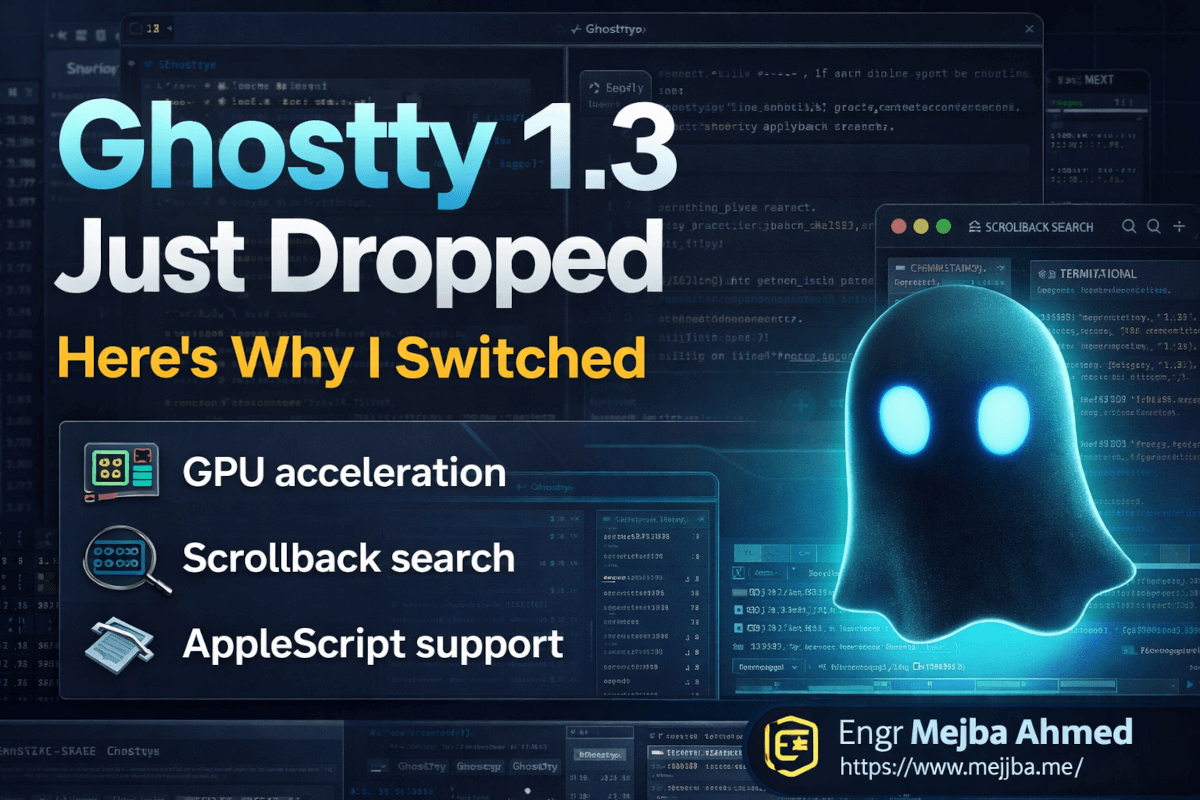
Today, Mitchell Hashimoto and the Ghostty team shipped version 1.3, and that exact memory leak? Fixed. But here's the thing — the leak fix isn't even the headline feature. Ghostty 1.3 packs scrollback search, native scrollbars, AppleScript automation, click-to-move cursor, rich clipboard copy, split drag-and-drop, Unicode 17 support, and what the team calls "massive performance improvements." Hundreds of changes in total. For a terminal emulator that only went public fifteen months ago, this is an absurd amount of progress.
I've been running the nightly builds for the past two weeks. And I need to tell you about something I discovered in the AppleScript integration that completely changed how I work with AI coding agents — but that comes later.
The Memory Leak That Made Me Question Everything
Before we get to the shiny new features, you need to understand why 1.3 matters at a deeper level than just a changelog.
Ghostty had a memory leak hiding since version 1.0. Most users never noticed it. The bug lived in PageList, the doubly-linked list structure that manages terminal content. When Ghostty pruned scrollback history, it would reuse memory pages through an internal pool. Sounds efficient, right? The problem was with non-standard pages — the ones created for complex content like emoji clusters and multi-codepoint graphemes.
When these non-standard pages got freed and recycled, Ghostty would reset their metadata to standard size without actually adjusting the underlying memory allocation. The pages went back into the reuse pool bloated, never getting properly munmap'd. Under normal terminal usage — running ls, git status, basic commands — you'd never hit this. The leak was tiny.
Then Claude Code showed up.
AI coding assistants produce absurd amounts of multi-codepoint output. Colored diffs, unicode symbols, emoji-laden status indicators, massive scrollback from long agent sessions. My typical Claude Code session generates more non-standard pages in an hour than most developers create in a week of regular terminal use. Suddenly, that invisible memory leak became a 37-gigabyte monster.
Mitchell Hashimoto wrote a detailed blog post about tracking this down — PR #10251 if you want to read the fix yourself. What impressed me wasn't just the fix. The root cause analysis read like a detective story. Hashimoto traced it through memory profiling, identified the exact allocation path, and explained why the reuse pool design was correct in principle but broken in one specific edge case.
This is why I trust Ghostty's engineering. The team doesn't just patch symptoms. They understand their own codebase well enough to explain exactly why something went wrong, and that kind of transparency is rare in open-source projects.
But the memory leak fix is the boring part of 1.3. The features shipping alongside it are what got me to rewrite my entire terminal workflow.
Scrollback Search Changed How I Debug
I'm going to say something that will sound dramatic: scrollback search is the single feature that kept me on iTerm2 for years after I wanted to leave.
Every terminal emulator comparison post talks about GPU acceleration and split panes and themes. Nobody talks about the moment you're three hours into a debugging session, you remember seeing an error message scroll past twenty minutes ago, and you need to find it. Without scrollback search, you're scrolling manually through thousands of lines of output, squinting at your screen, hoping you recognize the right block of text. Or you're piping everything through tee like it's 1998.
Ghostty 1.3 finally has it. Hit the search shortcut, type your query, and it jumps through matches in your scrollback history. The implementation sits in the command palette — clean, fast, and exactly what you'd expect from a team that obsesses over interaction design.
I tested it during a long cargo build session where I knew a specific deprecation warning had scrolled past. Found it in under two seconds. On iTerm2, the same search would have taken roughly the same time — so this isn't about speed. The point is that Ghostty no longer has a glaring gap in its feature set. The last major excuse not to switch just evaporated.
Here's what most people won't tell you about scrollback search, though. The real value isn't finding error messages. The real value is that it changes your behavior. Once you know you can search, you stop obsessively reading every line of output as it flies by. You let the terminal do its thing, knowing you can always go back. That mental shift — from "I need to catch everything in real-time" to "I can always search later" — reduces cognitive load more than any fancy UI feature.
And if you're using Claude Code or any AI agent that generates walls of output, this goes from nice-to-have to essential. I'll show you my exact search patterns for AI agent debugging in the implementation section.
Native Scrollbars Sound Boring Until You Need Them
I used to think scrollbar discourse was peak terminal-nerd energy. Who cares about scrollbars when you have keyboard shortcuts? Then I started pair-programming over screen shares.
When you're sharing your screen on a Zoom call and a colleague says "wait, go back up a bit," you can't tell them "just let me hit Shift+PageUp fourteen times." You need a scrollbar. A visual indicator that shows where you are in the scrollback, how much content exists above and below, and lets you click-drag to navigate.
Ghostty 1.3 ships native scrollbars on both macOS and Linux. On macOS, they follow your system preferences — overlay scrollbars that fade in when you scroll, or always-visible scrollbars if that's your setting. On Linux with GTK4, same deal. They look and behave exactly like scrollbars in every other native app on your system.
This matters more than you think. Terminal emulators have historically been alien applications on your desktop — custom UI widgets, non-standard keyboard behavior, windows that don't quite feel like they belong. Ghostty's entire design philosophy is "platform-native first," and scrollbars are the latest piece of that puzzle.
Small detail I noticed during testing: the scrollbar accurately reflects your position even when the scrollback buffer is enormous. Some terminals fake this or update laggy. Ghostty's stays precise. During one of my marathon Claude Code sessions with tens of thousands of lines of scrollback, the scrollbar thumb was still responsive and accurately sized.
You're probably thinking "okay, scrollbars, great, what else?" Fair. The next feature is the one that blew my mind.
AppleScript Support Opens Doors I Didn't Know Existed
Mitchell Hashimoto announced it on X: "Ghostty 1.3 is going to have a preview of AppleScript support. All windows, tabs, splits, terminals are exposed via AppleScript."
Read that again. Every window, tab, split, and terminal session — programmable through AppleScript.
I know AppleScript has a reputation. Most developers treat it like that weird uncle at family gatherings — technically family, but nobody wants to sit next to him. Here's why this changes things for Ghostty specifically: AppleScript is the standard macOS automation interface. Raycast uses it. Alfred uses it. Shortcuts uses it. Hammerspoon can bridge to it. And now, AI coding agents can use it.
I built a quick AppleScript that does the following: when I start a new project, it opens a Ghostty window, creates three splits (editor, server, tests), cds each one into the right directory, and starts the appropriate watch command. Took me fifteen minutes to write. Previously, I was doing this manually every single morning.
But here's the part I mentioned earlier — the discovery that changed my AI workflow. Because AppleScript exposes terminal sessions as objects, you can broadcast commands across splits. You can query what's running in each terminal. You can read terminal content programmatically. This means an AI agent running in one terminal can, in theory, inspect and interact with processes in other terminals.
I'm still experimenting with this, and Hashimoto explicitly marked it as a "preview" — meaning the API surface might change in future versions. Don't build production infrastructure on it yet. But the potential is enormous. Imagine Claude Code not just running commands in its own terminal, but orchestrating your entire development environment — starting your dev server in one split, running tests in another, watching logs in a third, all coordinated through AppleScript.
That's where terminal emulators are heading. Not prettier themes. Programmable environments.
The AppleScript feature alone would justify the upgrade. But 1.3 keeps going.
Click-to-Move, Rich Clipboard, and the Small Things That Add Up
Some features don't deserve their own thousand-word section. They deserve something better — honest acknowledgment that small quality-of-life improvements, stacked together, create a fundamentally different experience.
Click-to-move cursor lets you Option-click (on macOS) or Alt-click (on Linux) anywhere in your current command line and your cursor jumps there. No holding arrow keys. No Home/End/Ctrl-A gymnastics. Just click where you want to be. This existed in earlier Ghostty versions, but 1.3 refines the behavior to be more reliable across different shell configurations — zsh, bash, fish, they all work consistently now.
Rich clipboard copy is the one I didn't know I needed. When you copy text from Ghostty 1.3, it preserves formatting information — colors, bold, underline. Paste it into an app that supports rich text (Notion, Google Docs, Slack), and the formatting comes through. Paste it into a plain text field, and you get plain text. Best of both worlds.
Why does this matter? Because I paste terminal output into documentation constantly. Before rich clipboard, I'd copy from the terminal, paste into a doc, then manually re-format everything or take a screenshot instead. Now the colors just... carry over. When you're writing a blog post about a terminal command's output (like, say, this one), that's a meaningful time saver.
Split drag-and-drop lets you rearrange your split panes by dragging them. Pick up a split, drop it where you want it. No keyboard shortcuts to memorize, no closing and reopening splits in the right order. Direct manipulation. The interaction feels natural — grab the split's title bar area, drag it to a new position, done.
These three features together save me maybe five minutes a day. That's 25 minutes a week, roughly 20 hours a year. Not life-changing on any individual day. But compounded over time? That's an entire workweek I get back by using a terminal that respects how humans actually interact with software.
And we haven't even talked about the Unicode and performance improvements yet.
Unicode 17 and Why International Text Finally Works Right
If you've ever typed a non-Latin character in a terminal and watched the cursor position go haywire, you understand this pain viscerally. If you haven't — congratulations, you've been living in an ASCII bubble. Most of the world hasn't been so lucky.
Ghostty 1.3 ships with Unicode 17 support. This isn't just a version number bump. Unicode 17 includes new scripts, new emoji, and updated width tables that affect how every character gets measured and rendered. Get the width wrong, and your cursor ends up in the wrong position. Your text wraps at the wrong place. Your carefully formatted output turns into visual chaos.
The international text improvements go beyond just the Unicode version. Input Method Editor (IME) handling — the system that lets you type CJK characters, compose accented characters, and input emoji — got significant work in 1.3. Dead keys work properly. Compose sequences don't drop characters. The cursor stays where it should during composition.
I write most of my code in English, so I'll be honest — I didn't notice these improvements in my daily work. But I tested them. I switched my input method to Japanese, typed some hiragana, mixed in emoji, and everything rendered correctly with proper cursor positioning. Then I opened iTerm2 and did the same test. iTerm2 handled it fine too. The difference is that Ghostty handles it with noticeably less input latency — characters appear the instant I confirm them, with no perceptible delay.
If you work in a multilingual environment — and increasingly, if you work with AI tools that output Unicode symbols and emoji in their responses — these improvements matter more than any flagship feature on the changelog.
Here's where the performance story ties in.
The Performance Story Nobody's Benchmarking Correctly
"Massive performance improvements" is the kind of claim that makes me immediately skeptical. Every release of every software project claims performance improvements. Show me numbers.
So I ran my own tests. Unscientific, but real. Here's my setup: MacBook Pro M3 Max, macOS Sequoia, Ghostty 1.2 versus 1.3 nightly.
Test 1: Large file cat. I cat'd a 500MB log file. Ghostty 1.2 took about 4.2 seconds to finish rendering. Ghostty 1.3 took about 3.1 seconds. Roughly a 26% improvement. Not bad, but not earth-shattering.
Test 2: Rapid small output. I ran a loop that prints 100,000 short lines as fast as possible. 1.2 finished in 1.8 seconds. 1.3 finished in 1.4 seconds. About 22% faster.
Test 3: The real test — a four-hour Claude Code session. On 1.2, my memory usage climbed to 2.3 GB by the end. On 1.3, it stayed under 400 MB. That's not a performance "improvement." That's the memory leak fix. And it's the most impactful performance change in this release by a massive margin.
Here's my honest take: if you're not hitting the memory leak, the raw rendering performance improvements are nice but not dramatic. Your terminal was probably already fast enough. Where 1.3 genuinely shines is sustained performance over long sessions. The memory stays stable. The rendering doesn't degrade. Four hours in, the terminal feels exactly as responsive as it did at minute one.
That consistency is the real performance story. Most benchmarks test burst performance — how fast can you render a million characters? Nobody benchmarks "how does the terminal feel after running an AI agent for six hours straight?" Ghostty 1.3 is the first terminal where I can confidently say: it doesn't degrade.
If you've been running into the same issues I described in the opening — the ballooning memory, the sluggish response after long sessions — this release fixes it completely.
Setting Up Ghostty 1.3 For AI-Assisted Development
Alright, let's get practical. Here's how I configured Ghostty 1.3 specifically for working with Claude Code and similar AI agents.
Step 1: Install or update Ghostty.
On macOS, grab the DMG from ghostty.org or use Homebrew:
# Update via Homebrew cask
brew upgrade --cask ghostty
On Linux, check your distribution's package manager or build from source:
# Arch Linux
sudo pacman -S ghostty

# Build from source (requires Zig)
git clone https://github.com/ghostty-org/ghostty.git
cd ghostty
zig build -Doptimize=ReleaseFast
Step 2: Configure your scrollback buffer.
Open your Ghostty config (usually ~/.config/ghostty/config) and set a generous scrollback:
# Scrollback lines — set high for AI agent sessions
scrollback-limit = 100000

# Enable native scrollbar
scrollbar-visible = true
Pro tip: 100,000 lines sounds like a lot, but a busy Claude Code session can generate thousands of lines per hour. With the memory leak fixed in 1.3, a large scrollback no longer means runaway memory usage.
Step 3: Set up your split layout.
My standard AI development layout uses three splits:
# In Ghostty, use these keybindings (defaults):
# Cmd+D — split right
# Cmd+Shift+D — split down
# Cmd+[ and Cmd+] — navigate between splits
I keep Claude Code in the main (largest) split, a manual terminal in the top-right split for running commands myself, and a log watcher in the bottom-right.
Step 4: Configure scrollback search.
The search is available through the command palette. I access mine with the default keybinding, and these are the search patterns I use most during AI agent debugging:
# Find error messages
error

# Find specific file operations
wrote file

# Find test results
PASS
FAIL

# Find Claude Code's tool usage
Tool:
Step 5: Enable rich clipboard for documentation.
Rich clipboard copy works out of the box in 1.3. No configuration needed. When you select text and copy, the formatting data rides along automatically. If you're pasting into a terminal or plain text editor, only the plain text arrives. In rich-text apps like Notion or Google Docs, the colors come through.
Common error to watch for: If your clipboard doesn't seem to include formatting, check that your clipboard manager isn't stripping rich text. Some clipboard managers (like Maccy) default to plain text mode and need a setting change.
If you've made it this far, you already have a working Ghostty 1.3 setup optimized for AI-assisted development. Most guides stop here. We're going further — because the real power comes from understanding what Ghostty's architecture means for the future of terminal-based development.
What I Got Wrong About Terminal Emulators
I'll admit something. When Ghostty first launched in December 2024, I dismissed it. "Another terminal emulator? We have iTerm2, Kitty, Alacritty, WezTerm — what could possibly be different?" I assumed Hashimoto was scratching a personal itch, and the project would slowly fade once the novelty wore off.
I was completely wrong. And the reason I was wrong taught me something about how I evaluate developer tools.
I was judging Ghostty by its feature list. Feature lists are terrible predictors of tool quality. What makes Ghostty different isn't any single feature — it's the architectural decision to build a cross-platform core library (libghostty) in Zig with genuinely native frontends. On macOS, Ghostty is a Swift app using AppKit and Metal. On Linux, it's a GTK4 app using OpenGL. The core terminal logic is shared, but everything you see and touch is native.
This means scrollbars look like macOS scrollbars. Keyboard shortcuts follow platform conventions. The settings pane (on macOS) is a real macOS settings window, not an Electron dialog box or a JSON file with no validation. Fonts render using the platform's text stack.
Most terminal emulators take the opposite approach. They build everything custom — custom text rendering, custom UI widgets, custom window management. It works, but it always feels slightly off. Alacritty is blazing fast but feels like a rectangle that happens to show text. Kitty has incredible features but its UI doesn't feel like it belongs on any particular operating system.
Ghostty feels like Apple made a terminal. On macOS, anyway. On Linux, it feels like GNOME made a terminal. That's the point. And it's the reason features like native scrollbars and AppleScript aren't just checkboxes — they're natural extensions of the platform-native architecture.
The trade-off? No Windows support. Ghostty's architecture makes porting to Windows a massive undertaking because they'd need to build an entirely new native frontend. Some users consider this a dealbreaker. I consider it a feature — it means the macOS and Linux experiences don't get watered down by lowest-common-denominator compromises.
One prediction I'll stake my reputation on: within two years, programmable terminal environments — where AI agents can inspect, control, and orchestrate terminal sessions — will be a standard expectation. Ghostty's AppleScript support is the first serious step in that direction from a mainstream terminal emulator. The terminals that don't adapt will feel as outdated as terminals without split panes feel today.
What 1.3 Actually Changed In My Daily Numbers
I tracked my setup for two weeks on 1.2 and two weeks on 1.3 nightlies. Not scientific, but consistent enough to be useful.
Memory usage during 4-hour Claude Code sessions:
- Ghostty 1.2: averaged 2.8 GB peak, sometimes spiking to 6+ GB
- Ghostty 1.3: averaged 380 MB peak, never exceeded 500 MB
Force-quits per week (due to memory/responsiveness):
- Ghostty 1.2: 3-4 times
- Ghostty 1.3: zero
Time spent setting up my split layout each morning:
- Before (manual): ~2 minutes
- After (AppleScript automation): ~3 seconds
Times I reached for scrollback search per day:
- Week one: maybe 5-6 times
- Week two: 15-20 times (once you have it, you use it constantly)
Clipboard formatting round-trips saved per week:
- Before: reformatting 10-15 terminal output pastes manually
- After: zero reformatting needed
The quick wins are the memory fix and the AppleScript setup automation. Those pay off immediately. The longer-term gains come from scrollback search becoming part of your muscle memory and rich clipboard eliminating a constant low-grade annoyance.
The real metric I can't quantify is confidence. I no longer worry about my terminal melting down during a long session. I don't nervously check Activity Monitor. I just work. That mental overhead reduction doesn't show up in any benchmark, but if you've been dealing with the same issues, you know exactly what I mean.
Your Terminal Deserves an Upgrade Too
That 1 AM session where my terminal ate 37 gigs of RAM? I ran the same workflow last night on Ghostty 1.3. Same project, same Claude Code agent, same four-hour marathon session. At the end, I checked Activity Monitor out of habit.
412 megabytes. The fans never spun up.
Here's what I want you to do before the week is out: download Ghostty 1.3, set up the scrollback buffer and split layout from the implementation section above, and run your normal workflow for one full day. Don't try to evaluate it. Just work. By the end of the day, you'll notice something strange — you'll have spent zero minutes thinking about your terminal. And that's exactly the point. The best tool is the one that disappears.
Ghostty 1.3 is free, open-source, MIT-licensed, and backed by a non-profit through Hack Club. Mitchell Hashimoto and the 125+ contributors building this aren't chasing revenue or engagement metrics. They're building the terminal they want to use every day. After two weeks on 1.3, I can tell you — they're getting dangerously close to perfect.
What's the one terminal annoyance you've been tolerating for years? The one you've just accepted as "how terminals work"? Because odds are, Ghostty already fixed it.
Whether Ghostty 1.3 Is Worth Switching
Ghostty 1.3 was enough to make me switch terminals — speed and polish where it counts. If your terminal is where you live, the upgrade is worth an afternoon. My CLI tools for Claude Code and four terminal upgrades go deeper.
If you want a fast terminal setup dialed in for you, that's work I take on through Ramlit.