3D Scroll Animations AI: Apple-Style, How I Built Them
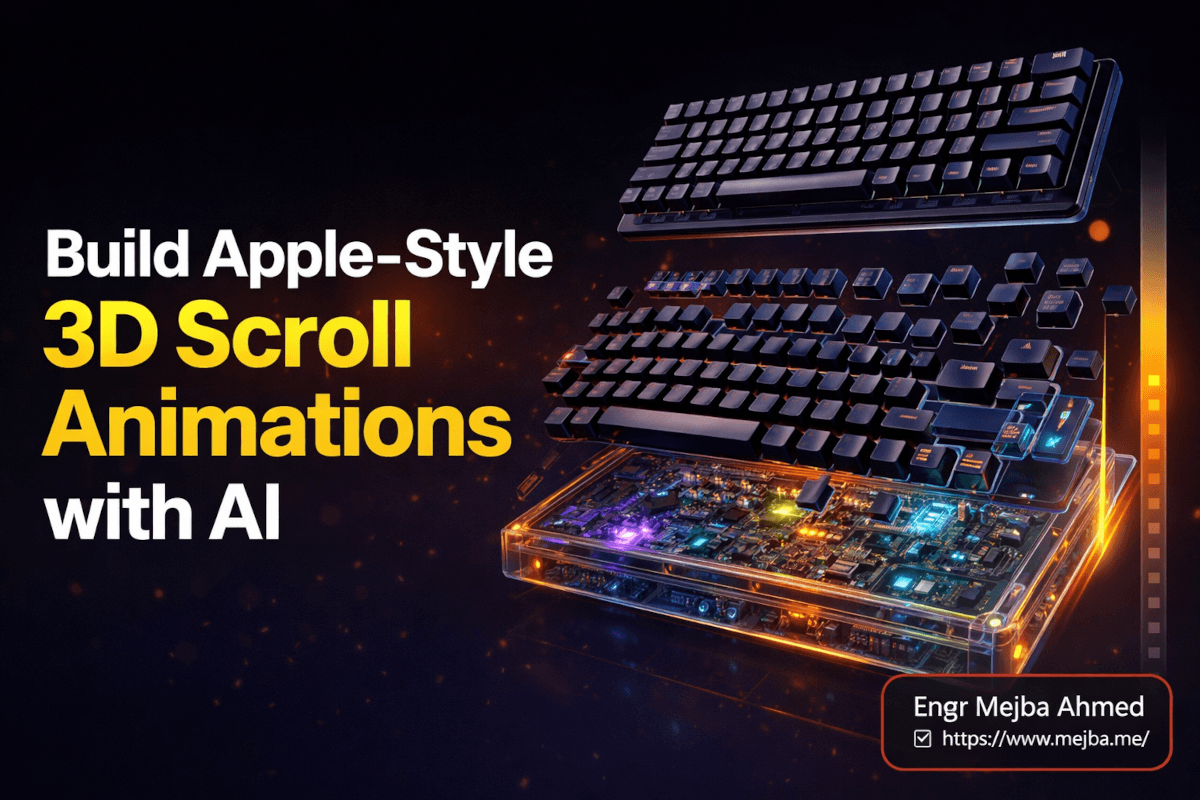
The landing page loaded, and I scrolled. A keyboard sat centered on a dark background — matte black, sharp lighting, the kind of product shot you'd expect from an Apple keynote. Then, as my scroll wheel moved, the keyboard started deconstructing itself. Keys lifting. Internal circuitry revealing. A slow, elegant X-ray effect that tracked perfectly with my scroll position — not playing a video, but responding to my finger like the page itself was alive.
I stopped scrolling halfway through, scrolled back up, watched the keyboard reassemble. Scrolled down again, faster this time. The animation kept pace. No jitter. No loading frames. No buffering indicator. Just buttery, frame-perfect motion tied directly to the scroll bar.
This wasn't a page built by a design agency charging six figures. It was built in about an hour using three AI tools and Claude Code. And the technique behind it — frame-by-frame scroll-driven animation — is the same one Apple uses on their product pages for AirPods, MacBook Pro, and iPhone.
Here's what caught me off guard: the hardest part of this entire workflow wasn't the animation itself. It wasn't the coding. It wasn't even getting the timing right. The hardest part was knowing that this combination of tools existed in the first place. Once you see the pipeline, the whole thing clicks — and you'll never look at a generic AI-generated website the same way again.
I'm going to walk you through the exact process, tool by tool, frame by frame. But first, you need to understand why this specific animation technique works so much better than what most developers default to.
Why Video Embeds Kill Premium Feel (And What Apple Does Instead)
Most developers who want scroll-triggered animation on a website reach for one of two approaches: CSS scroll-driven animations or an embedded video with JavaScript scroll listeners. Both work. Neither feels premium.
CSS scroll-driven animations — the kind you build with @keyframes and animation-timeline: scroll() — are great for parallax effects, fade-ins, and element transforms. They're lightweight, performant, and native to the browser as of 2024. But they can't do what I just described. You can't CSS-animate a keyboard deconstructing itself into an X-ray view. That requires photorealistic 3D rendering, and CSS doesn't render 3D objects.
Video embeds get closer. You can use the Intersection Observer API to play a video based on scroll position, and plenty of libraries make this straightforward. But video playback on scroll has a fundamental problem: seeking. When you scrub a video by changing currentTime in response to scroll events, you're asking the browser's video decoder to seek to arbitrary frames in real-time. The result is jerky, inconsistent, and noticeably different from device to device. Mobile Safari handles it differently from Chrome. Low-powered devices stutter. And the video file itself — even a short 5-second clip — can be 3-8MB, which tanks your Core Web Vitals.
Apple's approach is different. If you inspect a MacBook Pro or AirPods product page, you won't find a <video> tag driving those scroll animations. You'll find a <canvas> element. And what's feeding that canvas is a sequence of pre-extracted image frames — typically 60 to 180 individual images — loaded progressively and drawn to the canvas as the user scrolls.
It works like a flipbook. Each scroll position maps to a specific frame number. The browser draws that frame to the canvas. Because you're drawing a static image (not seeking through a compressed video stream), the render is instantaneous. No decoder lag. No keyframe seeking. No buffering. The animation feels locked to the user's scroll position because it literally is — there's no video playback engine sitting between the scroll event and the visual output.
The catch? Creating 180 photorealistic product frames traditionally required a 3D artist, a rendering pipeline (Blender, Cinema 4D, Houdini), and days of work. Which is exactly why this technique stayed locked inside Apple's budget until now.
That's where the AI pipeline changes the equation entirely.
The Three-Tool Pipeline That Makes This Possible
The workflow I'm about to walk through uses three AI tools in sequence, each handling a specific leg of the process. Here's the overview before we go deep on each one:
Tool 1: Nano Banana 2 (Google's image generation model on Higgsfield) generates the start and end keyframes — two high-quality images representing the animation's beginning state and ending state.
Tool 2: Kling 3.0 (Kuaishou's AI video generation model) takes those two keyframes and generates a smooth transition video between them — the actual animation, rendered as an MP4.
Tool 3: Claude Code takes that MP4, extracts individual frames using FFMPEG, converts them to WEBP, and builds the entire scroll-driven animation website using Next.js and Tailwind CSS.
Total hands-on time from first prompt to deployed website: roughly 45-90 minutes depending on how much you customize. And the result looks like something a creative agency spent weeks producing.
Let me break down each step. The details matter — especially the image generation prompts, because getting those wrong cascades problems through the entire pipeline.
Step 1: Generating Your Keyframes with Nano Banana 2
Nano Banana 2 is Google's Gemini 3.1 Flash Image model, launched February 26, 2026. It's available on Higgsfield, an AI content creation platform that bundles image generation, video generation, and editing tools in one place.
Why Nano Banana 2 specifically? Three reasons that matter for this workflow:
Native 2K resolution. Most image generators output 1024x1024 or require upscaling. Nano Banana 2 renders at 2K natively, which means your animation frames stay crisp even on large desktop displays. Since Kling 3.0 outputs video at 1080p, you want your source images at least matching that resolution — 2K gives you headroom.
Physics-accurate lighting. The model plans scenes before rendering, which means light sources, reflections, and shadows behave consistently. When you're generating two images that need to look like they belong in the same scene (a keyboard assembled vs. deconstructed), lighting consistency is non-negotiable. Mismatched shadows between your start and end frames will make the transition video look wrong in ways that are hard to articulate but immediately obvious.
Text rendering that actually works. If your product has text on it — a logo, a key label, a screen display — Nano Banana 2 treats text as a first-class element rather than a visual texture. This matters more than you'd expect when the camera is zooming into a product detail.
Here's the actual process:
Generating the Starting Image
Open Higgsfield and select Nano Banana 2 as your model. Your prompt needs to accomplish three things simultaneously: describe the product, establish the camera angle, and — this is the one most people miss — specify the background color to match your website.
A premium mechanical keyboard, matte black finish, centered on a pure
#0F172A dark background. Studio lighting from above-right creating subtle
highlights on keycaps. Photorealistic product photography style. Sharp
focus. 2K resolution. No additional objects or surfaces — just the
keyboard floating against the dark background.
That hex code — #0F172A — is the background color of the website I'm building. This is critical. If your generated image has a slightly different shade of dark (say, pure #000000 or a dark gray #1a1a1a), you'll see a visible rectangular edge around the image when it's placed on the website. The product won't look like it's floating in the page. It'll look like a picture pasted onto a page. The difference between "premium" and "amateur" lives in this single detail.
Generating the Ending Image
The ending image represents where the animation lands when the user has scrolled fully through the section. This could be anything — an exploded view, an X-ray perspective, a color shift, a transformation. The creative freedom here is genuinely wide open.
The trick with the ending image prompt: you can reference the starting image directly. Higgsfield allows you to upload a reference image, which means your prompt can be simpler because the model already has context about the product, lighting, and background.
The same keyboard from the reference image, now deconstructed — keys
floating slightly above the board, internal PCB circuitry visible,
transparent casing revealing RGB LED components underneath. Same studio
lighting. Same #0F172A background. X-ray effect showing the engineering
beneath the surface. Photorealistic. 2K resolution.
By referencing the starting image, you don't need to re-describe every material property. The model carries forward the product identity, lighting angle, and background color — and you only need to describe what's different.
A note on complexity: Keep the ending state relatively simple in terms of motion implication. You're asking a video model to generate the transition between these two states, and overly complex end states (like "the keyboard melts into liquid metal that reforms as a laptop") will produce messy, artifacts-heavy video. The best results come from transitions that have a clear physical logic — assembly/disassembly, rotation, zoom, transparency reveal, color shift.
Step 2: Generating the Transition Video with Kling 3.0
With both keyframes in hand, you need an AI video model to generate the smooth transition between them. I used Kling 3.0, which Kuaishou launched on February 4, 2026. You could also use Veo 3.1, Google's video generation model — both support image-to-video generation with start and end frames.
Why Kling 3.0 Works Well for This
Kling 3.0's physics simulation is the most realistic of any current video model. For product animations specifically, this means materials behave correctly — metal reflects light as it rotates, plastic refracts properly, transparent elements interact with light sources behind them. The model outputs at 1080p at up to 60fps, and you can generate clips up to 15 seconds long.
For scroll animation purposes, you want a 3-5 second clip. Shorter clips mean fewer frames to extract and load, which directly impacts page performance. A 5-second clip at 30fps gives you 150 frames — that's 150 individual images the browser needs to pre-load. A 3-second clip at 30fps gives you 90 frames. Both work. The shorter clip loads faster; the longer clip allows for a more gradual, drawn-out animation feel.
The Video Generation Process
In Kling 3.0 (or Veo 3.1), select the image-to-video mode. Upload your starting image as the first frame and your ending image as the last frame. Then write a prompt describing the transition:
Smooth transition from assembled keyboard to deconstructed X-ray view.
Keys lift gradually, casing becomes transparent, internal components
reveal. Steady camera position. Even, unhurried motion. Studio lighting
maintained throughout.
Two critical settings to watch:
-
Do NOT enable auto-enhance on the prompt. Both Kling and Veo offer AI prompt enhancement that rewrites your input to be "more detailed." For this use case, that enhancement tends to add creative flourishes — camera movements, dramatic lighting shifts, particle effects — that ruin the clean, controlled transition you need. Keep it simple. The simpler the prompt, the smoother the output.
-
Match the aspect ratio to your images. If you generated 16:9 images, generate a 16:9 video. Mismatched ratios mean the video model will crop or pad your keyframes, which kills the seamless alignment you need.
Generate the video. Review it. If the transition has artifacts, weird frame interpolation, or doesn't land cleanly on your ending image, regenerate. Kling 3.0 is fairly consistent, but video generation models are inherently probabilistic — sometimes the second or third attempt is noticeably better.
Once you have a clean MP4 of the transition, the fun part starts.
Step 3: From Video to Flipbook — Claude Code Does the Heavy Lifting
This is where the workflow shifts from AI-assisted creative work to AI-assisted engineering. And this is where Claude Code earns its reputation.
The goal: take that MP4 file and convert it into a production-ready scroll-driven animation embedded in a Next.js website. That means extracting frames, converting them to an optimized format, building the scroll listener, managing pre-loading, and wrapping the whole thing in a polished landing page.
Here's the step-by-step.
3a: Frame Extraction with FFMPEG
FFMPEG is the workhorse here. If you don't have it installed, Claude Code will typically prompt you to install it (brew install ffmpeg on macOS, apt install ffmpeg on Ubuntu). The extraction command looks like this:
ffmpeg -i keyboard-transition.mp4 -vf "fps=30" -c:v libwebp -quality 85 frames/frame_%04d.webp
Breaking that down:
-i keyboard-transition.mp4— your input video-vf "fps=30"— extract at 30 frames per second (matching the video's native frame rate)-c:v libwebp— encode each frame as WEBP (not JPEG, not PNG)-quality 85— WEBP quality setting; 85 is the sweet spot between visual quality and file sizeframes/frame_%04d.webp— output to aframes/directory with zero-padded numbering
Why WEBP instead of JPEG? File size. WEBP images are roughly 25-35% smaller than equivalent-quality JPEGs, and when you're loading 90-180 frames, that compression advantage compounds fast. A frame sequence that weighs 12MB in JPEG might be 8MB in WEBP. On a mobile connection, that's the difference between a smooth experience and a loading spinner.
For a 5-second clip at 30fps, you'll get approximately 150 frames. Each WEBP frame at 1080p quality-85 typically weighs 30-60KB, putting your total sequence at 4.5-9MB. That's manageable — especially with pre-loading, which we'll set up next.
3b: Prompting Claude Code to Build the Scroll Animation
Here's where it gets good. You don't need to write the scroll listener, the canvas rendering logic, the pre-loading system, or the page layout by hand. You prompt Claude Code with the right context, and it builds the whole thing.
The prompt I used:
Build a product landing page for a premium mechanical keyboard called
"Void MK1" using Next.js and Tailwind CSS. The hero section features a
scroll-driven frame animation.

Technical requirements:
- Load WEBP frames from /public/frames/ directory (frame_0001.webp through
  frame_0150.webp)
- Use a <canvas> element to render frames
- Map scroll position to frame number (scroll 0% = frame 1, scroll 100% =
  frame 150)
- Pre-load all frames on page mount before enabling scroll animation
- Show a subtle loading indicator until all frames are loaded
- The animation section should be pinned (position: sticky) while the user
  scrolls through it
- Use requestAnimationFrame for smooth rendering
- Background color: #0F172A

Design requirements:
- Dark, premium aesthetic
- Product title and tagline overlay on the animation
- Feature cards below the animation section
- Smooth transitions between sections
Claude Code takes this and builds the complete application. The key technical pieces it generates:
The frame pre-loader — a function that creates Image objects for every frame, loads them in parallel, and tracks progress. The animation doesn't start until every frame is cached in memory. This is what prevents that choppy "loading frames on demand" experience.
const preloadFrames = async (frameCount) => {
  const frames = [];
  let loaded = 0;

  const promises = Array.from({ length: frameCount }, (_, i) => {
    return new Promise((resolve) => {
      const img = new Image();
      img.src = `/frames/frame_${String(i + 1).padStart(4, '0')}.webp`;
      img.onload = () => {
        frames[i] = img;
        loaded++;
        setLoadProgress(Math.round((loaded / frameCount) * 100));
        resolve();
      };
    });
  });

  await Promise.all(promises);
  return frames;
};
The scroll-to-frame mapper — calculates which frame to display based on the user's scroll position within the animation section. The section is pinned with position: sticky, and the scroll distance is divided evenly across the total frame count.
const handleScroll = () => {
  const scrollTop = window.scrollY;
  const sectionTop = sectionRef.current.offsetTop;
  const sectionHeight = sectionRef.current.offsetHeight - window.innerHeight;

  const scrollProgress = Math.max(0, Math.min(1,
    (scrollTop - sectionTop) / sectionHeight
  ));

  const frameIndex = Math.round(scrollProgress * (totalFrames - 1));

  requestAnimationFrame(() => {
    const ctx = canvasRef.current.getContext('2d');
    ctx.clearRect(0, 0, canvas.width, canvas.height);
    ctx.drawImage(frames[frameIndex], 0, 0, canvas.width, canvas.height);
  });
};
The canvas renderer — draws the current frame to a <canvas> element sized to match the video's native resolution. Using requestAnimationFrame ensures the draw call is synced with the browser's refresh cycle, eliminating visual tearing.
Claude Code wraps all of this in a clean React component with proper lifecycle management — loading state, error handling, cleanup on unmount, and resize listeners to keep the canvas responsive.
3c: The Best Practices Markdown File
One technique that dramatically improved Claude Code's output: I fed it a markdown file of best practices for scroll animations before prompting the build. Think of it as a CLAUDE.md-style context injection, but focused specifically on the animation domain.
The file covered things like:
- Use
will-change: transformon the canvas for GPU compositing - Throttle scroll listeners to 60fps using
requestAnimationFrame— never bind directly to the scroll event without throttling - Set
canvasdimensions via JavaScript, not CSS, to avoid blurry scaling - Pre-load frames in batches of 10-20 to show progressive loading feedback
- Use
decoding: asyncon Image objects to avoid blocking the main thread - Keep the pinned section height at
100vh * (totalFrames / 30)for a natural scroll speed
Feeding Claude Code domain-specific best practices before the build prompt consistently produces better first-pass results than relying on its general knowledge alone. I've written about this approach before with CLAUDE.md files — it works here for the same reason.
Step 4: Customization and Polish
The raw output from Claude Code is functional and surprisingly polished. But here's where you make it yours.
Adjusting Scroll Speed
The scroll speed of the animation is controlled by the height of the pinned section. A taller section means more scroll distance to travel through the same number of frames, which means slower animation. A shorter section means faster.
The default Claude Code generates is usually height: 300vh (three viewport heights of scroll distance for the full animation). I typically adjust this based on the animation's content:
- Fast reveals (simple rotation or zoom):
200vhfeels natural - Complex transitions (deconstruction, X-ray):
400vhgives the user time to absorb the detail - Dramatic effects (build-from-nothing):
500vhcreates a cinematic pace
Tell Claude Code: "Make the animation section scroll slower — increase the pinned height to 400vh." It'll adjust and ensure the frame mapping math still works correctly.
Resolution and Crispness
Kling 3.0 outputs at 1080p. On a 1920x1080 display, that fills the screen perfectly. On a 2560x1440 or 4K display, the animation will look slightly soft if you scale it to full width.
Two solutions:
-
Constrain the animation area. Don't make the canvas full-width. A
max-width: 1080pxwithmargin: autokeeps every frame pixel-perfect and looks intentional — like a product showcase in a defined viewport. -
Upscale before extraction. If you need full-bleed animation on large displays, use an AI upscaler (Topaz Video AI, or even FFMPEG's built-in
scalefilter) on the video before extracting frames. This adds to file size, so balance sharpness against load time.
I usually go with option 1. Constraining the animation area actually looks more premium — it gives the product visual breathing room, and the dark background surrounding it reinforces the floating-in-space aesthetic that Apple's product pages use.
Tweaking the Design
This is where Claude Code's iterative workflow shines. Once the base page is built, you can prompt refinements conversationally:
- "Add a subtle gradient overlay at the top and bottom of the animation section"
- "Make the product title fade in at frame 30 and slide up from the bottom"
- "Add a progress bar below the animation that fills as the user scrolls"
- "Change the feature cards to a two-column layout with glassmorphism styling"
Each prompt refines without rebuilding. Claude Code understands the existing component structure and makes targeted changes. This is where you go from "technically impressive demo" to "page I'd actually ship to a client."
What I Got Wrong the First Time (And What You Should Skip)
I want to be honest about the mistakes I made, because they'll save you real time.
Mistake 1: Using JPEG for frames. My first attempt extracted frames as high-quality JPEGs. The animation was 14MB total. After switching to WEBP at quality 85, it dropped to 8.2MB with no visible difference. That's not a small optimization — it's the difference between a 2-second and a 4-second initial load on a typical mobile connection.
Mistake 2: Not matching background colors exactly. My first generated images used a background I'd describe as "dark" without specifying a hex code. The images came back at roughly #111111. My website was #0F172A — Tailwind's slate-900. The mismatch was subtle but immediately visible: a faint rectangular border around the animation where the image's background met the page's background. I regenerated the images with the exact hex code in the prompt and the problem disappeared.
Mistake 3: Generating a 10-second video. More frames isn't better. My first video was 10 seconds of slow, dramatic transition. Extracted at 30fps, that gave me 300 frames. The pre-load time was painful, the total file size was enormous, and the animation dragged on so long that users scrolled past it out of impatience. I cut it to 4 seconds (120 frames) and the experience improved dramatically. The animation felt tighter, the load was faster, and users actually engaged with it.
Mistake 4: Letting Kling auto-enhance my prompt. The auto-enhance feature rewrote my simple transition prompt into something with "dramatic cinematic lighting shifts, ethereal particle effects, and dynamic camera dolly." The resulting video was visually stunning — as a video. But as a scroll animation, all those dynamic camera moves and lighting changes made the frame-by-frame scrubbing feel chaotic. Simple prompts produce simple transitions, and simple transitions produce the best scroll animations.
Mistake 5: Full-width canvas on a 4K monitor. The 1080p frames looked fine on my laptop. On my external monitor, they looked like I'd zoomed into a compressed JPEG. Constraining the canvas to max-width: 1080px fixed this immediately and actually improved the design.
Every one of these mistakes cost me 15-30 minutes of debugging and regenerating. Skip them and you've already cut your total build time by half.
The Creative Possibilities Are Wider Than You Think
I used a keyboard deconstruction for this walkthrough because it's clean and visual. But the same pipeline works for any product and any transition concept. Here are approaches I've tested or seen others execute:
Build-from-nothing: Start with an empty dark background. End with the fully assembled product. The video generates the product materializing piece by piece — almost like a 3D print timelapse. Incredible for product launches.
Material transition: Start with a clay or wireframe render of the product. End with the final textured, lit version. The scroll animation reveals the product's premium materials gradually. Works beautifully for luxury goods.
Environment shift: Start with the product in a studio environment. End with it in a lifestyle context (on a desk, in a hand, in a room). The transition blends the environments seamlessly.
Color shift: Start with monochrome. End with full color. The scroll reveals the product's color palette progressively. Simple to generate, surprisingly effective visually.
Scale shift: Start with a full product view. End with a macro detail shot — a texture, a button, a material close-up. The video generates a smooth zoom that the scroll controls.
The constraint is your imagination and the video model's ability to generate a clean transition between your two keyframes. As long as the transition has clear physical logic, Kling 3.0 and Veo 3.1 handle it well.
Performance Numbers Worth Knowing
I ran Lighthouse and WebPageTest on the deployed page. Here are the numbers:
- Total frame payload (120 frames, WEBP, quality 85): 6.4MB
- Initial page load (before frames): 0.8 seconds on a 50Mbps connection
- Frame pre-load time: 2.1 seconds on 50Mbps, 4.8 seconds on a throttled 3G connection
- Lighthouse Performance Score: 91 (desktop), 78 (mobile)
- Largest Contentful Paint: 1.2s desktop, 2.8s mobile
- Total Blocking Time: 12ms — the frame loading happens asynchronously and doesn't block the main thread
The mobile score of 78 is the weak point. Those 120 WEBP frames still add up on slow connections. For mobile-first sites, I'd recommend one of two approaches: reduce to 60 frames (extracting every other frame from the video) for mobile devices using a responsive check, or implement a simpler CSS animation fallback for connections below a speed threshold.
For desktop-focused landing pages and product showcases — which is where these animations shine most — the performance is excellent.
How This Compares to Traditional Methods
To put the AI pipeline in perspective:
Traditional 3D rendering approach (Blender/Cinema 4D):
- Model the product in 3D (4-8 hours for a detailed product)
- Set up materials, lighting, and camera (2-4 hours)
- Animate the transition (2-4 hours)
- Render 120-180 frames at 1080p (1-3 hours of compute time)
- Build the scroll animation in code (2-4 hours)
- Total: 11-23 hours of skilled labor
AI pipeline approach (Nano Banana 2 + Kling 3.0 + Claude Code):
- Generate keyframe images (10-15 minutes including iterations)
- Generate transition video (5-10 minutes including regeneration)
- Extract frames and build website with Claude Code (20-40 minutes)
- Customize and polish (15-30 minutes)
- Total: 50-95 minutes
That's not a small difference. It's roughly a 10-15x reduction in time, and it doesn't require 3D modeling expertise, a rendering farm, or a senior front-end developer who understands canvas performance optimization.
The trade-off is control. With Blender, you control every polygon, every light ray, every frame of the animation. With the AI pipeline, you control the start, the end, and the prompt that guides the transition — and the video model decides the in-between. For most product landing pages and marketing sites, that level of control is more than enough. For pixel-perfect brand work where every frame needs sign-off from a creative director, you'll still want the traditional pipeline.
But for 90% of the websites I build? The AI pipeline wins by a mile. And the gap between these two approaches is closing with every model update.
What Comes Next for This Technique
I'm watching three developments that will push this even further.
Higher resolution video models. Kling 3.0 maxes out at 1080p. The moment these models ship native 4K output — and Kling has hinted this is coming — the frame quality ceiling disappears entirely. Full-bleed scroll animations on 4K displays without upscaling.
Longer coherent video generation. Current models produce 5-15 seconds of coherent video. As that extends to 30-60 seconds, you'll be able to build multi-section scroll animations from a single video — an entire page that tells a product story through scroll, not just a single hero section.
Browser-native scroll-driven animation improvements. The CSS animation-timeline: scroll() specification is still evolving. As browsers add support for more complex timeline-driven animations — including canvas-based approaches — the JavaScript overhead will shrink. The frames-on-canvas technique will remain the gold standard for photorealistic animations, but the surrounding code will get simpler.
For now, the pipeline works. It works today, with tools you can access today, producing results that look like they cost five figures. And every piece of it — the image generation, the video generation, the frame extraction, the scroll animation code — is handled by AI.
That's not a glimpse of the future. That's what's sitting in your browser, waiting for you to try it.
One specific action you can take in the next hour: go to Higgsfield, generate two images of any product — start state and end state — with your website's exact background hex color in the prompt. Just those two images. Once you see them side by side and start imagining the transition between them, you'll understand viscerally why this pipeline works. The rest of the build follows naturally from that single creative decision.
The scroll-driven web isn't coming. It's already here. The only question is whether your next landing page uses it — or competes against someone who does.
3D Scroll Animations AI: Quick Answers
How many frames do I need for a smooth scroll animation?
Between 90 and 150 frames delivers the best balance of smoothness and performance. Below 60 frames, the animation feels choppy during slow scrolling. Above 180, you're adding file weight without visible improvement. For most product animations, extract a 3-5 second video at 30fps.
Does this work on mobile devices?
Yes, but with caveats. The canvas rendering and scroll mapping work on all modern mobile browsers. The performance bottleneck is pre-loading the frame images — on slow connections, consider serving fewer frames (60 instead of 120) to mobile users via a responsive breakpoint check.
Can I use this technique with WordPress instead of Next.js?
Absolutely. The Xplode Motion plugin and Scrollsequence both support frame-based scroll animations in WordPress without custom code. For a custom implementation, the same canvas + frame approach works in any framework — the JavaScript logic is framework-agnostic.
What if my AI-generated video has artifacts or glitches?
Regenerate. Video generation models are probabilistic — the same prompt produces different results each attempt. If you consistently get artifacts, simplify your transition prompt. Complex transitions (multiple simultaneous movements, dramatic lighting changes) produce more artifacts than simple ones (single-axis rotation, gradual reveal, slow zoom).
How much does this workflow cost?
Nano Banana 2 on Higgsfield offers free tier access for basic image generation. Kling 3.0 pricing starts at approximately $0.10-0.30 per 5-second video generation depending on your plan. Claude Code requires a Pro or Team subscription. Total out-of-pocket for a single animation: under $5 in most cases, excluding the Claude Code subscription you likely already have.
Whether Premium Scroll Animations Are Worth It
Building Apple-style 3D scroll animations with Nano Banana 2, Kling 3.0, and Claude Code proved the premium look is now within reach without a motion-design team. For a landing page that needs to feel expensive, that changes the math.
Try the workflow on one hero section before you commit to a full site. My 3D animated website build and interactive Fable 5 reveal go deeper.
If you want a premium animated site built for your brand, that's work I take on through Ramlit.