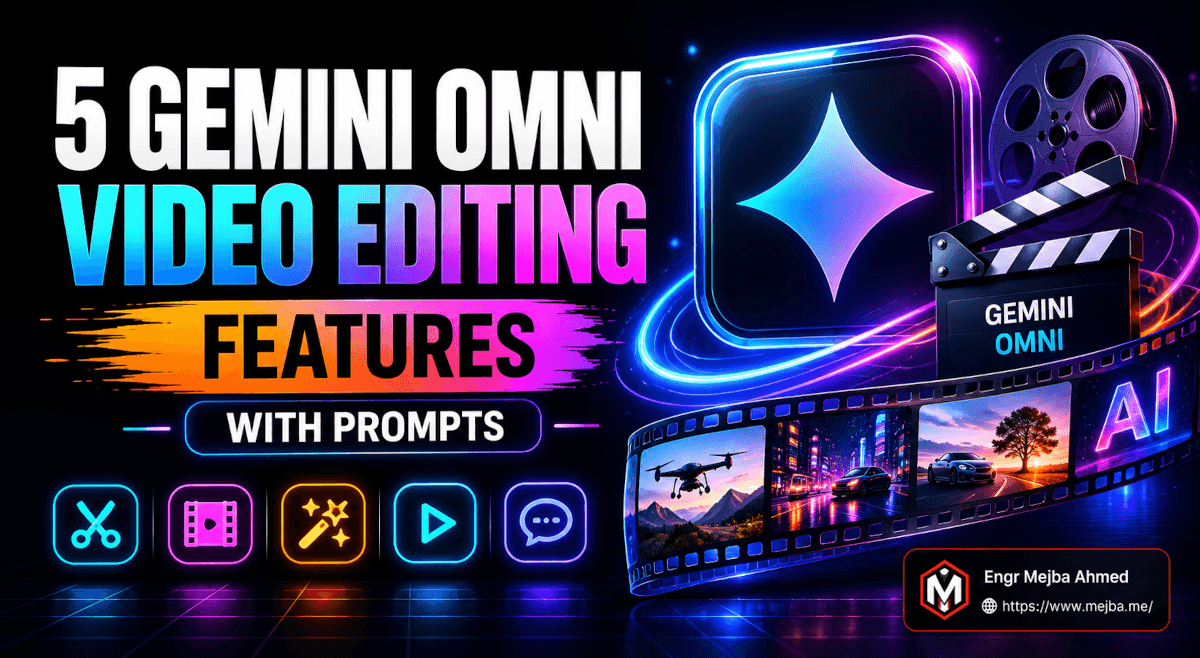
5 fonctionnalités de montage vidéo de Gemini Omni que presque personne n'utilise (avec les prompts exacts)
Voici la vérité inconfortable à laquelle je suis arrivé après une semaine à pousser Gemini Omni dans ses retranchements : la plupart des gens utilisent environ dix pour cent de ce qu'il peut faire.
Ils ouvrent l'application Gemini, scannent un visage, génèrent un avatar parlant, lui collent peut-être un filtre métallique TikTok et passent à autre chose. Ce qui est très bien. C'est la surface. Mais la vraie raison pour laquelle le montage vidéo de Gemini Omni est intéressant, ce ne sont pas les avatars — c'est que le modèle édite de vraies images que vous avez déjà tournées. Vos clips de téléphone. Vos fichiers de drone. Le contenu ennuyeux qui traîne dans votre pellicule. Et les prompts qui débloquent cette capacité ne se trouvent nulle part dans l'interface par défaut. Il faut savoir quoi demander.
Alors j'ai cherché. J'ai téléchargé mon propre clip de plage, une photo de paysage statique, des images POV en voiture, une vidéo des chiens endormis de mon ami et une poignée de gros plans de fleurs. Puis j'ai passé une semaine à effectuer des montages, à casser des choses, à les refaire et à noter chaque prompt qui fonctionnait vraiment.
Voici le guide de terrain que j'aurais aimé avoir dès le premier jour. Cinq fonctionnalités dont presque personne ne parle, les prompts exacts pour déclencher chacune d'elles, le nombre de tentatives que chacune a nécessité, et — la partie que la plupart des publications « tutoriel Gemini Omni » sautent entièrement — là où ça déraille et où vous devriez rendre le clip à un monteur humain. Pas de démos parfaites. De vrais décomptes d'itérations. Allons-y.
Ce qu'est vraiment le montage vidéo de Gemini Omni (et pourquoi la dénomination est confuse)
Petit cadrage rapide, car la nomenclature autour de la pile vidéo de Google est un bazar et je veux que vous sachiez exactement quel outil fait quoi.
Gemini Omni est le modèle vidéo multimodal any-to-any de Google. Il est devenu disponible sous le nom de Gemini Omni Flash le 19 mai 2026 et a remplacé la marque autonome Veo dans l'application Gemini. On y accède de deux façons : directement dans l'application Gemini pour des montages conversationnels rapides, et dans Google Flow — l'outil de cinéma IA de Google — quand vous voulez plus de contrôle sur la durée des clips et le montage itératif.
Si vous avez utilisé Veo avant, voici le modèle mental : Veo 3.1 faisait du texte-vers-vidéo et de l'image-vers-vidéo, plafonné à 8 secondes. Omni Flash accepte du texte, des images, de l'audio, et de la vidéo existante en entrée, édite de manière conversationnelle et plafonne les clips à 10 secondes. Google a déclaré sur scène que la limite de 10 secondes est une décision de déploiement, pas un plafond architectural — des durées plus longues sont attendues d'un tier « Omni Pro » ultérieurement. (J'ai couvert le côté stratégique de ce changement dans mon récap de Google I/O 2026, si vous voulez la vue d'ensemble sur pourquoi Google a intégré Veo dans Gemini.)
Une chose intégrée dans chaque clip que vous générez : SynthID, le filigrane de provenance invisible de Google. Il n'y a pas de bouton pour le désactiver, et il survit au réencodage et au redimensionnement. Gardez cela à l'esprit avant de planifier tout workflow qui dépend d'une sortie « propre » — chaque clip Omni est définitivement marqué comme généré par IA. C'est une fonctionnalité, pas un bug, mais c'est important pour certains cas d'usage.
Pour une analyse complète de la configuration des avatars, des modèles intégrés et de la comparaison d'Omni avec Sora et Kling, consultez mon test pratique de Gemini Omni. Cet article est la suite : les fonctionnalités de montage pour lesquelles le test n'avait pas la place.
Maintenant — les cinq fonctionnalités.
Fonctionnalité #1 : éditer de la vraie vidéo, pas seulement des avatars
C'est celle qui change votre façon de penser l'outil. La plupart des modèles vidéo IA génèrent à partir de rien. Omni édite ce que vous avez déjà.
Vous pouvez télécharger un clip filmé avec votre téléphone et dire à Omni ce qu'il faut changer. Pas générer une nouvelle scène qui ressemble vaguement à la vôtre — réellement modifier vos images tout en conservant intactes les parties que vous n'avez pas mentionnées. C'est le saut.
Où le faire : Vous pouvez effectuer des montages rapides directement dans l'application Gemini, mais je recommande fortement Google Flow pour cela. Flow vous permet de télécharger des clips jusqu'à 10 secondes et applique des modifications proportionnelles à la durée du clip, et le workflow itératif est bien plus facile à gérer. L'application convient pour des retouches ponctuelles. Flow, c'est là où on travaille vraiment. (J'ai suivi les mises à jour rapides de Flow quand il a vraiment pris son envol dans mon récap hebdomadaire IA sur la vague Google Flow — il a beaucoup mûri depuis.)
Le test de la foule
Mon premier vrai test : j'avais une vidéo de plage avec juste moi, seul, marchant près des falaises. Je voulais voir si Omni pouvait la peupler.
Prompt : "Edit this video so there's a large crowd on the beach behind me."
Ça a marché. Vraiment. Le modèle a ajouté une foule crédible en arrière-plan — des gens à différentes distances, des poses variées, le type de densité dispersée qu'a une vraie plage — tout en gardant moi, les falaises et le parking au premier plan exactement là où ils étaient. Premier essai. Je ne m'y attendais pas.
C'est la capacité phare : Omni comprend la scène, pas seulement les pixels. Il savait que la plage s'étendait derrière moi, il savait où se trouvait l'horizon, et il a placé la foule dans un espace plausible.
L'astuce itérative que personne ne vous dit
Voici la technique qui m'a pris quelques heures à découvrir, et c'est la chose la plus importante de tout cet article : éditez la vidéo nouvellement générée, pas l'originale.
Quand vous faites une modification et que vous aimez le résultat, prenez cette sortie et réinjectez-la pour la modification suivante. Chaque passe est un raffinement de la précédente, ce qui vous donne bien plus de contrôle que d'essayer de fourrer chaque instruction dans un méga-prompt. Empilez les modifications, ne les regroupez pas.
Donc après la vidéo de la foule, j'ai effacé le prompt et fait une deuxième passe sur le nouveau clip :
Prompt : "Make it a sunny day."
Le modèle a changé l'éclairage, réchauffé la température de couleur, décalé les ombres, éclairci l'eau. Un changement environnemental véritablement réaliste — et comme il opérait sur le clip déjà édité avec la foule, la foule est restée. C'est la stratification contextuelle que vous n'obtenez qu'en itérant.
J'ai utilisé la même chaîne pour construire une révélation avant/après :
Prompt : "Turn this video into a before and after with a 3-second swipe revealing a clear object."
Puis une passe de suivi pour ajouter du texte à l'écran — « before » sur le premier segment, « edited with Omni » sur le second. Deux passes, résultat propre.
Là où ça casse
Maintenant la partie honnête. Omni est puissant, pas parfait, et les modifications spécifiques dans le temps sont son point faible.
J'ai essayé d'être malin :
Prompt : "At the 1-second mark, change the water bottle into a rubber chicken."
Ça n'a pas marché. La transformation s'est produite dès le début du clip, pas à la marque d'une seconde — Omni ne peut pas encore interpréter de manière fiable les instructions précises d'horodatage. J'ai effectué des corrections itératives pour le recadrer et obtenu des améliorations marginales, mais jamais l'échange chronométré propre que je voulais. Si votre modification dépend de quelque chose qui se passe à un moment exact, ajustez vos attentes à la baisse et prévoyez plusieurs tentatives. Parfois vous rendez simplement cette prise à un vrai monteur avec une vraie timeline.
Ma règle générale : Omni est excellent pour quoi changer et peu fiable pour quand le changer. Décrivez l'état final, pas le moment.
Si vous préférez que quelqu'un construise un pipeline de production vidéo complet assisté par IA — Omni pour les montages, plus le reste de la chaîne de production — c'est exactement le type de travail que j'accepte. Vous pouvez voir ce que j'ai construit sur fiverr.com/s/EgxYmWD.
C'était l'édition du contenu d'une prise. La fonctionnalité suivante édite la caméra — et c'est spectaculaire.
Fonctionnalité #2 : mouvement de caméra sur des images qui n'ont jamais bougé
Vous pouvez ajouter du mouvement de caméra à un clip qui n'en avait pas. Zooms arrière, reculs de drone, révélations panoramiques — Omni simule un travail de caméra dynamique sur des images existantes, et aussi sur des images statiques.
Transformer un clip plat en prise de drone
J'ai repris cette même vidéo de plage et demandé un recul :
Prompt : "Zoom this out into a wide drone shot."
Omni a élargi le cadre vers l'extérieur, révélant les falaises et le parking comme si un drone s'élevait et reculait. Il y avait des artefacts mineurs dans les premières images alors qu'il inventait les bords nouvellement révélés de la scène, mais ça s'est stabilisé vite et l'illusion a tenu. Suffisamment convaincant pour l'utiliser dans un montage réel.
L'astuce drone avec flèches de référence (celle-ci est la bonne)
C'est ma fonctionnalité préférée dans tout le modèle, et presque personne ne l'utilise.
Vous prenez une image statique, dessinez des flèches directionnelles montrant le chemin que vous voulez que la caméra emprunte, téléchargez l'image annotée, et Omni génère un POV de drone continu qui suit vos flèches. Vous dessinez littéralement une trajectoire de vol et recevez des images en retour.
Prompt : "The camera follows the arrows in the reference image. One continuous shot. Remove the arrows in the final video. The POV is of a drone always facing the direction it is flying."
Le résultat : une prise de drone virtuelle fluide qui a tracé mon chemin dessiné — glissant entre les arbres, passant sous un pont, toute la sensation de plan-séquence. Il y a eu un glitch où une partie du pont a brièvement disparu quand la caméra est passée dessous, mais l'illusion globale était suffisamment forte pour que je doive revoir la vidéo pour trouver le défaut.
Ce prompt de quatre lignes fait beaucoup de travail, alors laissez-moi expliquer pourquoi chaque partie compte :
- "follows the arrows in the reference image" — ancre la trajectoire à votre croquis au lieu d'un mouvement aléatoire
- "one continuous shot" — empêche Omni de couper, ce qu'il ferait sinon
- "remove the arrows in the final video" — crucial, sinon vos flèches apparaissent dans le métrage
- "a drone always facing the direction it is flying" — fixe l'orientation pour que la caméra ne dérive pas latéralement comme un crabe
Supprimez l'une de ces clauses et le résultat se dégrade. Je l'ai testé. La ligne d'orientation en particulier fait la différence entre une vraie sensation de drone et une caméra flottante confuse.
Même quand ce n'est pas parfait — et ça ne l'est souvent pas — c'est un point de départ que vous ne pourriez jamais obtenir à partir d'une image statique. Pour les plans d'établissement et le B-roll, c'est vraiment utile. Pour un plan principal dans un livrable client payant, je réserverais quand même un vrai pilote de drone. Connaissez la limite.
Le contrôle de caméra est spatial. La fonctionnalité suivante est linguistique — et elle vient avec un avertissement.
Fonctionnalité #3 : avatars multilingues (vérifiez les traductions)
Omni peut générer des avatars parlant différentes langues, ce qui rend les salutations multilingues personnalisées vraiment faciles. Messages d'anniversaire, vidéos de bienvenue, intros de cours — enregistrez un avatar, rédigez le script dans cinq langues, c'est fait.
J'ai testé des vœux d'anniversaire dans cinq « langues » :
- Français — exact (je l'ai vérifié avec Google Translate)
- Espagnol — exact (même vérification)
- ASL (Langue des Signes Américaine) — l'avatar a signé, mais je ne peux pas vérifier si les signes étaient corrects
- Latin — généré, mais invérifiable pour moi
- « Vulcain » — oui, j'ai demandé un message d'anniversaire en vulcain pour rire. Pour être parfaitement clair : le vulcain est la langue fictive de Star Trek. Omni a joyeusement généré quelque chose, mais il n'existe pas de vrai vulcain pour le vérifier, alors considérez cette sortie comme du pur divertissement, pas comme une traduction.
Le workflow est simple : choisissez un avatar parmi vos assets de l'application Gemini, rédigez le message dans chaque langue cible, générez. La synchronisation labiale fonctionnait bien dans les langues que je pouvais lire.
Mais voici ce que vous devez intégrer, car c'est là que cette fonctionnalité met les gens en difficulté : vérifiez toute traduction qui compte vraiment.
Le français et l'espagnol étaient bons. L'ASL, le latin et évidemment le vulcain, je n'ai pas pu les confirmer. Si vous envoyez un message d'anniversaire sincère à un ami français, vous êtes probablement tranquille. Si vous produisez du marketing destiné aux clients dans une langue que vous ne parlez pas, faites relire le script par un locuteur natif avant de générer, pas après. La traduction IA dans un modèle vidéo est une commodité, pas une garantie — et une erreur de traduction intégrée dans un clip rendu est bien plus coûteuse à corriger qu'une faute de frappe dans du texte.
Donc : incroyable pour du contenu multilingue décontracté, personnel et amusant. À traiter avec précaution pour tout ce qui est professionnel. Le modèle est confiant dans toutes les langues, y compris celles qui n'existent pas.
C'était les avatars qui parlent. Ensuite : les avatars qui enseignent — à partir de presque rien.
Fonctionnalité #4 : vidéos explicatives à partir d'un prompt d'une ligne
Celle-ci m'a vraiment surpris. Omni peut puiser dans les connaissances du monde réel et construire un explicatif éducatif complet à partir d'un prompt minimal. Pas de script, pas de storyboard, pas d'assets téléchargés. Une phrase.
Prompt : "Create an explainer video that explains how rockets work."
Ce qui est revenu : un explicatif couvrant la propulsion des fusées par la troisième loi de Newton — action et réaction — avec un avatar informatif qui narrait et des visuels d'accompagnement. À partir de huit mots en entrée. Le modèle a trouvé le concept, structuré une explication et produit un clip regardable tout seul.
J'en ai lancé un deuxième pour confirmer que ce n'était pas un coup de chance :
Prompt : "Explain how earthquakes work."
Même résultat — plaques tectoniques, activité sismique, narration et visuels, tout généré uniquement à partir du sujet. Omni puise dans les faits du monde réel et les transforme en contenu sans que vous ayez à épeler quoi que ce soit.
Pour le prototypage rapide de contenu éducatif, c'est un vrai gain de temps. Vous pouvez obtenir un brouillon d'explicatif en deux minutes qui aurait pris une heure à scénariser et storyboarder.
Le piège qui compte plus que la magie
La précision factuelle doit être vérifiée, pas présumée.
La physique de l'explicatif sur les fusées me semblait correcte. Mais « me semblait correcte » n'est pas une vérification des faits, et un narrateur IA confiant qui délivre une explication erronée est plus dangereux qu'aucune vidéo du tout, parce que ça sonne avec autorité. Si vous publiez du contenu éducatif sous votre nom ou votre marque, chaque affirmation dans cet explicatif autogénéré est votre responsabilité. Regardez-le. Vérifiez la science. Attrapez les erreurs subtiles avant que votre audience ne le fasse.
Utilisez cette fonctionnalité pour générer le brouillon, pas le produit final. C'est un fantastique premier jet et un terrible mot de la fin.
L'astuce de changement de lieu cachée dans cette même capacité
La compréhension du monde réel d'Omni alimente aussi quelque chose que je n'attendais pas : des modifications POV basées sur la localisation.
J'ai téléchargé des images POV de conduite que j'avais tournées, plus quelques captures d'écran Google Maps d'une ville cible, et j'ai demandé à Omni de recréer le trajet ailleurs.
Prompt : "POV inside car driving in the location screenshot image, one continuous shot."
Premier test : il a rendu mon trajet à travers le centre de NYC. Forte précision de localisation, quelques erreurs mineures, mais indubitablement New York. Deuxième test, même métrage source : j'ai remplacé les captures par des monuments londoniens — et Omni a re-rendu le même trajet devant Big Ben et le London Eye.
La partie qui m'a convaincu : l'intérieur de la voiture est resté cohérent. Le même tableau de bord, les mêmes autocollants, le même cadrage — seul le monde à l'extérieur des fenêtres s'est transformé d'une ville à une autre. C'est une vraie cohérence spatiale. Le modèle a compris quels éléments appartenaient à la voiture et lesquels à l'environnement, et il n'a touché qu'à l'environnement.
C'est une capacité puissante d'édition de scènes avec des utilisations évidentes pour le contenu de voyage, le repérage de lieux et les pitches « et si on avait tourné ça à ___ ». Comme toujours : de petites erreurs se glissent, alors vérifiez avant de publier.
Il reste une fonctionnalité, et c'est celle qui m'a le plus discrètement impressionné.
Fonctionnalité #5 : texte ancré en 3D qui reste en place quand la caméra bouge
Les superpositions de texte sont généralement plates. Elles se posent sur la vidéo comme un autocollant, épinglées à l'écran, ignorant tout ce qui se passe derrière. Omni fait quelque chose de mieux : du texte spatialement conscient ancré dans l'espace 3D.
Je l'ai testé sur une vidéo de fleurs, en étiquetant les parties d'une orchidée :
Prompt : "Add simple overlaid text labels that describe parts of this flower, AI-styled text."
Les étiquettes ne flottaient pas simplement sur la surface 2D — elles s'ancraient aux positions dans l'espace 3D, de sorte que chaque étiquette restait attachée à sa partie de la fleur pendant que la caméra bougeait. L'étiquette « petal » suivait le pétale. L'étiquette « column » maintenait sa position. Stable, contextuellement placée, et elles bougeaient avec la scène au lieu de glisser dans le cadre.
Pour du contenu éducatif et descriptif, c'est une vraie amélioration. Diagrammes d'anatomie, mises en avant de caractéristiques de produits, vidéos tutorielles où vous devez pointer des pièces en mouvement — du texte qui vit dans la scène fait beaucoup plus professionnel que du texte collé sur la scène.
Ce n'est pas parfait — les scènes complexes avec beaucoup de mouvement peuvent perturber l'ancrage — mais pour des prises nettes et délibérées, c'est une fonctionnalité vers laquelle je me tournerai à nouveau. Associez-la à la fonctionnalité explicative et vous obtenez un pipeline de contenu éducatif étonnamment complet fonctionnant entièrement dans un seul modèle.
Voilà les cinq. Maintenant laissez-moi vous donner le tout en un seul bloc pour que vous puissiez arrêter de défiler et commencer à tester.
Chaque prompt dans un seul bloc copier-coller
Voici l'ensemble complet. Prenez-les, adaptez-les à vos images, et retenez la règle d'or : éditez la vidéo générée, pas l'originale, et empilez les modifications une par une.
# 1. MONTAGE VIDÉO RÉEL (utilisez Google Flow pour le meilleur contrôle)
Edit this video so there's a large crowd on the beach behind me.
Make it a sunny day.
Turn this video into a before and after with a 3-second swipe revealing a clear object.
At the 1-second mark, change the water bottle into a rubber chicken.   # les modifications temporelles sont peu fiables — attendez-vous à des échecs

# 2. MOUVEMENT DE CAMÉRA
Zoom this out into a wide drone shot.
The camera follows the arrows in the reference image. One continuous shot. Remove the arrows in the final video. The POV is of a drone always facing the direction it is flying.

# 3. AVATARS MULTILINGUES (vérifiez toute traduction qui compte)
Generate a birthday greeting from my avatar, spoken in French.
# remplacez "French" par Spanish / ASL / Latin — confirmez l'exactitude avec un locuteur natif avant de publier

# 4. VIDÉOS EXPLICATIVES (vérifiez toujours les faits de la sortie)
Create an explainer video that explains how rockets work.
Explain how earthquakes work.

# 4b. POV CHANGEMENT DE LIEU (téléchargez des images POV + captures Maps)
POV inside car driving in the location screenshot image, one continuous shot.

# 5. TEXTE ANCRÉ EN 3D
Add simple overlaid text labels that describe parts of this flower, AI-styled text.
Combien de tentatives prévoir (mes vrais décomptes d'itérations)
Les vidéos de hype ne vous montrent jamais les tentatives ratées. Voici à peu près ce que j'ai réellement vécu, pour que vous puissiez planifier votre temps :
- Ajouts de scène (foule, météo) : souvent 1-2 tentatives. Omni est fort ici.
- Zooms arrière de caméra : 1-3 tentatives — les artefacts du premier frame forcent parfois un nouvel essai.
- Prises de drone avec trajectoire fléchée : 2-4 tentatives — et gardez les quatre clauses du prompt à chaque fois.
- Modifications spécifiques dans le temps (le poulet en caoutchouc) : beaucoup de tentatives, souvent sans résultat propre. Revoyez vos attentes à la baisse.
- Avatars multilingues : 1 tentative pour générer, mais prévoyez du temps supplémentaire pour la vérification, pas pour la régénération.
- Explicatifs : 1 tentative pour générer, mais le vrai travail est la vérification des faits ensuite.
- Texte 3D : 1-2 tentatives sur des prises nettes, plus sur des scènes chargées.
Le déclic mental qui m'a rendu bon dans ce domaine : Omni n'est pas un générateur à usage unique, c'est une conversation. Les gens qui obtiennent des résultats dignes d'un magazine n'écrivent pas de meilleurs prompts individuels — ils exécutent de meilleurs cycles itératifs. Générez, évaluez, affinez la sortie, répétez. Maîtrisez la boucle et le modèle s'ouvre.
Quand faire confiance à Omni — et quand appeler un vrai monteur
Laissez-moi tracer la ligne clairement, car c'est la valeur que je peux réellement apporter au-delà d'une liste de fonctionnalités.
Faites confiance à Omni pour : les clips sociaux, le B-roll, les plans d'établissement, les brouillons d'explicatifs, les messages multilingues personnels, les pitches de concept et tout montage où « suffisamment convaincant » l'emporte sur « parfait au pixel près ». La limite de 10 secondes et le filigrane permanent SynthID ne posent pas de problème ici.
Appelez un vrai monteur pour : tout ce qui est critique en termes de timing (Omni ne peut pas atteindre des horodatages exacts), les livrables clients où les artefacts sont inacceptables, les plans principaux et toute image où le filigrane SynthID ou la provenance « généré par IA » crée un problème. Un pont qui disparaît brièvement est un glitch de démo amusant et un bug client inacceptable — le même artefact, des enjeux différents.
Le résumé honnête : le montage vidéo de Gemini Omni est l'éditeur vidéo conversationnel le plus capable que j'ai utilisé, et c'est encore un outil de brouillon, pas un outil final, pour le travail professionnel. Ce n'est pas une critique. C'est exactement là où il devrait en être après un lancement.
La plupart des gens continueront à utiliser dix pour cent. Vous connaissez maintenant les quatre-vingt-dix autres. Allez télécharger quelque chose d'ennuyeux de votre pellicule et voyez ce qu'Omni en fait avec une foule, une trajectoire de drone et un prompt d'une ligne. La différence entre les gens qui tirent de la magie de ce modèle et ceux qui obtiennent de la bouillie, ce n'est pas l'accès — ce sont les prompts et la boucle d'itération. Vous avez les deux maintenant.
Alors — quel est le clip le plus ennuyeux de votre pellicule, et à quoi ressemblerait-il en prise de drone au coucher du soleil avec une foule qui n'a jamais été là ?
Questions fréquemment posées
Qu'est-ce que Gemini Omni et en quoi diffère-t-il de Veo ?
Gemini Omni est le modèle vidéo multimodal any-to-any de Google qui a remplacé la marque Veo dans l'application Gemini le 19 mai 2026. Contrairement à Veo 3.1 (texte et image vers vidéo, limite de 8 secondes), Omni Flash édite aussi de la vidéo et de l'audio existants de manière conversationnelle, avec une limite de clip de 10 secondes. Voir la section d'introduction ci-dessus pour l'analyse complète.
Gemini Omni peut-il éditer des vidéos que j'ai déjà enregistrées ?
Oui — le téléchargement et l'édition de vraies images constituent la capacité la plus forte d'Omni. Téléchargez un clip (jusqu'à 10 secondes dans Google Flow) et décrivez la modification, comme ajouter une foule ou changer la météo. Pour le meilleur contrôle, éditez la vidéo nouvellement générée plutôt que l'originale. Voir la Fonctionnalité #1 ci-dessus.
Où accéder à Gemini Omni — l'application ou Google Flow ?
Gemini Omni fonctionne à la fois dans l'application Gemini et dans Google Flow, plus les surfaces de création YouTube. L'application convient mieux aux modifications conversationnelles rapides et ponctuelles ; Google Flow offre plus de contrôle sur la durée des clips et le montage itératif, ce que je recommande pour le travail sérieux.
Chaque vidéo Gemini Omni a-t-elle un filigrane ?
Oui, chaque clip produit par Gemini Omni porte le filigrane invisible SynthID de Google, et il n'y a pas de bouton pour le désactiver. Le filigrane survit au réencodage et au redimensionnement, donc planifiez tout workflow en sachant que la sortie est définitivement marquée comme générée par IA.
Combien de tentatives nécessite une modification Gemini Omni ?
Les modifications de scène comme l'ajout d'une foule fonctionnent souvent en 1-2 tentatives, tandis que les modifications spécifiques dans le temps ne produisent souvent jamais de résultat propre. Traitez Omni comme une conversation itérative, pas comme un générateur à usage unique — affinez la sortie sur plusieurs passes. Voir mon décompte complet d'itérations ci-dessus.
Travaillons ensemble
Vous cherchez à construire des systèmes IA, automatiser des workflows ou faire évoluer votre infrastructure technique ? Ce serait un plaisir de vous aider.
- Fiverr (développements sur mesure et intégrations) : fiverr.com/s/EgxYmWD
- Portfolio : mejba.me
- Ramlit Limited (solutions entreprise) : ramlit.com
- ColorPark (design et branding) : colorpark.io
- xCyberSecurity (services de sécurité) : xcybersecurity.io