
Your Shopify product page fails Largest Contentful Paint, and you need to know whether the main product image is responsible. After reading this, you can confirm the LCP element, rewrite the first product image in Liquid with image_url and image_tag, decide whether a preload helps, and check the result against field data.
Confirm the LCP element before touching Liquid
Per web.dev's LCP optimization guide, a good LCP is 2.5 seconds or less for at least 75% of page visits. The same guide says to look at what real users experience rather than relying only on lab tools such as Lighthouse. Start with field data (for example, CrUX through PageSpeed Insights), then use lab tools to explain it.
The guide notes the LCP element can be identified in PageSpeed Insights, DevTools or WebPageTest. Do not assume it is the hero image. It could be a text block or a different image.
Record this for one product template:
- Element type and URL of the LCP element.
- Whether it is in the initial HTML or added later.
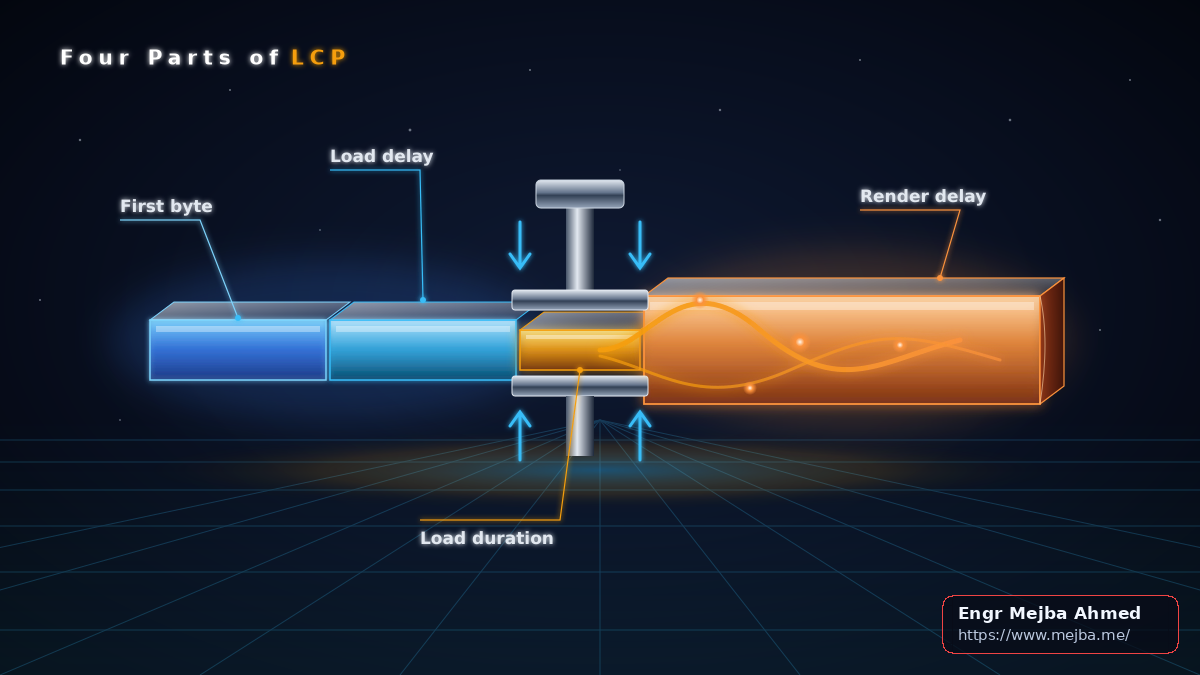
- The four LCP subparts: time to first byte, resource load delay, resource load duration, element render delay.
The subparts matter because web.dev warns that an optimization to one part can just shift the saved time to another. Its example: compressing an image reduces load duration but does not improve LCP if the element stays hidden until JavaScript finishes, because the time moves into render delay. So a smaller file alone may not fix a product page.
For background, see Shopify Speed Optimization 2025: Boost Sales, Cut Load Time, and Dominate Google Rankings.
Why product heroes get slow: lazy loading, oversize and late discovery
Three problems commonly delay a hero image.
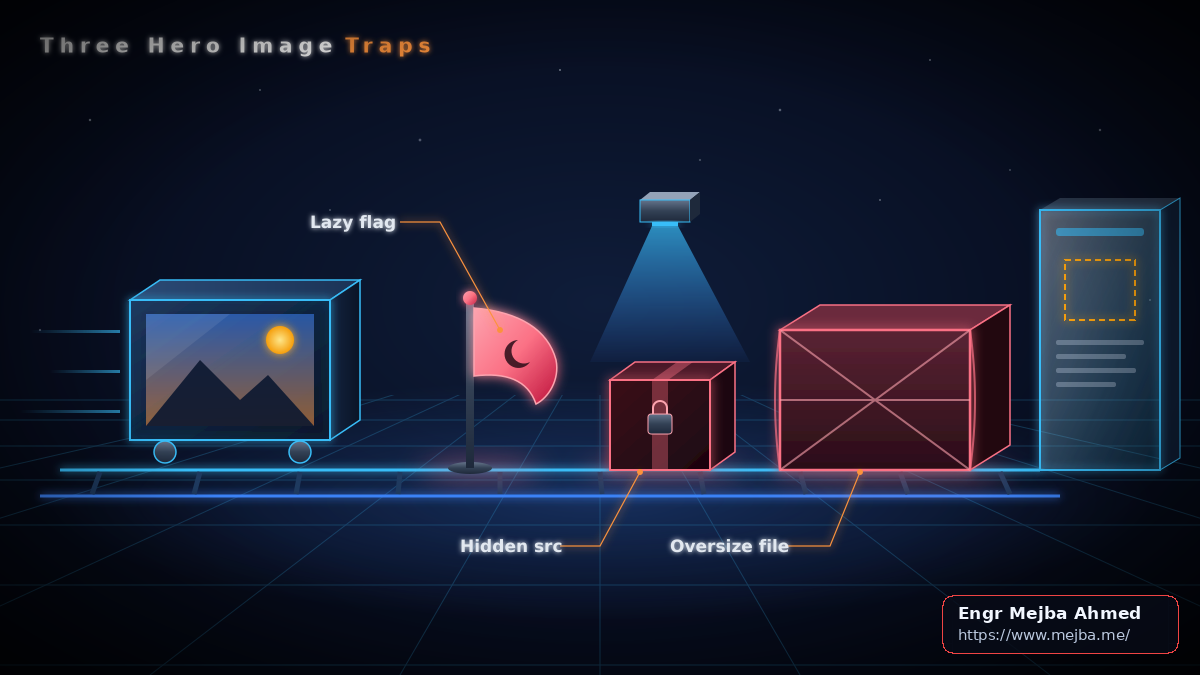
Lazy loading. web.dev says: never lazy-load your LCP image, because it always adds unnecessary resource load delay. Shopify's image_tag reference says that without the preload attribute, loading is set to lazy for images in sections further down the page, and that you shouldn't lazy load images above the fold. It suggests writing your own logic with section.index and section.location if the default doesn't suit your theme.
Late discovery. web.dev says the browser's preload scanner cannot find an LCP image that JavaScript adds to the page, or one whose src or srcset is hidden as data-src or data-srcset by a lazy-loading library. The LCP resource should be discoverable in the HTML source.
Oversize. Serving a much larger file than the layout needs lengthens load duration. Per the image_url reference, an image can never be resized larger than its original, and width tops out at 5760px.
Whether your theme does any of this is something to check, not assume. Run view-source on a product page and inspect the first product img. Look for loading="lazy", a data-src attribute, or a missing src. If the image appears only in rendered DOM, it was injected by script.
The tradeoff: do not respond by making every image eager. Gallery thumbnails and below-the-fold media still benefit from lazy loading, and eager loading everything spends bandwidth on images the user has not seen.
Rewrite the first product image with image_url and image_tag
image_url requires a width or height, or it returns an error. Shopify also picks the output format (such as WebP or AVIF) per client, so you do not choose modern formats in Liquid. image_tag generates width, height and a default srcset, accepts a widths list to override the default set, and passes HTML attributes through by parameter name. The reference shows loading: 'lazy' passed this way. As an inference, an explicit loading: 'eager' should override the section-position default, and fetchpriority should pass through the same way, but neither is documented as a named parameter, so confirm the rendered output in view-source.
The example below treats the first gallery item differently. The widths and sizes values are design recommendations. Match them to your theme's real layout. The product.media, media.media_type and media.preview_image objects are not covered by the Shopify pages referenced here, so confirm them against your theme's existing gallery code and substitute whatever object it already passes to image_url.
{% for media in product.media %}
  {% if media.media_type == 'image' %}
    {% if forloop.first %}
      {{ media.preview_image
        | image_url: width: 1200
        | image_tag:
            widths: '400, 600, 800, 1000, 1200',
            sizes: '(min-width: 750px) 50vw, 100vw',
            loading: 'eager',
            fetchpriority: 'high' }}
    {% else %}
      {{ media.preview_image
        | image_url: width: 600
        | image_tag:
            widths: '300, 450, 600',
            sizes: '(min-width: 750px) 25vw, 50vw',
            loading: 'lazy' }}
    {% endif %}
  {% endif %}
{% endfor %}
Only the first item gets fetchpriority="high". web.dev recommends it on an image likely to be the LCP element but warns that setting high priority on more than one or two images makes it unhelpful. Per web.dev's Fetch Priority guide, images start at Low priority and are boosted after layout; tagging in markup lets them start at High immediately.
The tradeoff is the sizes attribute. If it does not describe the rendered width, the browser picks a candidate from srcset based on the wrong number, which can mean an oversized download or a blurry image. Check the real column width at mobile and desktop breakpoints.
A variant change is a case to test, as an inference rather than documented behavior: if your theme swaps the featured image on variant selection, check which image the server renders first in the initial HTML, since that is the one this rule makes eager.
Preload: when it helps and when it duplicates work
Shopify's preload: true option on image_tag sends a Link HTTP header with rel=preload, including imagesrcset and imagesizes matching the tag. It does not change the img element itself, and Shopify says to use it sparingly and to consider preloading only above-the-fold images.
Web.dev's Fetch Priority guide separates two ideas. Preload is a mandatory fetch that helps discovery. Fetch Priority is a hint that changes priority but does not help discovery. If a preload is already one of the first items in <head> for the LCP image, a high Fetch Priority might not improve LCP significantly. For CSS background images, web.dev recommends preloading with fetchpriority="high".
This decision rule is a design recommendation, not a documented procedure:
if hero is an <img> in server-rendered HTML:
    use fetchpriority="high", loading="eager"
    skip preload
else if hero is injected by JS or hidden in data-src:
    fix discovery first (render src/srcset in HTML)
else if hero is a CSS background image:
    preload with fetchpriority="high"
The risk of preloading an image that is already in the HTML is duplicate work. As an inference, not a documented result, a preload whose imagesrcset and imagesizes do not match the tag could lead the browser to request two different candidates. How preload: true interacts with a manual fetchpriority attribute or a hand-written preload tag is not documented in the Shopify reference, so test it in your theme and inspect the Network panel.
Verify the fix with field and lab data
Re-record the LCP element and its four subparts after the change. If resource load delay shrank but render delay grew, something else, such as script-gated visibility, is holding the element back.
In Chrome DevTools' Network tab, enable the Priority column. As the Fetch Priority guide describes, you can see assigned priorities there. The hero should show High from its initial request. Confirm the img in view-source carries the attributes you set.
Proposed test scenarios (proposals, not measured results):
- Product page on a throttled mobile profile, before and after, comparing subpart times.
- Product page with a variant switch, to see whether a different first image breaks the eager rule.
- A product with only one image, and one with many, to confirm only the first is eager.
Lab runs explain; field data decides. Wait for CrUX or your own real-user data to reflect the change, and judge by the 75th percentile against 2.5 seconds.
FAQ
Should I lazy-load gallery thumbnails? Yes, for images below the fold or hidden at load. Shopify's guidance is against lazy loading above-the-fold images, not all images. Keep loading: 'lazy' on later gallery items so they do not compete with the hero for bandwidth, and keep their src or srcset in the HTML rather than hiding them in data-src.
Does fetchpriority guarantee faster LCP? No. web.dev calls it a hint, not a directive, and notes that CDNs do not implement HTTP/2 and HTTP/3 prioritization uniformly, so the CDN might not reprioritize resources in the order the browser specifies. It also helps less when a preload already sits early in <head>. Measure the result with the subpart breakdown and field data.
Preload or not? For a server-rendered img with fetchpriority="high", usually skip it. Consider it when the image is not discoverable from the HTML, such as a CSS background. Shopify advises using the preload parameter sparingly and considering it only for above-the-fold images.
Audit your product template this week
Work through these steps on one product template:
- Identify the LCP element and record its subparts from field and lab tools.
- Remove lazy loading from the first product image and keep it on later gallery items.
- Add
fetchpriority="high"to that one image, withwidthsandsizesthat match the layout. - Check the Priority column in DevTools, then confirm improvement in field data at the 75th percentile.
Need help putting shopify lcp optimization into production? See Shopify Speed Optimization — Core Web Vitals.