📝 Video Automation

How I Build Promotional Videos With Code, Not Editors

How I Build Promotional Videos With Code, Not Editors I stared at my Adobe Premiere timeline for the third hour straight, dragging text layers pixel b...

18 min

Read time

3,420

Words

Feb 21, 2026

Published

Engr Mejba Ahmed

Written by

Engr Mejba Ahmed

Share Article

How I Build Promotional Videos With Code, Not Editors

How I Build Promotional Videos With Code, Not Editors

I stared at my Adobe Premiere timeline for the third hour straight, dragging text layers pixel by pixel, and a thought hit me that changed everything: I'm a developer. Why am I editing videos like a YouTuber from 2015?

That was six months ago. Since then, I've shipped over a dozen promotional videos — AI school promos, portfolio demos, client showcase reels — and I haven't opened a traditional video editor once. Not Premiere. Not Final Cut. Not even CapCut. Every single video was written as React code, rendered from my terminal, and in most cases, the initial component was scaffolded by Claude Code before I ever touched the keyboard.

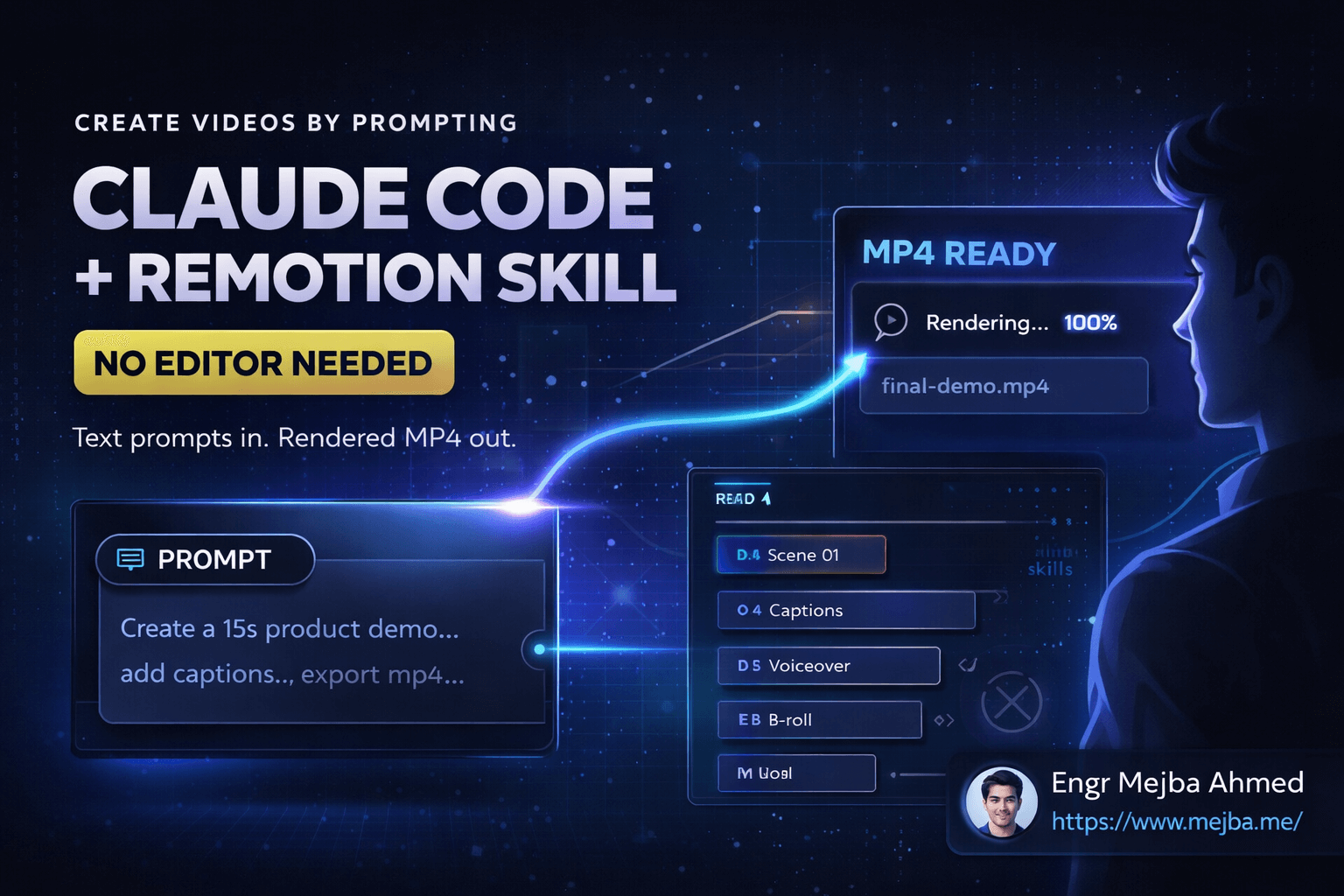
The tool that made this possible is Remotion. And the workflow accelerator that turned a steep learning curve into a smooth afternoon is Claude Code's skill system. Together, they've become my secret weapon for cranking out polished promotional content at a pace that would make any video production agency nervous.

Here's the part that still surprises people when I tell them: the videos look good. Not "good for code-generated." Actually good. Smooth animations, branded color schemes, timed audio, professional transitions. The kind of stuff you'd normally pay a freelancer $500-$2,000 to produce.

But there's a catch nobody warns you about when you start down this path — and it almost made me quit before I figured it out. I'll get to that in a minute.

Why Traditional Video Editing Broke My Brain

I'm going to be honest about something. I can build full-stack applications, configure Kubernetes clusters, and write security audit reports. But ask me to keyframe a text animation in After Effects? My eyes glaze over.

The problem isn't complexity — I deal with complex systems daily. The problem is that traditional video editing is fundamentally manual. Every change is a mouse drag. Every revision means re-doing work by hand. Want to change the brand color across 47 text elements? Good luck. That's 47 individual clicks.

For a developer, this is maddening. We have variables. We have loops. We have components that accept props and render differently based on data. The idea of hardcoding visual elements by dragging them around a timeline feels like writing code by moving physical blocks around a table.

And then there's the versioning problem. Try putting an Adobe Premiere project file in Git. I dare you. You can't diff it. You can't branch it. You can't pull-request it. It's a binary blob that sits there, mocking your entire software engineering discipline.

Remotion solves every single one of these problems. But I didn't truly understand how powerful it was until I combined it with Claude Code's ability to generate and modify React components on command. That's where this story gets interesting.

What Remotion Actually Is (And Why Developers Should Care)

Remotion is a React framework for creating videos programmatically. That sentence sounds simple, but the implications are massive. Each frame of your video is a React component. The timeline position is a number you read from a hook. Animations are just interpolation functions. And the entire thing renders to MP4 from your terminal.

Here's what that means in practice. Instead of this (dragging boxes in Premiere):

You write this:

import { useCurrentFrame, useVideoConfig, interpolate } from "remotion";

export const TitleCard: React.FC<{ title: string; color: string }> = ({ title, color }) => {
  const frame = useCurrentFrame();
  const { fps } = useVideoConfig();

  const opacity = interpolate(frame, [0, fps * 0.5], [0, 1], {
    extrapolateRight: "clamp",
  });

  const translateY = interpolate(frame, [0, fps * 0.5], [30, 0], {
    extrapolateRight: "clamp",
  });

  return (
    <div style={{
      display: "flex",
      justifyContent: "center",
      alignItems: "center",
      height: "100%",
      backgroundColor: color,
      opacity,
      transform: `translateY(${translateY}px)`,
    }}>
      <h1 style={{ fontSize: 72, color: "white", fontWeight: 800 }}>{title}</h1>
    </div>
  );
};

That's a title card with a fade-in and slide-up animation. It took 25 lines of code. Changing the title? Pass a different prop. Changing the brand color? One variable. Changing the animation timing? Adjust two numbers.

Now imagine doing that for an entire promotional video — intro sequence, feature highlights, testimonials, call-to-action, outro. All of it as composable React components. All of it version-controlled. All of it renderable from a single terminal command.

This changes everything about how fast you can produce video content. But the real acceleration happened when I brought Claude Code into the mix.

The Remotion + Claude Code Workflow That Changed My Process

Here's my actual workflow, step by step. This is the cheatsheet I keep pinned to my terminal, and I'm going to walk you through not just what to do, but why each step matters and where things can go sideways.

Step 1: Project Setup (One-Time)

cd "/Users/mejba/Local Storage/AI Development/vibe-design/remotion/mejba-demo"
npm install

This is your Remotion project root. The structure follows standard React conventions — src/ for components, public/ for static assets, out/ for rendered videos. Nothing exotic here.

Pro tip: Keep your Remotion projects in a dedicated directory alongside your other development work. I keep mine under my vibe-design folder because that's where all my creative coding projects live. Naming matters — when you have three or four video projects, you'll thank yourself for the clear organization.

Step 2: Add Your Assets

Drop audio/images into:
mejba-demo/public/

This is where your background music, logo files, product screenshots, and any other media goes. Remotion serves these via staticFile(), which maps to the public/ directory just like Create React App does.

Here's what I learned the hard way: audio format matters. MP3 works. WAV works. But if you drop in an OGG file or some obscure codec, the preview might play fine in Chrome but the render will choke. Stick with MP3 for background music. I keep a file called bgm.mp3 in every project — swap it out when you want different audio, but keep the naming consistent.

Step 3: Preview in Browser

npm start
# Opens at http://localhost:3000

This launches Remotion Studio — a full-featured preview environment that runs in your browser. You get a timeline, frame-by-frame scrubbing, component props editing, and real-time rendering. It's like having a video editor, but everything you see is the output of your React code.

The preview is where you'll spend most of your development time. And here's a workflow trick that took me weeks to discover: you can edit your component code while the preview is running, and it hot-reloads instantly. Change a color, save the file, and the preview updates in under a second. This tight feedback loop is what makes Remotion development feel more like front-end development than video production.

Step 4: Edit Your Video Components

This is where the actual creative work happens. Your video compositions live as React components in the src/ directory:

mejba-demo/src/AISchoolPromo.tsx   # AI School promotional video
mejba-demo/src/MejbaDemo.tsx       # Portfolio demo reel

Each file is a complete video component. Here's a simplified structure of what a promotional video component looks like:

import { AbsoluteFill, Sequence, useCurrentFrame, interpolate } from "remotion";
import { Audio, Video } from "@remotion/media";
import { staticFile } from "remotion";

export const AISchoolPromo: React.FC = () => {
  const frame = useCurrentFrame();

  return (
    <AbsoluteFill style={{ backgroundColor: "#0a0a0a" }}>
      {/* Intro sequence: frames 0-90 (3 seconds at 30fps) */}
      <Sequence from={0} durationInFrames={90}>
        <IntroSlide title="AI School" subtitle="Learn to Build the Future" />
      </Sequence>

      {/* Feature highlights: frames 90-450 */}
      <Sequence from={90} durationInFrames={360}>
        <FeatureShowcase features={courseFeatures} />
      </Sequence>

      {/* Testimonials: frames 450-720 */}
      <Sequence from={450} durationInFrames={270}>
        <TestimonialCarousel testimonials={studentReviews} />
      </Sequence>

      {/* CTA: frames 720-900 */}
      <Sequence from={720} durationInFrames={180}>
        <CallToAction url="aischool.mejba.me" />
      </Sequence>

      {/* Background music throughout */}
      <Audio src={staticFile("bgm.mp3")} volume={0.3} />
    </AbsoluteFill>
  );
};

See what's happening? Each section of the promo video is a <Sequence> with a start frame and duration. Each sequence renders a different component. The components themselves handle their own animations using useCurrentFrame() and interpolate().

This is where Claude Code becomes incredibly powerful. More on that in a moment — but first, let me show you how to register and render these compositions.

Step 5: Register New Compositions

Every video component needs to be registered in src/Root.tsx. This is Remotion's entry point — think of it like your App.tsx but for videos:

<Composition
  id="MyNewVideo"
  component={MyNewVideo}
  durationInFrames={900}  // 30s at 30fps
  fps={30}
  width={1920}
  height={1080}
/>

The id is what you reference when rendering. durationInFrames divided by fps gives you the video length in seconds. Width and height set the resolution — 1920x1080 for standard HD, 1080x1080 for Instagram/social squares, 1080x1920 for vertical stories.

A mistake I made early on: I kept making compositions too long. A 30-second promo at 30fps is 900 frames. That's it. My first attempt was 3,600 frames because I was thinking in "video length" instead of "frame count." The render took forever and the video had awkward dead space. Match your frame count to your content, not the other way around.

Step 6: Render the Final Video

# AI School Promo
npx remotion render src/index.tsx AISchoolPromo out/ai-school-promo.mp4

# Portfolio Demo
npx remotion render src/index.tsx MejbaDemo out/video.mp4

# Any composition
npx remotion render src/index.tsx <CompositionId> out/<filename>.mp4

This is the magic moment. One command, and your React code becomes an MP4 file. Remotion renders each frame as a browser screenshot, encodes them with FFmpeg, and produces a video file.

Rendering a 30-second video at 1080p typically takes 2-4 minutes on my MacBook. Longer compositions or higher resolutions take proportionally longer. If you need faster renders, Remotion offers cloud rendering via Lambda, but for promotional content, local rendering is more than fast enough.

Step 7: Open and Review

open out/

Your rendered video sits in the out/ directory. Play it, review it, and if something needs tweaking — go back to step 4, edit the component, and re-render. The cycle time from "I want to change this" to "watching the updated video" is typically under 5 minutes. Compare that to the re-export times in Premiere or After Effects.

Step 8: Upload and Ship

Go to youtube.com/upload and drag the .mp4 file. Done.

Or upload to Vimeo, embed on your website, post to LinkedIn, attach to an email campaign — the output is a standard MP4 file that works everywhere.

If you've made it this far, you already understand the basic workflow. But the basic workflow isn't what makes this approach special. The real power shows up when you bring Claude Code into the creative process.

Where Claude Code Turns This Workflow Into a Superpower

Here's the thing most people miss about Remotion: the coding part is the bottleneck. Not because Remotion is hard to code — it's actually quite pleasant — but because designing animations, calculating timing, and composing visual sequences requires a lot of iteration.

This is exactly where Claude Code shines. I use it as a creative coding partner throughout the entire video creation process.

Scaffolding New Video Components

When I need a new promotional video, I don't start from scratch. I describe what I want to Claude Code:

Create a Remotion component for a 30-second AI School promotional video
with 4 sections: intro with logo animation, 3 feature highlights with
slide-in text, a testimonials section, and a CTA with pulsing button effect.
Use dark theme (#0a0a0a background) with electric blue (#00d4ff) accents.

Claude Code generates the complete component — imports, animations, sequences, timing, styling — everything. And because it understands React deeply, the output isn't generic boilerplate. It's a working component with thoughtful animation curves, proper frame timing, and clean composition structure.

The first draft is rarely perfect. But it's 80% there, which means I spend my time refining instead of building from zero. That's a fundamentally different creative experience.

Iterating on Animations

This is where the Claude Code workflow really accelerates. Instead of tweaking interpolation values by hand, testing, tweaking again — I describe what I want:

Make the title slide in from the left instead of fading in,
and add a subtle scale effect to the feature icons.
The transition between sections should use a wipe effect.

Claude Code modifies the component, adjusting the interpolate() calls, adding transform properties, and restructuring the Sequence timing. I preview in Remotion Studio, and if it's not quite right, I describe the next adjustment. The iteration cycle drops from minutes to seconds.

Generating Data-Driven Videos

This is the approach that has saved me the most time. Remotion videos can accept props — which means you can generate different videos from the same template by passing different data.

I had Claude Code build a template component that accepts a JSON object with title, features, testimonials, colors, and CTA text. Now when I need a promo for a different product, I don't redesign the video. I write a new data file and render.

const aiSchoolData = {
  title: "AI School",
  tagline: "Learn to Build the Future",
  features: ["Hands-on Projects", "Expert Mentors", "Career Support"],
  primaryColor: "#00d4ff",
  ctaUrl: "aischool.mejba.me",
};

const cybersecData = {
  title: "xCyberSecurity",
  tagline: "Enterprise Protection",
  features: ["Penetration Testing", "Compliance Audits", "24/7 Monitoring"],
  primaryColor: "#ff3333",
  ctaUrl: "xcybersecurity.io",
};

Same template. Different data. Two completely different branded videos. That's the developer advantage — we think in abstractions, and Remotion lets us apply that thinking to video production.

The Remotion Skills Integration

Remotion actually publishes a skills package — a set of rules and patterns specifically designed for AI coding assistants. These skills encode best practices for composition structure, animation patterns, audio handling, and rendering configuration. When Claude Code has access to these patterns, the generated code follows Remotion's conventions precisely.

The skills cover everything from basic <Composition> setup to advanced features like Zod schema parametrization, @remotion/media for video/audio control, @remotion/transitions for scene transitions, and @remotion/three for 3D content. It's like giving Claude Code a Remotion textbook to reference while it writes your video components.

The Quick Reference I Keep on My Desk

After building dozens of videos with this workflow, I condensed everything into a quick reference card. This is what I actually look at during a production session:

Action Command
Preview npm start
Render npx remotion render src/index.tsx <ID> out/<name>.mp4
Open folder open out/
Swap audio Replace public/bgm.mp3
Upgrade Remotion npm run upgrade

That's it. Five commands cover the entire production workflow. Everything else is React code.

The Gotcha That Almost Made Me Quit

I promised earlier I'd tell you about the catch. Here it is.

When I first started with Remotion, I tried to make cinematic videos. Complex camera movements. Particle effects. 3D transforms with depth. And the previews looked amazing in Chrome.

Then I rendered the video. The animations were janky. Timing was off. Some CSS properties that looked smooth at 60fps in the browser looked terrible at 30fps in the rendered video.

Here's what I didn't understand: Remotion renders each frame independently. There's no motion blur. There's no frame interpolation between renders. Each frame is a static screenshot of your React component at that exact point in time. If your animation moves too fast between frames, it looks choppy in the final video.

The fix is simple but non-obvious: design your animations for 30fps from the start. Keep movements smooth and relatively slow. Use easing curves (Remotion has built-in spring physics via spring()) instead of linear interpolation. And test by scrubbing the timeline frame-by-frame, not by playing the preview at full speed.

Once I internalized this, the quality of my renders improved dramatically. But I wish someone had told me this on day one instead of letting me waste a week debugging "broken" animations that were actually just poorly designed for frame-by-frame rendering.

Mistakes I've Made So You Don't Have To

Beyond the frame rate issue, here are the other landmines I've stepped on:

Audio sync issues. If your background music doesn't match your video duration exactly, you'll get either silence at the end or abrupt cuts. Always trim your audio to match your durationInFrames / fps calculation. I use a simple rule: if my video is 30 seconds (900 frames at 30fps), my audio file is exactly 30 seconds. No more, no less.

Font loading surprises. Custom fonts need to be loaded before the first frame renders. If you use @remotion/google-fonts, import and load the font at the top of your component. I once spent an hour debugging why my title text was rendering in Times New Roman — the Google Font hadn't loaded in time for the first frame.

Overcomplicating compositions. My early videos had 15+ sequences with complex overlapping timelines. They were impossible to debug and nightmare to modify. Now I keep compositions flat: 4-6 sequences, clear start/end boundaries, no overlaps unless absolutely necessary. Simple compositions render faster and are easier to iterate on.

Ignoring the calculateMetadata feature. Remotion lets you dynamically calculate video duration and dimensions based on props. I used to hardcode these values, which meant changing the content length required updating the frame count manually. Now I use calculateMetadata to derive duration from the content, and my templates work regardless of how much data I feed them.

What I Actually Produce With This Setup

Let me be specific about results, because vague claims help nobody.

In the last six months using this Remotion + Claude Code workflow, I've produced:

  • 4 AI School promotional videos (30-60 seconds each) — used for YouTube ads and landing pages
  • 2 portfolio demo reels — showcasing projects for client pitches
  • 6 social media clips (15-second format) — for LinkedIn and Twitter
  • 3 product launch announcement videos — for different brands in my ecosystem

Total traditional video editing time: zero hours. Total development time per video: 1-3 hours for a new template, 15-30 minutes for a data-driven variant of an existing template.

The cost? My existing development machine and a free Remotion license (Remotion is free for personal use and companies making under $1M revenue). No Creative Cloud subscription. No stock footage licenses. No freelancer invoices.

And because everything is code, every video is version-controlled in Git. I can see exactly what changed between versions, roll back to any previous state, and branch experiments without risk. Try doing that with a Premiere Pro project file.

Where This Is Heading

I'm not going to pretend code-based video production is going to replace traditional editing for everything. Film editors, motion graphics artists, and VFX specialists do work that goes far beyond what Remotion handles.

But for a specific category of video — promotional content, product demos, data-driven visualizations, branded social clips — the developer workflow is faster, cheaper, and more maintainable. And it's getting better at a pace that should worry traditional video production agencies.

Remotion's ecosystem is expanding rapidly. The @remotion/transitions package brings professional scene transitions. @remotion/captions handles subtitle generation. @remotion/three lets you embed Three.js 3D scenes directly in your video timeline. Each new package closes another gap between code-generated and traditionally-produced video.

And on the AI side, Claude Code's ability to generate, iterate, and optimize React components means the creative bottleneck keeps shrinking. I've started experimenting with fully automated video pipelines — feed in a blog post, generate a script, scaffold the Remotion components, render the video — all triggered by a single command. It's not production-ready yet, but it works. And it's surprisingly close.

The One Thing I'd Tell Past-Me

If I could go back to that night I was dragging text layers in Premiere, I'd say this: you already know how to make videos. You just don't know it yet.

Every React concept you've learned — components, props, state, composition, interpolation — maps directly to video production. The mental model is identical. The only difference is the output format: instead of pixels on a screen, you get frames in a video file.

The Remotion + Claude Code combination isn't just a workflow optimization. It's a mindset shift. You stop thinking about video as this separate, specialized discipline and start seeing it as another output target for your code. And once that clicks, you start seeing promotional video opportunities everywhere — because the cost of creating one just dropped from "hire someone" to "write a component."

My challenge to you: pick one thing you need a video for. A project showcase. A product demo. A personal introduction for your portfolio. Set up a Remotion project, describe what you want to Claude Code, and render it. The whole process — setup to final MP4 — will take you less than an afternoon.

And I guarantee you'll never look at Premiere Pro the same way again.


Let's Work Together

Looking to build AI systems, automate workflows, or scale your tech infrastructure? I'd love to help.

Coffee cup

Enjoyed this article?

Your support helps me create more in-depth technical content, open-source tools, and free resources for the developer community.

Related Topics

Engr Mejba Ahmed

About the Author

Engr Mejba Ahmed

Engr. Mejba Ahmed builds AI-powered applications and secure cloud systems for businesses worldwide. With 10+ years shipping production software in Laravel, Python, and AWS, he's helped companies automate workflows, reduce infrastructure costs, and scale without security headaches. He writes about practical AI integration, cloud architecture, and developer productivity.

Discussion

Comments

0

No comments yet

Be the first to share your thoughts

Leave a Comment

Your email won't be published

8  -  2  =  ?