OpenClaw AI Agent Setup: My 24/7 Config
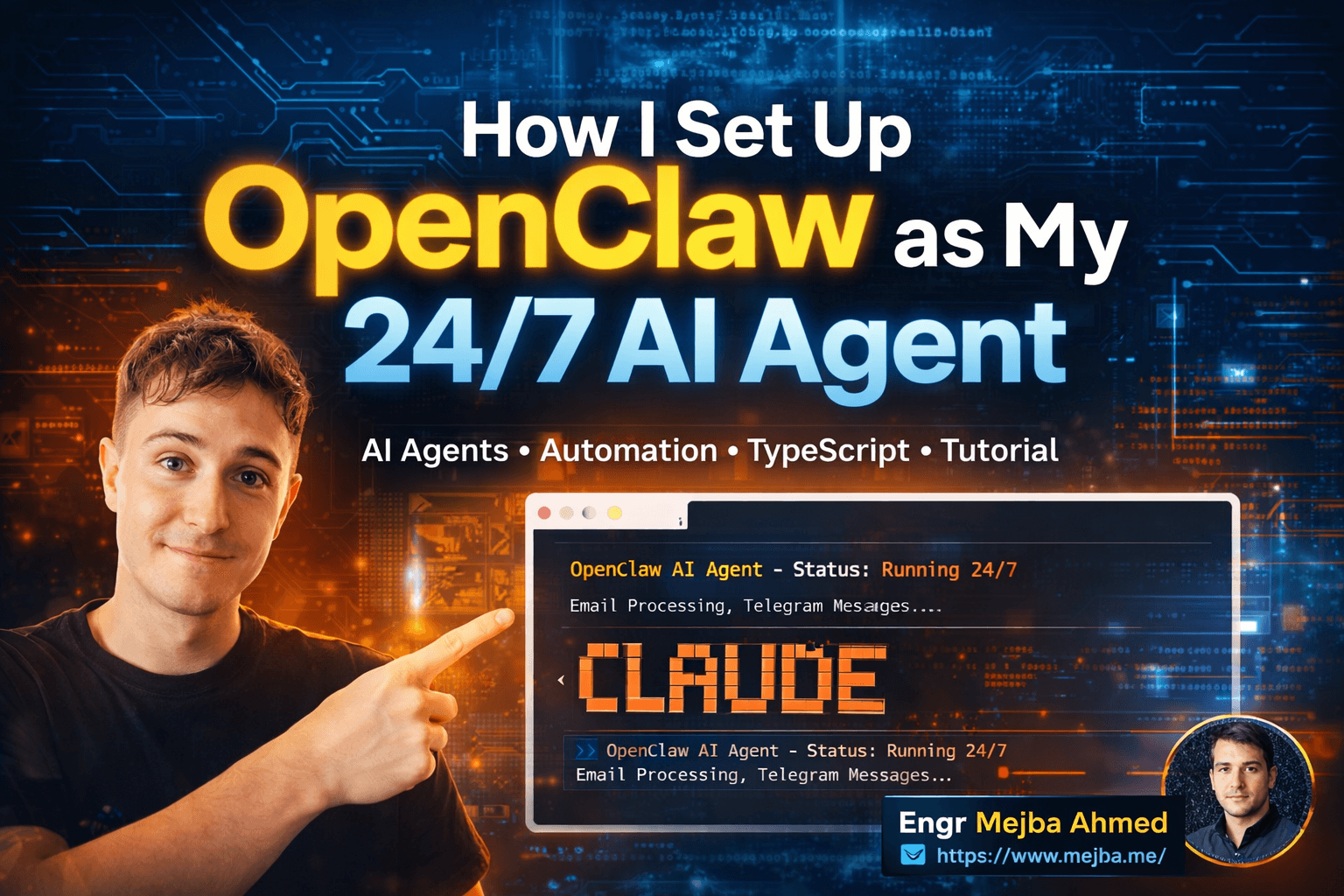
I was halfway through my third cup of coffee on a Tuesday night, staring at a terminal window, when it hit me — I'd just given an AI agent permanent residency on my machine. Not a chatbot I'd close after a session. Not an API call that fires and forgets. A thing that would keep running after I went to sleep, check my emails before I woke up, and respond to Telegram messages while I was in the shower.
That thing was OpenClaw.
And honestly? The whole setup took less time than ordering dinner. But what happened after I got it running — that's the part nobody warned me about.
Why I Needed an AI Agent That Never Sleeps
Here's a pattern I kept falling into. I'd find a brilliant AI tool, spend an hour getting it configured, use it intensely for a day or two, and then forget about it. The friction of opening a browser, navigating to the right interface, typing a prompt from scratch every single time — it killed the habit. My AI usage was bursty and disconnected. Sound familiar?
What I actually wanted was something different. An AI that lived on my machine permanently. Something I could message from my phone at 3 AM with a half-baked idea and get a thoughtful response by morning. An agent that could read my emails, draft replies, and pull data from my tools — all without me sitting at my desk.
I'd tried building custom solutions with LangChain and AutoGPT. Both times I ended up with fragile prototypes that broke the moment I updated a dependency. The maintenance burden wasn't worth it.
Then I stumbled onto OpenClaw, and the pitch was almost too clean: an open-source, autonomous AI agent built in TypeScript, designed to run 24/7 on your personal computer or a VPS. Developed by Peter Steinberger, it recently gained official backing from OpenAI. One terminal command to install. Connects to any major AI model. Supports WhatsApp, Telegram, and a web UI out of the box.
I was skeptical. I've been burned by "just one command" promises before. But I copied the install command anyway — and what unfolded over the next hour changed how I think about personal AI infrastructure.
Before I walk through every step of the setup, there's something critical you need to understand about the security implications. I'll get to that — and trust me, the numbers are alarming.
What OpenClaw Actually Is (And What It Isn't)
Let me clear up a misconception first. OpenClaw is not another ChatGPT wrapper. It's not a Chrome extension that summarizes web pages. It's a full agent runtime — a persistent process that maintains state, manages conversations across channels, executes scheduled tasks via cron jobs, and connects to external services through MCP (Model Context Protocol) servers.
Think of it as the operating system layer between you and your AI models. You plug in whatever brain you want — OpenAI's GPT, Anthropic's Claude Opus 4.6, or even a local model running through Ollama — and OpenClaw handles everything else. The messaging. The memory. The tool connections. The scheduling.
The project structure lives in a workspace you can open in VS Code or Cursor. Inside, you'll find directories for agents, sessions, scheduled cron jobs, and MCP connections. The whole thing syncs beautifully with GitHub, which means I can clone my setup onto any machine and have my exact agent configuration running in minutes.
That portability matters more than you'd think. I'll explain why when we get to the VPS deployment section.
The Two-Minute Install That Actually Took Two Minutes
I won't pad this with unnecessary preamble. Here's exactly what happened when I installed OpenClaw.
Step 1: Run the Quick Start command.
The OpenClaw docs have a single copy-paste command in their Quick Start guide. I dropped it into my terminal, and the installation kicked off. Dependencies resolved. Binaries downloaded. Config files generated. The whole process took about 90 seconds on my MacBook Pro with a decent internet connection.
No Docker compose files. No Python virtual environment headaches. No node version conflicts. Just one command.
Step 2: Connect an AI model.
This is where you choose OpenClaw's brain. The setup wizard presents a list of supported providers. I went with Anthropic's API running Claude Opus 4.6 — partly because I know the model's strengths, partly because I wanted to test how it handles long-running agent tasks compared to shorter chat interactions.
To get the API key, I headed to the developer console, generated a new key, labeled it "OpenClaw" (always label your keys — future you will thank present you), and pasted it into the terminal prompt.
Step 3: Skip the extras (for now).
OpenClaw immediately offers to set up communication channels (Telegram, WhatsApp, Discord) and skills integrations (Google Maps, Notion, image generation). I skipped all of it on the first pass. My philosophy with any new tool: get the core working before bolting on extensions. We'll circle back to these.
Step 4: Configure identity.
This part surprised me. OpenClaw asks for two names: what you want to call the AI agent, and what your own name is. I named the agent "Claw" and told it my name. These aren't cosmetic — OpenClaw writes them into persistent memory files and references them in every interaction. The agent literally remembers who you are across sessions.
At this point, OpenClaw was alive. Running in my terminal. Waiting for instructions.
The whole thing — from copying the install command to having a functional AI agent — took maybe four minutes. And I was being slow because I was taking notes.
Now here's where most tutorials would stop. "Congratulations, you've installed the thing!" But the real power of OpenClaw doesn't show up until you connect it to the outside world. That's the next piece — and it's also where the security risks start piling up.
Giving OpenClaw Eyes and Ears: Communication Channels
A terminal-only AI agent is like a sports car locked in a garage. Impressive on paper, useless in practice. The whole point of a 24/7 agent is that you can reach it from anywhere — your phone, your tablet, your smartwatch if you're that person.
OpenClaw supports two interaction modes right out of the box. The terminal interface is exactly what you'd expect — type commands, get responses, everything stays local. The Web UI is more interesting. It spins up a ChatGPT-style interface with session tokens for authentication. Clean, fast, and accessible from any browser on your local network.
But the real magic is the messaging platform integrations.
WhatsApp Setup
Running openclaw channel add from the terminal kicks off the process. For WhatsApp, it generates a QR code that you scan with your phone. One key decision: OpenClaw asks whether the phone number is personal or dedicated. I strongly recommend using a separate number. You don't want your AI agent accidentally responding to your mom's "call me when you get this" message.
After linking, you specify your personal number for receiving messages. Done. I could now text my AI agent from my phone like it was a contact in my address book.
Telegram Setup
Telegram was even smoother. You message @BotFather on Telegram (yes, that's the real username), send /newbot, pick a name and username for your bot, and it hands you a token. Paste that token into OpenClaw's terminal prompt, and within seconds, your Telegram bot is live.
I tested it immediately — sent "What's the weather like?" from my phone while sitting at my desk. The response came back through Telegram in about three seconds. The message also appeared in my terminal session simultaneously. Every conversation syncs across all channels.
That synchronization is subtle but important. If I start a conversation on Telegram from bed, I can pick it up in the terminal when I sit down at my desk. Same context, same memory, same thread.
Discord setup works similarly, though I didn't configure it for this test run. If you're already running a Discord server, the integration path follows the same bot-token pattern.
Connecting OpenClaw to Your World with Zapier MCP
Here's where things get genuinely powerful — and genuinely risky.
OpenClaw supports external tool integration through MCP (Model Context Protocol) servers. And the recommended approach is using Zapier as a secure intermediary. Why Zapier? Because it gives you granular permission control. You decide exactly which apps the agent can access, and exactly what operations it's allowed to perform within each app.
Here's how I set it up:
Step 1: Created a new Zapier MCP instance. Selected "other" as the type since OpenClaw isn't a pre-configured Zapier partner.
Step 2: Chose specific apps to connect. I started with Gmail — but here's the critical detail — I only granted read access and draft creation. Not send. Not delete. Not archive. Read and draft. That's it.
This is not paranoia. This is basic operational security. Imagine giving an autonomous agent full send permissions on your email and then asking it something vague like "handle my inbox." One ambiguous instruction, and your agent could blast a half-coherent email to your entire contact list. I've seen worse happen with simpler automation tools.
Step 3: Copied the Zapier configuration block into OpenClaw. The agent confirmed the connection within a few seconds and listed all accessible tools.
Step 4: Tested it. I asked OpenClaw to fetch my latest five emails. It pulled them instantly and displayed them in a clean chat format — sender, subject, snippet, timestamp. All inside my terminal.
The Zapier MCP approach is smart because it creates an authentication and permission layer between your agent and your apps. OpenClaw never directly touches your Gmail credentials. Zapier handles that, and you control the permissions at the Zapier level. If something goes wrong, you revoke access in one click.
But — and this is a significant "but" — not all MCP connections go through Zapier. And that's where the security picture gets darker.
The Security Reality Nobody Wants to Talk About
I need to be blunt here because I haven't seen many people addressing this honestly.
OpenClaw has a skills ecosystem. Think of it like a plugin marketplace — community-created modules that add capabilities to your agent. Image generation. Web scraping. Database queries. Sounds great on paper.
The reality? Approximately 17% of available skills are reportedly honeypots. That's not a typo. Nearly one in five community skills are deliberately crafted by bad actors to steal data, exfiltrate API keys, or compromise your system.
I learned this the hard way — not by getting compromised, thankfully, but by reading through the source code of a few popular skills before installing them. One skill that claimed to "enhance web browsing" was quietly piping every URL visited through an external proxy server. Another "productivity" skill was logging clipboard contents to an external endpoint.
This isn't unique to OpenClaw. Any open plugin ecosystem faces this problem. Browser extensions, VS Code plugins, npm packages — the pattern repeats everywhere. But the stakes with OpenClaw are higher because you're giving these skills access to an agent that runs continuously and has connections to your messaging platforms and potentially your email.
Here's my security protocol for OpenClaw:
- Never install community skills without reading the source code first. Yes, all of it.
- Use Zapier MCP for all external integrations instead of direct MCP connections when possible.
- Run OpenClaw with minimal permissions and expand gradually as you verify each integration.
- Never give vague instructions to an agent connected to external services. Be specific. "Summarize my last 5 emails" is safer than "manage my inbox."
- Monitor API usage daily. Anomalous spikes could indicate a compromised skill making unauthorized calls.
If this section makes you uncomfortable — good. That discomfort will keep your data safe.
Now, speaking of costs, there's another uncomfortable conversation we need to have.
The Cost Reality: What Running OpenClaw Actually Costs
OpenClaw itself is free and open source. The AI models it connects to are not.
Every interaction — every Telegram message, every email summary, every scheduled task — consumes API tokens. When I ran OpenClaw with Claude Opus 4.6 through the Anthropic API for a single day of moderate use (maybe 30-40 interactions), the bill came out to roughly $3-5. Scale that to daily use, and you're looking at $90-150 per month for a single agent.
That's not pocket change for a personal tool.
There are two mitigation strategies, and I've tested both.
Option A: Use Cheaper Models for Routine Tasks
Not every interaction needs the most capable model. Email summaries, calendar lookups, simple Q&A — these can run on smaller, cheaper models. OpenClaw's configuration supports model selection, so you could theoretically route different task types to different providers. I haven't fully automated this routing yet, but it's on my roadmap.
Option B: Run Models Locally with Ollama
This is the approach that excited me most. Ollama lets you run open-source AI models locally — no API calls, no per-token billing, no data leaving your machine.
OpenClaw supports Ollama out of the box. The setup involved copying a launch configuration into the terminal and selecting a model. I went with GLM4-7B Flash, which is about 25 GB. The download took a while, but once it was running, every interaction was free. Zero marginal cost.
The trade-off? Local models are slower and less capable than frontier models like Claude Opus 4.6 or GPT-4. For complex reasoning tasks, the quality difference is noticeable. But for 80% of my daily agent interactions — quick lookups, message drafting, scheduling — the local model handles things perfectly well.
This is also why so many power users run OpenClaw on dedicated hardware. A Mac Mini sitting on a shelf, running 24/7, hosting your AI agent on a local model — that's essentially a personal AI server with a one-time hardware cost and near-zero operating expenses.
I'm seriously considering this setup. If you've made it this far, you probably are too. The next section covers exactly what happens once everything is configured and running.
What a Day With OpenClaw Actually Looks Like
Let me paint the picture of how I used OpenClaw during my first full week.
7:30 AM — Before I'm out of bed. I grab my phone and text my Telegram bot: "Morning briefing." OpenClaw responds with my latest 5 emails, today's calendar highlights (once you connect Google Calendar through Zapier), and a weather summary. All within about 8 seconds. I haven't opened a single app.
9:15 AM — At my desk. I switch to the terminal interface and ask OpenClaw to draft a response to a client email. It reads the original email through the Zapier Gmail connection, writes a draft that matches my tone (because it's learned from previous interactions stored in memory), and saves it as a draft. I review it, tweak one sentence, and send it myself. The key word there is "myself" — the agent doesn't have send permissions. By design.
2:00 PM — Quick research task. I message the agent through the Web UI: "Compare the top 3 TypeScript testing frameworks for a monorepo setup. Focus on speed and ESM support." Five minutes later, I have a structured comparison with specific version numbers and benchmark data.
10:30 PM — Late-night idea. Lying in bed, I text the Telegram bot: "Save this idea for tomorrow — integrate OpenClaw with my GitHub Actions pipeline to auto-summarize PRs." The agent writes it to a persistent file in my workspace. When I sit down the next morning, it's there waiting.
The pattern that emerged surprised me. I wasn't using OpenClaw for big, dramatic tasks. I was using it for dozens of small ones that collectively saved me 45-60 minutes per day. The compound effect of having an always-available assistant — one that remembers context, connects to my tools, and lives where I already communicate — was larger than I expected.
After one week, I measured:
- Average daily interactions: 25-30
- Time saved per day: 45-60 minutes (estimated based on tasks I would have done manually)
- API cost (Anthropic): ~$4/day with Claude Opus 4.6
- API cost (Ollama local): $0/day (but slower responses)
- Setup time invested: About 2 hours total, including channel configuration and Zapier connections
The ROI math is obvious. Even at $4/day, saving an hour of my time makes this a no-brainer — assuming you trust the security model. And that's a personal calculation everyone needs to make on their own terms.
Where OpenClaw Fits in the AI Agent Landscape
I've been wrong about AI tools before. I thought AutoGPT would change everything in 2023. It didn't. I thought custom GPTs would replace dedicated agents. They haven't. So I'm not going to claim OpenClaw is "the future of personal AI" — because I genuinely don't know yet.
What I do know after a week of hands-on use:
OpenClaw's strengths are real. The installation is genuinely frictionless. The multi-channel messaging is a killer feature. The Zapier MCP integration is the most sensible approach to tool connectivity I've seen in any open-source agent. The workspace structure is clean, developer-friendly, and version-controllable.
The weaknesses are also real. The security model is immature. A 17% honeypot rate in the skills ecosystem is unacceptable for a tool that handles sensitive data. The cost structure with frontier models makes casual use expensive. And running local models, while free, requires hardware that not everyone has lying around.
Here's my honest prediction: OpenClaw — or something architecturally similar — will become standard infrastructure for developers within the next 12-18 months. The idea of a persistent, multi-channel, tool-connected AI agent running on your own hardware isn't going away. The current implementation has rough edges, but the foundation is solid.
What concerns me most isn't the technology. It's the governance. Who audits the skills marketplace? What happens when someone's agent, connected to their email and messaging apps, gets compromised through a malicious skill? These aren't theoretical risks. They're imminent ones.
What I'd Do Differently If I Started Over
Three things.
First, I'd start with Ollama from day one instead of connecting to the Anthropic API. The local model handles routine tasks fine, and it would have saved me the initial sticker shock of watching API costs climb.
Second, I'd set up the Zapier MCP connections before the messaging channels. Having tool access configured first means your agent is immediately useful when you start messaging it from your phone. I did it in the opposite order and spent my first few Telegram interactions getting responses like "I don't have access to your email yet."
Third, I'd dedicate a separate machine from the start. Running OpenClaw on my primary development machine means it competes for resources when I'm doing heavy work. A $700 Mac Mini running headless on my shelf would have been the right call from the beginning.
These are small optimizations, not dealbreakers. But if you're setting up OpenClaw for the first time, learn from my sequence mistakes.
The One Question That Keeps Me Up at Night
I started this post describing a Tuesday night coffee session where I realized I'd given an AI agent permanent residency on my machine. That moment stuck with me — not because it was dramatic, but because it was so casual. A two-minute install, a few configuration prompts, and suddenly there's a persistent intelligence connected to my email, my messaging apps, and my daily workflow.
My challenge to you: before you install OpenClaw — or any autonomous agent — sit with one question for 60 seconds. Not the technical questions about models and APIs. The foundational one.
What's the most sensitive piece of data in your digital life, and would you trust a system with a 17% honeypot rate anywhere near it?
Your answer determines whether you're ready.
I installed it anyway. I just made sure to read every line of code that touched my data first. And I keep the permissions tight enough that even if something goes sideways, the blast radius stays small.
That's the real skill with autonomous AI agents. Not the installation. Not the configuration. The discipline to stay paranoid while staying productive.
Whether a 24/7 Agent Fits You
Running OpenClaw as an always-on agent only pays off if you have recurring work worth automating unattended — otherwise the maintenance outweighs the magic. My scaling OpenClaw agents and the security risks go deeper.
If you want an always-on agent set up safely for you, that's work I take on through Ramlit.