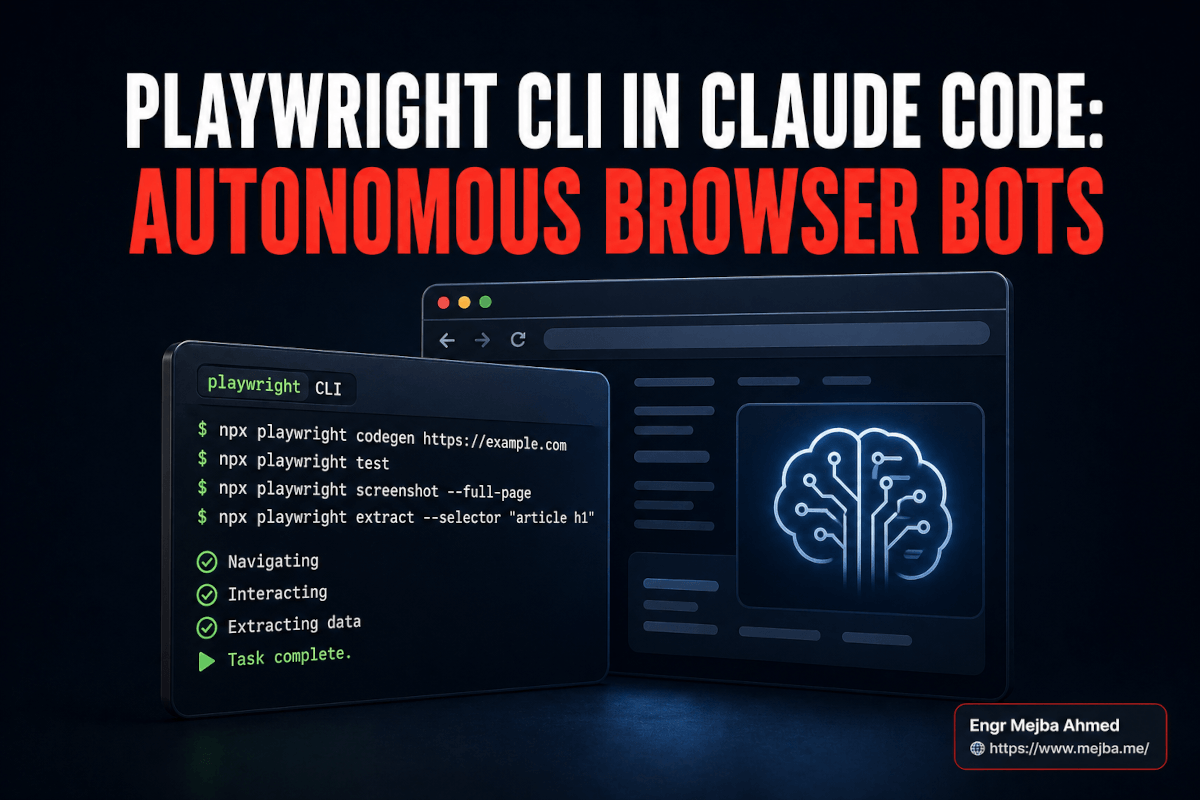
La premiere fois que j'ai laisse Claude Code piloter un vrai navigateur sans surveillance, je regardais un formulaire d'onboarding de 12 questions echouer au ralenti. Page 1 a fonctionne. Page 2 a fonctionne. Page 3 -- un textarea long -- a gele. L'agent a appuye sur Entree pour avancer. Rien ne s'est passe. Il a appuye a nouveau. Toujours rien. Puis il a fait quelque chose que je n'attendais vraiment pas : il a pris une capture d'ecran, ouvert le code source de la page, localise le gestionnaire keydown, remarque que le textarea avalait la touche Entree au lieu de la propager au listener submit du formulaire, corrige le gestionnaire, redeploye, relance le formulaire, et m'a prevenu quand les 12 questions ont ete soumises proprement.
Toute cette boucle -- tester, detecter, corriger, re-tester -- a pris environ onze minutes. J'etais a un metre de mon clavier tout le temps et j'ai contribue zero frappe de touche.
Ce qui a fait fonctionner le tout, ce n'etait pas un prompt astucieux. Ce n'etait pas une skill. C'etait un changement que j'avais fait une semaine plus tot : abandonner Playwright MCP pour Playwright CLI comme les mains de Claude Code dans le navigateur. Ce seul changement a reduit ma facture de tokens d'automatisation navigateur d'environ 4x, rendu les captures d'ecran de debogage raisonnables a examiner, et debloque une categorie d'agent que je n'avais pas vraiment pu construire avant -- des boucles QA autonomes, des scrapers qui survivent au blocage de Google, et des bots derriere login qui restent connectes entre les executions.
Voici le detail complet. Ce qu'est Playwright CLI, pourquoi il bat specifiquement Chrome DevTools MCP et Playwright MCP pour les charges de travail Claude Code, les trois patterns de production que j'utilise maintenant, et les aspects moins reluisants que personne ne mentionne dans les posts de lancement.
Pourquoi Playwright CLI Existe (Et Pourquoi Ce N'est Pas Juste un Autre MCP)
Microsoft a lance Playwright CLI debut 2026 comme un compagnon delibere -- pas un remplacement -- de Playwright MCP. Le serveur MCP existe toujours. Il fonctionne toujours. Mais l'equipe avait remarque quelque chose que nous avions tous remarque aussi : quand un agent de codage comme Claude Code communique avec un navigateur via MCP, chaque interaction de page renvoie un arbre d'accessibilite complet dans la fenetre de contexte du modele. Sur une page complexe, cet arbre fait 50 000 tokens. Par clic. Par scroll. Par frappe de touche.
Multipliez ca par un run QA de 50 etapes et vous comprendrez pourquoi mon tableau de bord Anthropic hurlait.
Playwright CLI inverse le flux de donnees. Au lieu de streamer l'arbre d'accessibilite dans le contexte du modele, le CLI sauvegarde des snapshots sur le disque sous forme de fichiers YAML compacts. Le modele ne lit que la partie qu'il a demandee, quand il l'a demandee. Meme navigateur. Meme API Playwright en dessous. Relation differente entre le modele et les donnees.
Les chiffres des benchmarks publics correspondent a ce que j'ai vu sur mes propres factures :
- Playwright MCP : ~1,5M de tokens par run d'automatisation navigateur (pire cas, pages completes, plusieurs tours)
- Chrome DevTools MCP : ~330K tokens par run (mieux -- snapshots scopes, regroupement d'appels execute)
- Playwright CLI : environ 4x moins de tokens que Playwright MCP pour un travail equivalent
Ce n'est pas une optimisation marginale. C'est la difference entre "je peux faire tourner cet agent toute la nuit" et "je peux faire tourner cet agent pendant quarante secondes avant que la facturation me dise d'arreter." Pour ceux qui suivent deja les couts de tokens de pres -- et si ce n'est pas votre cas, mon guide d'optimisation de tokens Claude Code vaut la lecture avant de construire quoi que ce soit -- Playwright CLI est la reponse a un probleme que vous n'aviez peut-etre pas realise que vous aviez.
Il y a une deuxieme raison pour laquelle ca compte dont personne ne parle, et il m'a fallu quelques sessions pour la comprendre. Playwright CLI est un CLI. Pas un daemon. Pas un serveur. Pas un protocole. C'est un binaire que vous appelez avec des arguments. Claude Code est tres bon pour appeler des binaires avec des arguments. Il est moins bon pour gerer une connexion MCP de longue duree, se remettre de timeouts MCP, et parser des arbres d'accessibilite qu'il n'a pas demandes. Playwright CLI joue sur les vraies forces de Claude Code -- bash, les fichiers, et des appels d'outils petits et cibles.
Cet alignement est ce que le post testcollab a identifie comme la vraie raison pour laquelle les agents de codage le preferent. L'efficacite en tokens est le titre. L'adequation de l'outil est la substance.
L'Installation (Et Pourquoi Je Saute la Moitie de la Configuration Recommandee par Microsoft)
Vous pouvez faire tourner Playwright CLI dans Claude Code en environ quatre-vingt-dix secondes. L'installation est plus propre que Playwright MCP, qui impliquait de copier un extrait JSON dans votre mcp.json en esperant que la chaine de version ne derive pas.
La version de l'installation que j'utilise reellement :
# Initialize a Playwright project — creates package.json, tsconfig, example tests
npm init playwright@latest

# Install browser binaries (Chromium, Firefox, WebKit + dependencies)
npx playwright install --with-deps

# Verify the CLI works
npx playwright --version
Si vous voulez que ce soit disponible partout au lieu de par projet :
npm install -g @playwright/cli@latest
playwright-cli install
playwright-cli install-browser
Microsoft fournit aussi un flag --skills (playwright-cli install --skills) qui connecte Playwright au systeme de skills de Claude Code. Je l'ai essaye. Ca marche bien. Mais je prefere communiquer directement avec le CLI via bash parce que ca donne a Claude des surfaces d'erreur plus claires -- quand quelque chose casse au niveau de la skill, vous devez deboguer la skill et la commande sous-jacente. Quand quelque chose casse au niveau du CLI, le stderr vous dit exactement ce qui s'est passe.
Une fois installe, la surface que Claude Code utilise reellement est petite :
npx playwright codegen <url>-- enregistrer une session, produire un script de test fonctionnelnpx playwright test-- lancer les tests (headless par defaut, headed avec--headed)npx playwright test --debug-- ouvrir l'inspecteur, avancer frame par framenpx playwright show-trace trace.zip-- examiner une trace enregistree apres coup
Le Playwright CLI proprement dit (le package @playwright/cli) ajoute un vocabulaire different oriente vers les agents de codage -- open, goto, click, type, fill, select, check, hover, drag, upload, snapshot, screenshot, close. Claude a tendance a les composer en scripts courts plutot que de les appeler un par un, ce qui est le bon reflexe.
Maintenant la partie qui compte : ce que vous construisez reellement avec.
Pattern 1 : La Boucle QA Autonome
C'est le cas d'usage qui m'a converti. J'avais un formulaire d'onboarding multi-pages -- douze questions, six pages, branchement conditionnel a la page quatre, un ecran de revision, un flux d'edition depuis la revision. Du classique. Du classiquement casse.
La liste de bugs quand j'ai lance le run :
- La touche Entree n'avancait pas le formulaire sur les pages avec textarea -- seul le bouton Suivant explicite le faisait
- La page de revision ne se chargeait pas environ 20 % du temps, renvoyant un composant vide
- Le bouton Modifier sur la page de revision etait bloque par un overlay de modal perime si vous aviez ferme une modal plus tot dans le flux
Je connaissais le premier. Les deux autres, je les ai decouverts parce que j'ai laisse l'agent tourner.
Le script que Claude Code a ecrit pour lui-meme, legerement nettoye :
import { test, expect } from '@playwright/test';

test('full onboarding flow — 12 questions, 6 pages', async ({ page }) => {
  await page.goto('http://localhost:3000/onboarding');

  for (let pageNum = 1; pageNum <= 6; pageNum++) {
    await page.screenshot({
      path: `screenshots/onboarding-page-${pageNum}.png`,
      fullPage: true,
    });

    // Fill whatever inputs exist on this page
    const inputs = await page.locator('input, textarea, select').all();
    for (const input of inputs) {
      const type = await input.getAttribute('type');
      if (type === 'email') await input.fill('test@example.com');
      else if (type === 'tel') await input.fill('555-0100');
      else await input.fill('automated test response');
    }

    // Advance — explicit button click, not Enter
    await page.getByRole('button', { name: /next|continue|review/i }).click();
    await page.waitForLoadState('networkidle');
  }

  await expect(page.getByText(/thank you|submitted/i)).toBeVisible({
    timeout: 10_000,
  });
});
L'instruction Claude Code qui a tout pilote tenait en quatre phrases : "Lance le test. S'il echoue, fais une capture d'ecran du point d'echec, lis le code source du composant defaillant, propose un correctif, applique-le, redemarre le serveur de dev, et relance. Repete jusqu'a ce que le test passe trois fois de suite. Ne me demande rien en dessous de P0."
L'agent a lance le test. Il a echoue a la page 3 -- la touche Entree, le bug que je connaissais. Il a ouvert le composant textarea, trouve le gestionnaire onKeyDown qui appelait event.preventDefault() de maniere inconditionnelle, l'a restreint pour n'empecher Entree que quand Shift etait enfonce (pour que la saisie multiligne fonctionne toujours), sauvegarde, redemarre le dev, relance. Le test a passe la page 3, echoue a la page 4 -- la page de revision vide. L'agent a soupconne un race condition entre le chargeur de route et le hook d'etat du formulaire, ajoute un etat de chargement, reessaye. Passe. Echoue a la collision modale de l'edition-depuis-revision. Ecrit un petit effect qui nettoyait les overlays modaux au changement de route. Passe trois fois de suite. Arrete. Ecrit un resume dans qa-run.md.
Onze minutes. Trois vrais bugs trouves et corriges. Un humain qui supervise depuis l'autre bout de la piece.
Le pattern, distille :
- Tester -- Playwright CLI lance le script
- Detecter -- En cas d'echec, capture d'ecran + lecture du source + formulation d'une hypothese
- Corriger -- Appliquer le patch, redemarrer ce qui doit l'etre
- Re-tester -- Boucler jusqu'a N reussites de suite, pas juste une
L'exigence "N fois de suite" fait beaucoup de travail. Un test instable qui passe une fois n'est pas corrige. Trois passages consecutifs est la plus petite taille d'echantillon ou vous pouvez raisonnablement dire que le correctif tient.
C'est sincerement le plus pres que j'ai vu Claude Code se comporter comme un ingenieur QA junior qui finit vraiment le ticket. Si vous voulez voir comment ce type de boucle se compose dans un workflow d'ingenierie plus large, le post sur la stack de skills Claude Code detaille les couches au-dessus de celle-ci -- Superpowers, Skill Creator, le reste. Playwright CLI, c'est les yeux et les mains. Ces skills sont le cerveau.
Pattern 2 : Web Scraping Adaptatif (Quand Google Decide Que Vous L'Ennuyez)
Travail different, lecon differente. Un ami qui gere un petit service de marketing dentaire m'a demande si je pouvais extraire les informations de contact -- nom, adresse, telephone -- pour chaque dentiste dans quelques codes postaux specifiques de Californie. Temps de recherche manuelle par code postal : quatre a six heures. Information publique, juste penible a collecter.
Le premier script que Claude a ecrit etait le plus evident : chercher sur Google dentist near 94110, parser le SERP, visiter chaque resultat, extraire le numero de telephone depuis la page contact. Ca a fonctionne. Pendant environ trente recherches. Puis Google a servi un CAPTCHA, puis un blocage souple, puis une limitation de debit.
Le correctif etait la partie interessante. Sans que je le prompte, Claude a ajoute trois comportements :
import { chromium } from 'playwright';

async function adaptiveSearch(query: string) {
  const browser = await chromium.launch({ headless: true });
  const context = await browser.newContext({
    userAgent: 'Mozilla/5.0 (Macintosh; Intel Mac OS X 10_15_7) ' +
               'AppleWebKit/537.36 (KHTML, like Gecko) Chrome/124.0.0.0 Safari/537.36',
  });
  const page = await context.newPage();

  // 1. Try Google first
  await page.goto(`https://www.google.com/search?q=${encodeURIComponent(query)}`);

  // 2. Detect blocking — captcha, "unusual traffic" page, empty results
  const blocked = await page.locator('text=/unusual traffic|captcha|are you a robot/i').count();
  if (blocked > 0) {
    console.log('Google blocked — switching to DuckDuckGo');
    await page.goto(`https://duckduckgo.com/?q=${encodeURIComponent(query)}`);
  }

  // 3. Random jitter between requests so the cadence doesn't look automated
  await page.waitForTimeout(2000 + Math.random() * 3000);

  return page;
}
Ce fallback seul -- Google vers DuckDuckGo quand bloque -- a fait passer le script de "meurt apres 30 recherches" a "a tourne pendant six heures sans surveillance." DuckDuckGo n'a pas l'infrastructure anti-bot de Google, la mise en page du SERP est plus simple a parser, et pour une requete comme "dentist 94110" la qualite des resultats est essentiellement equivalente.
La deuxieme adaptation etait plus subtile. Le numero de telephone etait visible sur le SERP pour environ 70 % des fiches de dentistes -- Google l'extrait des donnees structurees et l'affiche en ligne. Le scraper naif aurait joyeusement attrape ce numero visible et serait passe a la suite. Le probleme : ce numero est parfois un numero de tracking marketing, pas la ligne reelle du dentiste.
Alors Claude a mis a jour la logique : meme quand un telephone est visible sur le SERP, cliquer pour aller sur la page contact du dentiste et y prendre le numero. Plus lent par fiche. Plus precis. Le genre de decision qu'un humain soigneux prendrait et qu'une automatisation baclée sauterait.
Le script de collecte complet a tourne pendant moins de trois heures, touche environ 430 dentistes californiens sur cinq codes postaux, et produit un CSV avec nom, adresse, telephone, site web, et (quand disponible) horaires d'ouverture. Cout en tokens API, avec Playwright CLI gerant le navigateur au lieu de MCP : environ 4,20 $.
Deux regles pratiques que j'applique maintenant a chaque travail de scraping :
- Ayez toujours un moteur de recherche de secours. Google est la meilleure source jusqu'a ce qu'il devienne la pire. Votre script devrait detecter la transition sans que vous le surveilliez.
- Mefiez-vous du SERP pour tout point de donnees ayant une valeur commerciale. Numeros de telephone, prix, horaires -- cliquez et verifiez. La latence supplementaire coute moins cher qu'une liste de contacts pleine d'impasses.
Si vous construisez quelque chose de plus complexe que ca, mon post sur WebMCP pour les agents Chrome IA couvre l'alternative quand vous avez besoin de fonctionnalites specifiques au protocole Chrome que Playwright n'expose pas.
Pattern 3 : Sessions de Connexion Persistantes -- Le Bot Connecte
C'est le pattern qui a vraiment change ce que je pense que Claude Code peut faire.
Scraper des pages publiques est facile. Tout ce qui est derriere un login est la vraie frontiere -- et l'essentiel du travail interessant se passe derriere un login. Les channels Slack. Les plateformes scolaires. Les tableaux de bord internes. Les produits SaaS que vous payez. Le defi n'est pas de se connecter une fois. C'est de rester connecte, entre les executions, entre les jours, entre les redemarrages du navigateur, sans retaper vos identifiants a chaque fois.
Le contexte persistant de Playwright est la reponse, et la plupart des tutoriels le traitent mal parce qu'ils confondent storageState avec launchPersistentContext. Ce n'est pas la meme chose.
storageState est un snapshot des cookies + localStorage, exporte dans un fichier JSON. Bon pour les runs CI headless ou vous vous connectez une fois, sauvegardez l'etat, et le reutilisez sur des centaines de runs de tests.
// Save after a successful login
await page.context().storageState({ path: 'auth.json' });

// Reuse in later runs
const context = await browser.newContext({ storageState: 'auth.json' });
launchPersistentContext est un vrai profil navigateur sur le disque. Cookies, cache, localStorage, IndexedDB, enregistrements de service workers, tout. C'est ce que vous voulez quand vous devez vous comporter comme un vrai utilisateur connecte entre les sessions -- pas juste un test runner connecte.
import { chromium } from 'playwright';

const userDataDir = '/Users/mejba/.playwright-profiles/school-platform';
const context = await chromium.launchPersistentContext(userDataDir, {
  headless: false, // first run only — log in by hand
  viewport: { width: 1440, height: 900 },
});

const page = context.pages()[0] ?? await context.newPage();
await page.goto('https://school.example.com');
// Log in manually, complete 2FA, dismiss any onboarding modals
// Then close the browser. The profile is now persisted.
Le pattern de transition est la partie qui m'a pris quelques soirees a maitriser. Premier run : headed, connexion manuelle, 2FA manuelle, tout-ce-que-le-bot-ne-peut-pas-faire manuellement. Runs suivants : meme userDataDir, mais headless, et vous etes deja authentifie. Les cookies, les tokens de session, les trucs d'empreinte numerique -- tout vit sur le disque dans ce repertoire de profil.
Pour une automatisation de plateforme scolaire que j'ai construite -- un script quotidien qui recupere les posts marques comme "wins" par les camarades de classe, les classe par date, et like les cinq premiers -- le run ressemble a ceci :
import { chromium } from 'playwright';

(async () => {
  const context = await chromium.launchPersistentContext(
    '/Users/mejba/.playwright-profiles/school-platform',
    { headless: true }
  );
  const page = await context.newPage();

  await page.goto('https://school.example.com/channels/wins');

  // Filter by newest — the platform's UI tab
  await page.getByRole('tab', { name: 'Newest' }).click();
  await page.waitForLoadState('networkidle');

  // Scroll until we have 30 posts loaded
  for (let i = 0; i < 5; i++) {
    await page.mouse.wheel(0, 2000);
    await page.waitForTimeout(800);
  }

  // Like the top 5 — but throttled, because the platform crashed
  // when I tried to like 5 in 2 seconds during my first run
  const likeButtons = await page
    .locator('[data-testid="like-button"]')
    .filter({ hasNotText: 'Liked' })
    .all();

  for (const button of likeButtons.slice(0, 5)) {
    await button.click();
    await page.waitForTimeout(1500); // throttle
  }

  await context.close();
})();
Le throttle dans la boucle est la a cause d'un vrai bug que j'ai cause. Ma premiere version du script cliquait les cinq likes dans un Promise.all. Le frontend de la plateforme n'est pas concu pour gerer cinq mutations de like concurrentes depuis la meme session et il a plante l'arbre React en plein rendu. Claude a compris ca en lisant la capture d'ecran de l'etat casse, trouvant l'overlay d'erreur React, lisant la stack trace, et decidant que le correctif etait un delai plutot qu'une logique de retry.
Cette boucle iterative -- casser, capturer, lire l'erreur, emettre une hypothese, corriger, relancer -- c'est exactement la meme boucle que le Pattern 1. Domaine different, forme identique.
Se Connecter a un Navigateur Deja en Marche (CDP)
Il y a une troisieme option pour le probleme du "deja connecte" qui vaut la peine d'etre connue meme si vous ne l'utilisez pas souvent : connecter Playwright a une instance Chrome que vous avez demarree vous-meme.
Lancez Chrome avec le port de debogage ouvert :
/Applications/Google\ Chrome.app/Contents/MacOS/Google\ Chrome \
  --remote-debugging-port=9222 \
  --user-data-dir=/tmp/chrome-debug-profile
Puis faites connecter Claude Code depuis un script Playwright :
import { chromium } from 'playwright';

const browser = await chromium.connectOverCDP('http://localhost:9222');
const context = browser.contexts()[0]; // attach to the existing default context
const page = context.pages()[0] ?? await context.newPage();
Quand c'est utile : vous avez navigue manuellement a travers un flux d'authentification complexe en plusieurs etapes (redirections SSO, prompts de cle materielle, captchas) et vous voulez que l'agent prenne la suite la ou vous vous etes arrete. Mode headed, vrai navigateur, vrais cookies, pas de copie de profil. La limitation : CDP ne fonctionne que pour les navigateurs bases sur Chromium -- pas Firefox ni WebKit.
J'utilise ca peut-etre une fois sur vingt automatisations. Mais les fois ou je le fais, rien d'autre ne resout le meme probleme.
Headed vs Headless -- Une Regle, Pas une Preference
La valeur par defaut en CI est headless. La valeur par defaut pendant le developpement devrait etre headed pour le premier run de toute nouvelle automatisation, puis headless une fois que c'est stable.
La raison est l'asymetrie de debogage. Quand un run headless echoue, vous avez une capture d'ecran, une trace, et votre imagination. Quand un run headed echoue, vous pouvez voir le vrai navigateur faire la vraie erreur en temps reel. La difference entre ces deux experiences de debogage est la difference entre corriger un bug en vingt minutes et le corriger en trois heures.
Le flag est juste --headed :
npx playwright test --headed --debug
--debug ajoute l'inspecteur -- pause sur chaque action, avance pas a pas, modification des selecteurs en direct. Utilisez-le une fois. Vous ne reviendrez jamais au print-debugging de Playwright.
L'exception : chaque fois que l'agent tourne sans surveillance, il doit etre headless. Les runs headed ont besoin d'un serveur d'affichage, se font tuer quand votre session se termine, et ajoutent une vraie surcharge. Le basculement en une ligne est ce que vous voulez -- headed pendant le developpement, headless pendant l'execution.
Ce Pour Quoi Je N'utiliserai Pas Playwright CLI
C'est la partie que la plupart des posts sautent. Trois choses que j'ai essayees et abandonees.
Le debogage reseau/performance lourd. Playwright CLI peut capturer les logs reseau et les traces, mais pour du debogage serieux -- comparer les chronologies en cascade, profiler les chemins critiques JavaScript, inspecter les evenements au niveau CDP -- Chrome DevTools MCP est sincerement meilleur. L'outil execute regroupe les actions en un seul appel et les donnees natives CDP sont plus riches. Je garde les deux installes et j'utilise DevTools MCP quand la question est "pourquoi cette page est lente" plutot que "est-ce que cette page a fonctionne."
Tout ce qui est dans des iframes d'une origine differente. Playwright gere les iframes cross-origin, mais l'API devient vite laide -- chaines de frameLocator, placement soigneux de waitFor, et un soupcon permanent que les selecteurs ne survivront pas au prochain deploiement. Pour les widgets publicitaires, les flux Stripe/Plaid embarques, ou les popups de connexion sociale, j'intercepte soit au niveau reseau, soit je n'automatise tout simplement pas cette etape. Le rapport cout-benefice n'est pas la.
Les flux de confirmation par email. Playwright cliquera volontiers sur le lien dans l'email si vous lui donnez le lien. La partie difficile est d'obtenir le lien. Les API de boite mail (Mailtrap, Mailosaur) resolvent ca ; Playwright non. Essayer de scraper Gmail pour l'email de verification est un chemin vers la douleur.
Le resume honnete : Playwright CLI est le bon choix par defaut pour l'automatisation navigateur dans Claude Code en 2026. Ce n'est pas le bon outil pour le travail de performance, les flux d'embeds exotiques, ou la plomberie email. Savoir ou se trouvent les limites vous evite de les decouvrir a 2 heures du matin.
Planifier les Bots -- Modal, Trigger et le Piege du Cron Bureau
Une automatisation navigateur qui ne tourne que quand vous pensez a la lancer est une demo. Les automatisations navigateur de production tournent selon un planning.
Trois options, chacune adaptee a une realite differente :
Modal -- du Python serverless avec un support Playwright de premiere classe. Vous definissez une fonction avec @modal.function(schedule=modal.Cron("0 9 * * *")) et Modal gere le conteneur, les binaires du navigateur, l'isolation des runs, les logs. Mon bot quotidien de revue de presse tourne ici. Environ 0,40 $ par jour en calcul.
Trigger.dev -- natif TypeScript, l'ecosysteme JS se sent plus proche si vos scripts Playwright sont deja en TS. Leur primitive browser-task est construite specifiquement pour les charges de travail Playwright.
Cron bureau + headless -- pour les automatisations personnelles sur votre propre portable. Ca marche. Ca tombe en panne des que votre portable se met en veille, que le wifi bascule, ou que le navigateur se met a jour. Ne l'utilisez pas pour quoi que ce soit d'important.
J'ai tout commence sur le cron bureau parce que c'etait gratuit. J'ai migre vers Modal apres le troisieme run manque pendant un vol. Facture mensuelle totale pour quatre bots planifies : moins de 25 $. Ca en vaut la peine.
La Couche Agent au Dessus
Une fois que Playwright CLI est branche et que vos trois premiers patterns fonctionnent, la tentation est de continuer a construire des scripts plus gros. Ne le faites pas. L'etape suivante est de construire des agents qui appellent les scripts.
Un agent de revue de presse quotidienne qui :
- Se reveille a 8h
- Recupere les titres de trois flux RSS via HTTP simple (pas besoin de navigateur)
- Demande a Claude de les resumer et les classer
- Appelle un script Playwright CLI pour poster le resume dans un channel Slack
- Surveille le channel pour les reponses pendant les trente minutes suivantes via session persistante
- Demande a Claude de rediger des reponses a tout ce qui en necessite une
- Appelle un autre script Playwright pour poster les reponses
Chaque piece est petite. Les parties navigateur sont minuscules -- un clic, une saisie, une capture d'ecran, une sortie. Le raisonnement de l'agent vit en dehors du navigateur. Le navigateur n'est que des mains.
Cette separation est tout l'interet de preferer le CLI au MCP pour ces workflows. La couche navigateur devrait etre bon marche, rapide et simple. La couche de raisonnement devrait etre la ou vont les tokens. Quand la couche navigateur consomme aussi des tokens -- ce que fait Playwright MCP, sur chaque page -- le calcul ne fonctionne plus a toute echelle non triviale.
Le cadrage le plus proche que je puisse vous donner : Playwright CLI est a l'automatisation navigateur ce que bash est a l'automatisation du systeme de fichiers. Petit, precis, scriptable. Facile a composer en quelque chose de plus grand. Oubliable de la facon dont une bonne infrastructure est censee l'etre.
Questions Frequemment Posees
Playwright CLI est-il un remplacement de Playwright MCP ?
Non -- Playwright CLI est un outil compagnon, pas un remplacement. Utilisez le CLI quand un agent de codage comme Claude Code pilote le navigateur ; utilisez MCP quand un workflow d'agent autonome a besoin du protocole MCP standard. Microsoft maintient les deux deliberement.
Combien Playwright CLI economise-t-il reellement en tokens par rapport a Playwright MCP ?
Les benchmarks publics et mes propres runs montrent environ 4x moins de tokens par session avec Playwright CLI vs Playwright MCP. Les economies viennent du CLI qui sauvegarde les snapshots sur le disque en YAML compact au lieu de streamer des arbres d'accessibilite complets dans le contexte du modele a chaque interaction.
Playwright CLI peut-il me garder connecte entre les runs ?
Oui -- utilisez chromium.launchPersistentContext(userDataDir, { headless: false }) pour la premiere connexion manuelle, puis lancez les automatisations suivantes avec le meme userDataDir en mode headless. Cookies, localStorage et tokens de session persistent tous sur le disque.
Quand devrais-je utiliser Chrome DevTools MCP a la place ?
Privilegiez Chrome DevTools MCP quand la tache concerne le profilage de performance, l'analyse de cascade reseau, ou tout debogage approfondi au niveau CDP. C'est aussi plus efficace en tokens que Playwright MCP pour ces charges de travail specifiques. Pour l'automatisation directe et les boucles QA, Playwright CLI l'emporte.
Claude Code peut-il ecrire des scripts Playwright de zero ?
Oui -- et c'est fiable. Utilisez npx playwright codegen <url> pour enregistrer une session initiale si vous voulez amorcer le script, puis laissez Claude l'affiner. Pour la plupart des automatisations, je decris l'objectif en 2-3 phrases et le script fonctionnel est ecrit avant que j'aie fini mon cafe.
Les Onze Minutes Qui Ont Change Ma Facon de Construire
Retour au formulaire d'onboarding. Onze minutes, trois vrais bugs trouves et corriges, zero frappes de touche de ma part. Ce a quoi je repense sans cesse, ce n'est pas la vitesse -- c'est que la boucle s'est fermee toute seule. L'agent n'a pas ecrit du code et arrete. Il a ecrit du code, lance le test, vu l'echec, retrace la cause, applique le correctif, et relance le test jusqu'a ce que le resultat corresponde a l'objectif.
Cette boucle fermee est ce qui fait que l'automatisation navigateur ressemble enfin a de l'infrastructure plutot qu'a du theatre. Playwright CLI n'a pas invente la boucle. Il l'a rendue assez bon marche pour tourner.
Prenez l'un des trois patterns de ce post ce soir. La boucle QA est la plus facile pour commencer -- pointez Claude vers n'importe quelle application avec beaucoup de formulaires que vous maintenez, donnez-lui l'instruction en quatre phrases d'un peu plus haut, eloignez-vous pendant dix minutes. Revenez. Voyez ce qu'il a trouve. La premiere fois que la boucle attrape un vrai bug que vous ne connaissiez pas, vous comprendrez pourquoi j'ai change ma facon de construire.
Travaillons Ensemble
Vous cherchez a construire des systemes IA, automatiser des workflows, ou developper votre infrastructure tech ? Je serais ravi de vous aider.
- Fiverr (projets sur mesure & integrations) : fiverr.com/s/EgxYmWD
- Portfolio : mejba.me
- Ramlit Limited (solutions entreprise) : ramlit.com
- ColorPark (design & branding) : colorpark.io
- xCyberSecurity (services de securite) : xcybersecurity.io